
Fix a Kotia workflow step error and reuse finished results
Find the cause of a failed workflow step in Kotia, keep the text already written, and choose where to retry: check the source, connection, and token balance.
On this page7
If a workflow stopped on an error, first check what it has already done. Text that was written can still be used even if it could not be sent to the site. In that case, fix the connection and choose the right retry instead of redoing all the preparation.
In Kotia, you can see the cause of the error on the failed card and in the error details. There you will find the message, your task, and the result that is available. This information shows what needs to be fixed: the source material, the step settings, the service connection, or a shortage of tokens.
Example: the post is written but not sent to the site
In the chain "Social media post" → "Document" → "Send to WordPress", the first two steps completed, but sending showed an error. Open the document and make sure the post is saved. Then read the cause on the sending card.
If the message says the connection is unavailable, check the selected site and its connection in Kotia. After you fix it, choose an available way to retry sending. Before retrying, check the list of posts on the site: if the connection dropped, the response may not have arrived even though the draft already appeared on the site.
This way you keep the finished text and fix only the action that did not complete, instead of generating the material again.
How to open the error details
- Find the card with the error icon. If it is inside a group, expand the group and zoom in on that area.
- Read the message on the card. For details, click the eye icon.
- Or open "Runs", select the run you need, and click the row of the failed step.
- Read the cause, then the task you set, and the text the step managed to prepare. If there is no result, the window says so directly.
- Check the source material separately: open the previous card or the document. The error window is not a full list of all incoming data.
- Go back to the current workflow, fix the cause, and choose the right retry.
You cannot change the task or restart the step from the details window. To configure the step, go back to the card itself. If you were looking at an old run, first click "Back to current".
What to check based on the error message
| Cause | Useful action |
|---|---|
| No text came in | Open the source and the previous result; connect or fill in the material you need |
| The text is too long for the service | Check the allowed length in the card instructions and pass a suitable amount |
| Page is unavailable | Check the link and whether the content is accessible; if needed, choose another source |
| Service is temporarily not responding | Save the results you have and repeat the action later |
| Model did not return a usable answer | Read the task and the source, clarify the required result; if needed, choose another model |
| Not enough tokens | Check your balance and top it up if you want to repeat paid work |
| Document, folder, or recipient is unavailable | Check the selected object and connection, then choose an available option |
Focus on the specific cause, not just the red icon. For example, a missing input text is fixed with the source, and text that is too long is fixed by choosing the right part. Repeating the step without changes does not fix any of these causes.
Error, skip, and partial result are different cases
Error means the step did not complete its work. It has a cause that you can review.
Skip can be the correct result of your settings. For example, you stopped a branch, the list ended, or a filter found no new materials. Check the result of the previous card: such a branch does not necessarily need fixing.
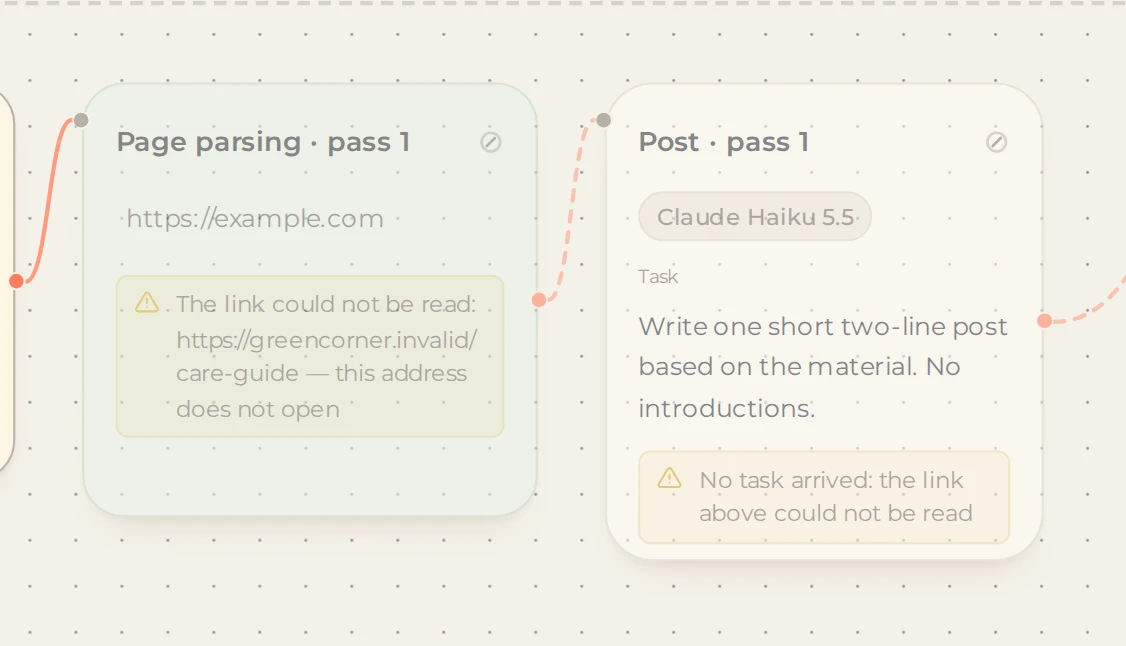
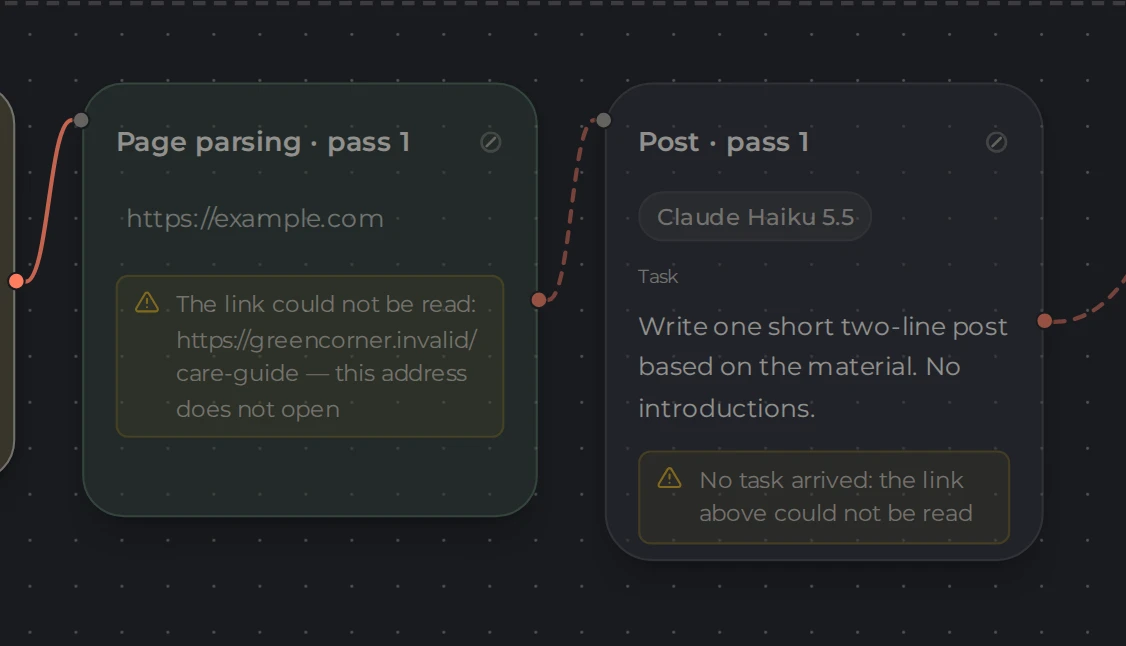
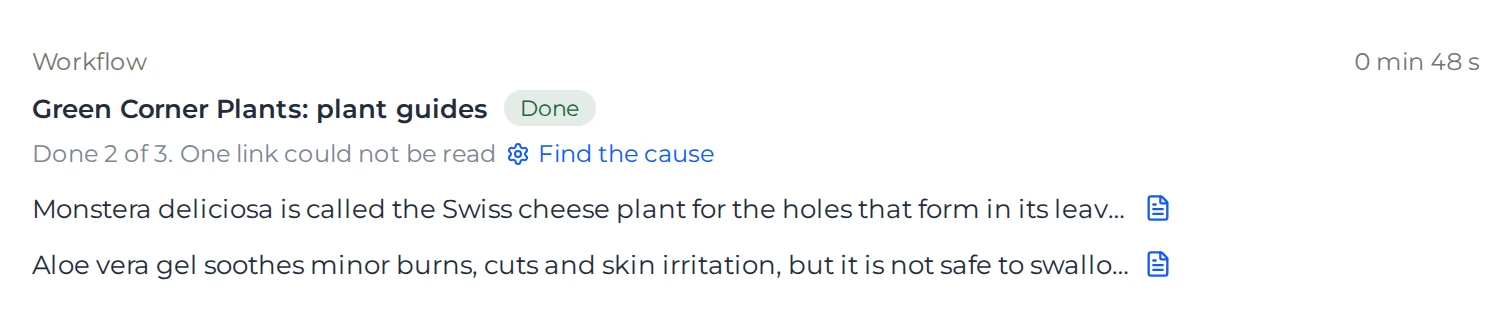
A gray loop pass marked "The link could not be read" means the page gave no text and the loop moved on. The pass in the run history and Kotia's answer to "Find out why" in the run message name the address and the reason. A gray spare pass marked "Spare pass not needed" is not a failure: nothing failed. Replace the link or add another one: the other passes need no fixing.
 12
- 1Which link was not read and why
- 2The next step in this pass got no task
 1
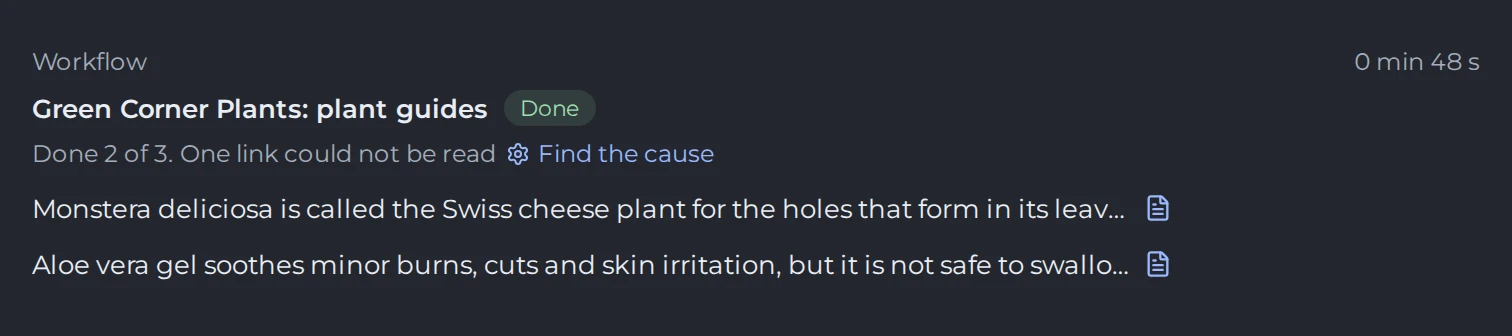
- 1How much was done, how many links were not read and the button to find out why
Partial result can remain on a step that did run. For example, only part of the materials was retrieved. Read the explanation and the result itself: sometimes it is already suitable for the next task, and sometimes you need to clarify the sources or repeat a separate part.
If the workflow is waiting for your answer, open the card with the question. This kind of waiting is not fixed by restarting: you need to make a decision or stop the current work.
Where to repeat work after the fix
Start from the first step that needs to produce a new result. If the source material was not received, repeating the final edit will not help. If the material is ready and only processing failed, the previous results can be reused.
In the menu of a supported card, "Run" runs that card alone, and "Run from here" runs it and the following steps. Availability depends on the state of the workflow and previous results. Before you click, check which cards will run: unfinished side branches may also be included in the repeat. For details, see the partial run guide.
If the cause applies to the whole workflow, read the message at "Start." For example, the work may have stopped because no step can continue the chain. Then check the connections between the cards and the results of the previous steps.
A run also ends with an error when none of the links in a loop could be read. There is no red card in that case: open the gray passes, they name the addresses and the reasons.
What happens to results and payment
An error in the last step does not delete the material created before it. Save useful text to a document before you change the workflow or start a new generation.
Charges for earlier successful actions remain. Refunds for a failed step depend on the service and on the stage at which the failure happened. An empty answer after the model has worked and a refusal before it started are different cases. For actual charges and refunds, check your balance history. For more, see the article about workflow cost.
If the cause is still unclear
When contacting support, note the workflow name, the run number and time, the step name, and the exact error text. Briefly say what you provided as input and what result you expected. With this information, support can find the specific attempt and the point where it stopped.