
Review and edit a post before sending it to Telegram
Turn on preview in the Telegram send card to read, edit, or stop a post before it goes out. Set up the pause and check the text before publishing.
On this page5
Automate post preparation, but keep the option to read and edit it before publishing. In Kotia, you can turn on preview right in the "Send to Telegram" card. The workflow runs the previous steps, shows the finished material, and waits for your decision.
This mode suits news, product posts, and posts with specific offer terms. The configured search and writing steps run automatically, and you check the meaning, facts, recipient, and appearance before sending to subscribers.
Example: a news item with your comment
Suppose a workflow found an industry news item, read the source, and prepared a post for the store's channel. Before sending, you want to check the date of the event, remove an overly categorical conclusion, and add a short comment in your own name.
The pause should go after the full text is prepared and before sending. If you check only the news item you found, the next writing step can still change its wording. Choose the checkpoint based on the result you want to control.
How to turn on preview in Telegram sending
Open a workflow with a finished post-writing step. Connect its result to "Send to Telegram".
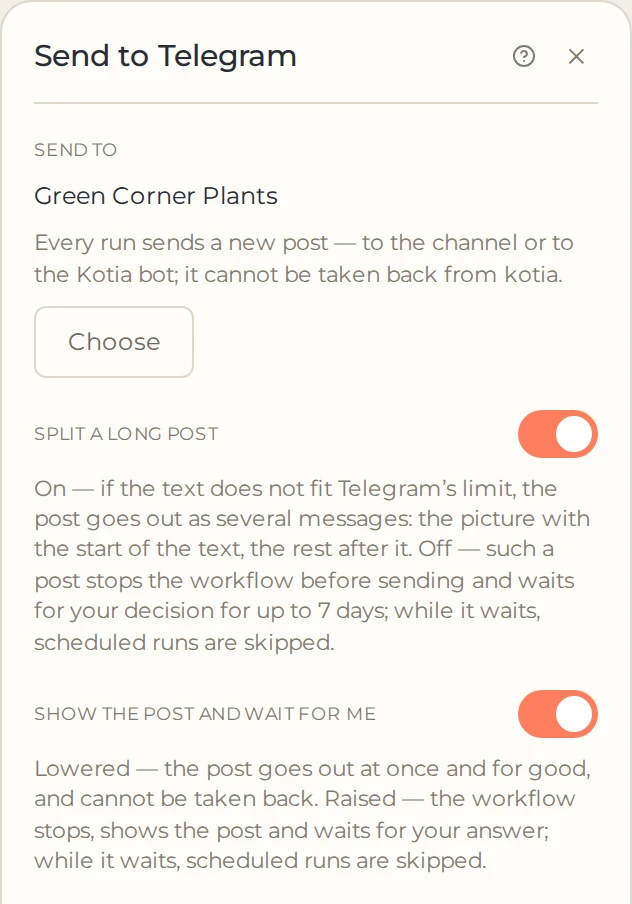
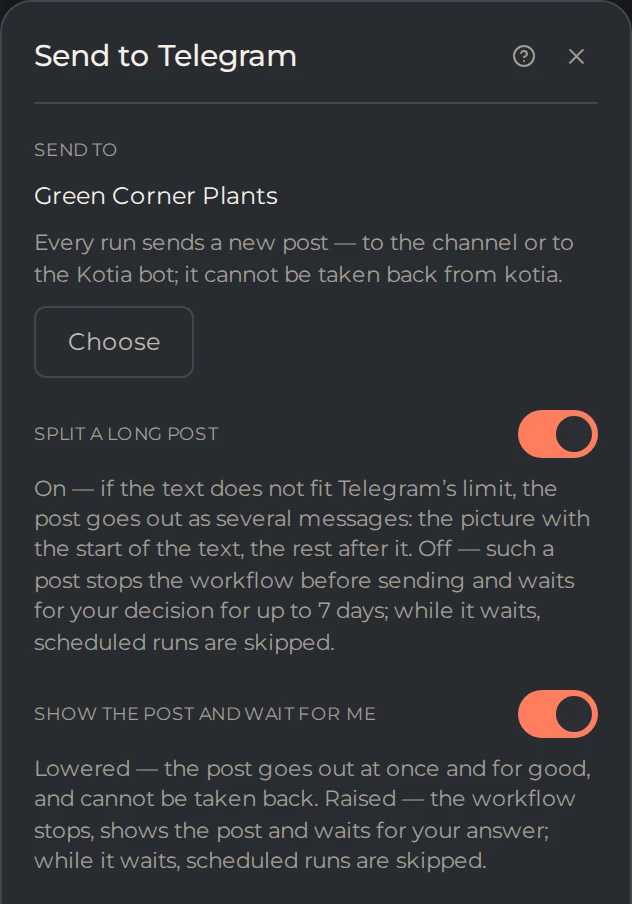
In the send card, select the recipient in the "Send to" field and turn on "Show the post and wait for me". By default, the toggle is off.
 12
- 1The channel that receives the post
- 2Keep on until you trust the result
Run the workflow. When preparation finishes, sending stops and waits for your decision.
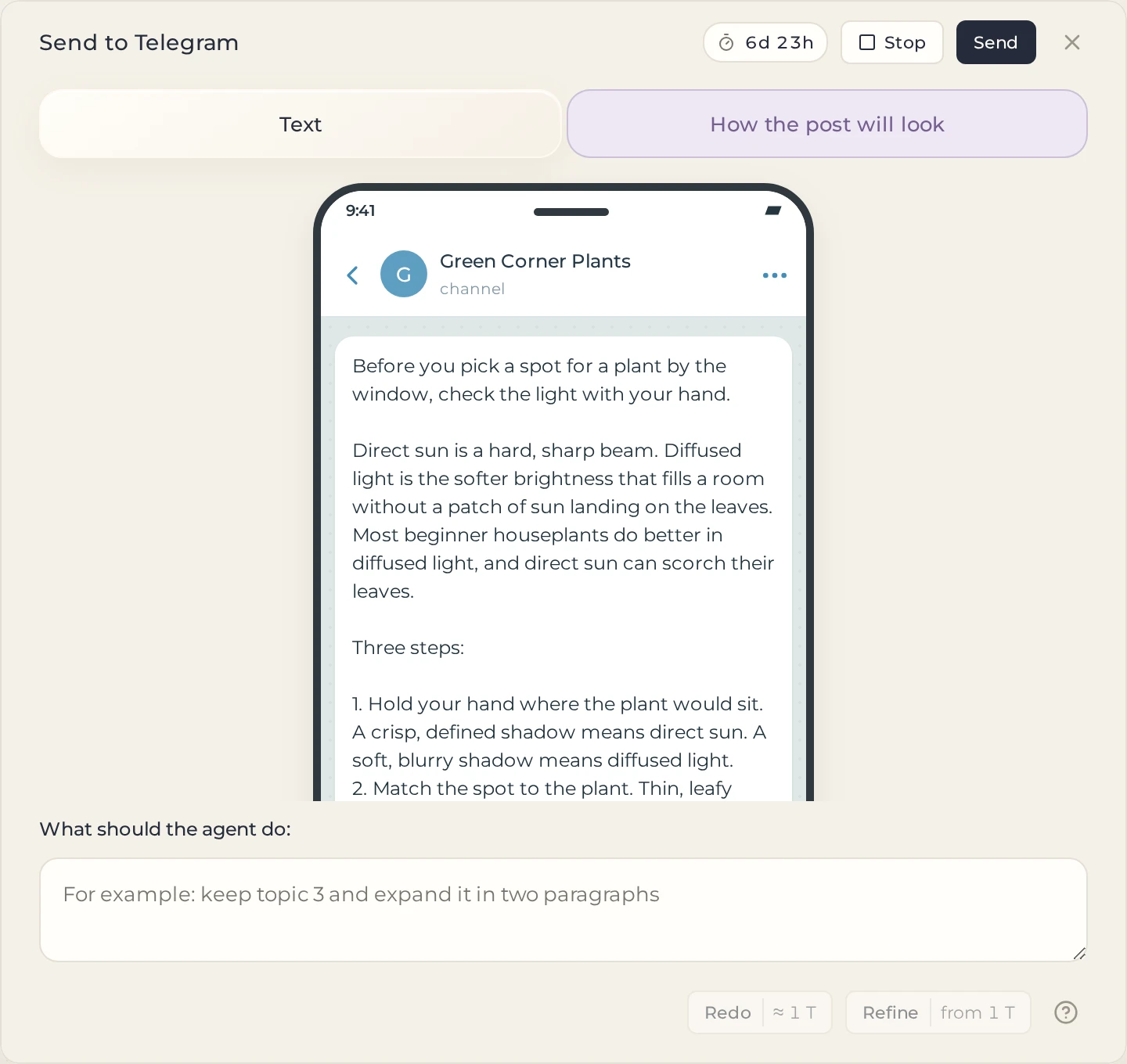
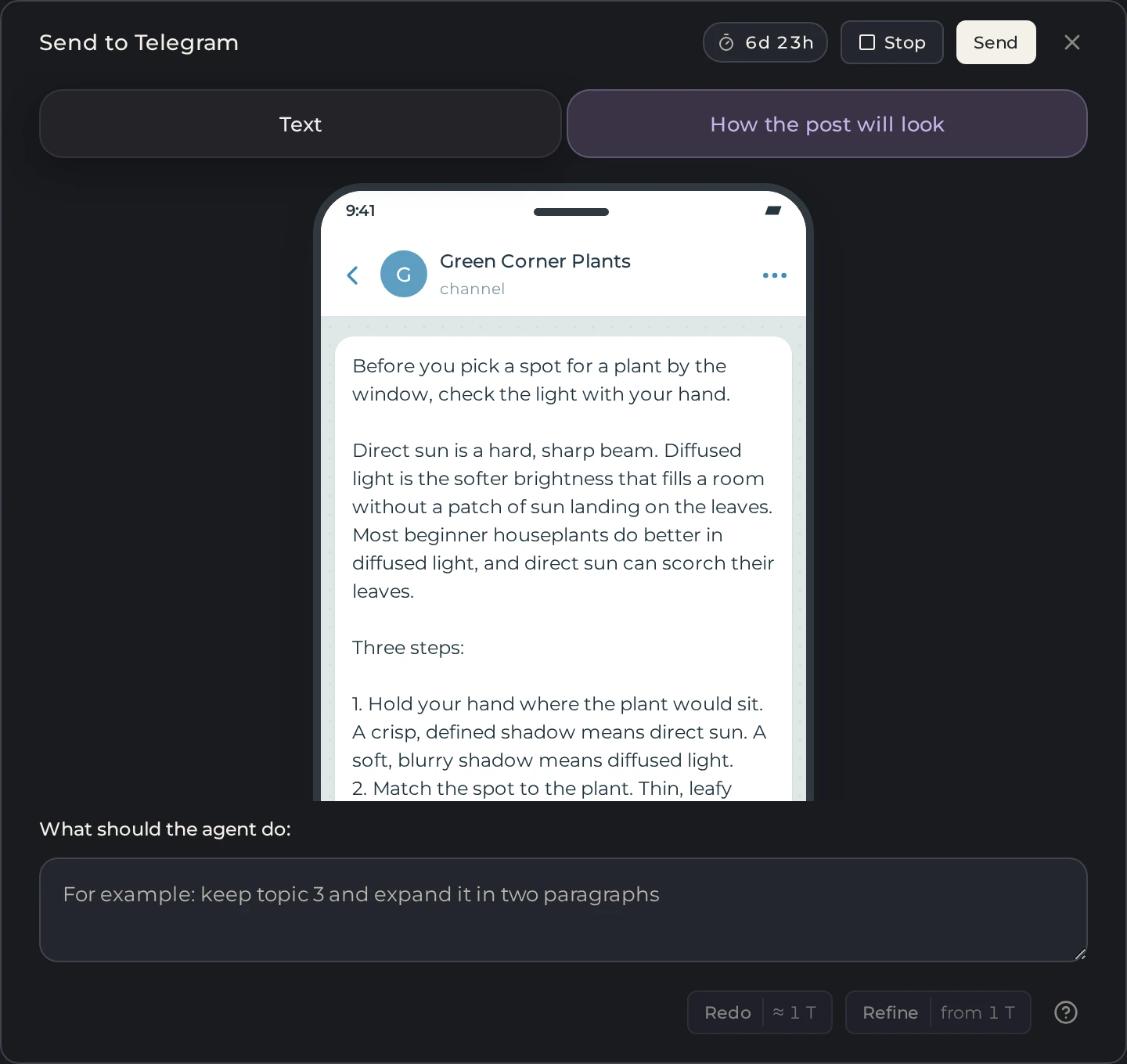
Click "Open" on the send card. Switch to "How the post will look" to review the post in the send form.
 12
- 1See the post as subscribers will
- 2Send publishes exactly this text
If needed, edit the text by hand, or have the AI edit it as you instruct using "Refine", then check the preview again. Only the text in the window will be sent to the channel.
When everything is ready, click "Send". If you don't want to publish, click "Stop". Empty text will not be sent. After a successful send, check the link to the post in the card's result.
For this kind of check, a separate "Ask me" card before Telegram is not required: the built-in toggle stops the sending itself. When you work with an image, also check the caption length. It is limited more strictly than for a text post.
When you need a separate "Ask me" card
The "Ask me" card is useful when you need to make a decision earlier: choose a topic, fix the plan, or confirm an intermediate text before the next paid step.
Place it directly on the material's path: previous step → pause → next step. Remove any direct connection that lets the material bypass this pause. A card placed to the side will not stop an independent send on another branch.
| Action | What happens |
|---|---|
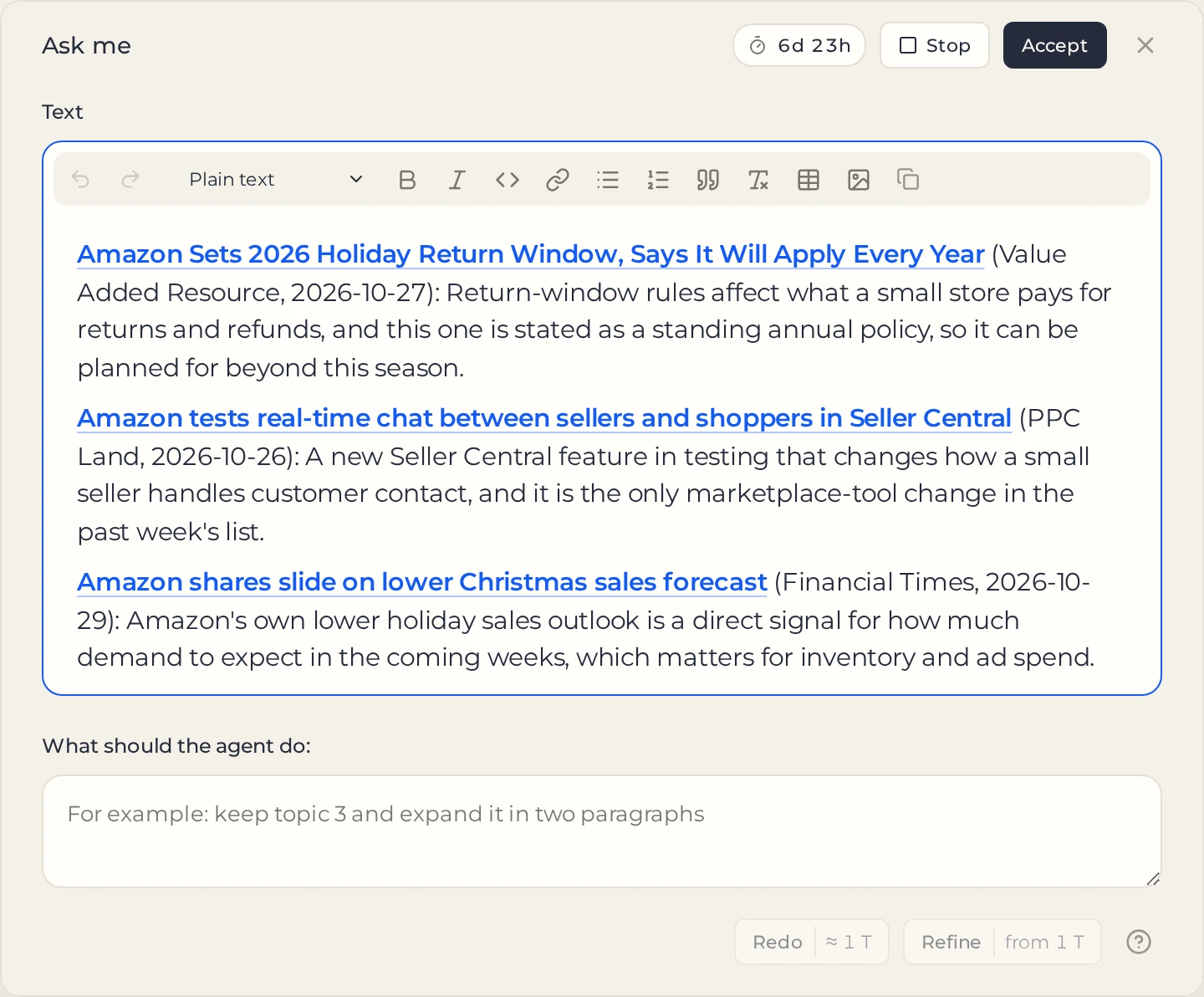
| "Accept" | The next step receives the text from the window: the incoming text if you did not change it, or your version |
| "Refine" | The AI edits the text in the window as you instruct; then you decide again |
| "Redo" or "Again" | The previous card runs again, with or without your comment; then the result is shown at the pause again |
| "Stop" | The dependent branch does not continue running |
 1234
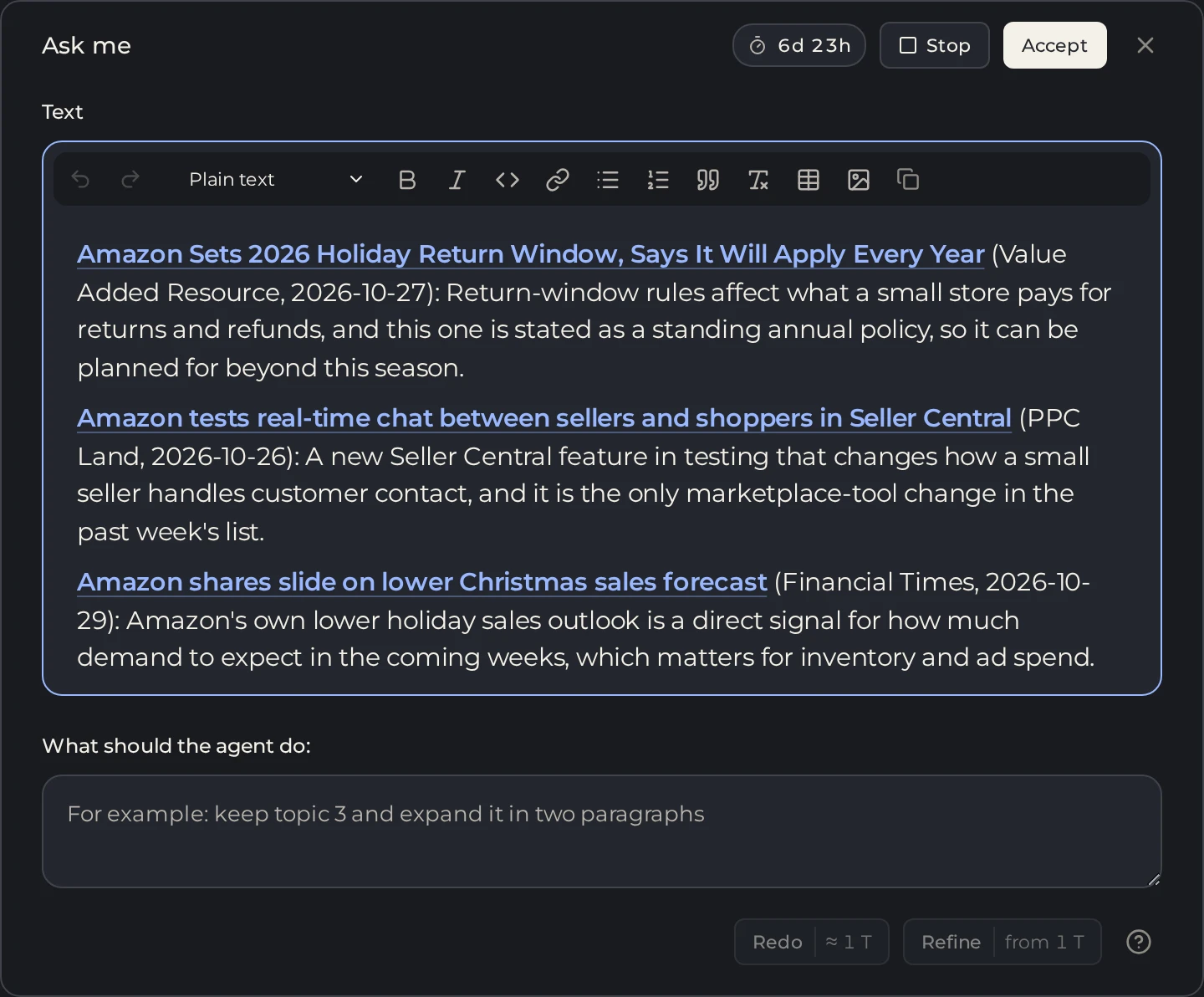
- 1What the selection step passed on
- 2Stop the branch
- 3Pass the text on
- 4Ask the AI to redo or refine
"Redo" and "Again" are not available in every workflow: you need one preceding step with a model, and no other steps or pauses running. Running the model again and using "Refine" are charged. If an article reached the pause and you edited its text, the edited text moves on, not the article itself. To check the final post, use the preview in the Telegram card, where you edit the text that gets sent.
How the pause affects the schedule
While the workflow waits for a response, the run stays active. New schedule triggers are skipped rather than queued. So a daily rule with a manual check will not guarantee a daily send if nobody returned to the previous post.
Waiting by itself does not use tokens. If there is no response, the run is cancelled after 7 days. Look for prepared results in "Runs" rather than running the whole workflow again to check its status.
What to check before confirming
Read the whole post and make sure the channel, facts, links, and offer terms are correct. Check whether any service notes or a verification report ended up in the text instead of the post itself.
After sending, running the card again creates a new post. Kotia has no built-in way to withdraw a published post, so make any further edits in Telegram. For WordPress, the logic is different: the send card creates a draft, which you check and publish on the site.