
Automate a news digest for your blog or channel with Kotia
Set up news search, selection and parsing to get a digest with short explanations and source links. Includes an example, step-by-step setup and repeat runs.
On this page5
Prepare news reviews for your blog or channel using saved selection rules. Kotia can search for articles on a topic, pick the ones that matter to your audience, read the selected pages, and compile a digest: what happened, why it matters, and where to read the source.
You set the topic, the geographic focus, how recent the news should be, and the format of the issue. Each time the workflow runs, the service repeats these steps with the latest search results. You can save the finished result for editorial review. You can add publishing to a website or channel after the content is set up.
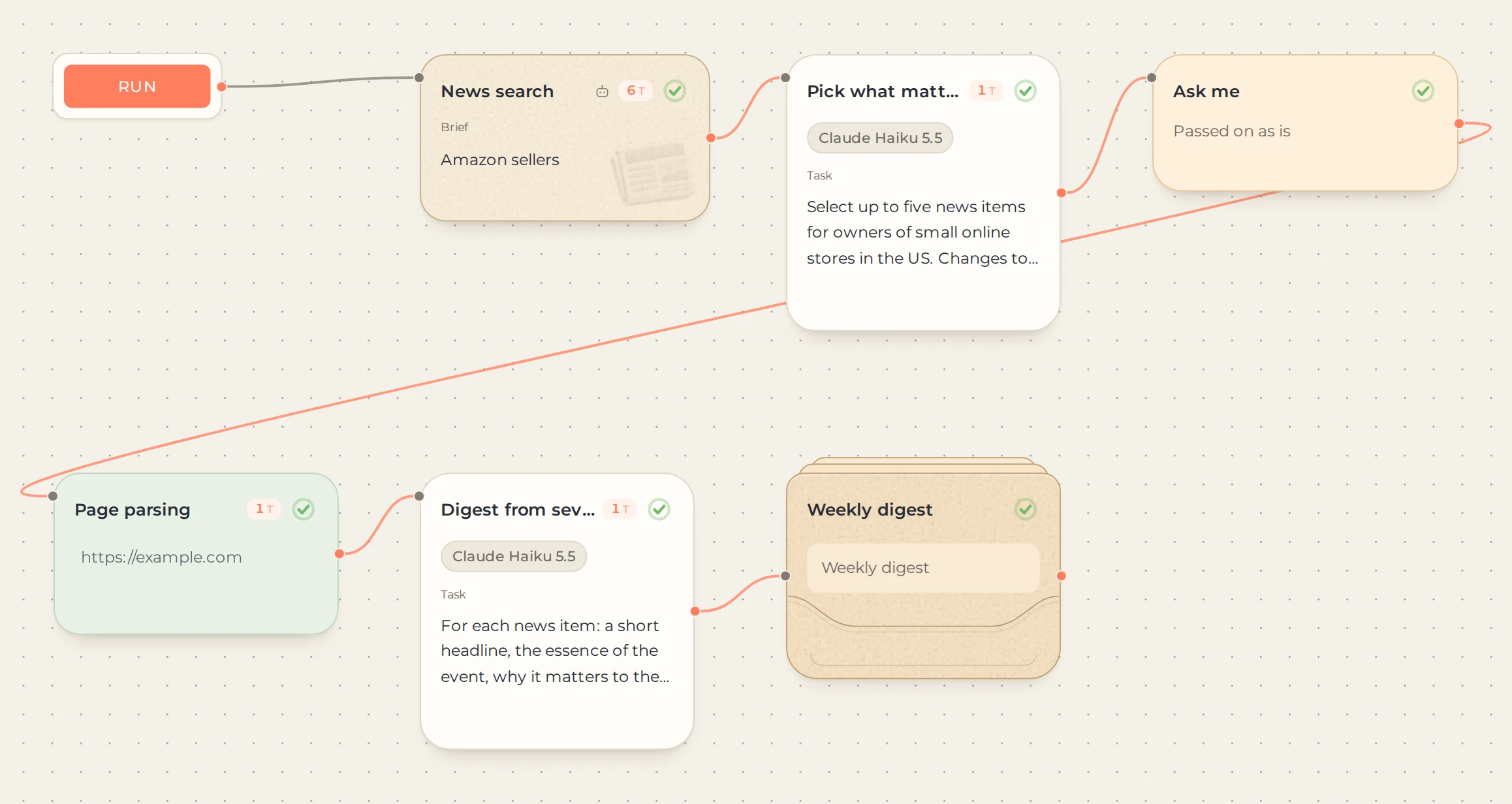
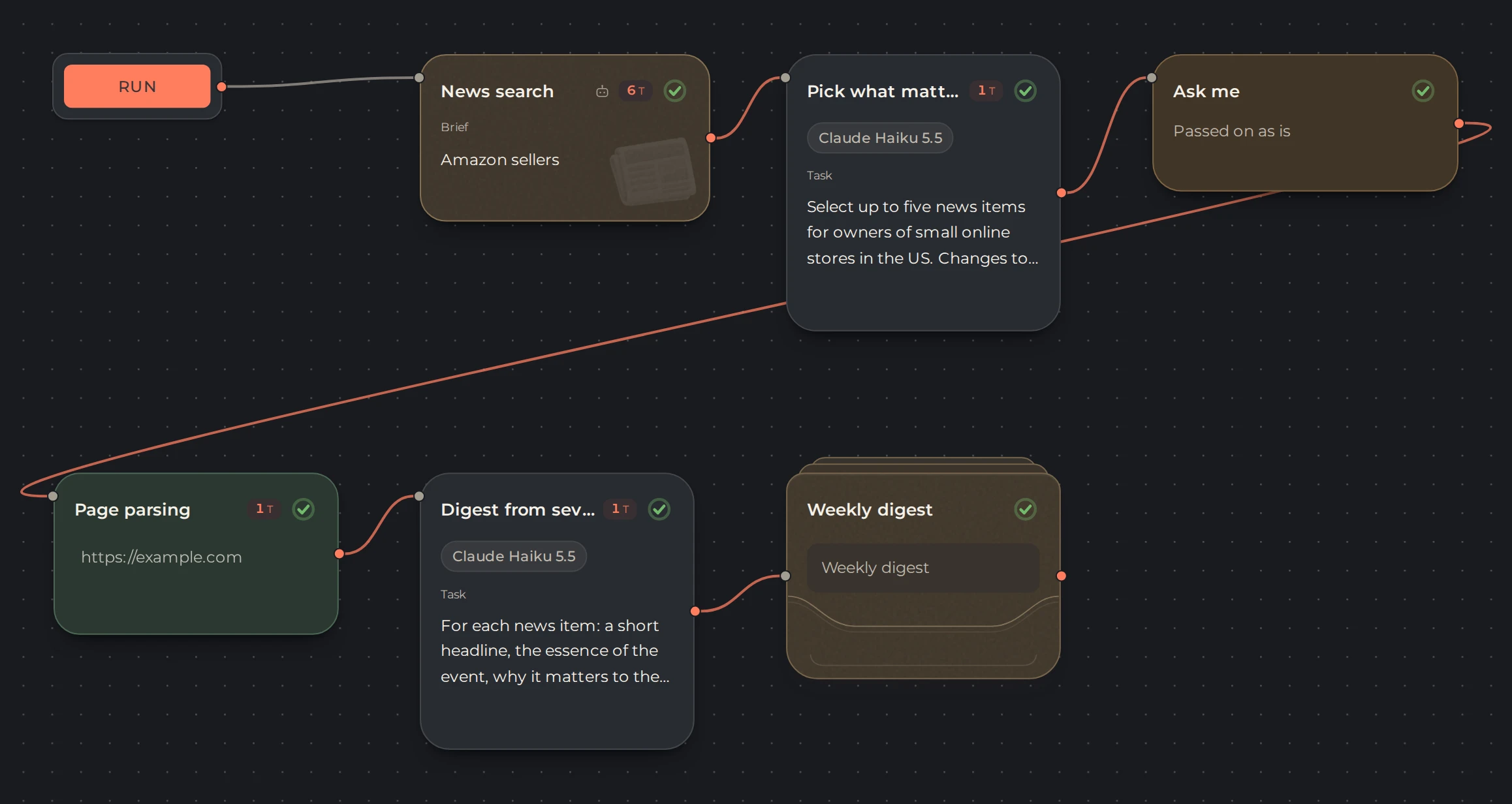 1234
- 1Finds news
- 2Selects by your criteria
- 3You check the list
- 4Writes the digest
Example: a weekly review for online store owners
Suppose your column covers changes in delivery and marketplace operations. You can write the selection criteria like this:
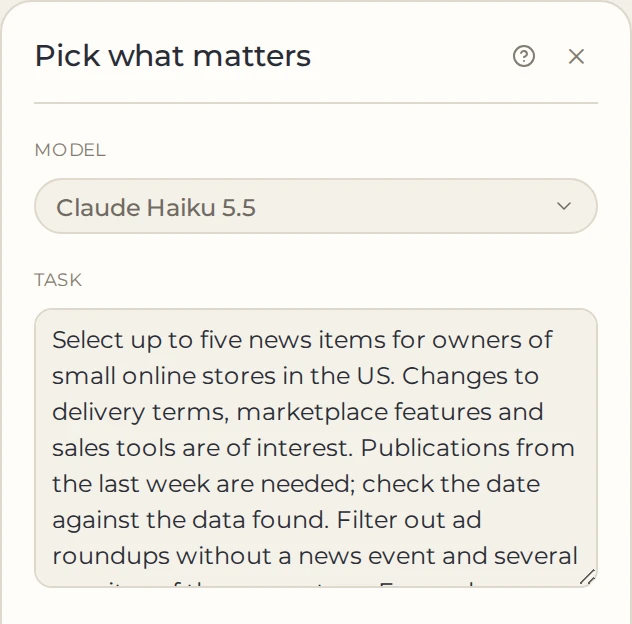
Select up to five news items for owners of small online stores in the US. Changes to delivery terms, marketplace features and sales tools are of interest. Publications from the last week are needed; check the date against the data found. Filter out ad roundups without a news event and several rewrites of the same story. For each, include the title, date, link and a short explanation of why it matters. Don't pad the list to five with older items.
These are selection requirements, not a guarantee of results. The search may return older articles, and for a narrow topic there may be fewer than five suitable events. The time period in the task does not guarantee a complete review of all events in that period.
How to set up search and digest preparation
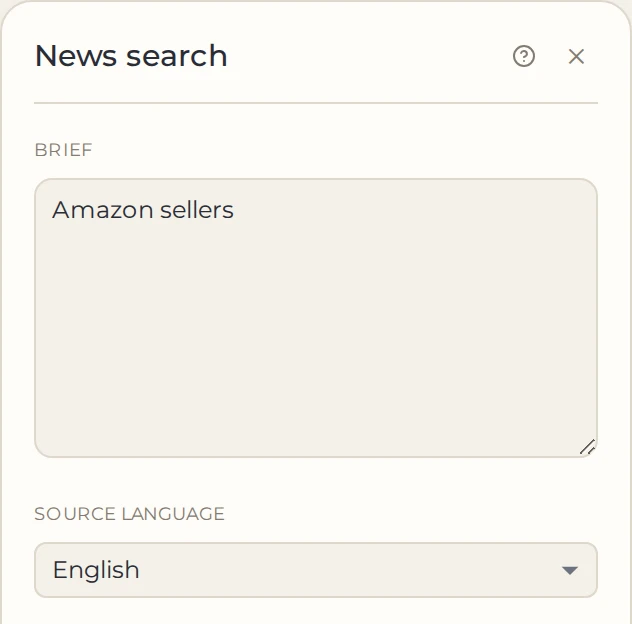
Add "News search", and specify the topic and the language of the sources. Make the topic specific enough, for example: Amazon sellers.
 12
- 1A specific topic
- 2Language of the sources
Pass the result to "Pick what matters". In the task, specify the audience, geography, time period and number of items. Ask it to keep links and dates, so the next steps get more than just a summary of headlines.
 1
- 1Audience, period and number of items
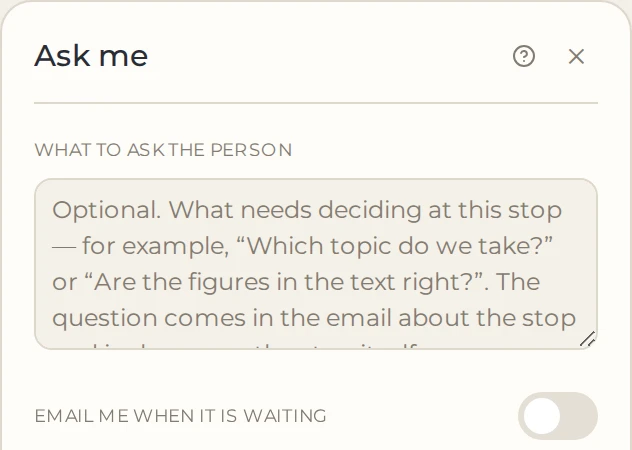
On the first run, add "Ask me" after the selection step. At the pause, check whether the news fits the column and remove any extras. If no suitable news is found, stop the branch instead of preparing an empty issue.
 12
- 1What to check at the pause
- 2A letter when the run stops
Connect "Page parsing". It reads the selected addresses. Up to 20 pages are processed in one step, so limit the selection in advance.
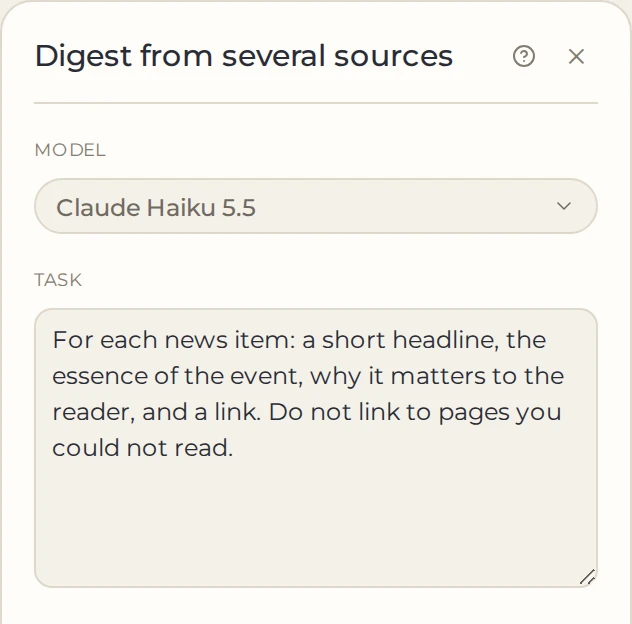
Add "Digest from several sources". In the task, ask for a short headline, the essence of the event, its significance for the reader, and a link for each news item. Tell it not to link to pages it could not read.
 1
- 1Headline, essence, significance and link
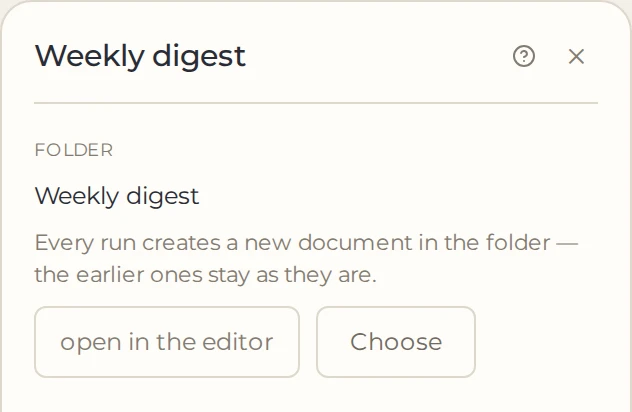
Finish the workflow with "Folder", so each issue is saved as a separate document, or set up "Document" for a single selected file.
 1
- 1A new document for each issue
Run the workflow manually. At the pause, check the list of news items, and after the run finishes, check the dates, sources and digest text. Make sure one news event is not presented as several different events.
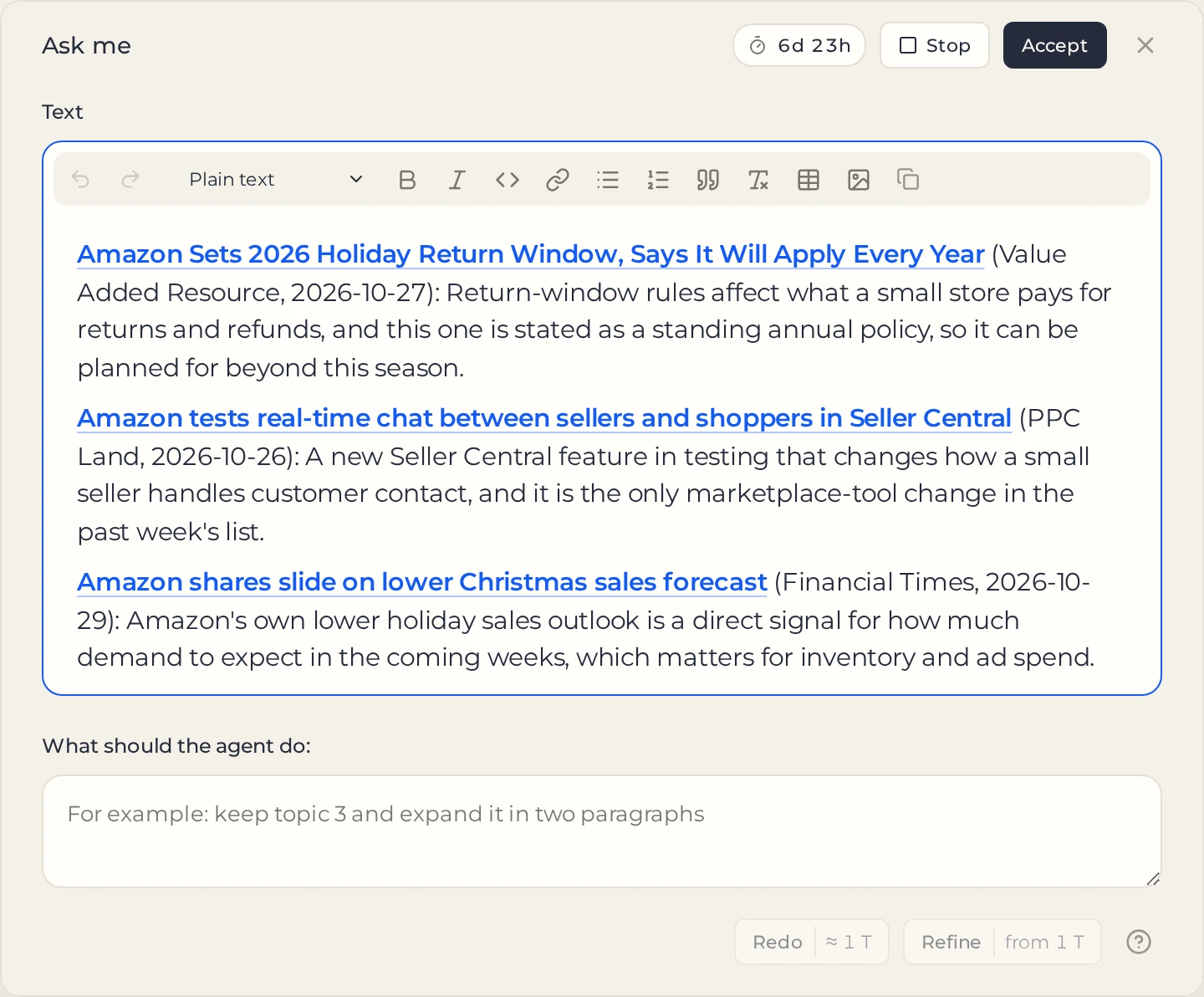
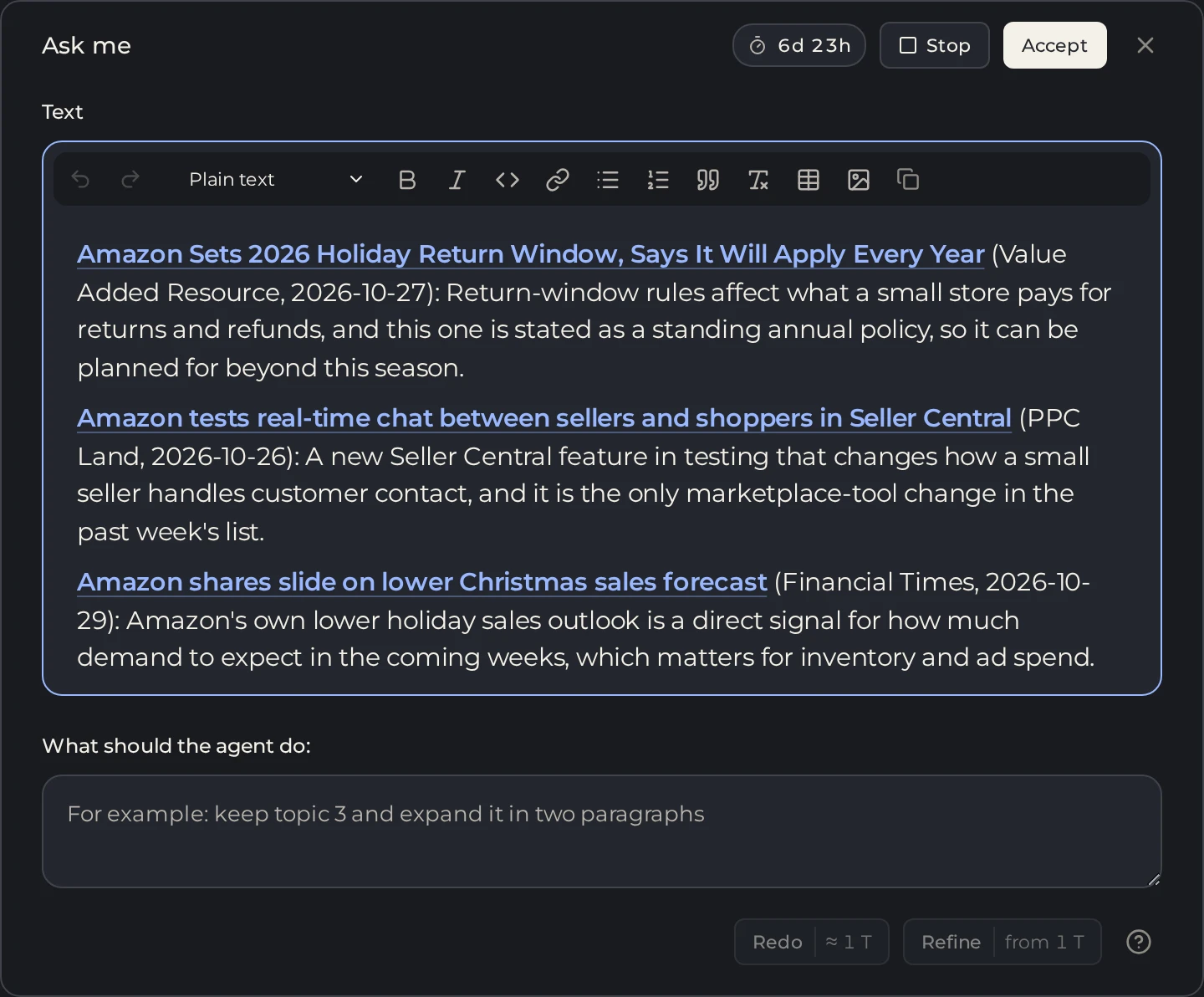 1234
- 1What the selection step passed on
- 2Stop the branch
- 3Pass the text on
- 4Ask the AI to redo or refine
The result is a single review made from several sources. If you need a separate post for each news item, you will need item-by-item processing. That is a different way of building the workflow.
How to structure an issue so it is easy to read
In the digest task, set a clear structure:
- Event headline: about a specific change, not a general phrase such as "important industry news."
- Essence: what changed and when.
- Why it matters to the reader: who the change affects and what is worth checking.
- Source: a link to the material that was read.
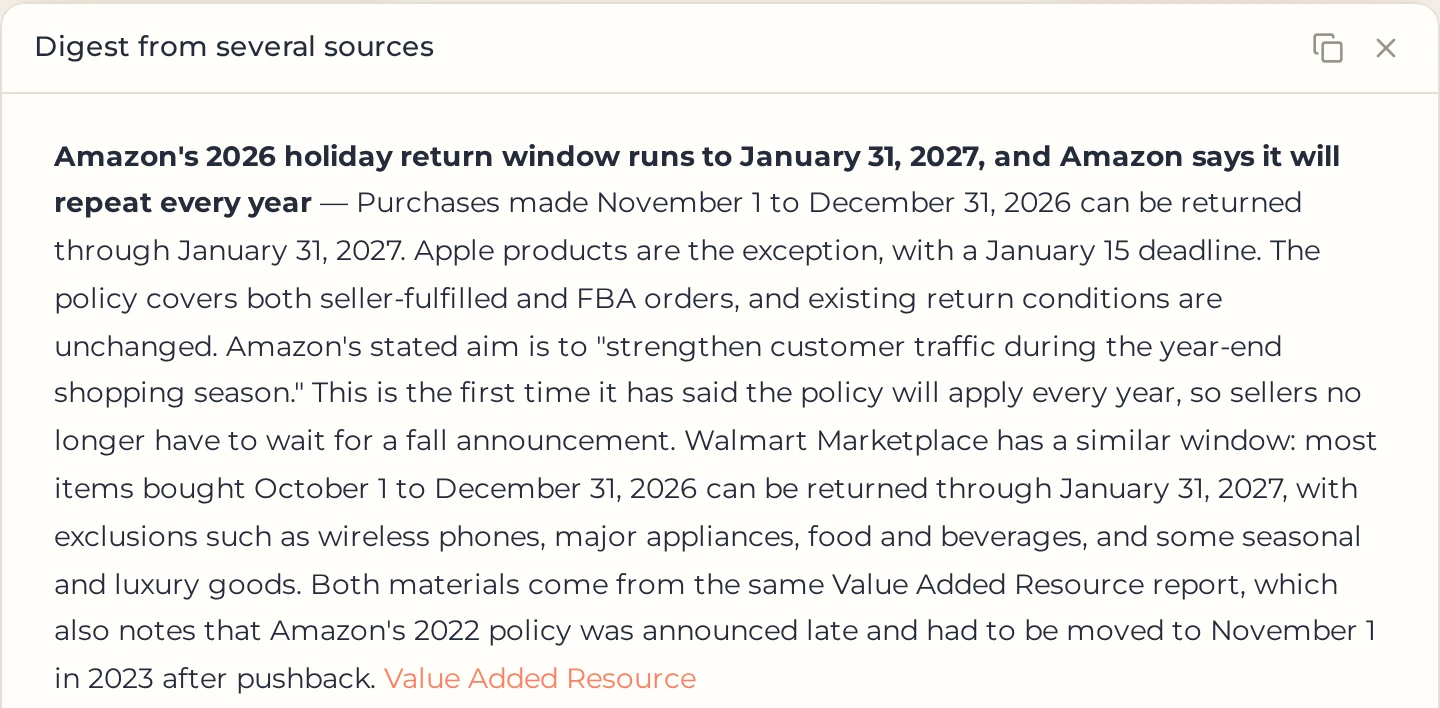
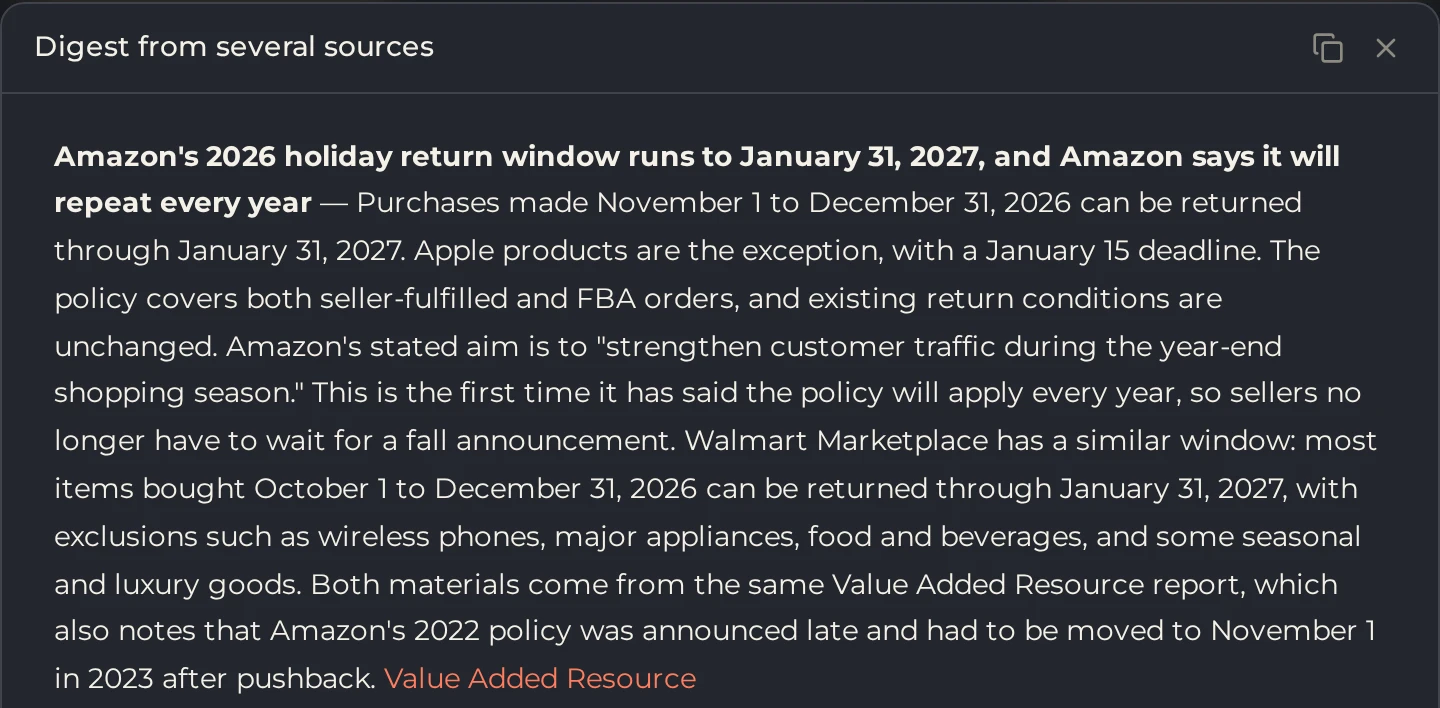 12
- 1Event headline
- 2Link to the source
Do not ask the model to invent consequences that are not in the source. If the action for the reader is still unclear, it is better to briefly describe the event and keep the link. Check the date of the news item itself and the date of its retelling separately.
How to publish the digest regularly
Save the search topic and criteria, then set up the schedule. For a weekly review, you can choose one day of the week and the appropriate time zone. If you leave the pause in place, each issue will wait for your reply, and runs that fall during the wait are skipped.
To avoid repeating material you have already used, add "Skip repeats" after the selection step. If there is nothing new for the period, it filters everything out, and the steps below turn grey with the label "no task arrived" and use no tokens — this is a normal outcome, not a failure. Pass records with links and the event title into it. Keep in mind that the card remembers materials that pass through it right away, before they are written and published. After a failure, check its list together with the log, or the news item you need may be left out of the next attempt.
Do not confuse a weekly run with a complete archive of the week's news. Search returns the available selection, and completeness and dates need to be checked separately. If an issue needs a strictly defined set of materials, pass your own links directly into "Page parsing."
Saving, sending and cost
You can keep the finished review in Kotia or connect sending to Telegram or WordPress drafts. For Telegram, set a compact format in advance: a long digest is not split into several messages automatically.
You pay for search, parsing and model work during the selection and writing steps. Additional checks and retries increase usage. Writing to a folder is free. If "Page parsing" did not read all the pages, open its result and remove the unavailable sources from the issue.