
Write an SEO article from keywords in Kotia
Collect search queries, pick one article topic and write the brief. Covers keyword table settings, a worked example and checks for the finished text.
On this page5
Write an article based on the search queries your readers type into search engines. In Kotia, "Keyword collection" shows how people phrase their queries and helps you assess how much demand there is for them. "Article" turns the chosen topic and its requirements into material. From the queries you found, pick the topic of one article: decide which question it answers and which phrasings relate to that question.
This way, you build the text around the reader's task. Keywords help you choose the content and terminology, but they don't replace explanations, examples and facts. Neither keyword collection nor article generation guarantees a place in search results.
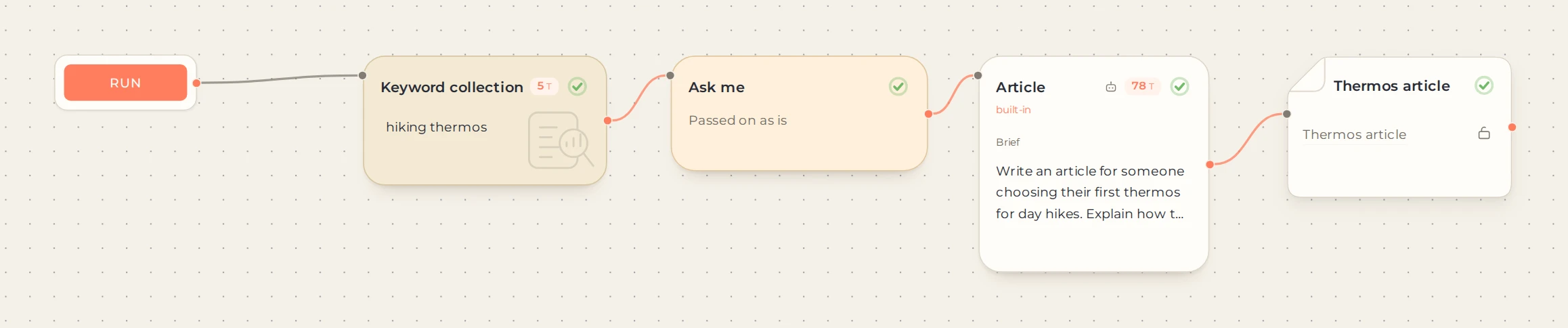
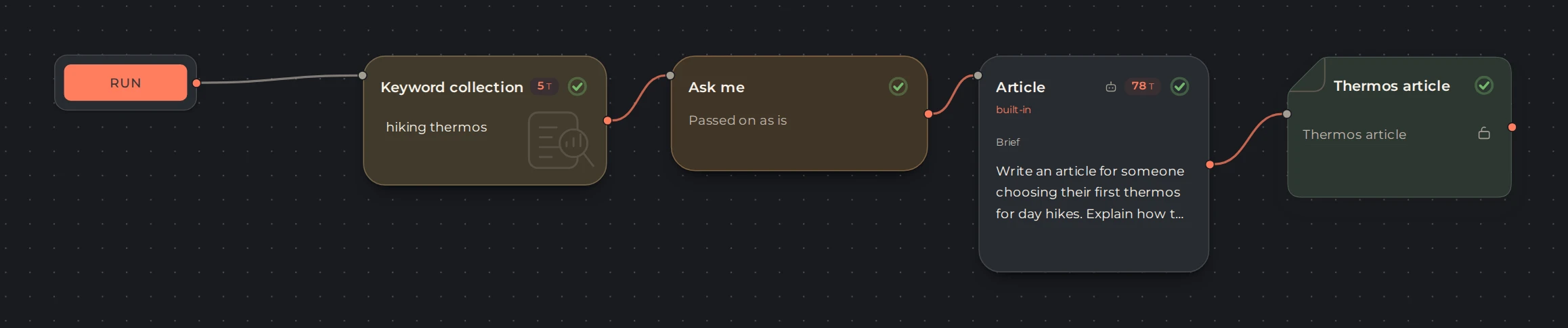 123
- 1Collects search queries
- 2You choose the queries
- 3Writes the article
Example: an article on choosing a thermos
Say you run a blog for an outdoor shop. The starting topic is "hiking thermos": a short general phrase, not a whole question. A long, narrow phrase often has no search demand, so few queries or none come back. The queries you find may cover different tasks: choosing a capacity, comparing materials, cleaning a thermos or buying a spare part.
For one article, keep the queries about choosing a thermos based on how long the walk lasts and how many people it is for. Queries about cleaning and spare parts deserve separate articles. The data in your table may differ: this is an example of selection, not a promise of specific queries or search volumes.
Example brief after the selection:
Write an article for someone choosing their first thermos for day hikes. Explain how to assess capacity, weight, lid and ease of cleaning. Use the search queries you were given as reader questions and natural phrasing. Compare the options in the table, and add an example of a choice for one person and for two. Don't make up model specifications, prices or data about our store.
How to collect queries and choose an article topic
Add "Keyword collection", specify the topic and the language of the search queries, and choose a suitable batch of results. For a description of all fields, see the card reference.
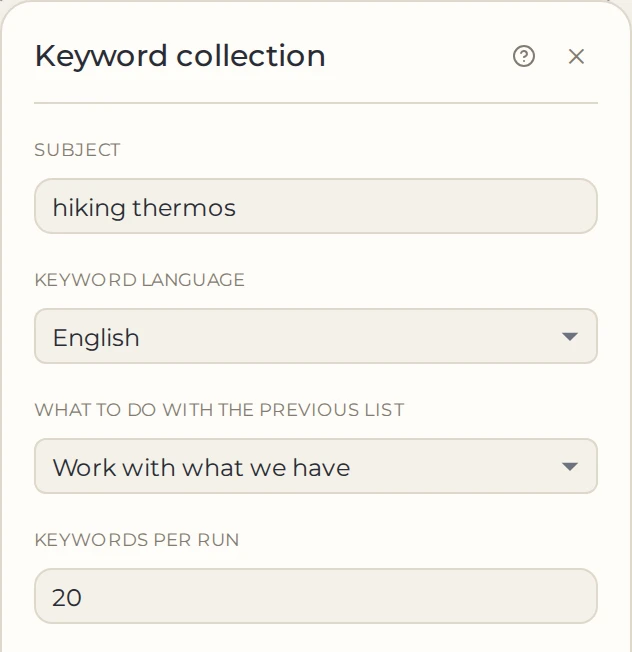
 123
- 1The topic of the queries
- 2Language of the search queries
- 3Batch of results
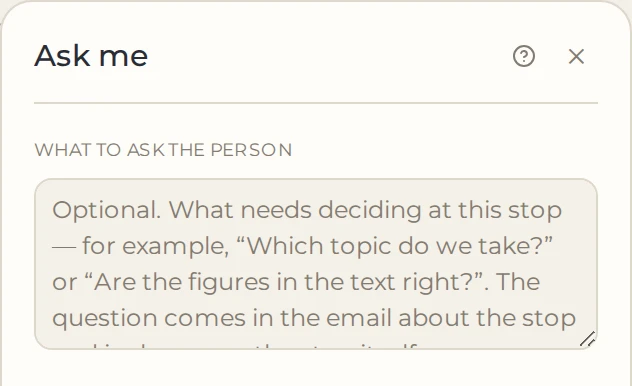
Connect the card at the start of the workflow. Right after it, add "Ask me" to review the queries you found before the article runs.
 1
- 1What to review before the article
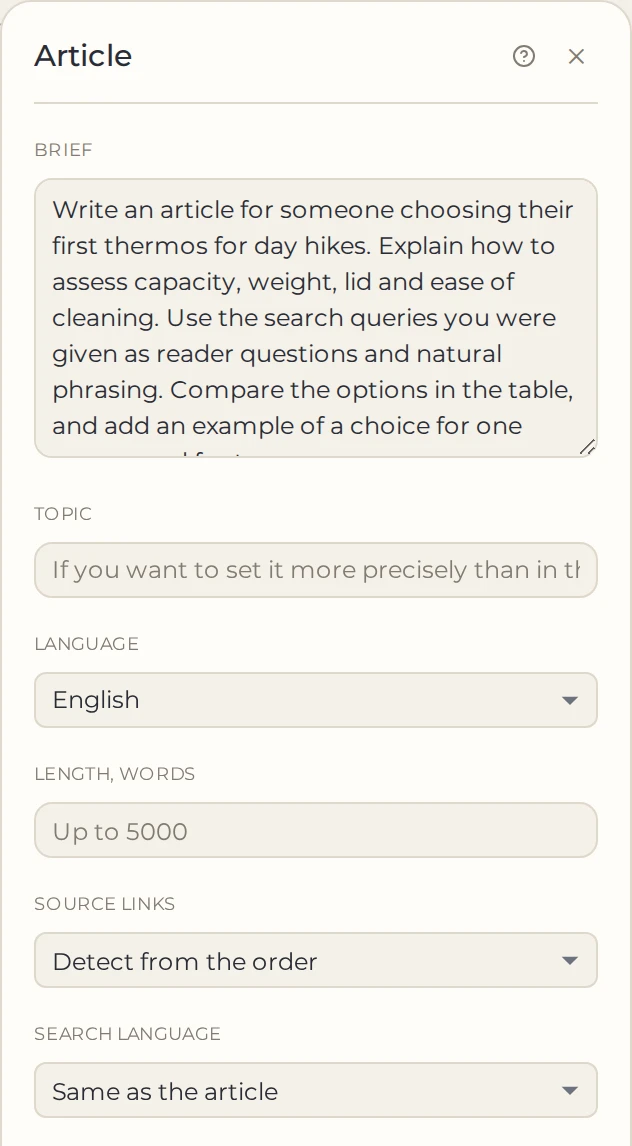
Then add "Article". In the brief, describe the reader's task, the content requirements, and how to use the set of queries you received. Don't list all the queries as required insertions in the text.
Choose the article's language, its target length and how links are formatted. If you need to search for sources in another language, set "Search language" separately.
 1234
- 1Article language
- 2Target length
- 3How links are formatted
- 4Language of the source search
Connect the article output to "Document" and check where it will be saved. Run the workflow.
 1
- 1Where the article is saved
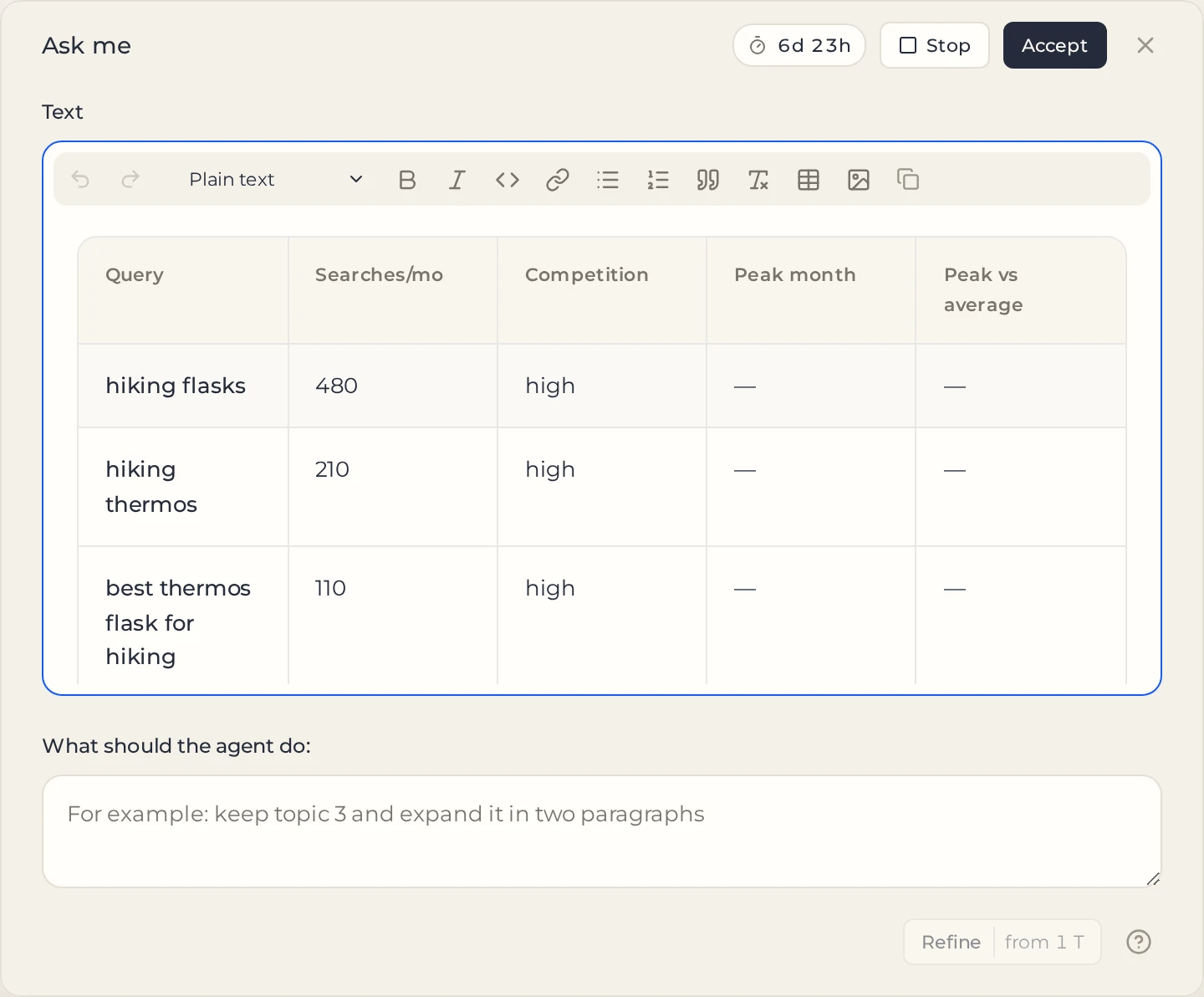
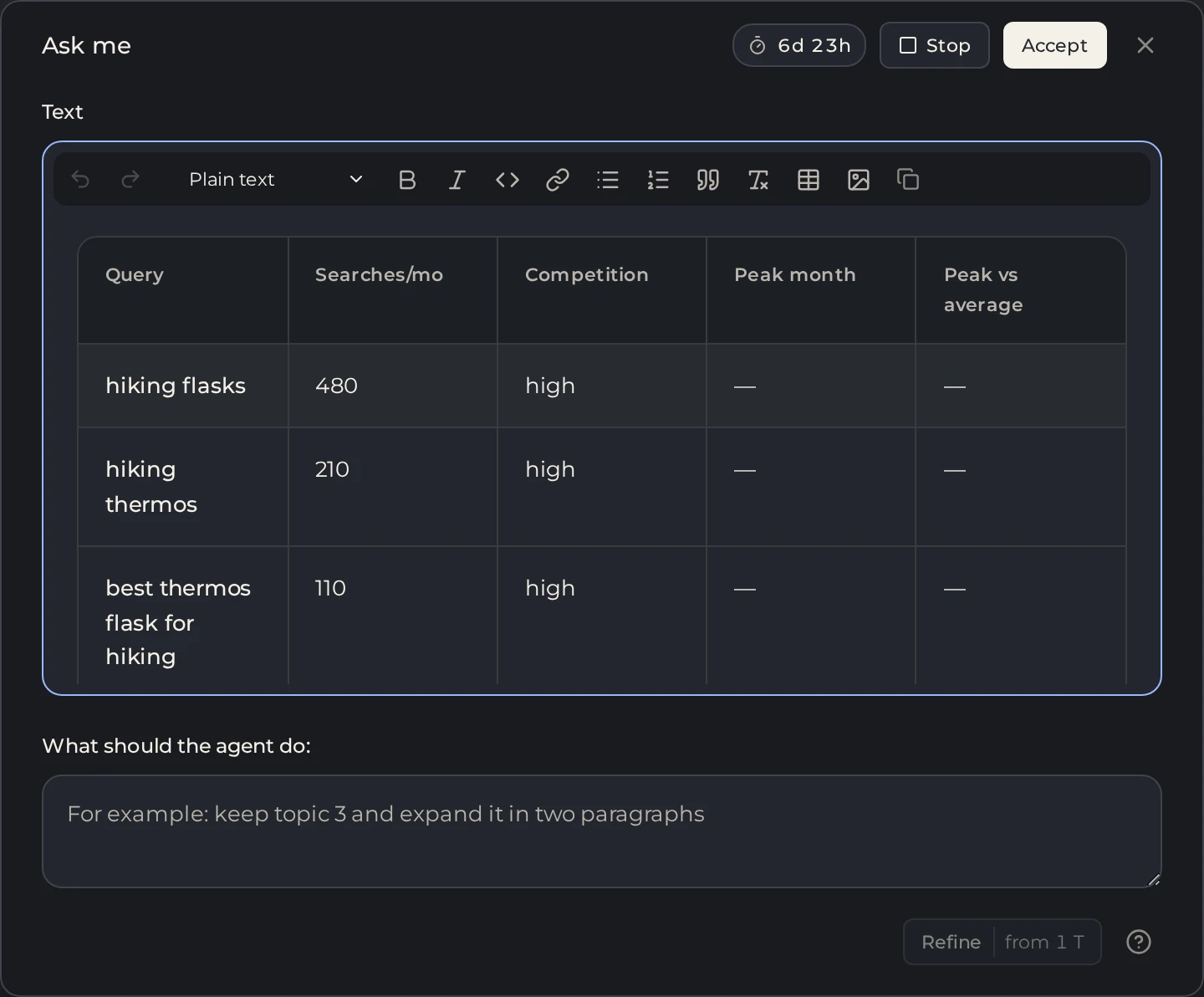
When the workflow pauses, click "Open" and read the keyword table. Keep the chosen topic and the queries for one direction, either manually or by telling the AI what to keep through "Refine", and click "Accept". The next stage will receive the already edited selection.
 123
- 1The queries found
- 2Ask the AI what to keep
- 3Pass the selection on
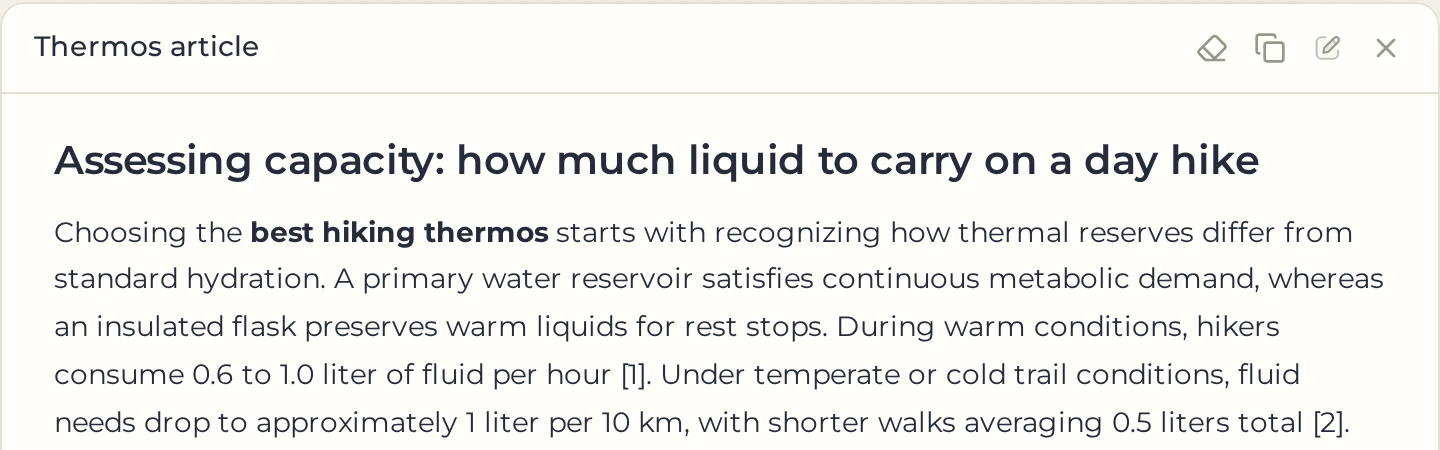
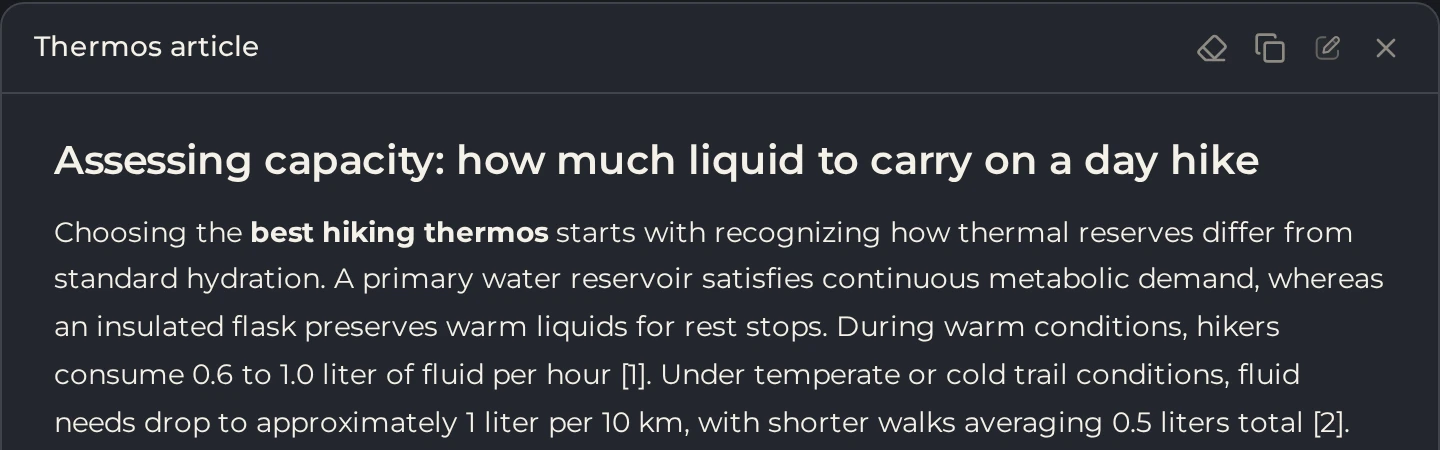
Open the finished article and check whether it answers the questions you chose. If needed, change the brief and repeat only the text preparation.
 12
- 1A section for one reader question
- 2A query from the table in natural phrasing
You don't need to run "Article structure" before "Article": the service plans the material itself. If you only need an outline for your own further work, run the structure tool separately.
How to read the data and not mix up settings
| Metric or field | How to use it |
|---|---|
| Searches per month | Gauge interest in the phrasing in the chosen language. This is not a forecast of visits to your article |
| Ad competition | Gauge competition in advertising. This is not an estimate of how hard it is to reach organic top positions |
| Keyword language | Choose the language for which the search phrases are collected |
| Article language | Set the language of the finished text |
| Search language | Set the language of the sources needed to prepare the article |
One article can answer several closely related queries. If readers' intentions differ, it is better to choose separate topics than to ask one text to provide instructions, a market overview and a product catalog at once.
What to check in the finished article
- The headline promises exactly the answer the material gives.
- Subheadings help readers find the section they need and don't repeat one key phrase for its own sake.
- There are concrete explanations and examples, and a list of keywords doesn't replace the content.
- Specifications, figures and links are based on real sources.
- The text takes your product and audience into account wherever you provided the relevant details.
For the next article, you can take a new topic or the next batch from the saved keyword list. With "Work with what we have", a repeat run with the same topic hands out the next batch. If you enter a new topic in "Keyword collection", the next run collects the list again once. A language change, turning on the agent and new selection requirements do not refresh the list — for those, choose "Collect it again". If you're working with older data, keep in mind when it was collected.
If no keywords are found
When there are no queries with search volume for the topic, "Keyword collection" ends with an error saying no keywords were found, the cost of the collection is refunded, and the pause and "Article" do not start — you don't pay for the article.
| What you see | What to do |
|---|---|
| No keywords found for a long phrase | Shorten the topic to two or three words, like "hiking thermos" in the example |
| Few keywords, but you need a wider selection | Turn on "Let the agent decide what to look for" and choose "Collect it again" |
| Keywords in an unexpected language | Check "Keyword language": volume is counted by language, not by country |
Usage includes keyword collection and article preparation. Repeating paid stages is charged again. Pausing and saving the document are free. To send the finished material to your site, use the WordPress workflow.