
Telegram autoposting: write and publish channel posts on a schedule
Set up a Telegram channel workflow that takes the next topic from a queue, writes a post from your brief, checks it before sending, and runs on a schedule.
On this page4
Set up content preparation and publishing for your Telegram channel in one workflow. Kotia can take the next topic from your list, write a post based on the saved requirements, and send it to your connected channel. You choose the mode: review each post before it is sent, or run a tested workflow without stopping for your decision.
The option below uses your own queue of topics. It suits recurring columns: you set the topics for each issue in advance, and define the style, audience, and format in the settings. With a schedule, the whole process repeats on the days and at the times you choose.
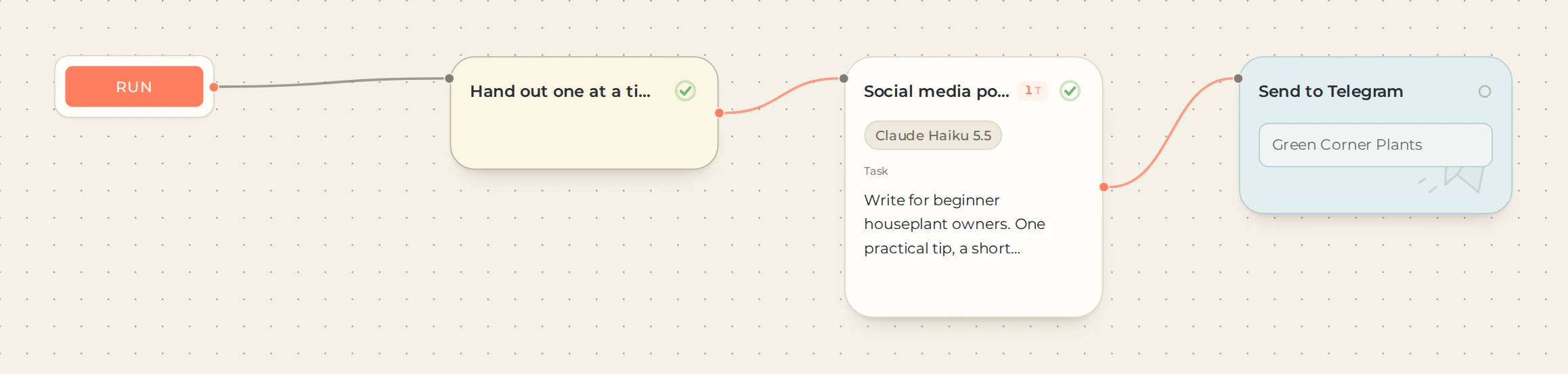
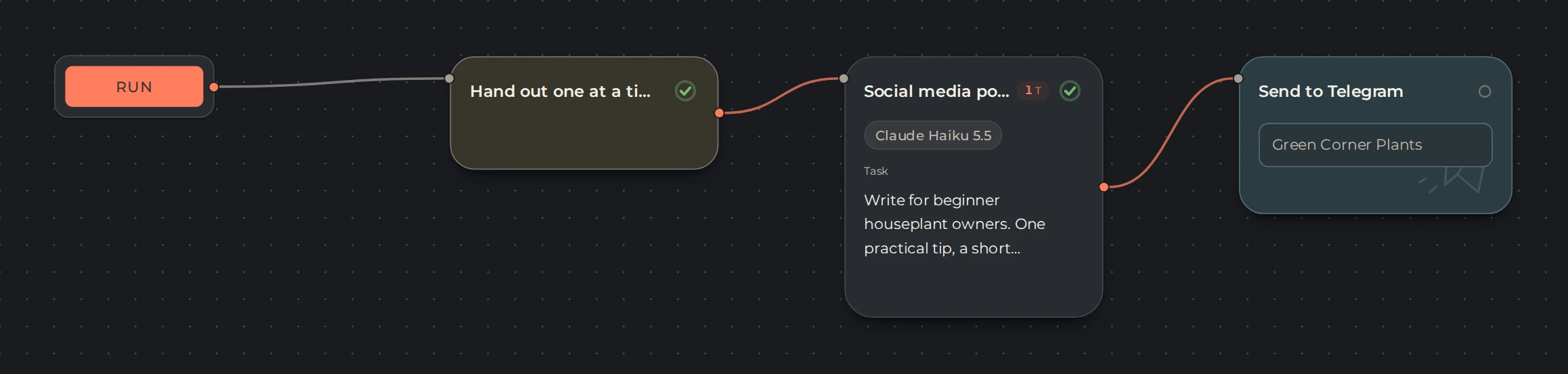 123
- 1Hands out one topic per run
- 2Writes the post
- 3Sends it to your channel
Example: a column with houseplant care tips
Suppose you run the channel of a flower shop. Prepare several standalone topics, each on a new line:
- How to tell when a plant needs watering: signs of dry soil and overwatering.
- How to choose a spot for a plant by the window: direct sun and diffused light.
- What to check after buying a houseplant: leaves, soil, drainage.
In the writing task, save the permanent requirements: who the reader is, what length you need, how to address subscribers, and what to mention about the shop. Each run takes the next line and applies the same rules to it.
How to build a workflow with a topic queue
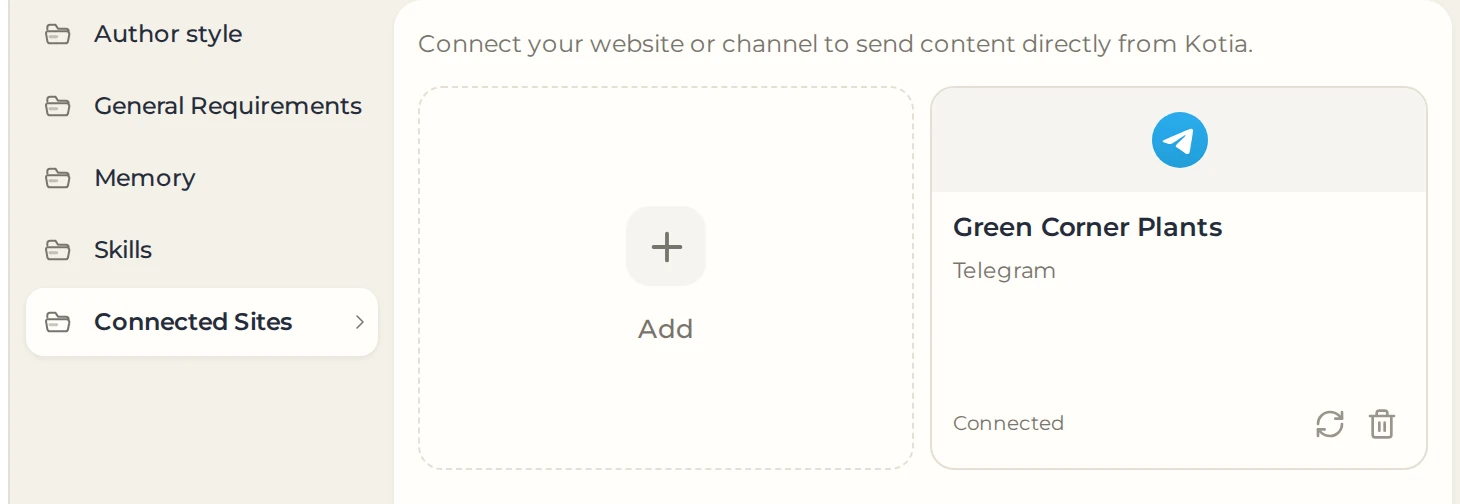
Connect your channel in the Kotia settings. Make sure it is available to select in the "Send to Telegram" card.
 123
- 1Connected Sites
- 2Add a site or channel
- 3A connected channel
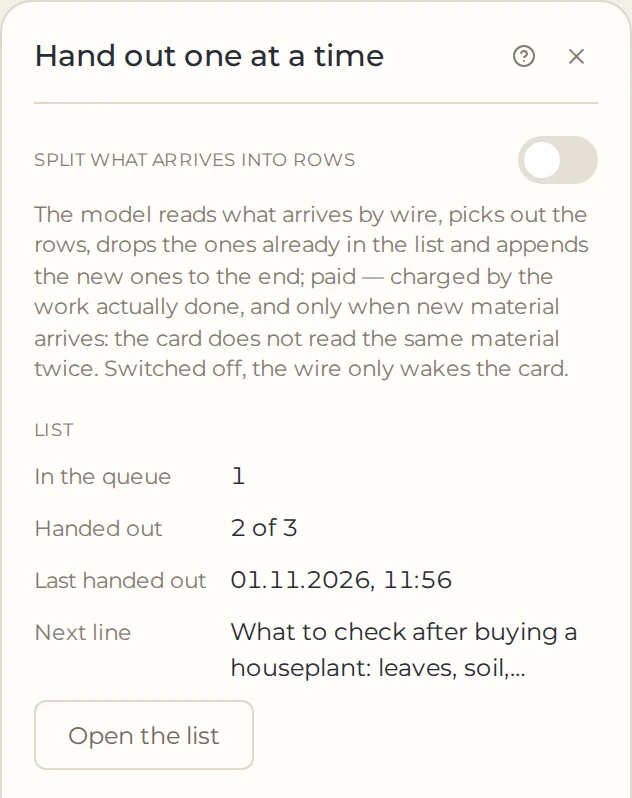
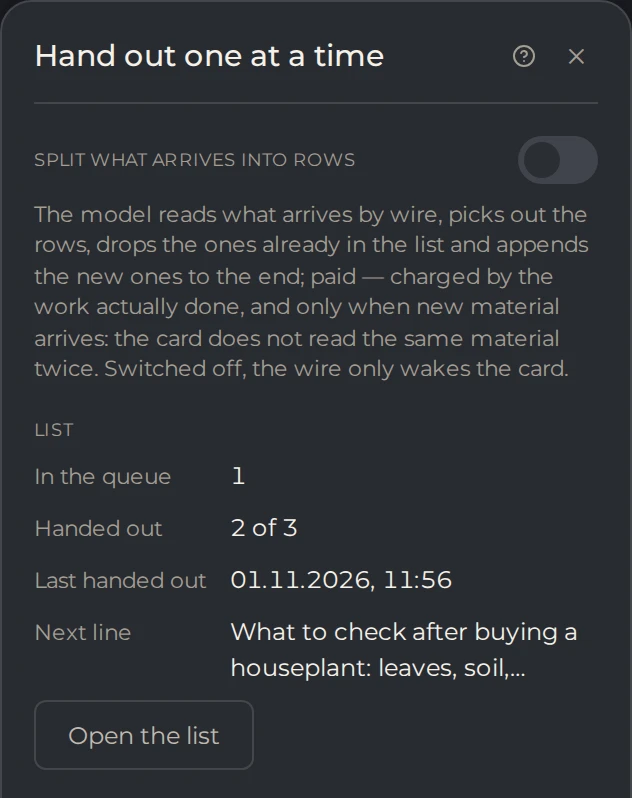
Add "Hand out one at a time", connect it to "Start", and fill in the list of topics. This card starts the branch on its own: each run, it passes along one topic that has not been handed out yet.
 12
- 1Topics left and the next one
- 2Open the list to add or edit topics
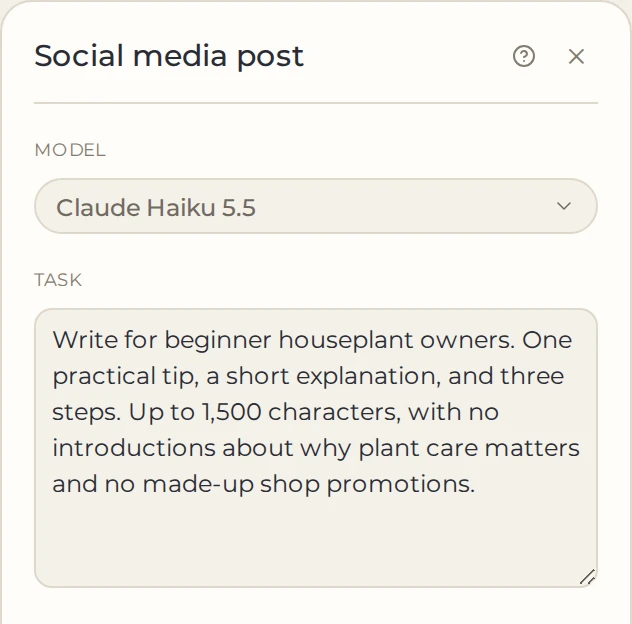
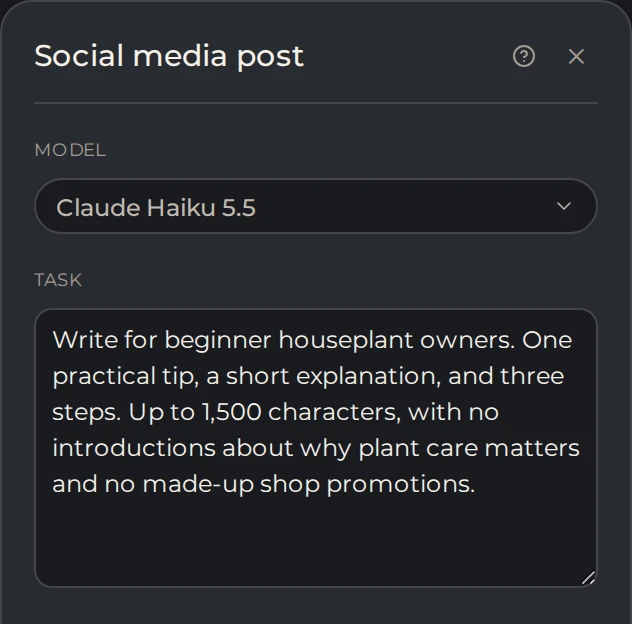
After it, add "Social media post". In the task, specify Telegram, the audience, the length, and the structure. For example: "Write for beginner houseplant owners. One practical tip, a short explanation, and three steps. Up to 1,500 characters, with no introductions about why plant care matters and no made-up shop promotions."
 1
- 1Permanent requirements for every post
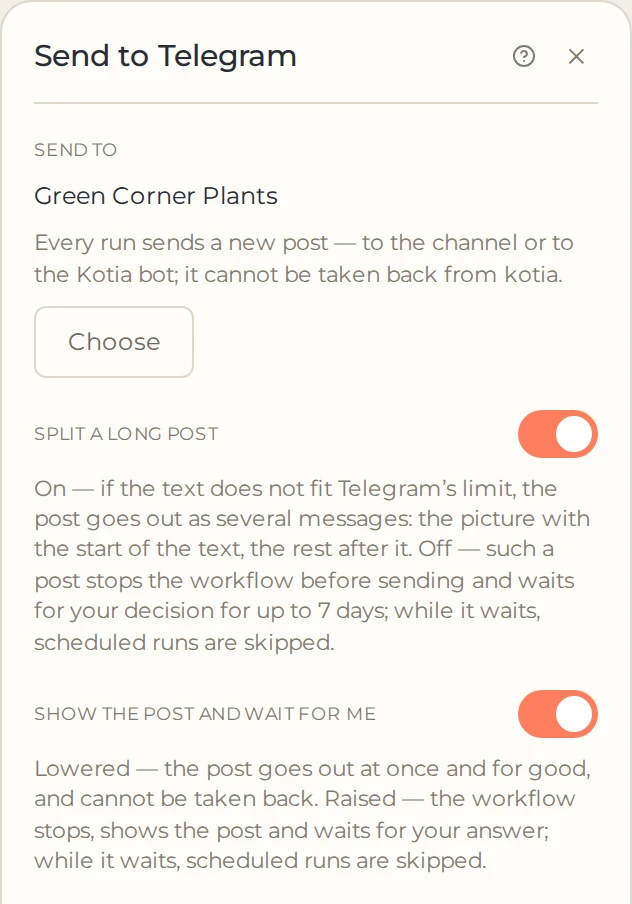
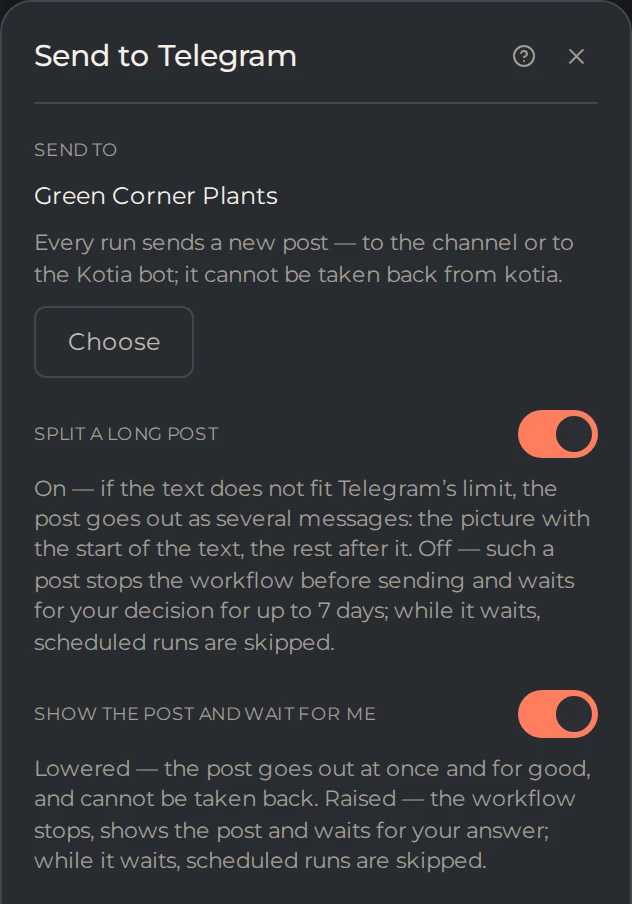
Connect the output to "Send to Telegram". In the "Send to" field, select the recipient.
For the first run, turn on "Show the post and wait for me". By default, the toggle is off, and then the card sends the post immediately.
 12
- 1The channel that receives the post
- 2Keep on until you trust the result
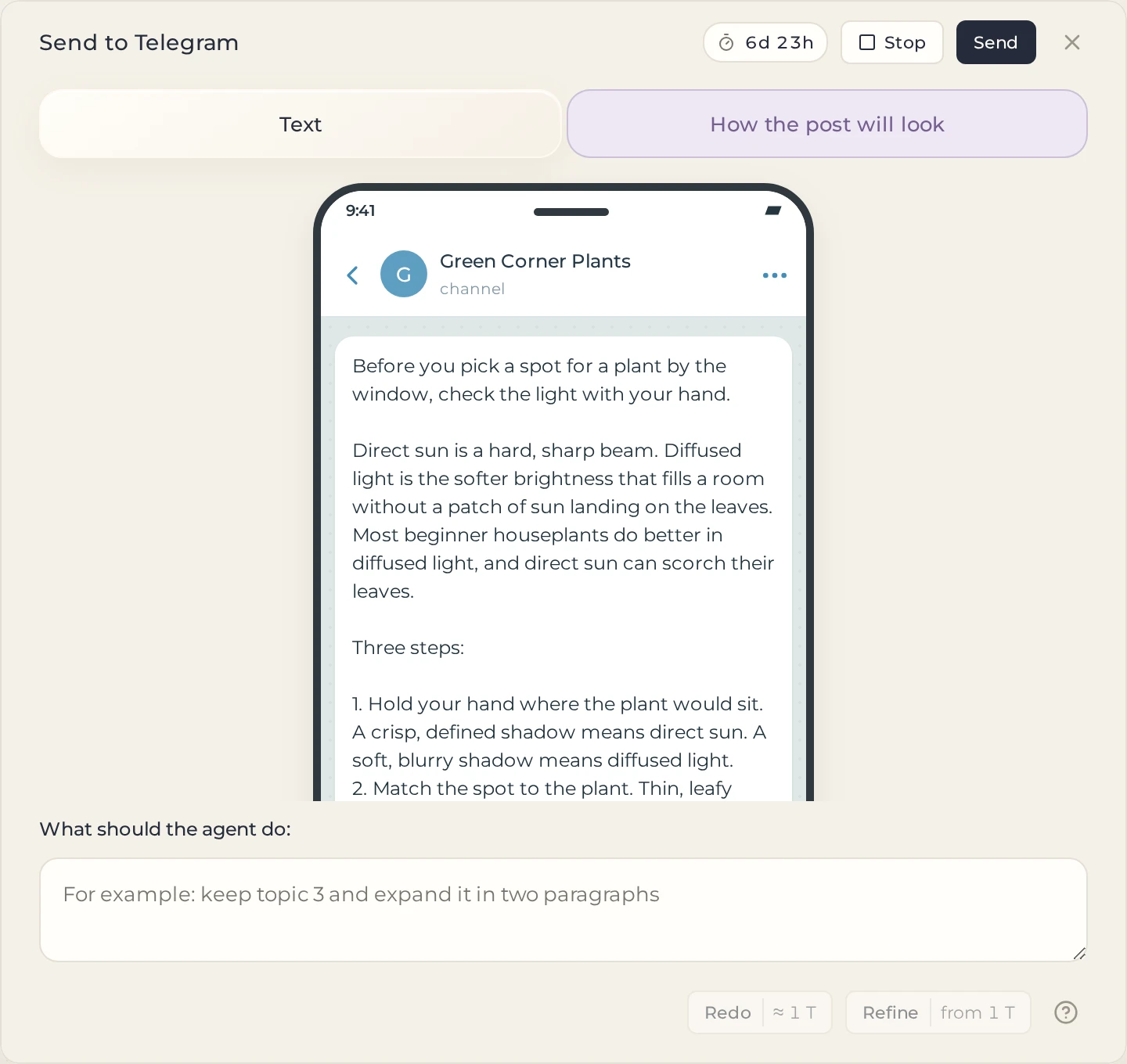
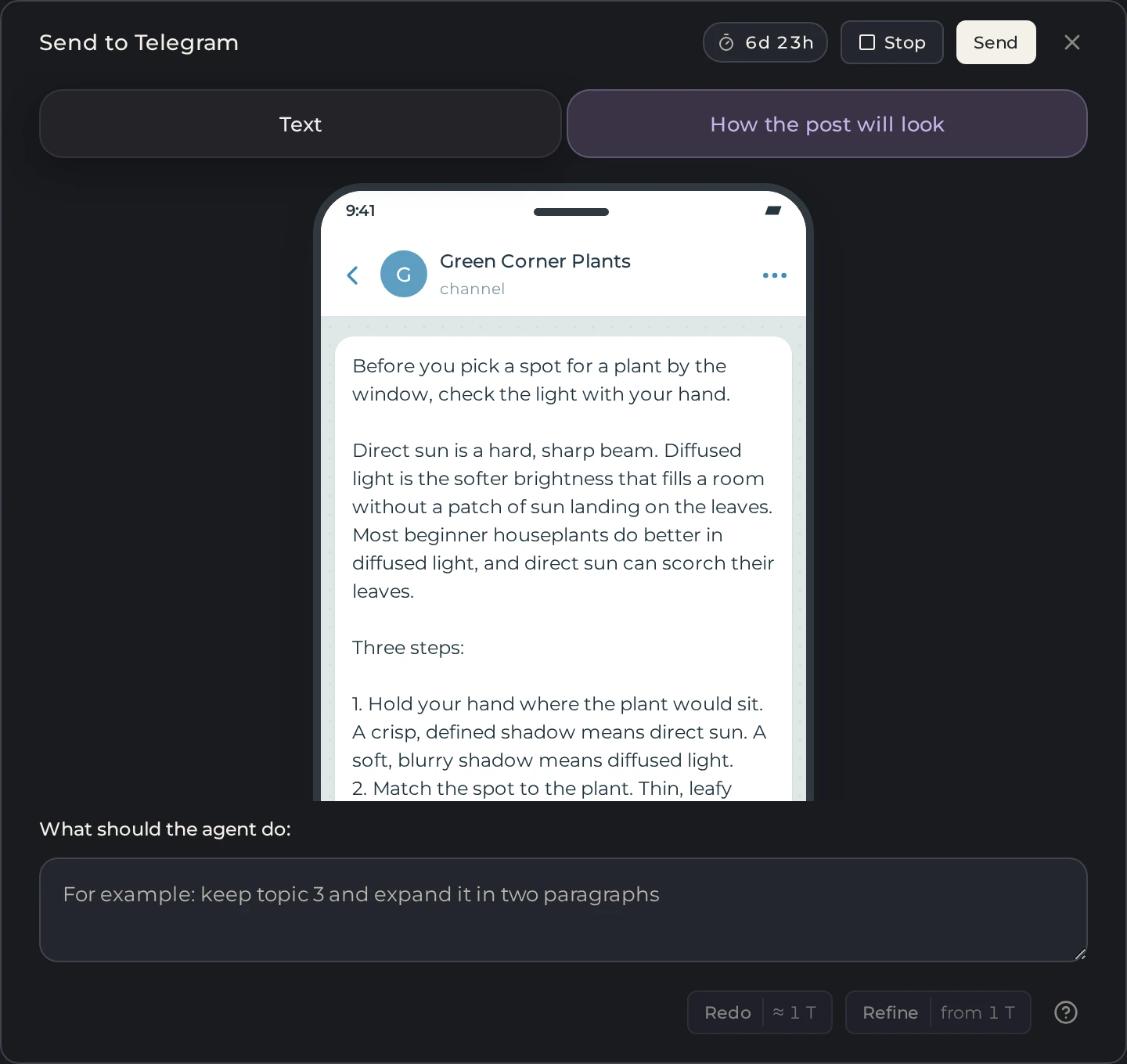
Run the workflow manually. It will take a topic, prepare the text, and stop before sending. Open the send card, click "Open", and switch to "How the post will look". Read the whole post and check the channel and links.
If needed, edit the text manually or through "Refine", then click "Send". The exact text shown in the window is what goes to Telegram. After it finishes, open the card's result: it contains a link to the published post.
 12
- 1See the post as subscribers will
- 2Send publishes exactly this text
Keep the permanent requirements in the task of the writing card. For this workflow, a separate input branch with shared "Data" is not needed: when the queue runs out, such a branch could start writing without a topic.
How to turn on recurring publishing
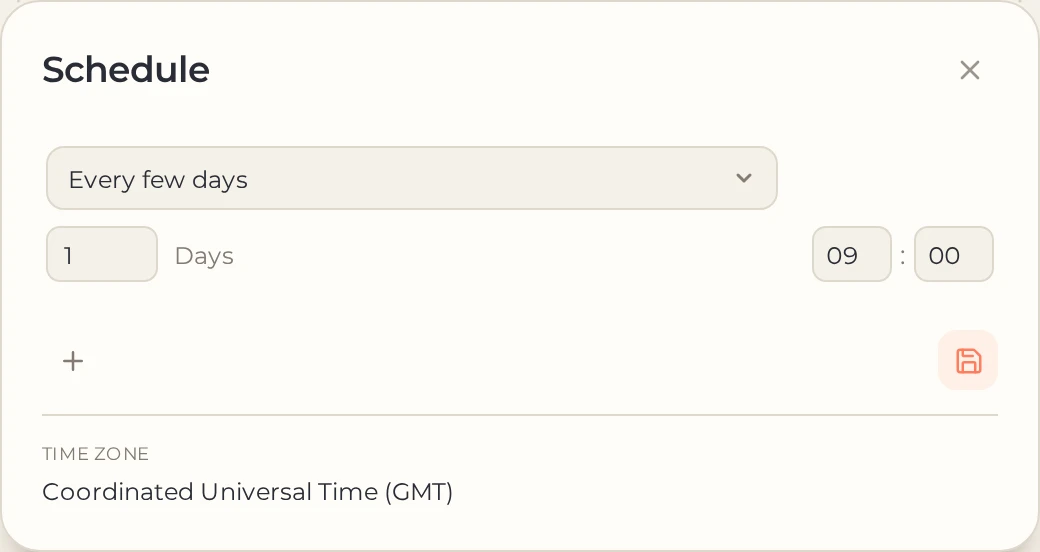
After a successful manual run, open "Schedule", set the days, time, and time zone, save the rule, and turn it on. For example, Monday, Wednesday, and Friday at 10:00 a.m. A schedule requires an active subscription. Running paid steps uses tokens separately.
 12
- 1How often and at what time it starts
- 2Time zone of the rule
The rule's time is the start of preparation, not a guaranteed moment when the post appears. Generation must finish first. If review before sending is turned on, publishing waits for your response, and schedule runs that fall during the wait are skipped.
To publish without your involvement, turn off "Show the post and wait for me". Do this after you have checked the content and the recipient. For more on timing, skipped runs, and turning off after errors, see the schedule guide.
What to consider when retrying and handling errors
| Situation | What to do |
|---|---|
| The topic has been handed out, but writing or sending did not finish | Check the log. The line stays marked as handed out; if needed, return it to the queue manually |
| The topic list has run out | Add new lines. The direct branch without a topic will be skipped: its steps turn grey and use no tokens |
| The post has already been published and needs changes | Do not run sending again: this will create a new post. Edit the published post using Telegram's tools |
| The text does not fit | If "Split a long post" is turned on, it will be sent as several messages; if it is turned off, the workflow will stop and ask. If you need a single post, shorten the writing task |
One send creates one post. The limit for a text message is 4,096 characters, and the limit for an image caption is 1,024. If the post is longer and the card has "Split a long post" turned on, it will be sent as several messages. So a post with an image may be split into parts even if it fit into one message without the image. If a message from the series did not arrive, "Send the rest" in the result window will send only the messages that did not arrive. For details, see the send card.
Text preparation is billed based on model usage; the queue and sending do not require tokens on their own. If you only need drafts for now, finish the workflow with the "Folder" card: new posts will be saved as separate documents for further work.