
Blog monitoring: find new articles and topic ideas for your content
Follow blog posts from chosen sites, collect new article links, pick useful topics and save ideas for your content plan. Set up monitoring in Kotia.
On this page5
Follow interesting blogs and find topics for your own posts. Kotia uses "Site article list" to collect titles and links and save the list. On later runs, it can look for additions. Then AI picks the materials that match your audience's interests and suggests how to cover the topic on your blog.
For example, you can follow blogs from companies in your industry. See which questions they explain, which guides they publish, and which products they write about. The links you get help you choose what to read in more detail. The article texts themselves are loaded separately, using page parsing.
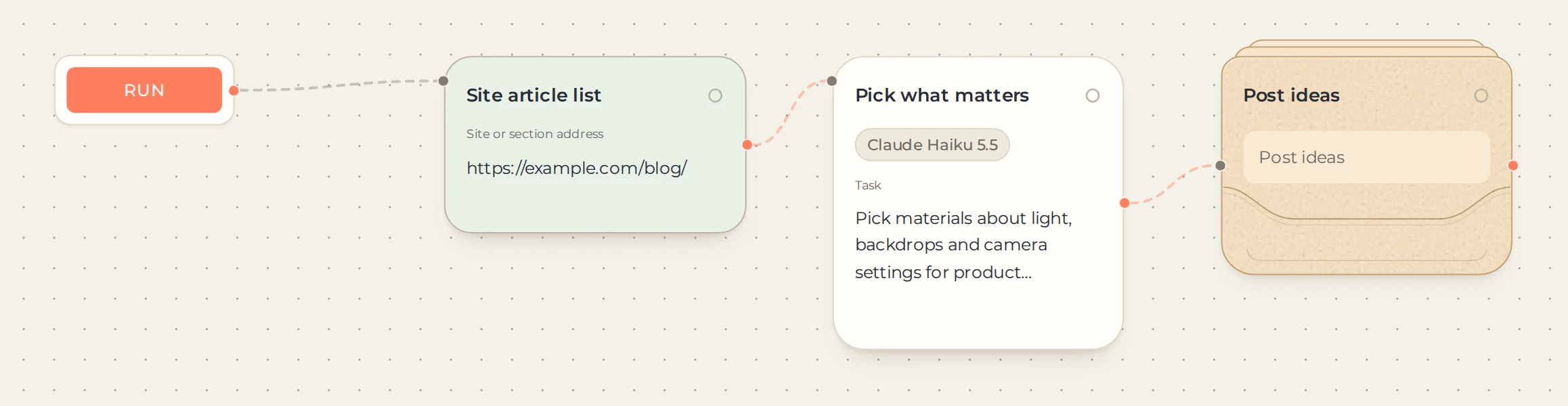
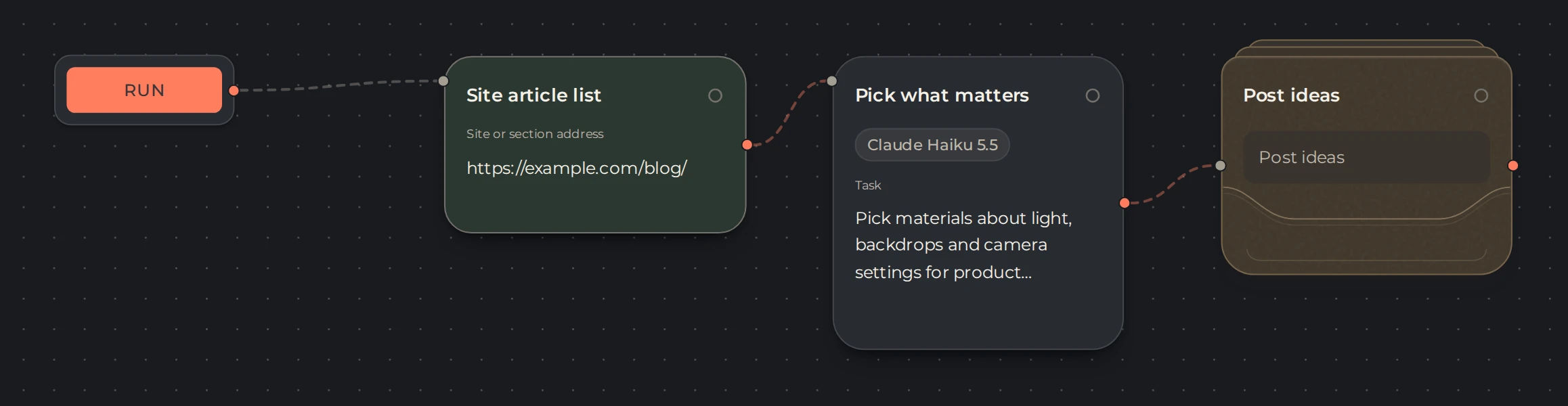 123
- 1Collects the blog article list
- 2Picks topics for your audience
- 3Saves the selection
Example: blog post ideas about photography
You run a camera shop and follow two educational blogs. You need topics for beginners who shoot products at home. For the selection, use this request:
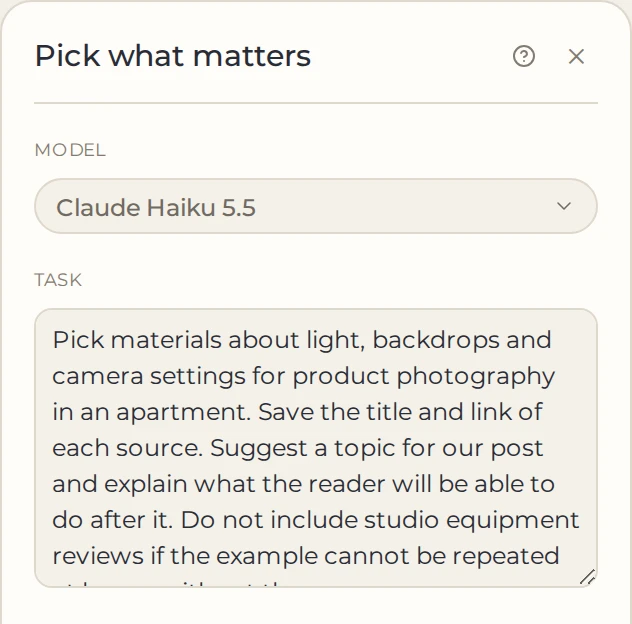
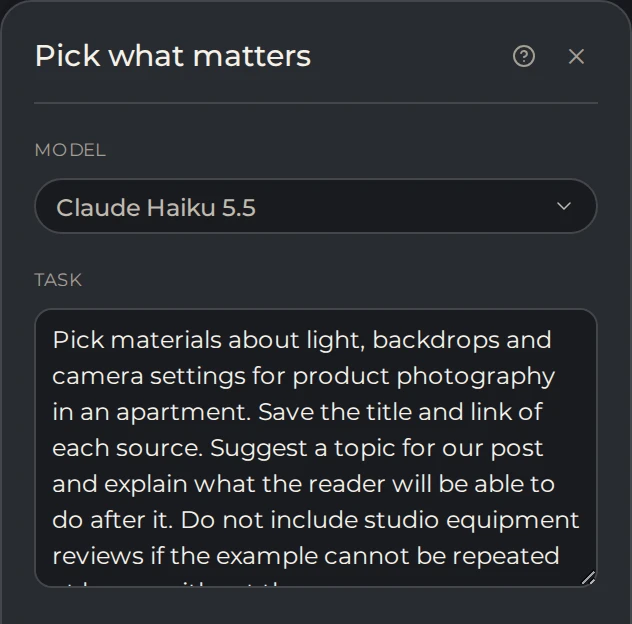
Pick materials about light, backdrops and camera settings for product photography in an apartment. Save the title and link of each source. Suggest a topic for our post and explain what the reader will be able to do after it. Do not include studio equipment reviews if the example cannot be repeated at home without them.
This turns someone else's selection into a list of topics that fit your content. For your own article, add your experience, examples and details about equipment that is available. A source's title does not yet reveal the whole material.
How to set up monitoring for one blog
Add "Site article list", fill in "Site or section address" and connect the card to "Start". Use a separate card for each blog. Each one will have its own saved list.
In "Articles per run", set a batch size that is easy to work with, for example 20.
Run the first collection and check the result. This run creates the starting list. It may include older posts, not only recently published articles.
For later runs, in "What to do with the previous list" select "Top up with new material".
In "Delivery order", select "Most recently found first". For watching a blog this is required: with the default order, the card first hands out older articles left over from the first collection, and new posts wait in line behind them.

 1234
- 1The blog to watch
- 2Batch size
- 3Top up with new material
- 4Newest finds first
Connect "Pick what matters", set the criteria for your audience, and specify in the task that links should be saved. For a list of your own ideas, you can add a "New step" with the result form from the example below.
 1
- 1Criteria for your audience
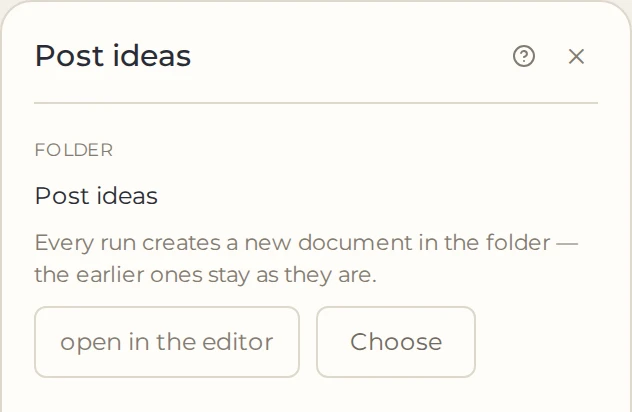
Finish the chain with "Folder" or "Document", run it manually and check the selection. After checking, you can turn on the schedule.
 1
- 1A new document for each selection
In the result settings, you can select "Title, link and date" if you need the dates the site reports. An update date is not necessarily the same as the publication date. The "Most recently found first" mode also relies on the time the material was found, not on a confirmed publication date.
How to format a useful selection
| Source | Idea for your own material | Benefit for the reader | Next step |
|---|---|---|---|
| Title and link of the found article | Shooting a product by a window without studio lights | Repeating a simple lighting setup at home | Read the source and prepare your own example |
This format keeps the link to the original material and immediately shows why the topic matters for your blog. If you want to go through the content, pass the selected links to "Page parsing". Then send the texts you get to analysis or writing.
For two sites, you can run separate branches and merge their results. Search is limited to the selected sites and to the data available on them.
How to tell new finds from repeat ideas
For a recurring category, you can add "Skip repeats" after the selection step. Pass it titles, links and briefly worded topics. It checks the materials against its own memory and passes on only what is new.
This is an extra filter based on materials passed on earlier. It does not mean the article has already been published on your blog. The memory is updated before any later writing. If a failure happens further down the chain, check the card's list and, if needed, correct it manually.
What to do if no new materials appear
Check "What to do with the previous list". "Work with what we have" gives the next batch of materials already collected and does not look for updates on the site. For monitoring, you need the option that searches for additions.
If you still get few results, open the blog itself. There may be no new posts, or the site may not serve them in an accessible way. A more thorough search mode may help, but it does not guarantee full coverage. Specifying a section in the address also does not guarantee that the list will contain only that section's materials. Other materials from the site may get in too.
A saved selection is kept for 90 days from the day it was collected. Keep this in mind for long-term work, and check the list status in the card settings. Collection, selection and analysis use tokens when they run. A regular schedule does not make these steps free.