
Create a cover image for an article or post with AI in Kotia
Write a short task in the Kotia chat, generate a cover for your article or post, check the composition, and save the image for your site or social media.
On this page5
In Kotia, you can create a cover image for an article or post. Set the subject, visual style, and composition in the chat. If you have already discussed the text with the assistant, continue in the same conversation. Briefly write what idea the image should convey and where it will be used. You can download the result or add it to a document.
For example, for an article about opening a small coffee shop, an image of the entrance and the first customers would work well. In the task, you can specify where to leave free space for the headline and ask to remove details that are not related to the material.
Put together a short task
Before generating, define four parameters:
- Topic: what the post is about and which subject should be the main one.
- Where it will be used: article cover, image inside the text, or a post in a channel.
- Presentation: photographic look, hand-drawn illustration, or minimalist composition.
- Constraints: text, logos, extra objects, space for the headline.
If you do not have a visual idea yet, first ask for several subject ideas in words. When you choose a suitable one, send a separate request to create the image.
Example request for a cover
Create a cover for the article "How to Open a Small Coffee Shop in a Residential Neighborhood." Hand-drawn editorial illustration: the entrance to a small coffee shop, the owner at the door, two customers with cups. Light morning, calm warm colors. Horizontal composition. Main characters on the right, calm background on the left for the headline, which I will add separately. No text or logos, no large crowd.
Describing the free space helps account for the future layout. You can't choose the image size, and a horizontal composition is a wish, not a guarantee: get the exact aspect ratio by cropping the finished file. If the headline should use a specific font, add it after generation in an external graphics editor.
How to get and choose an image
Open the chat, paste the task, and replace the example with the topic and details of your post.
Make sure you are asking to create an image, not just to come up with a description.
Send the message and wait for the finished picture in the reply or under the drawing step.
Click "Open image" and view the result at a larger size.
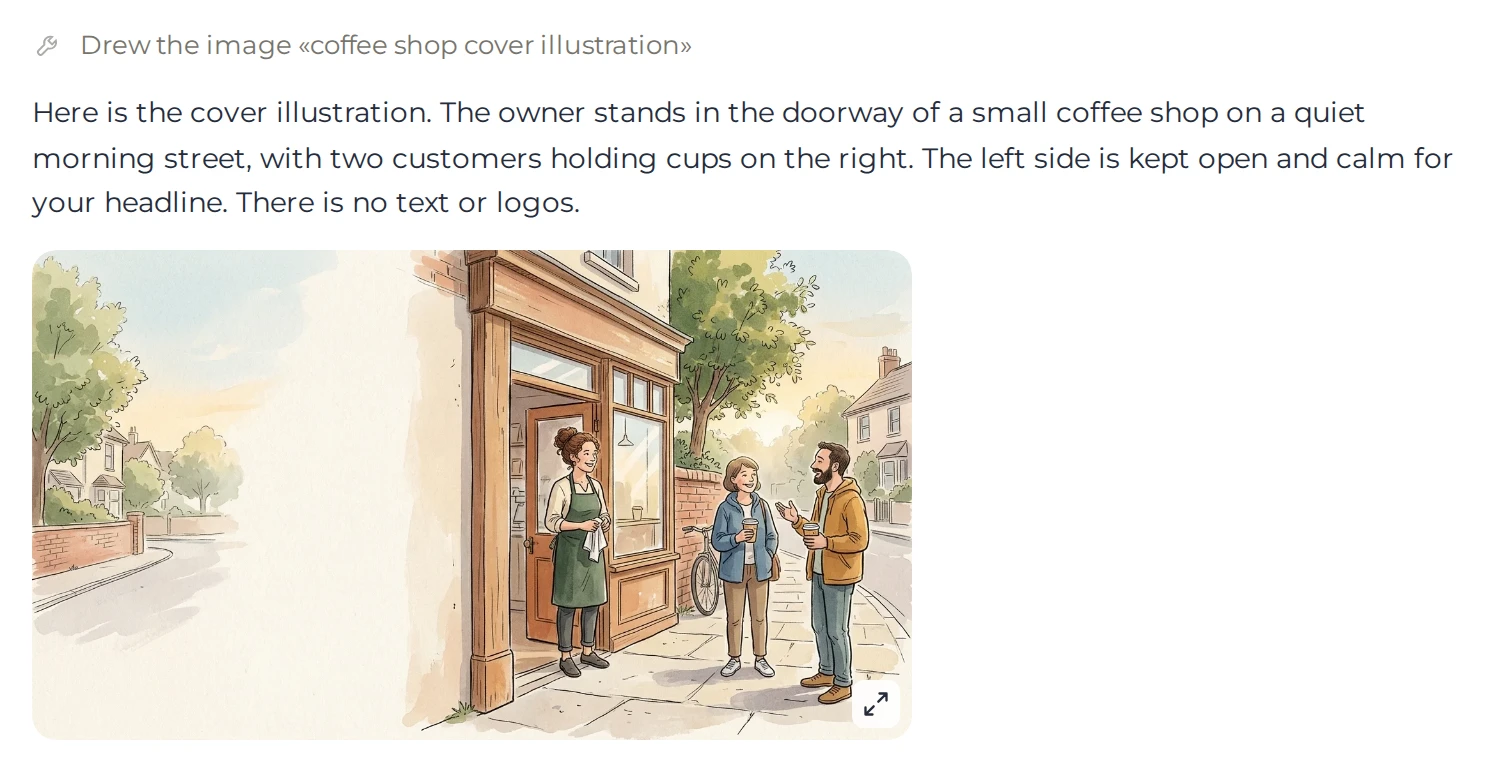
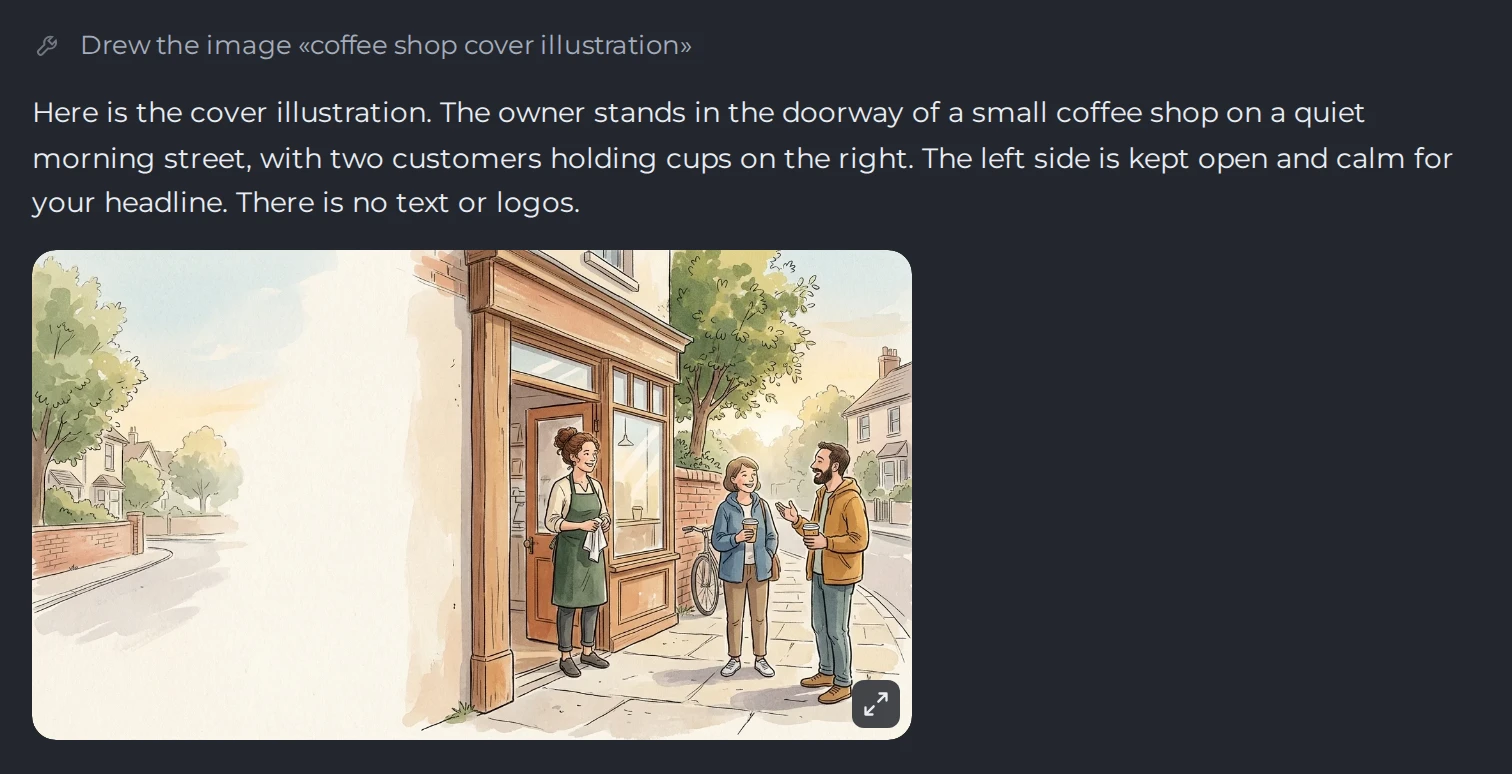 123
- 1The drawing step
- 2The finished picture
- 3Open image at a larger size
Check whether the main subject is clear, whether there is enough space for the headline, and whether there is any extra text or incorrect details.
Download the one that fits. To get several options at once, ask, for example, "draw three versions": you can get several images in one reply. Compare them at the same viewing size.

 1
- 1Download the picture
Do not judge the cover by its thumbnail alone. Inaccurate objects, stray symbols, and facial details are more noticeable in a large image, while a small one shows whether the composition reads clearly.
How to refine the next version
Name what exactly prevents you from using the image:
Create a new version of the same cover: keep only the owner at the entrance, remove the customers, and make the left side lighter. Keep the hand-drawn presentation and the horizontal composition.
This is a request for a new version, so the position and appearance of some details may change. Compare the new results again. Kotia does not edit a finished image or your own picture — it draws a new one from the description each time. If you only need an exact crop or text, do it in an external graphics editor.
If the steps line shows "The drawing service declined this subject", repeating the same request won't help: remove real people, other brands and logos from the description, or choose a different subject.
How to add the cover to your material
On your computer, open the document in the Workspace. Drag the created image into it, or paste the saved file using the image insertion action. Check how it is positioned relative to the headline and the introduction.
For another website or editor, download the image and upload it there. Before publishing, check how the platform you chose crops the cover. Important objects must stay in the visible area.
Images are saved in your Kotia storage. Each new generation is charged separately from the discussion of the task. An image that is already ready can be downloaded without drawing it again. General actions with images are described in the chat image generator guide.