
Summarize a PDF with AI to get key figures and sections
Upload a PDF to the Kotia chat to get a summary, key figures with page references, and explanations of complex sections. Verify details against the source.
On this page6
Upload a PDF to the Kotia chat to get a summary of the document, find the information you need, or work through a complex section. You can ask for a short summary for a first look, a table of figures for an article, or answers to specific questions about the file. You can refine the result in the same conversation by referring to individual parts of the document.
For example, from the annual report of a cultural center you can prepare an editorial fact sheet: how many events took place, how attendance changed, and which new projects appeared. Instead of retelling every page in order, you ask only for the information your piece needs.
Prepare the file and your goal
Make sure the PDF opens and its pages are readable. The maximum attachment size is 5 MB. If the file is larger, save the sections you need separately. If the document is a scan, it is especially important that the text is sharp, the pages are straight, and the tables are easy to tell apart.
Choose a model that accepts PDFs: on the "Models" page, its "Files" column says "Images, PDF, text", not "Text only". Decide in advance what you want to get:
| Goal | Result to ask for |
|---|---|
| Get to know a document quickly | The main topic and brief conclusions for each section |
| Prepare a publication | The facts, figures and page references you need |
| Compare figures | A table with periods, units of measurement and notes |
| Understand a confusing part | A plain-language explanation of a specific section |
Step 1. Upload the PDF to the chat
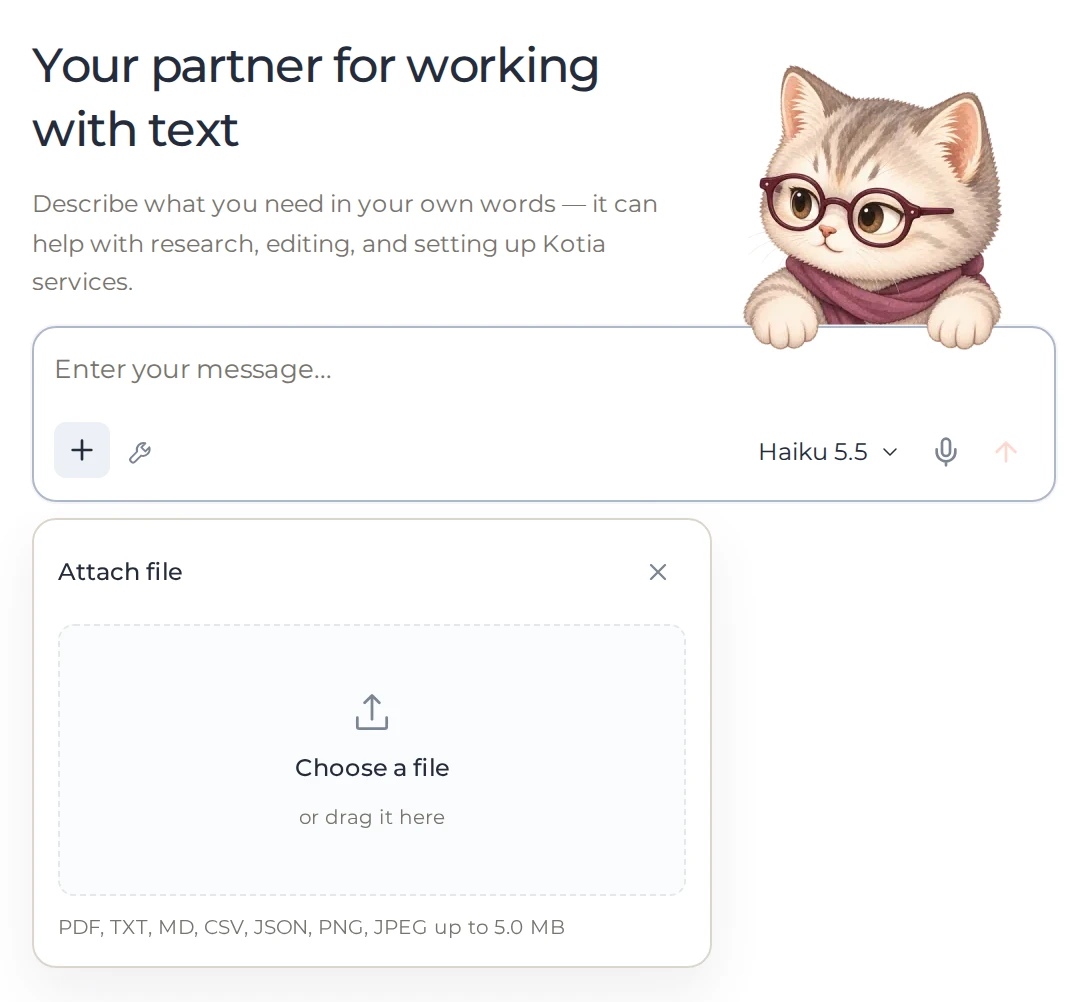
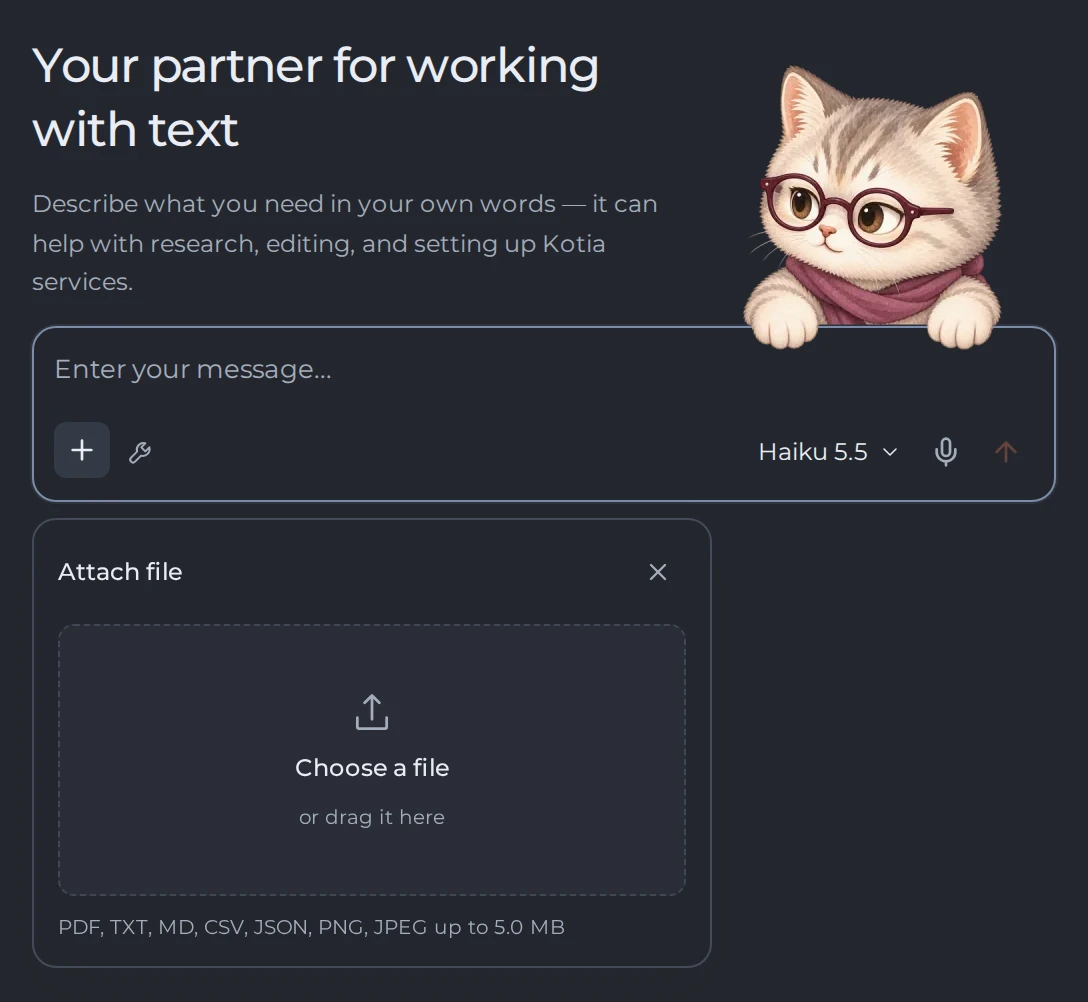
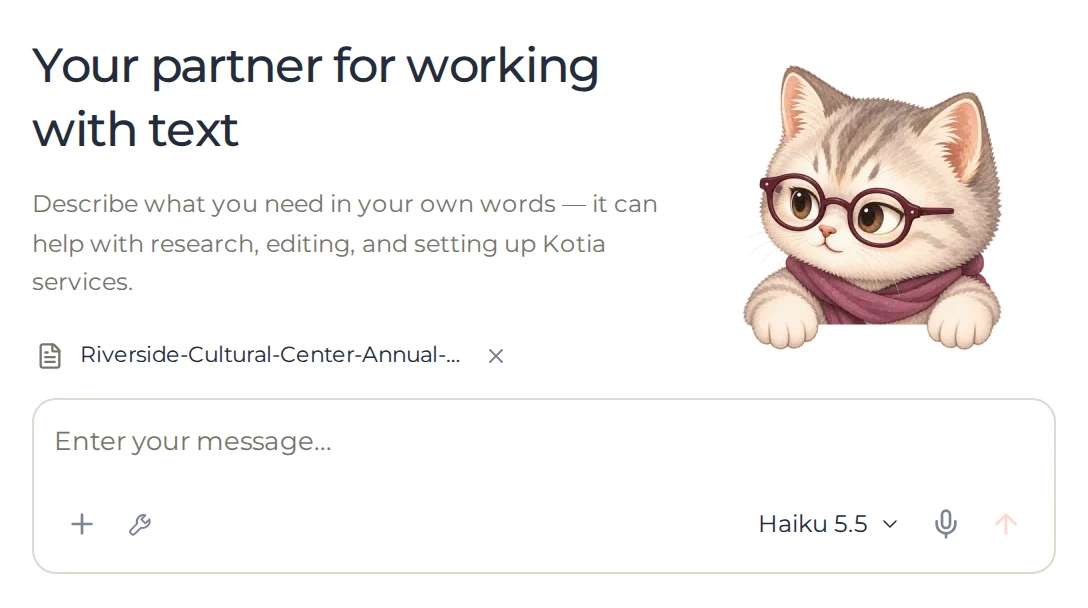
Click "Attach file" → "Choose a file" and select the document. Wait for the upload to finish and check the file name next to the message. If you attach several documents, name each one in your request so it's clear which file to take the data from.
 123
- 1Attach file
- 2Choose a file or drag it here
- 3Supported formats and size
 1
- 1The file name after upload
Step 2. Give the task for the summary
Example for a cultural center's annual report:
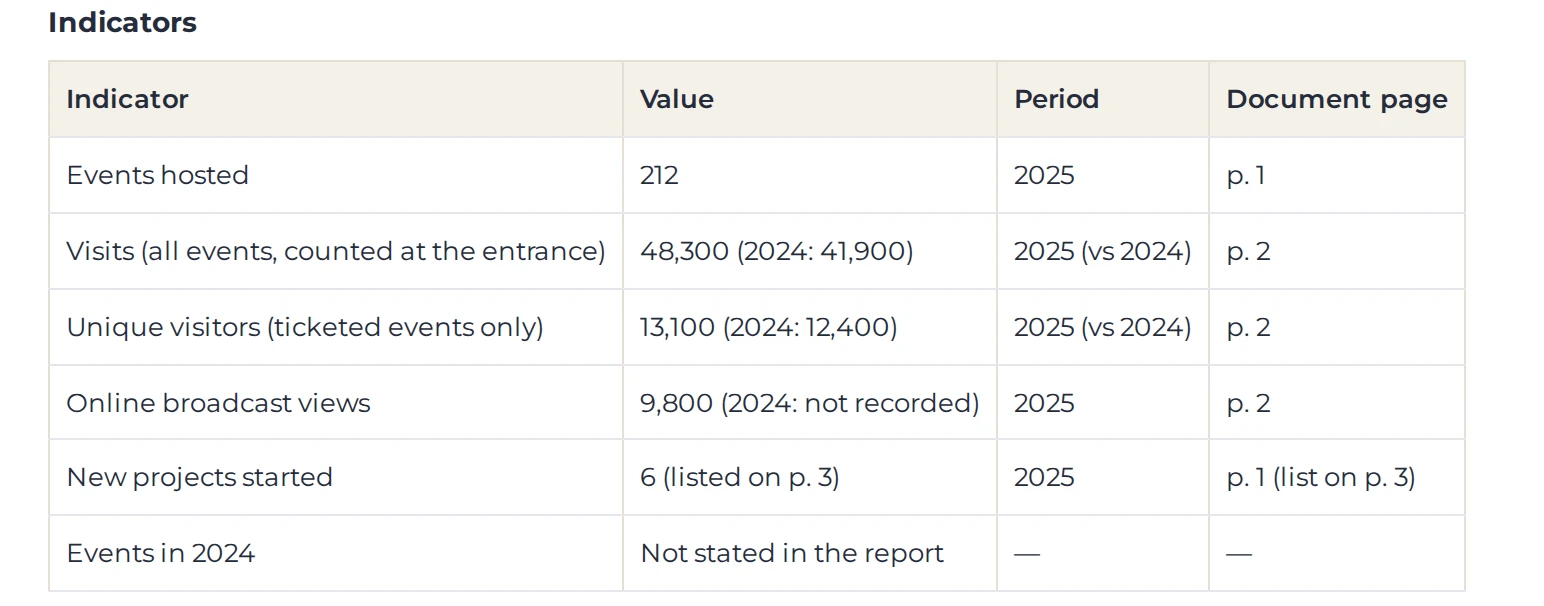
Make a summary of the attached annual report for the author of a city blog. First, list the main results of the year in five points. Then make a table: indicator, value, period, document page. Include attendance, the number of events and new projects, if they are in the report. Separately, list the conclusions of the report's authors. Don't add information from other sources. If you can't read a number or page reliably, mark it.
Send the message. Naming the audience helps choose the level of detail, and the list of indicators helps focus on the right parts of the file.
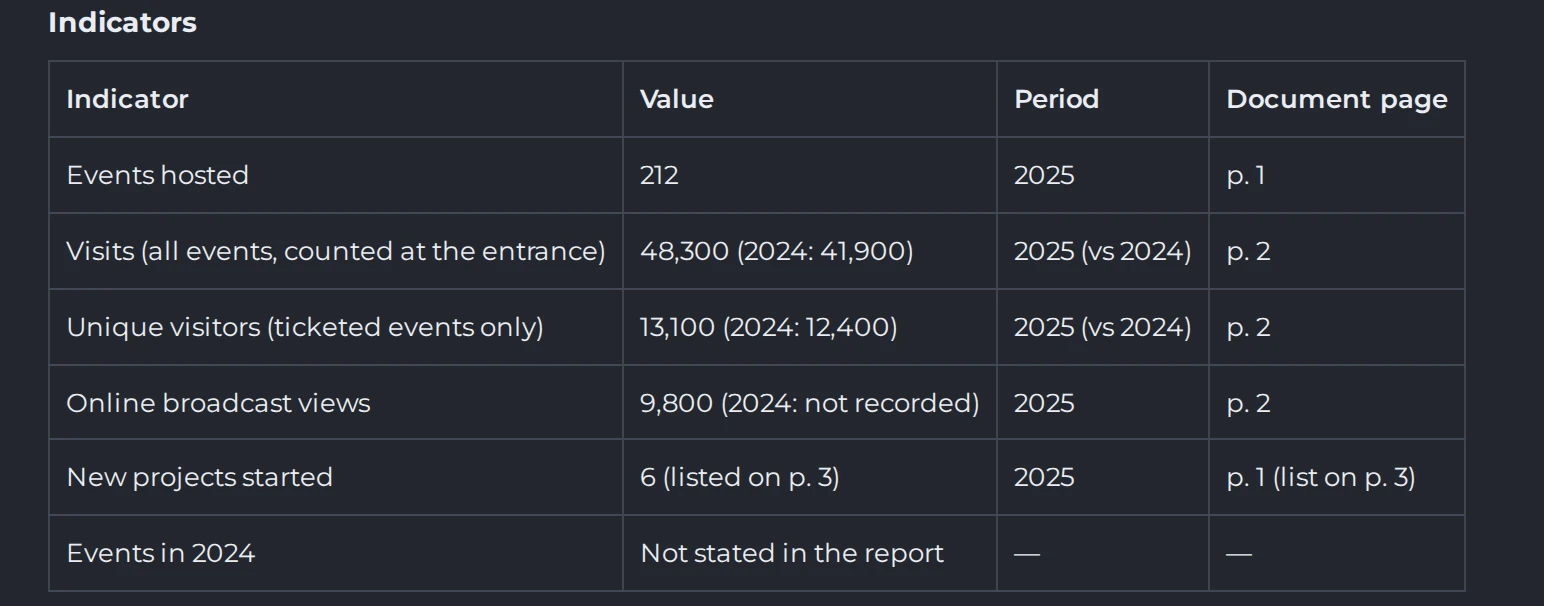 12
- 1Indicator, value and period
- 2The page of the document
Step 3. Clarify an important section
After the first answer, you can continue:
Go into more detail on the attendance section. Clarify whether unique visitors or visits are counted. Show which indicators can be compared across years and which are calculated differently.
For a different document, the questions will be different: for an instruction, the steps and conditions; for a review, the methods and results; for a presentation, the key points and supporting data. You don't have to ask for the same summary for every file.
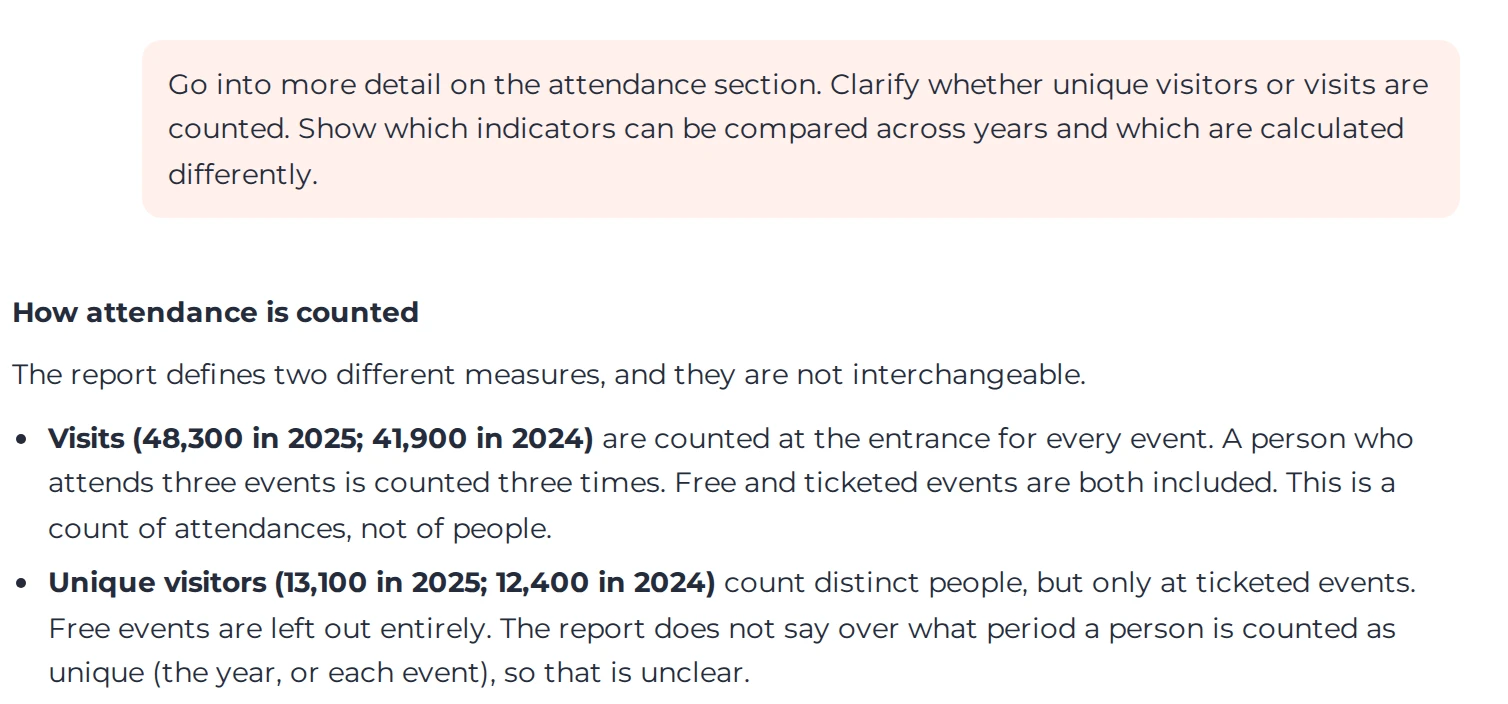
 12
- 1Your follow-up question
- 2The answer separates visits from unique visitors
Step 4. Check the key details
Open the pages listed in the answer and check the numbers, names and quotes. The page number in the viewer may differ from the one printed in the document itself. If needed, ask for the section name or the opening of the paragraph as well.
Separate the document's own conclusions from the agent's explanations. If the summary gives a reason for growth that isn't in the report, ask to remove it or clearly label it as an assumption. After checking, you can ask for a note to be prepared based on the confirmed data.
If the document can't be read
If the scan is unreadable, prepare a clearer file or the text of the needed fragment. If the whole report doesn't fit in the chat, prepare files with separate sections and go through each one in a new conversation. Then put together a summary of the verified conclusions. Keep an eye on the context: a small file size does not guarantee that all its pages will fit together with a long conversation.
In a new chat, attach the original file again. Persistent memory stores brief information about the project, but it does not replace the PDF or the exact data from it.