
Send a Kotia article to WordPress and prepare it for publishing
Send a finished Kotia article to WordPress as a draft, check the text, links and tables on your site, then publish it. Covers connection and sending steps.
On this page5
You can send an article prepared in Kotia directly to WordPress and continue working on it in your site's editor. The post is created as a draft. You check the text in your blog's design, add the settings you need, and publish the material. This method works both for your first article and for adding posts to your blog on a regular basis.
Let's look at an article from an online store about choosing wall shelves. Kotia wrote the base. Before publishing, you add real product specifications and links from the catalog, then send the finished version to the site.
Connect your site using the method that suits you
Open "Settings" → "Connected Sites" and add WordPress. Choose:
- Via Plugin if you also want to transfer your existing SEO title, description and keyword.
- Via REST API if it's enough to transfer only the article itself, and you'll fill in the SEO fields on the site yourself.
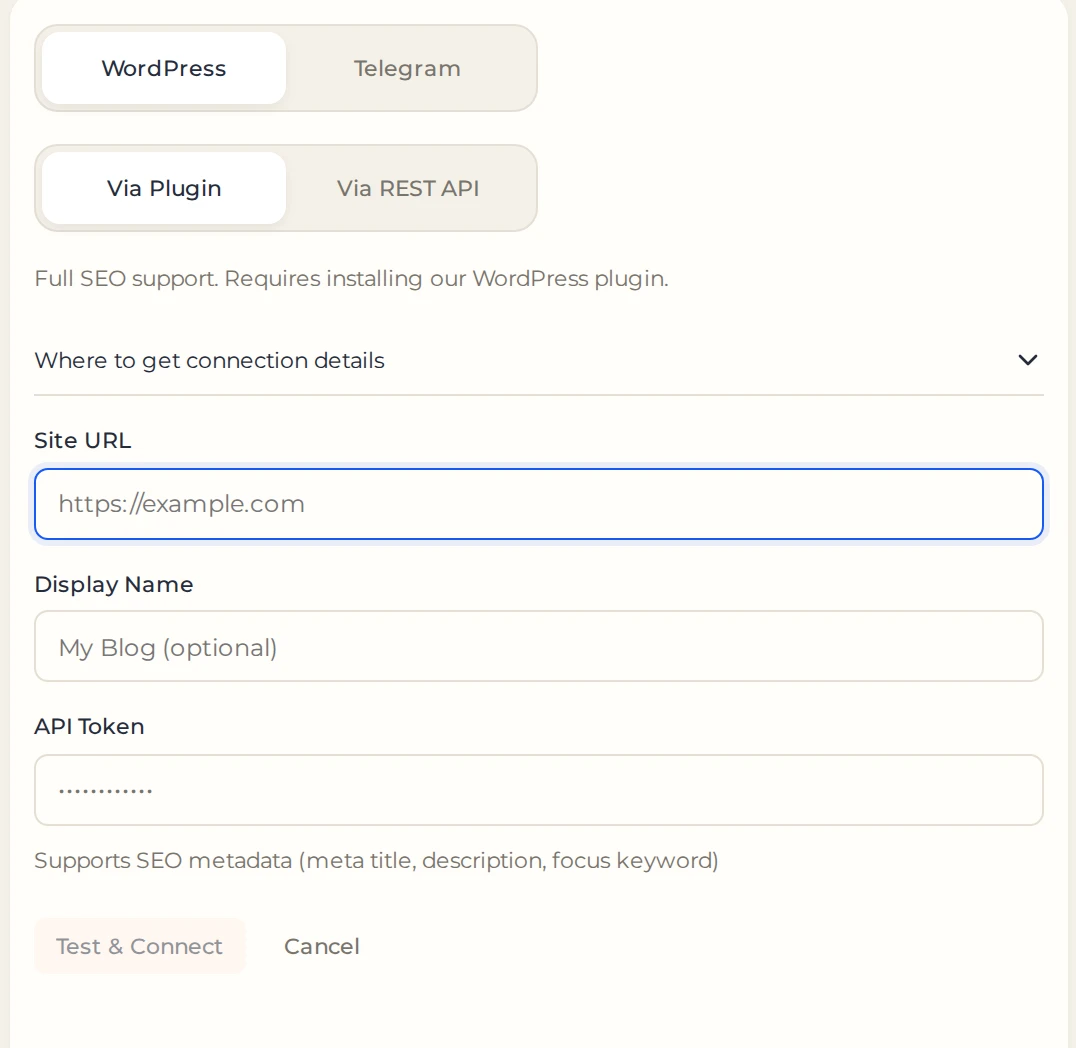
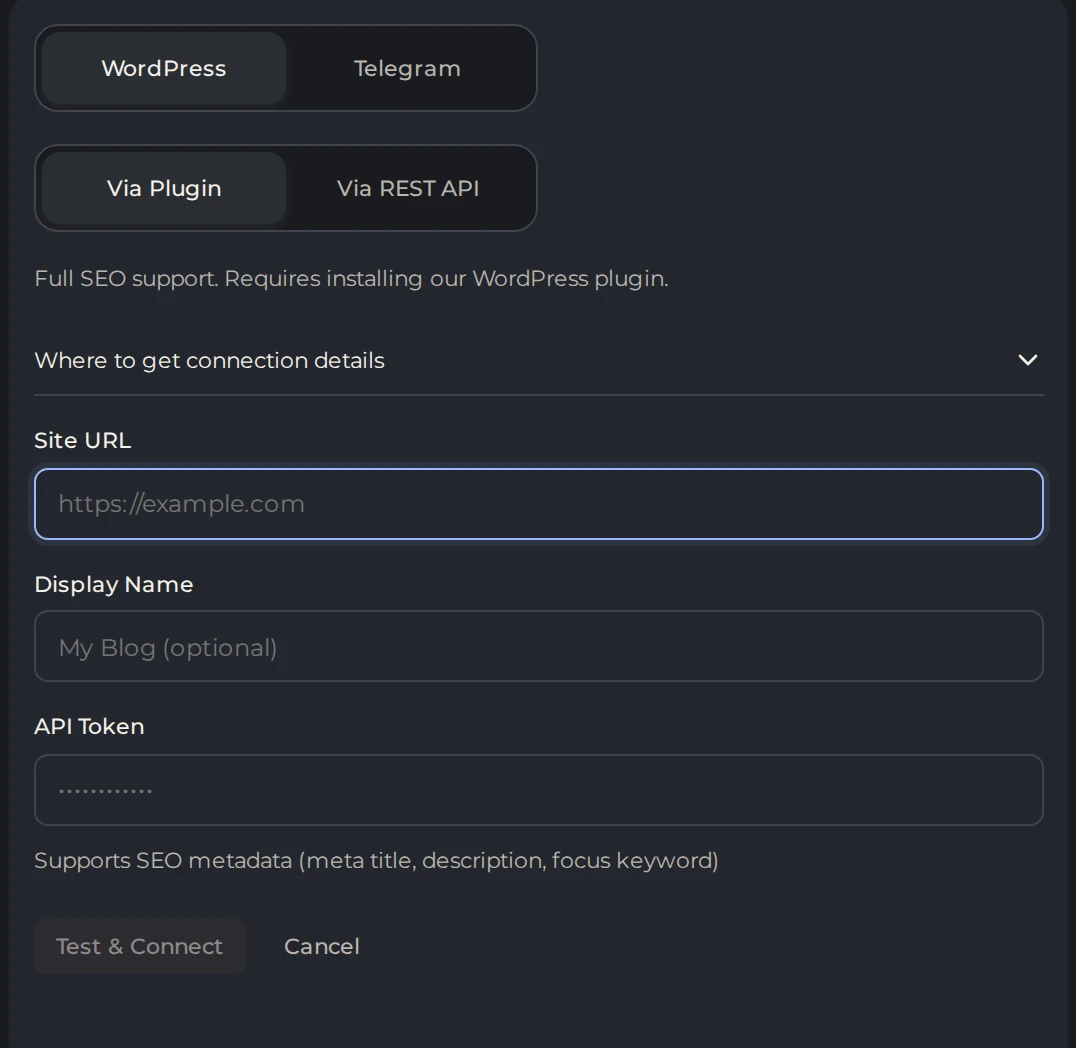 123
- 1WordPress
- 2Via Plugin or Via REST API
- 3Site address and key
Wait for the connection check to succeed. If you connected several blogs, give them clear names so you don't mix up the sites when sending.
Prepare the final version
- Open the finished article and check the facts, numbers and links.
- If changes are needed, open the document in the Workspace on your computer and make edits in your own copy.
- Add your project's data: in the shelves example, these are the sizes, mounting conditions and links to products.
- Accept or reject the AI's suggestions.
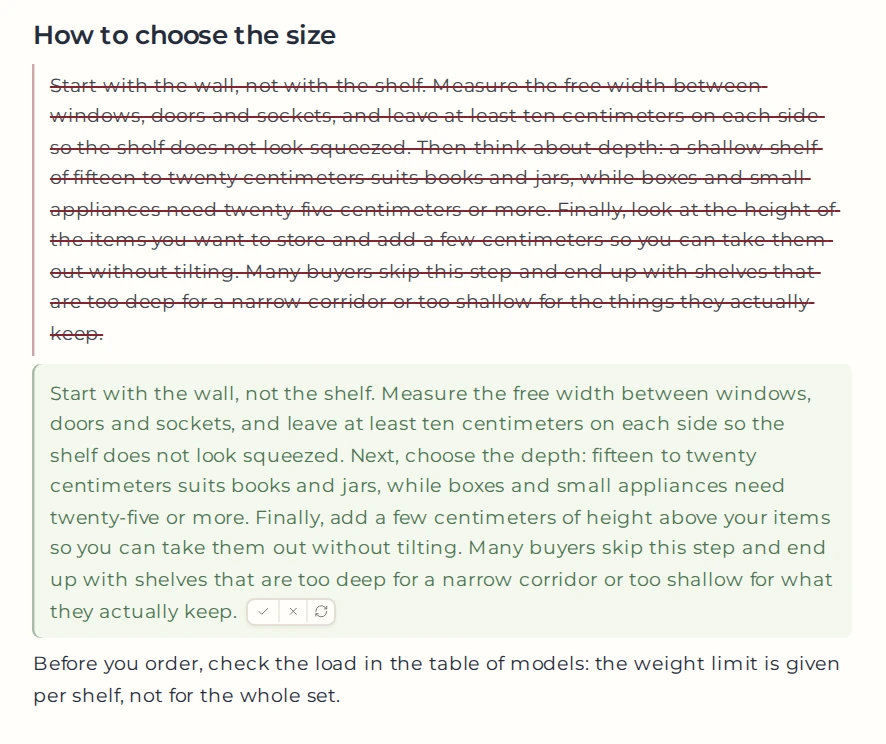
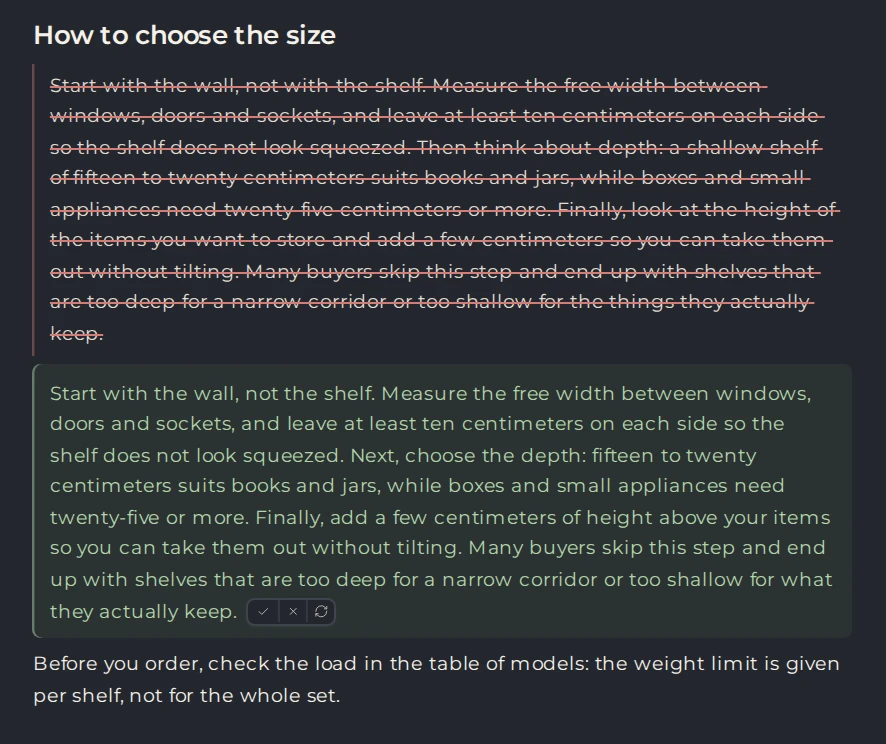 123
- 1The old text
- 2The suggested text
- 3Accept, Reject, Regenerate
- Read the article in full after the changes and check the headings, tables and images.
Example task for the assistant:
In the section about choosing a size, add the specifications from my list. For each model, include the width, depth and a link to the product page. Keep the other sections. Don't add load capacity information if it isn't in the list.
For detailed revision instructions, see the article about editing AI output. Send your finished copy if you made changes to it.
Send the material to WordPress
- Click "Publish" for the selected material.
- In the WordPress group, select the site you need.
- Check the recipient address and the preview text.
- If you use the REST API, keep in mind the hint: SEO fields are not transferred with this method.
- Click "Send" and wait for the message "Published as draft".
- Follow the "Open in WordPress" link.
If the selected document has no SEO fields, the plugin won't create them just because the site is connected. Fill them in WordPress, or prepare the metadata separately in a workflow.
Check the draft on the site
| What to check | Why |
|---|---|
| Post title and URL | So the material has the right name and address |
| Category, author, cover image | So the post appears in the right section and looks like the other posts on the blog |
| Links and specifications | So readers go to current products and terms |
| Tables and images | So they display correctly in your WordPress theme |
| SEO fields | So they are filled in with the SEO tool you use |
Open the preview in WordPress. When everything is ready, publish the post or schedule it using the site's tools.
How to organize future publications
If you're comfortable checking the article in WordPress, turn on autopublishing when you order an article in the chat. If you need your own set of steps, build a workflow for preparing drafts.
Sending the material again from Kotia creates a new draft. To fix a post that has already been sent, open it on the site. If the connection to the site was interrupted, first check the list of drafts and only then send the material again.