
Prepare and publish a Telegram channel post in Kotia
Turn a topic, news item or article into a ready channel post in Kotia: prepare the text, check the preview, send it to Telegram, then set up regular posts.
On this page5
In Kotia, you can combine preparing content for Telegram with publishing it: gather the facts, write a post for your audience, and send it to a connected channel. For a one-off post, use the chat and the editor. For regular issues, you can build the same work into a workflow that ends with sending.
For example, you've published an article about choosing plants for a dark room. For your channel, you need a short, useful post: a few takeaways and a link to the full article. Below is the path from the source article to a message for your subscribers.
Prepare the text for the channel
Give the assistant the source material or a link, and say who the audience is, what result you want, and how long the post should be. For example:
Based on this article, prepare one post for a Telegram channel about houseplants. Explain three main takeaways for a room with little light. A short headline, then three points and a link to the full article. Up to 1,800 characters including the link. Use only information from the source, with no table and no introduction about why plants matter.
If you need to prepare the text from an external page, you can start with the post-from-link workflow. For your own topic, use the post-from-request workflow. Ready-made workflows only prepare the document; you need to choose the sending step separately.
If the post links to your article, use an address that is already open to subscribers. A link to a private WordPress draft won't let them read the rest.
Choose the format before the final edit
| Post format | What to consider |
|---|---|
| Text only | Up to 4,096 characters |
| One image and text | The text becomes the caption: up to 1,024 characters |
| Album and text | The shared caption is also limited to 1,024 characters |
For a post with an image, ask the assistant for a shorter length, leaving room for the headline and the link. The counter in the preview helps you check the finished text. Sending does not shorten the text: if the post is longer than the limit, it will be sent in several messages after you confirm. The image with the start of the text goes first, then the rest.
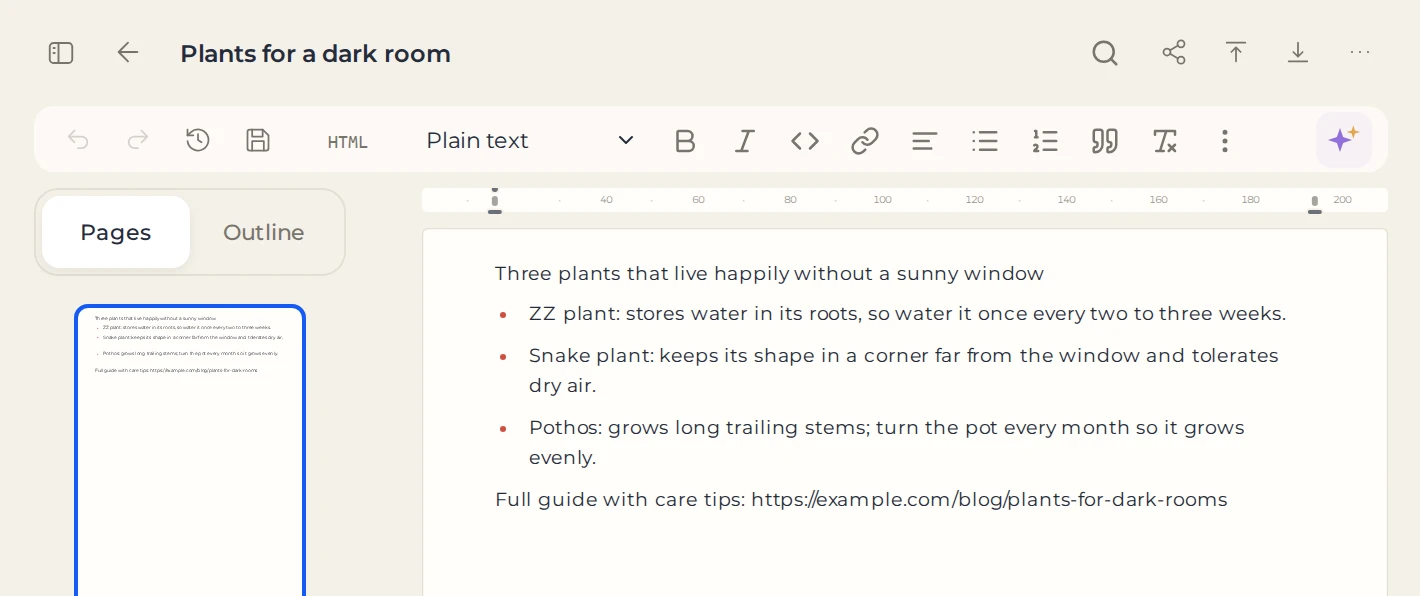
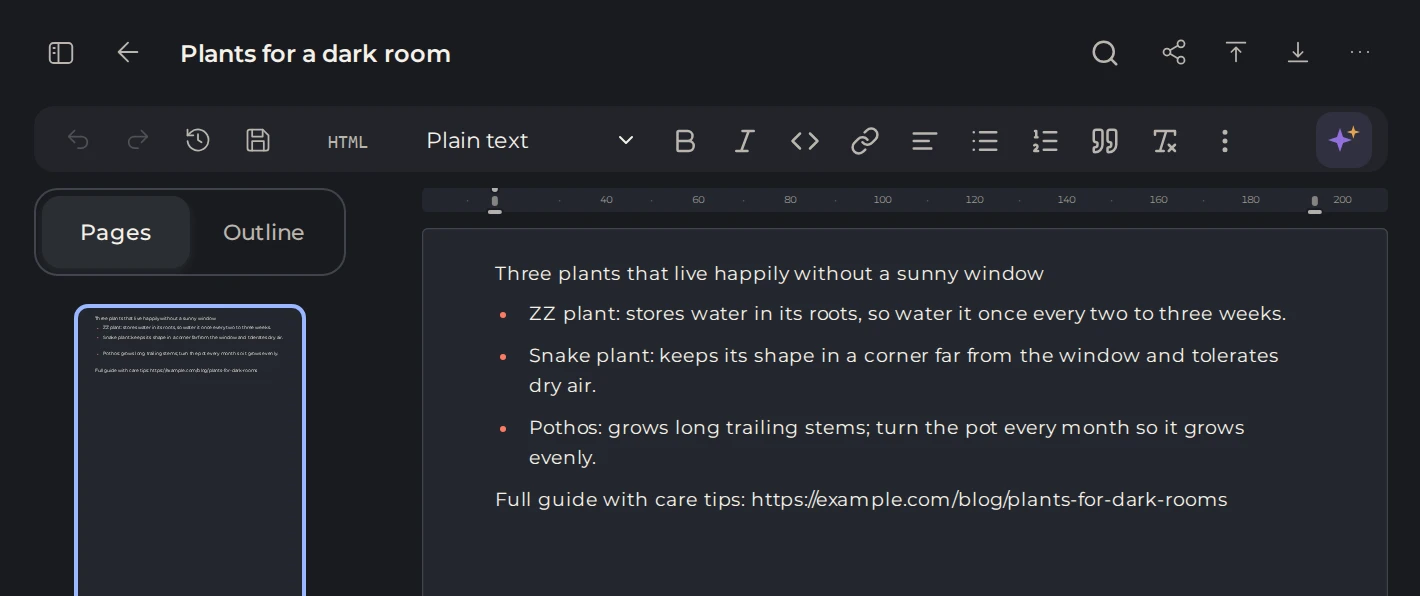
Open the document and check the content
On your computer, prepare your own document in the Workspace. Read the post, check the facts against the source, and accept the AI suggestions you need. If you need an illustration, add it from a file or from the chat using image tools.
Make sure the document contains one finished post. Several drafts, the assistant's comments, and advice on publishing time must not accidentally end up in the message for subscribers.
 12
- 1The post text
- 2Publish
Connect the channel and send the post
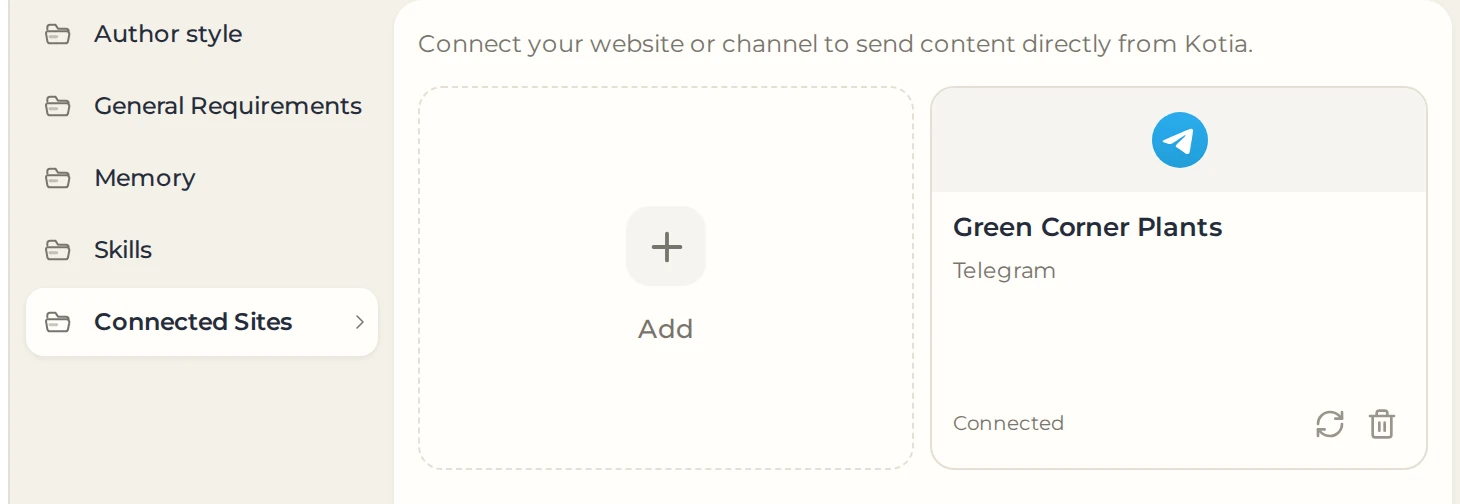
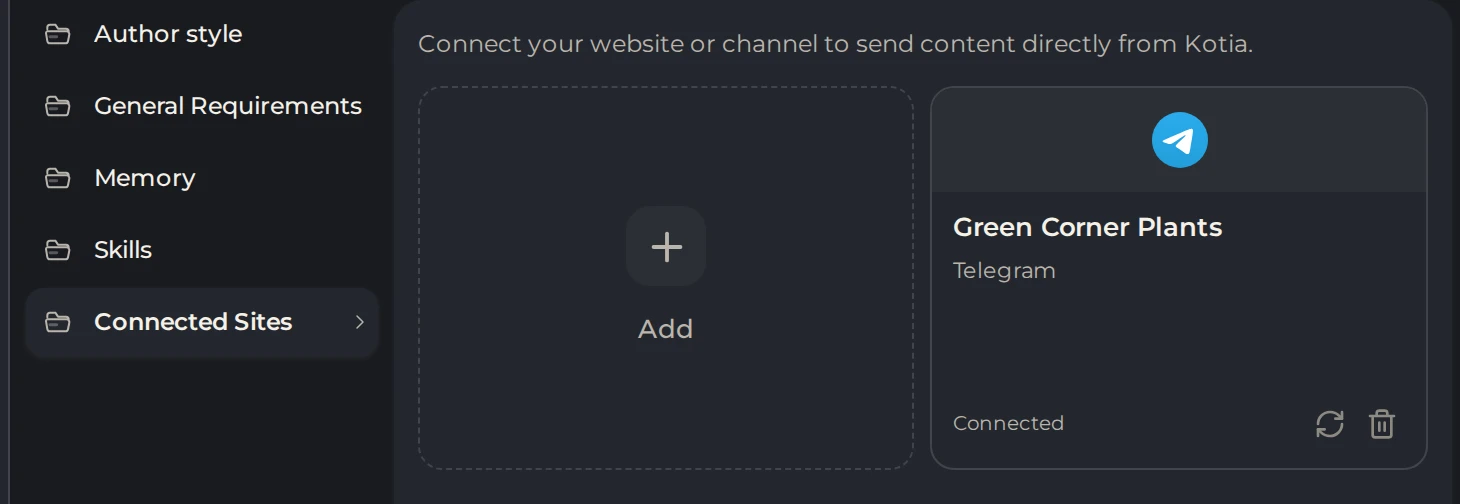
- If the channel isn't connected yet, go through connecting Telegram in the settings and the Kotia bot.
 123
- 1Connected Sites
- 2Add a site or channel
- 3A connected channel
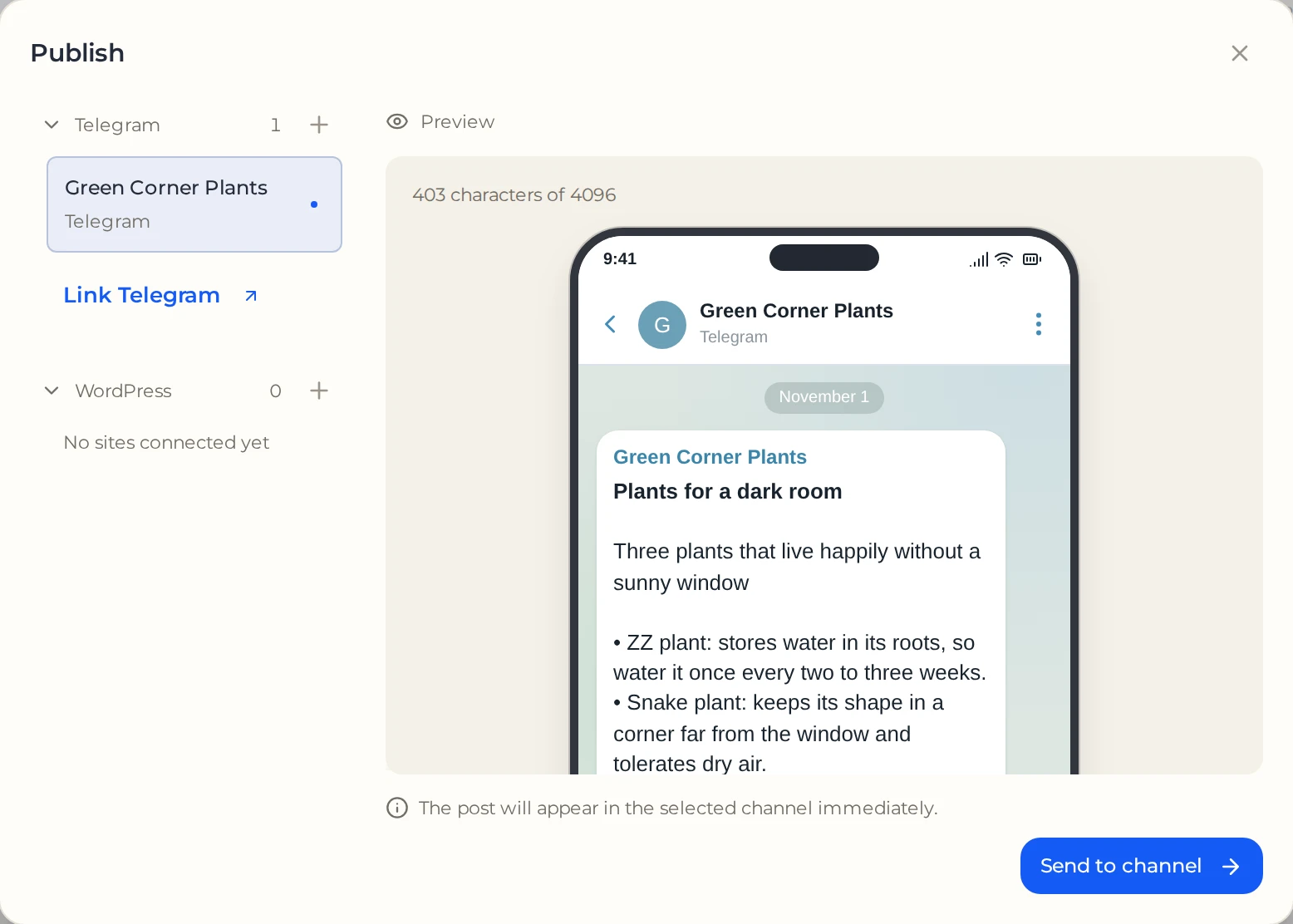
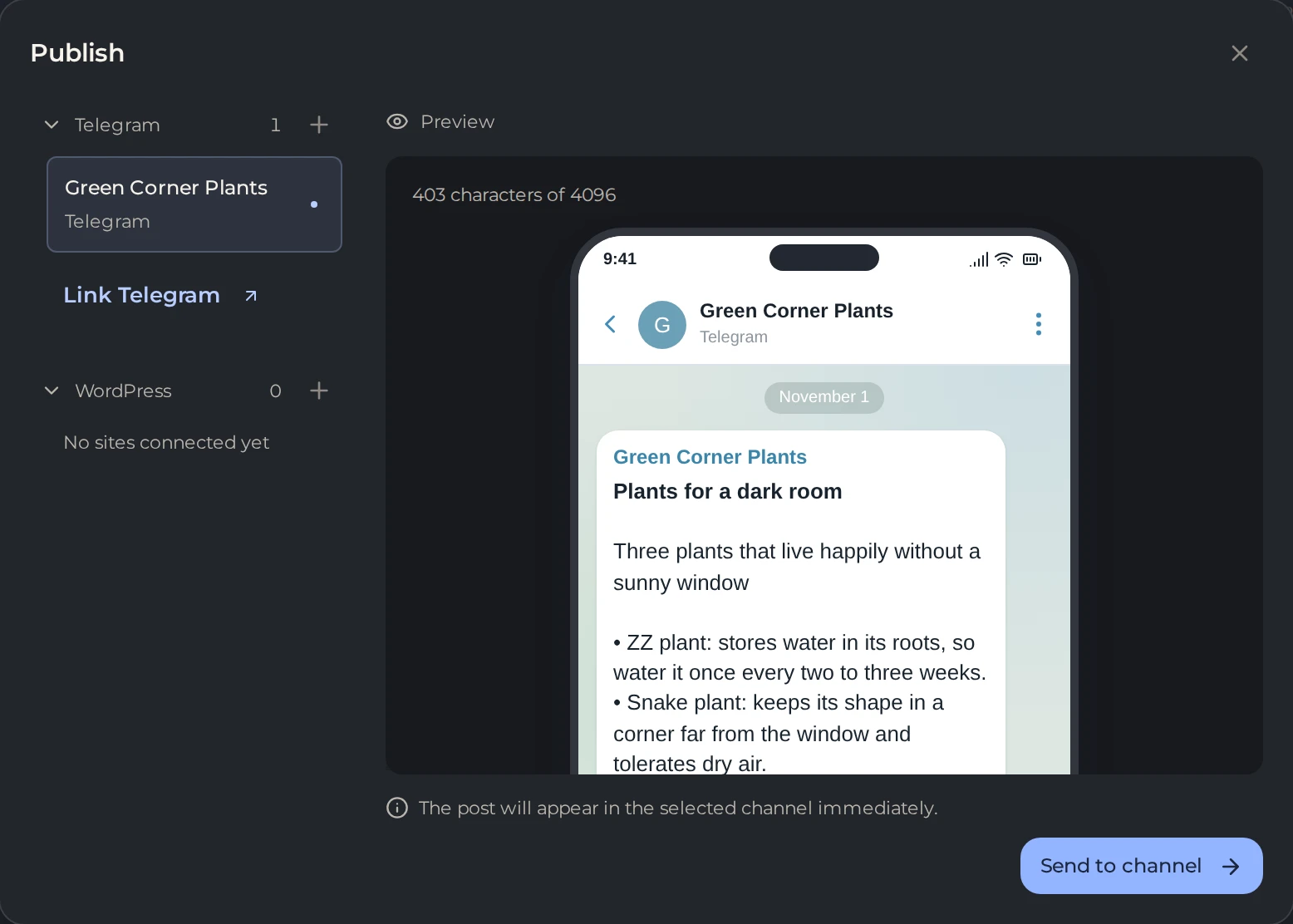
- In the finished document, click "Publish".
- Select the channel you need by name.
- Wait for the preview and check the text, image, link, and length counter.
 123
- 1Your channel
- 2Preview and length counter
- 3Send to channel
- If the post is longer than the limit, the preview will show each message and how many there are. If you need a single post, go back to the document, shorten the text, and open publishing again. Fix formatting problems the same way.
- Click "Send to channel". For a long post, confirm the split of the text into parts. Then click "Open the message" and check the post in Telegram. If not everything was sent, click "Send the rest": it will send only the messages that did not get through.
Once sent, the post is immediately available to subscribers. To edit or delete a message that is already published, do it in Telegram. If the result of the send is unclear, check the channel first so you don't create a duplicate.
Set up regular posts
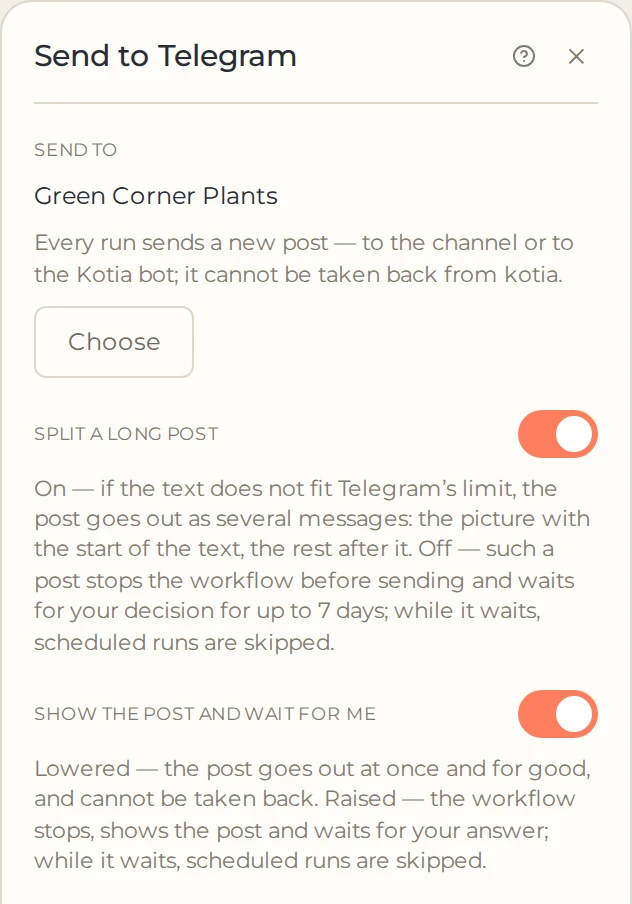
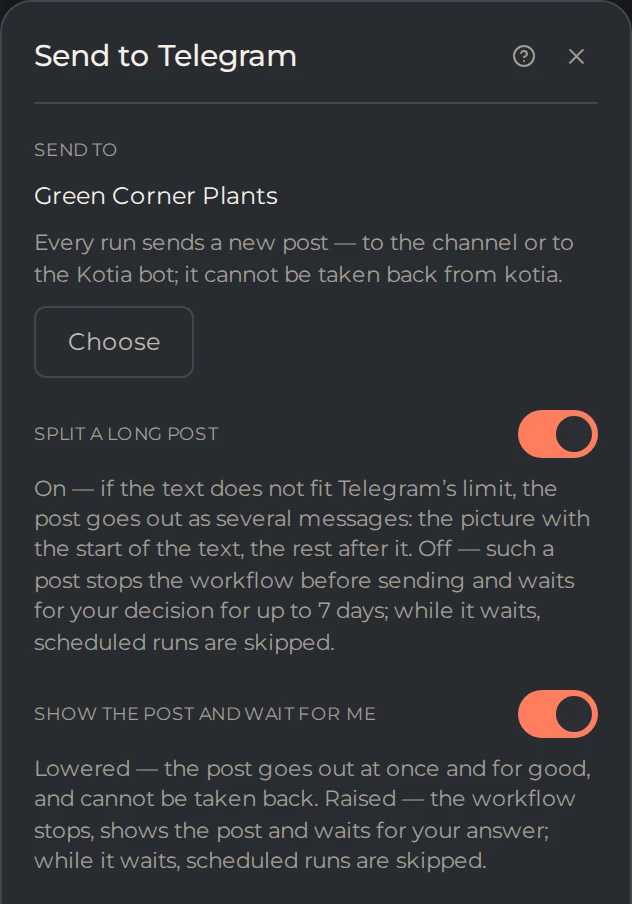
Add the "Send to Telegram" card after the writing step and set up the channel. For the first runs, turn on "Show the post and wait for me". Once you've checked the workflow, you can set a schedule for it.
 12
- 1The channel that receives the post
- 2Keep on until you trust the result
One sending pass creates one post. If you need a news roundup, set up selection and sequential processing before sending: text with several posts is not split automatically. The step-by-step process is described in the Telegram auto-posting guide.