
Share a draft with an editor or client by link in Kotia
Share a draft from Kotia by link so an editor or client can read it without an account. Collect comments, make changes, and turn off or reset the link.
On this page5
You can share a draft from Kotia with an editor or client through a link. The recipient doesn't need a file or an account. The recipient will see the formatted material, including any images that are available, and you can keep working on the text in Kotia. This approach is useful for checking the content before you publish it on a website or in a channel.
For example, you have written instructions for using a product. A specialist from the client needs to read them and check the names, the order of steps, and the conditions. Send them a separate copy for viewing and ask them to send comments on specific sections.
Choose a document to share
If you have already refined the article in the Workspace, share your copy. Changes you make to the copy are not automatically applied to the original result in the service.
If you are still reworking the text, create a separate document:
- Open your editable copy.
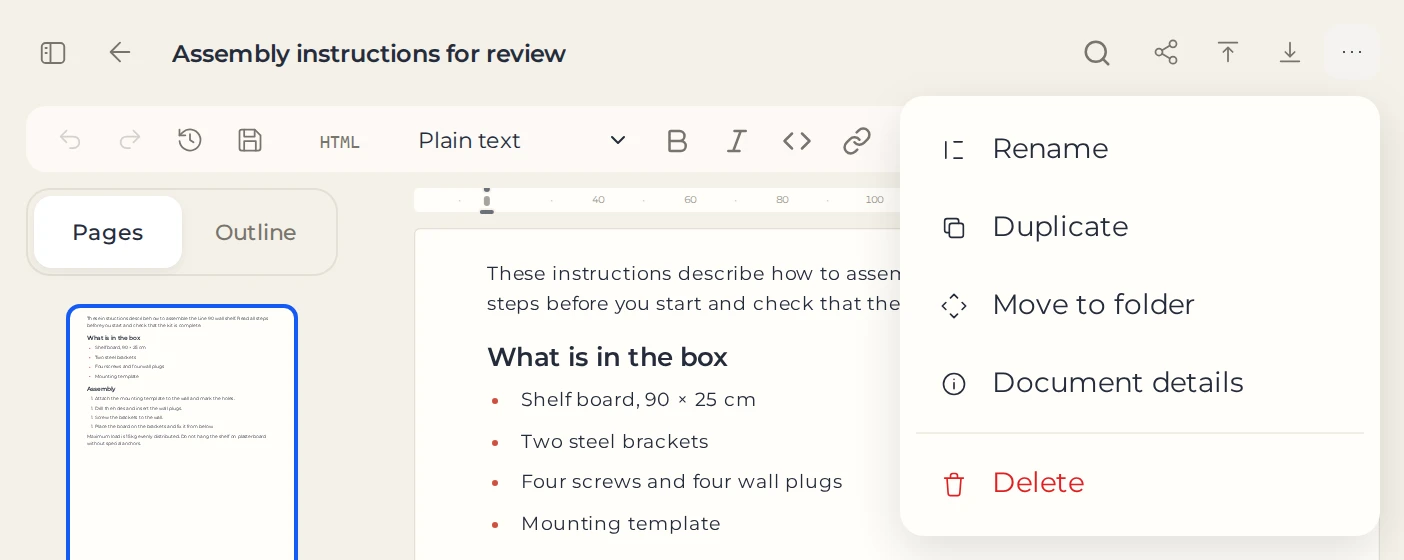
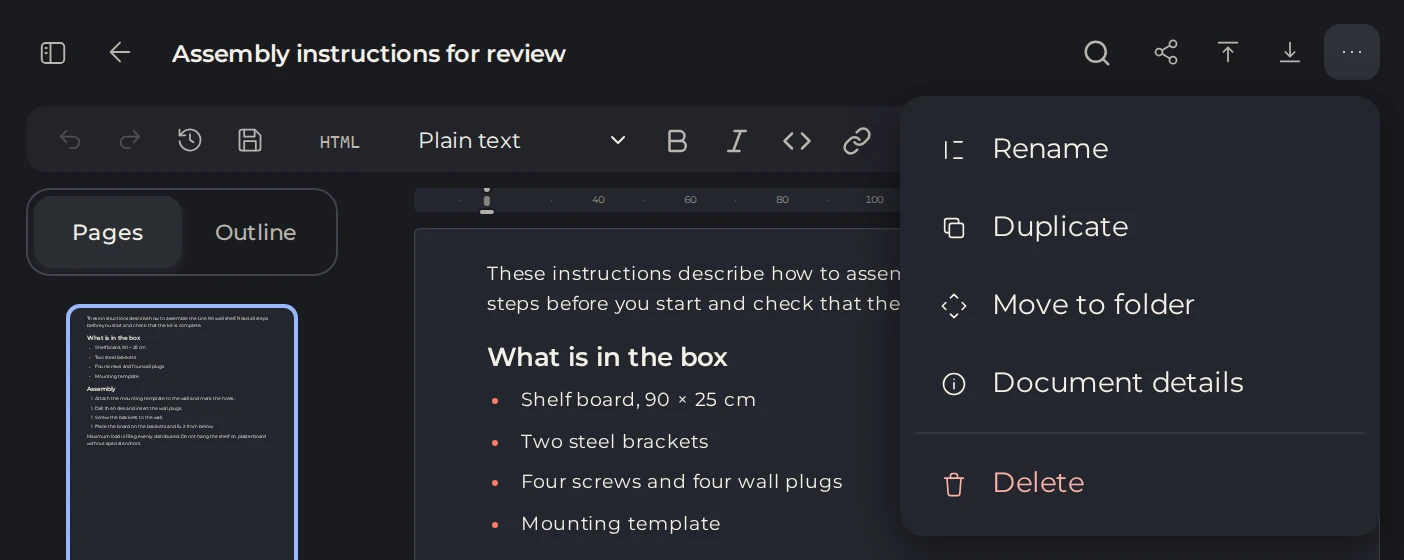
- In the "Actions" menu, select "Duplicate".
 12
- 1Actions
- 2Duplicate
- Give the copy a clear name, for example "Assembly instructions for review."
- Accept or reject the remaining AI suggestions.
- Read the text and check the images before you share it.
The recipient should see a coherent draft, not a set of alternative wordings and notes meant only for you.
Enable access and check the page
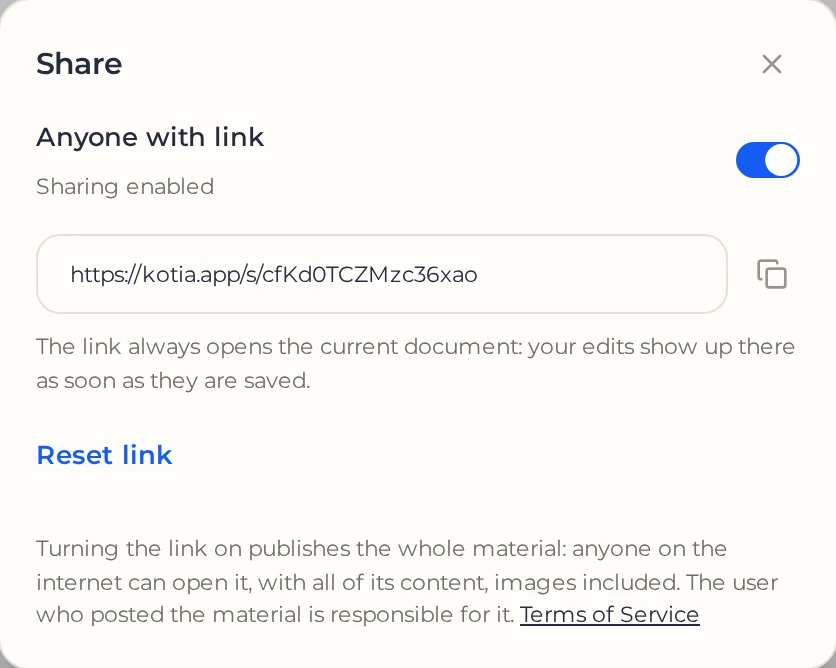
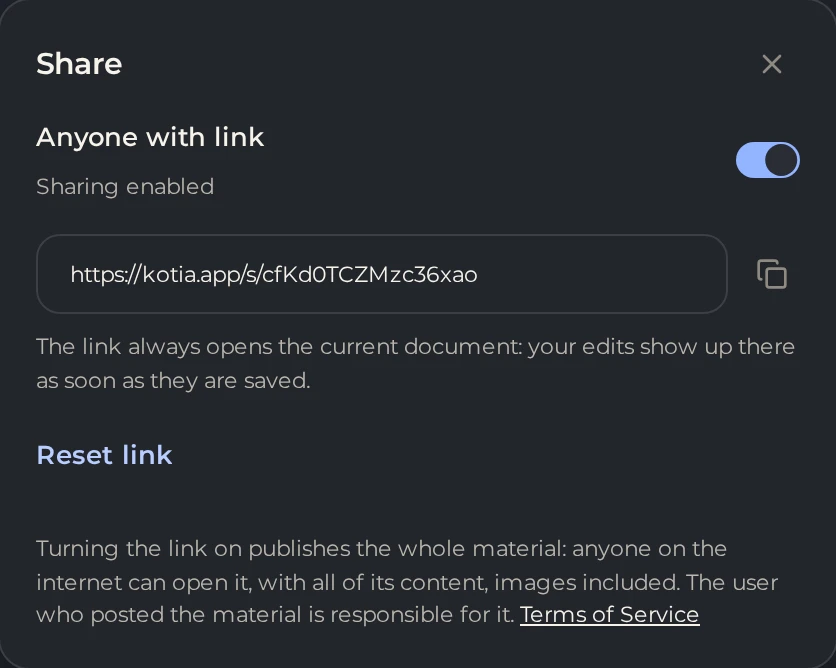
Click "Share", turn on "Anyone with link," and copy the address. Open it in a window where you are not signed in to your account. This way, you'll see the page the same way the recipient will.
 123
- 1Anyone with link
- 2Copy the address
- 3Reset link
Check the title, the order of the sections, the tables, the links, and the illustrations. The link opens only the selected material for reading. It does not give access to your chat or to other documents.
Access is not tied to a specific recipient, so the person you share the link with can forward it to others. For this reason, don't leave internal notes in the copy you share that should not reach other readers.
How to ask for useful comments
Send the link with a short note about what to check. For example:
Please review the assembly instructions. I need you to check the names of the parts, the order of the steps, and the conditions of use. If you find an error, send me the section name, the quote, and the correct version. I'll revise the wording and formatting after your review.
The page at the link is for reading only. You can get comments by message or in any other convenient way. Joint editing of the source and comments directly on the page are not supported.
How to make corrections
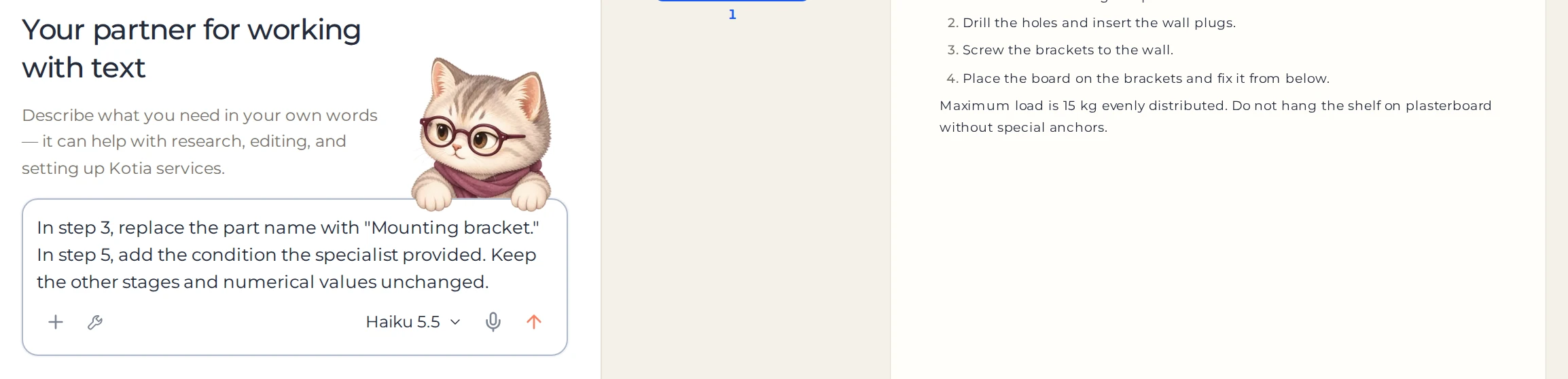
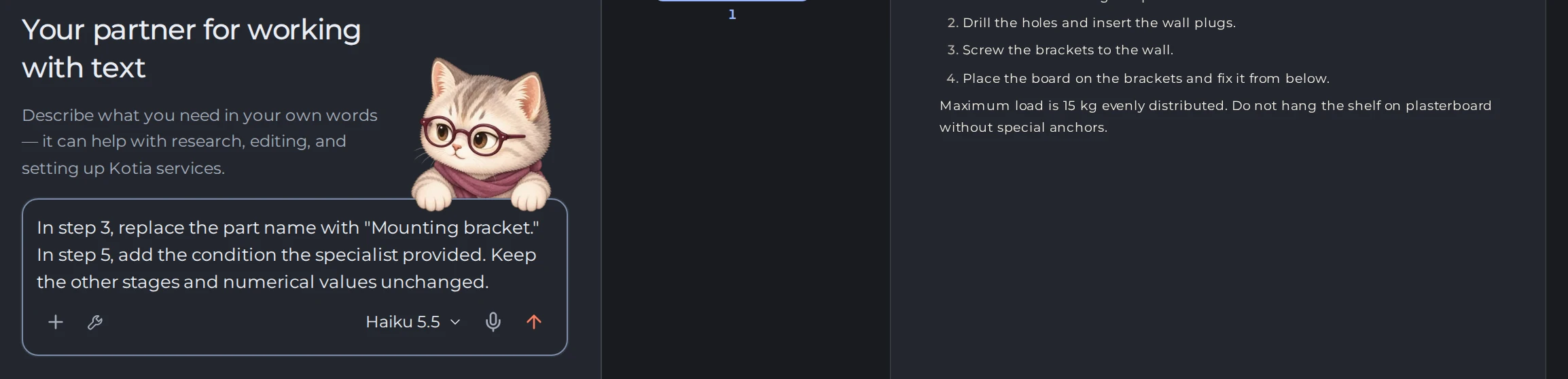
Open the document in Kotia and address the comments for each section. Enter exact data manually, or give it to the assistant along with any constraints. For example:
In step 3, replace the part name with "Mounting bracket." In step 5, add the condition the specialist provided. Keep the other stages and numerical values unchanged.
 12
- 1Your corrections
- 2The document behind the link
Review the AI suggestions, accept the ones you need, and reread the entire revised section. If you need another check, open the page available to the recipient again and make sure it shows the correct text.
If you need to keep both versions for comparison, create separate copies or use document versions. Don't treat a shared link as an unchanging archive of the text you sent.
How to finish the review
In the "Share" window, turn off access when you no longer need the page to be viewed. If the old address must not work after you reopen access, click "Reset link." You'll need a new address for the next time you share.
If the recipient needs a fixed, standalone copy, download Word or another format. Closing the link in Kotia does not revoke files you have already sent or that the recipient has saved.