
Have Kotia write an article with sources you can check
Set up an article with checkable sources in Kotia: choose footnotes or inline links, add your own materials, and check the facts before publishing.
On this page7
Have Kotia write an article where you can open the sources and check the facts it contains. The service finds materials, collects facts, drafts an outline, and writes the text with footnotes or links in the format you choose. You can also include your own source materials in the task.
Links are needed in instructions, overviews and explanatory articles, so readers can check the basis for each claim. Search is already part of generation, so you don't need to order it separately before the article. This guide covers choosing sources, formatting links and checking the result.
Example: an article based on your workshop's instructions
For an article about caring for ceramics, you can provide the instructions for your products and ask Kotia to expand them with explanations from the sources it finds:
Write an article on caring for ceramic tableware for customers of our workshop. Use the instructions provided for the care rules for our products, and back up general explanations with sources. Separate general recommendations from the properties of specific products. Format the links as footnotes.
In the finished article, you can check the recommendations against your own instructions and open the sources for the other statements. Before publishing, make sure the links actually support the information they're attached to.
How found materials are used in the text
| What happens in Kotia | What this gives the article |
|---|---|
| The service searches for materials on the questions of the topic | Concrete factual material is gathered for the text |
| The service extracts information from the materials and compares facts | The structure and sections are based on the content |
| An outline is built from the prepared data | Questions are distributed across sections |
| The text is written with formatted links to sources | The reader can open the supporting material through the link |
| The article goes through general editing | Individual sections are linked into a coherent text |
A link in the finished article is a way to go to the source of a specific statement. It is useful when editing, updating the material and preparing for publication: you don't have to search again for the original information using only the wording in the text.
Three ways to format sources
In the article form, expand "Sources, style and requirements". The "Source links" field offers three options:
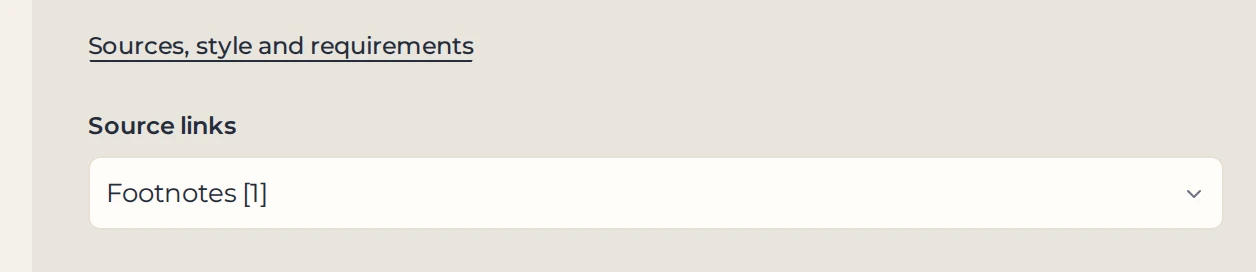
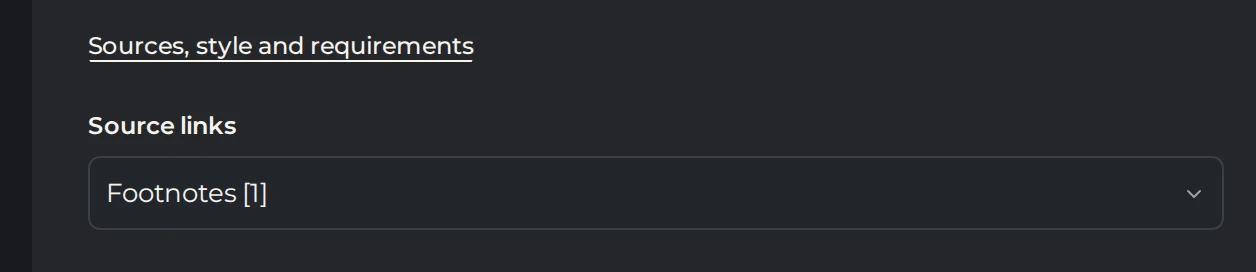 12
- 1Sources, style and requirements
- 2Source links
| Option | What the result looks like |
|---|---|
| Footnotes [1] | Numbered references next to statements; this option is selected by default in the form |
| Inline links | Hyperlinks inside the article, without numbered footnote formatting |
| No links | Text with no references to sources in its formatting |
This setting controls the appearance of the finished text. The "No links" option does not switch the service to working without search, but a reader of such a result will not get the same ability to go from the article to its sources.
In a workflow, the "Article" card has one more option: "Detect from the order". In this case, the format is taken from your task; if it isn't specified, numbered footnotes are used. An explicit choice in the field takes priority over a conflicting request in the brief's text.
How to order an article with the sources you need
- Set the topic in the article form or in a conversation. Specify what kind of material you need: instructions, a review, a comparison or an explanation.
- Choose footnotes or inline links.
- If you have required information — your own data, conditions, wording — paste it as text into "Special text requirements" on the order card and explain what it is for. Files and documents are not passed to an article started from the conversation. In a workflow, you can connect text materials to the input of the "Article" card.
- Specify content requirements, for example: use the manufacturer's instructions for care rules and don't attribute the properties of all products based on a single sample.
- Check your brief, start generation and open the finished article.
Sending a page address does not by itself mean its content has been read. If you need to get the text from known URLs in advance and use exactly that text, a workflow has the "Page parsing" card for this.
Article language and search language
In a workflow, you can set "Language" and "Search language" independently. For example, Kotia can search for materials in German and prepare the article in English. This helps you use material in another language without manually translating the whole result.
If search language isn't set, the article language is used. This setting does not add a separate order for a list of sources: search remains part of the current generation. The setting is on the "Article" card in the workflow; the short form on the landing page has no separate search language field.
Working with links after generation
Open the article from a conversation or from history. In "Text" mode, the formatted links are visible. HTML and Markdown let you get the text together with its markup for further use. You can also download the article as DOCX or as plain text.
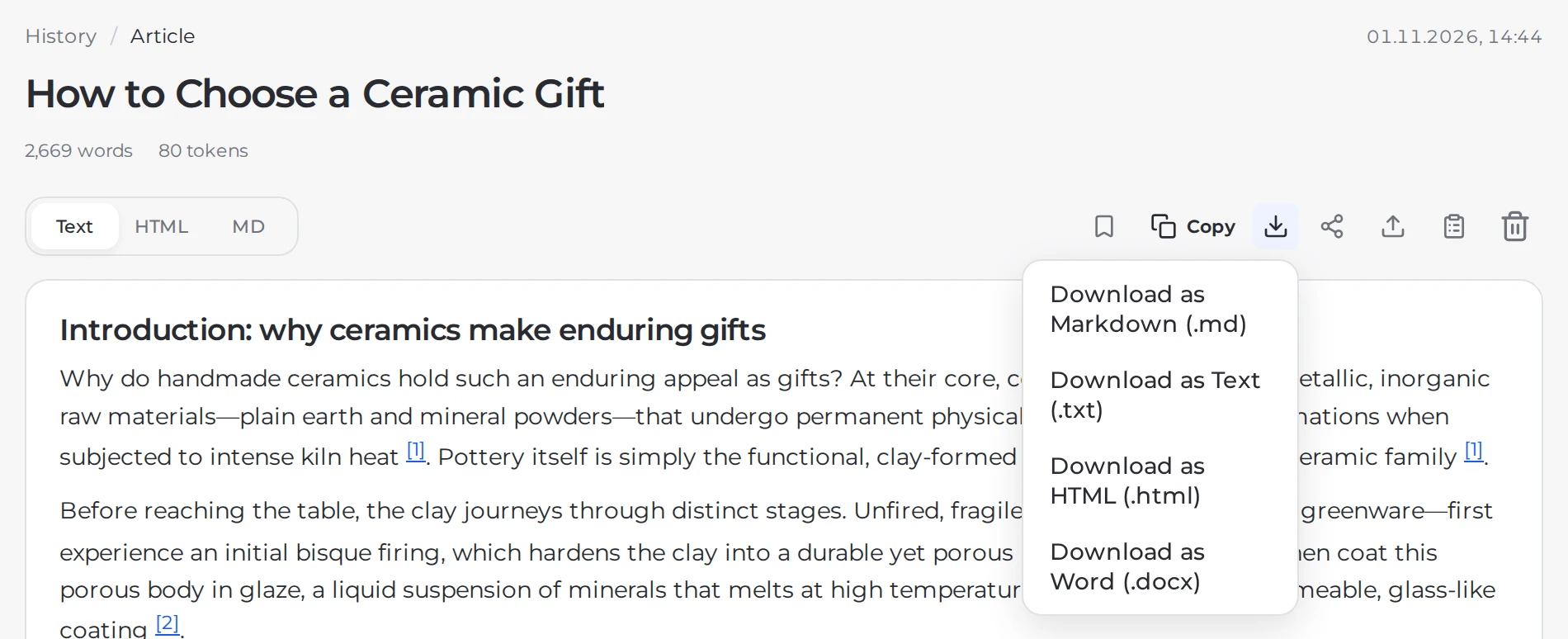
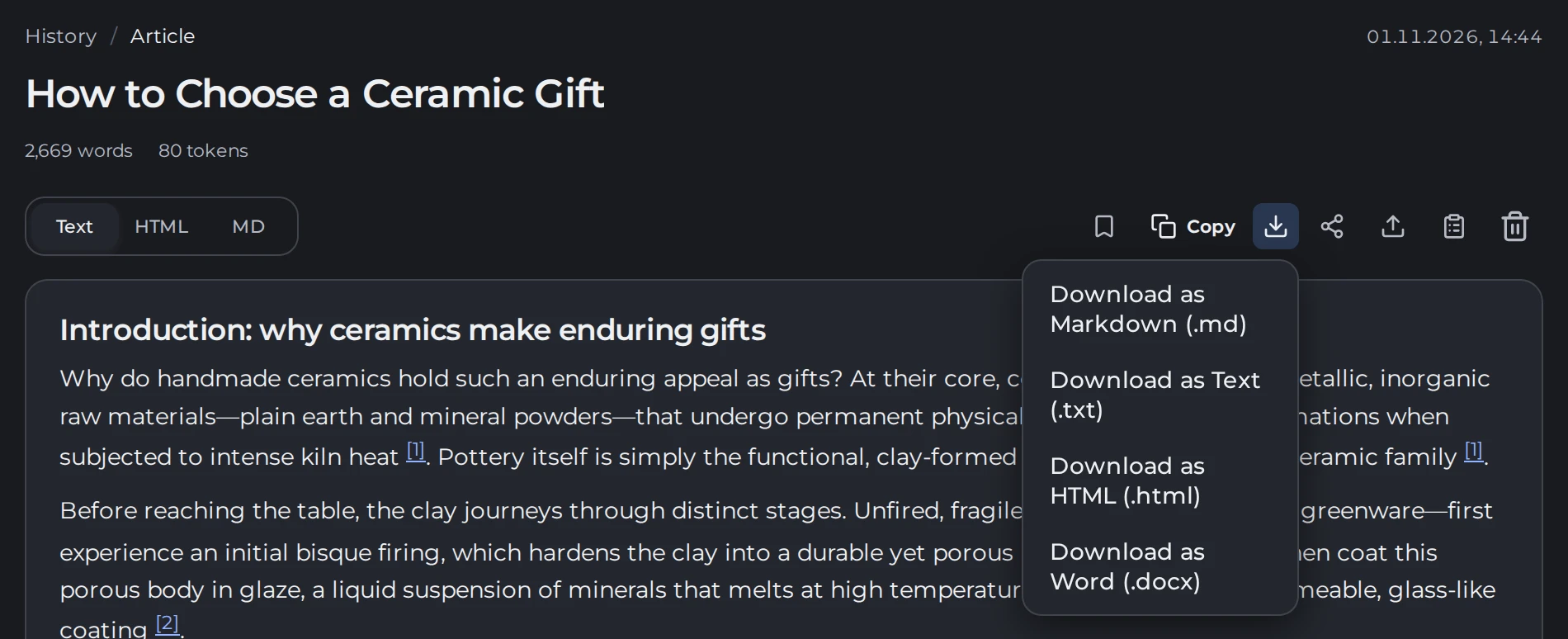 123
- 1Text, HTML and Markdown
- 2Source numbers in the text
- 3Download as DOCX, text and more
If the article was created in a workflow, it goes to "Document". There, numbered citations are converted into links to source blocks: clicking a number scrolls the document to the matching source.
When you edit with AI or refine the article, you can separately ask to keep the links. After you change a statement, check that its source still supports the new wording. The service's work with facts helps prepare the material, but it does not guarantee that every conclusion is error-free or that all external pages will remain available in the future.
What is included in the cost
The estimate for an article is 75 tokens; the final cost is recalculated based on actual usage. Internal search and preparation of the factual material are included in this generation; a separate order for "Source collection" is not a required charge before every article.
If you run "Source collection" separately, it costs 20 tokens. The result is a standalone selection of sources, not a finished article. Writing text based on this selection and the assistant's work are charged separately.