
AI editing in your Kotia document: suggestions you accept or reject
Edit text with AI right in your document: select a paragraph or run a task, then accept or reject each suggested change. Not the same as refinement.
On this page6
Edit your material with AI right inside your Kotia document. Select a paragraph you want to shorten, translate or rephrase, or set a task for the whole text. Changes appear as suggestions: accept the ones that fit and reject the rest.
The document and the conversation are open side by side, so you can judge edits in the context of the article. This is useful when you bring a draft to publication: you keep control over the final text and keep working in the same editor. The full set of actions is available on a computer.
Example: working on one section
- Open the document and select a long paragraph.
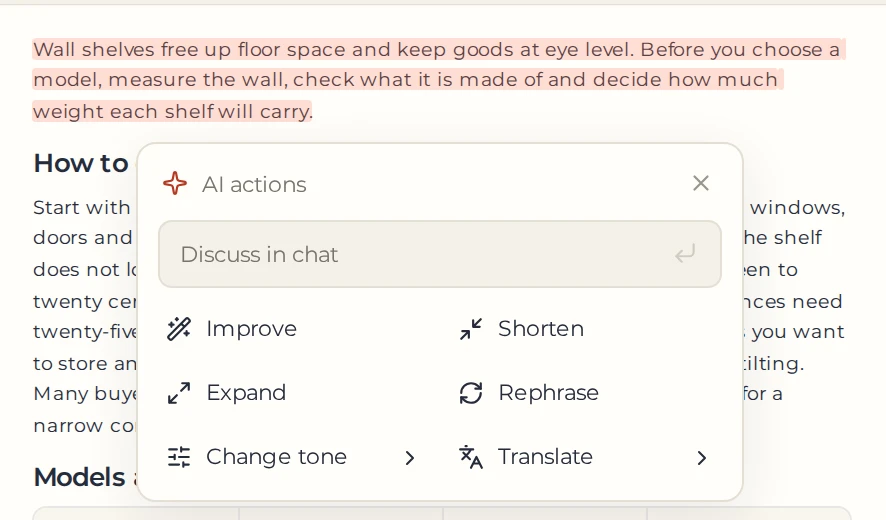
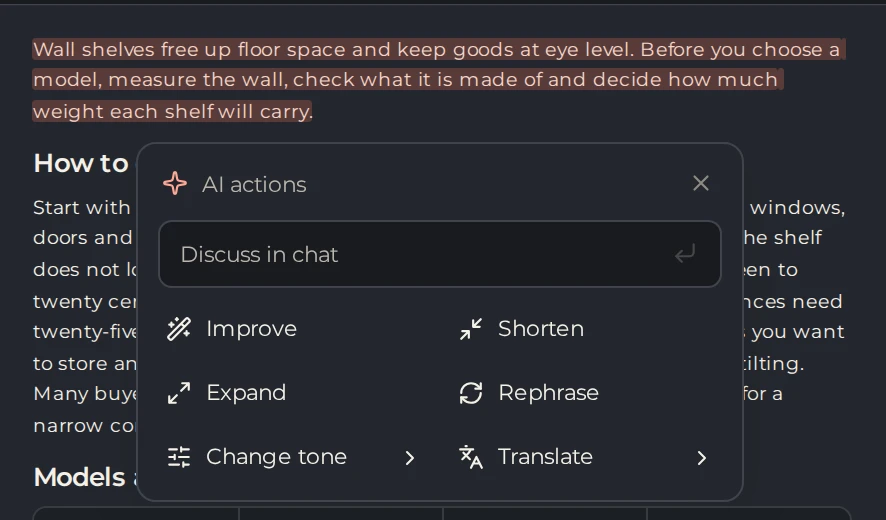
- Open AI and choose "Shorten" or set your own shortening condition.
 123
- 1Selected paragraph
- 2AI actions
- 3Shorten
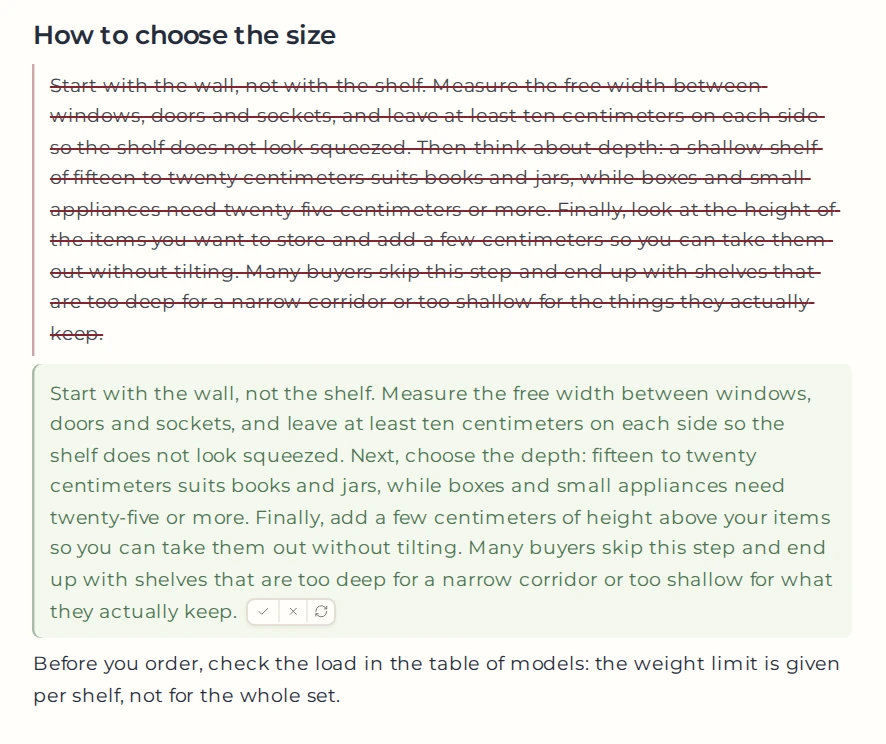
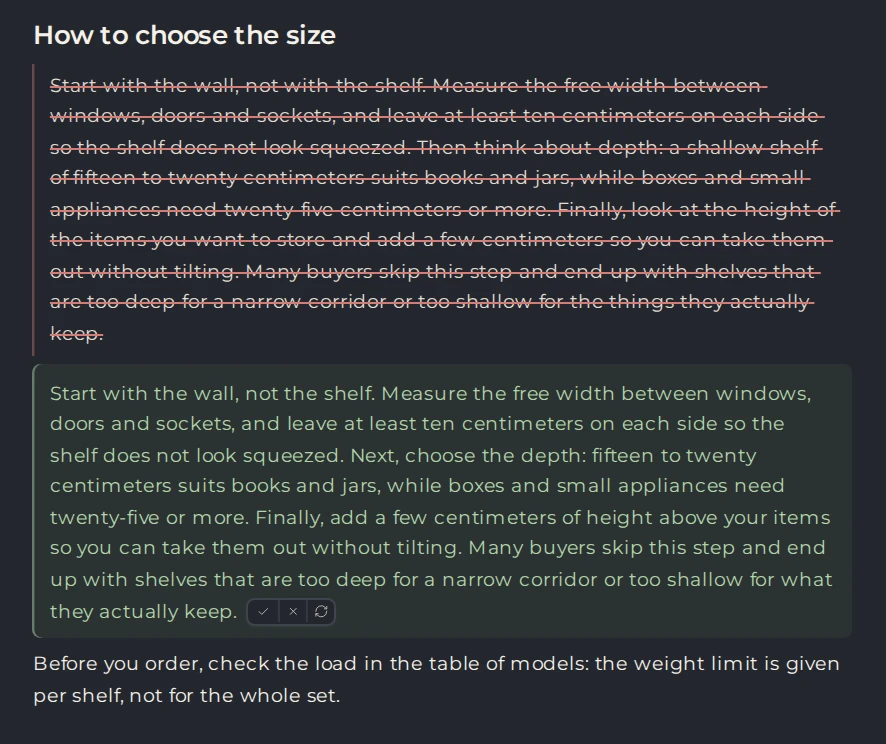
- Wait for a suggestion in the document. Compare the old and new text right there.
 123
- 1The old text
- 2The suggested text
- 3Accept, Reject, Regenerate
- Accept the version that works or reject it. If needed, ask for another one.
- Keep writing in the same document. You don't need to transfer an accepted change from the conversation.
If the same problem repeats throughout the text, it's easier to open "AI tools" and choose a suitable task, for example "Remove tautology and repetition". The assistant works with the current document on its own.
Actions on selected text
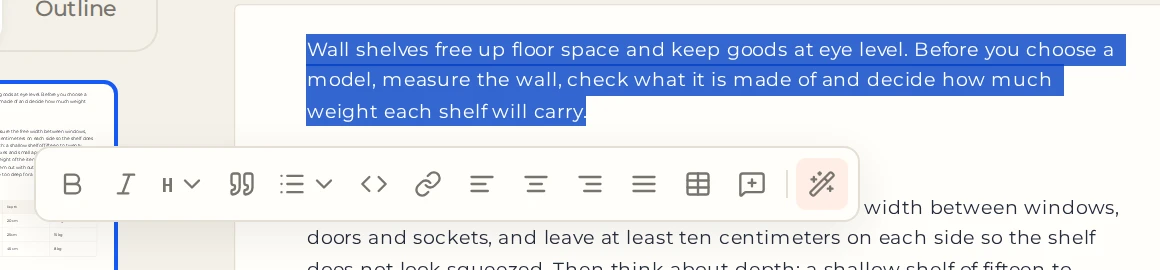
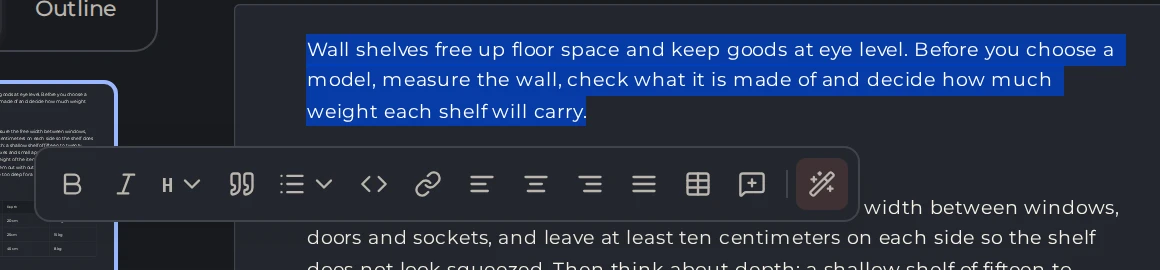
Select the text you need and open AI from the formatting toolbar. Kotia passes the assistant the selected text along with the task. This lets you work on one sentence or paragraph without asking for the whole article to be reworked.
 123
- 1Selected text
- 2AI actions
- 3Add to chat as a quote
| Action | Purpose |
|---|---|
| Improve | Rework the wording of the selected text |
| Shorten | Shorten the selected text |
| Expand | Expand the explanation at the selected spot |
| Rephrase | Suggest different wording |
| Change tone | Choose the tone for the text |
| Translate | Translate the selection into the chosen language |
You can also write your own instruction in the chat field. For example: "In this paragraph, replace technical terms with plain explanations, and keep the numbers and limits." While you set the action, the selected text stays highlighted in the document.
Your request appears in the conversation, and the result appears as suggestions in the document. This is one workflow with the assistant, not a separate text converter that you have to copy the answer out of manually.
Tasks for the whole document
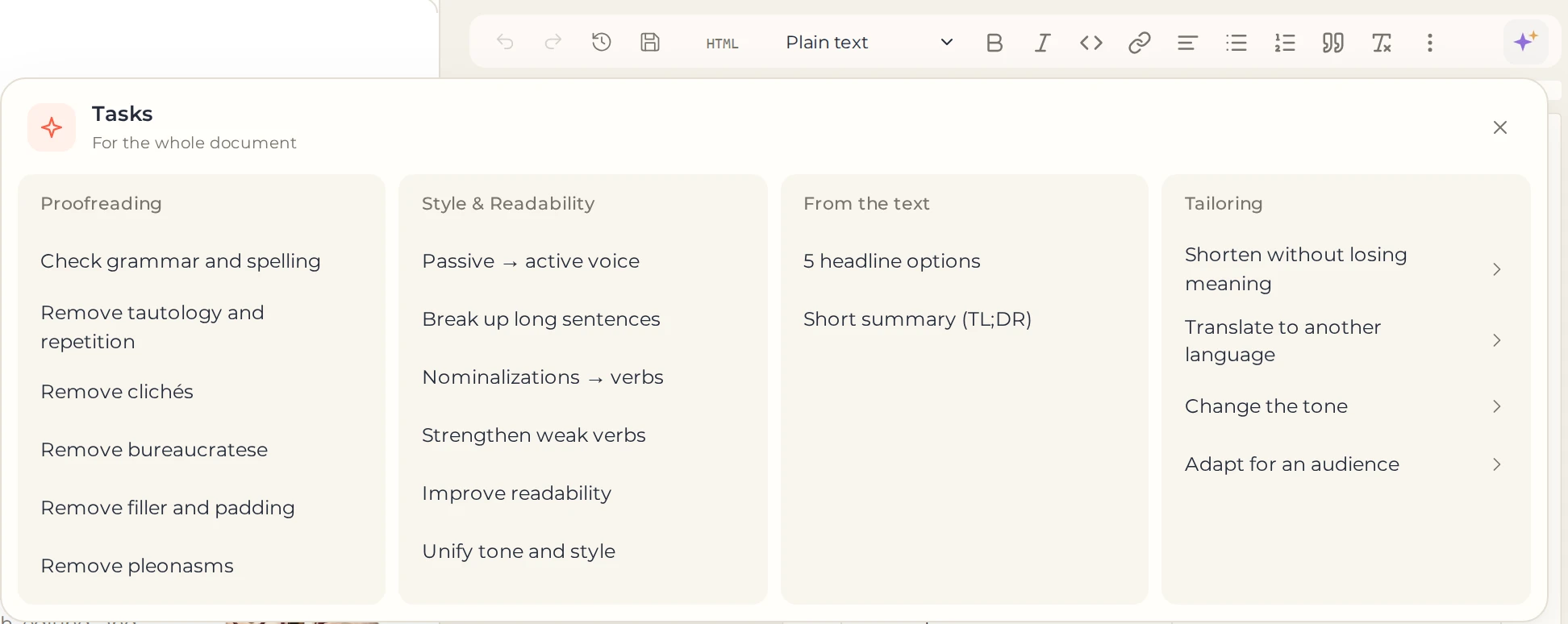
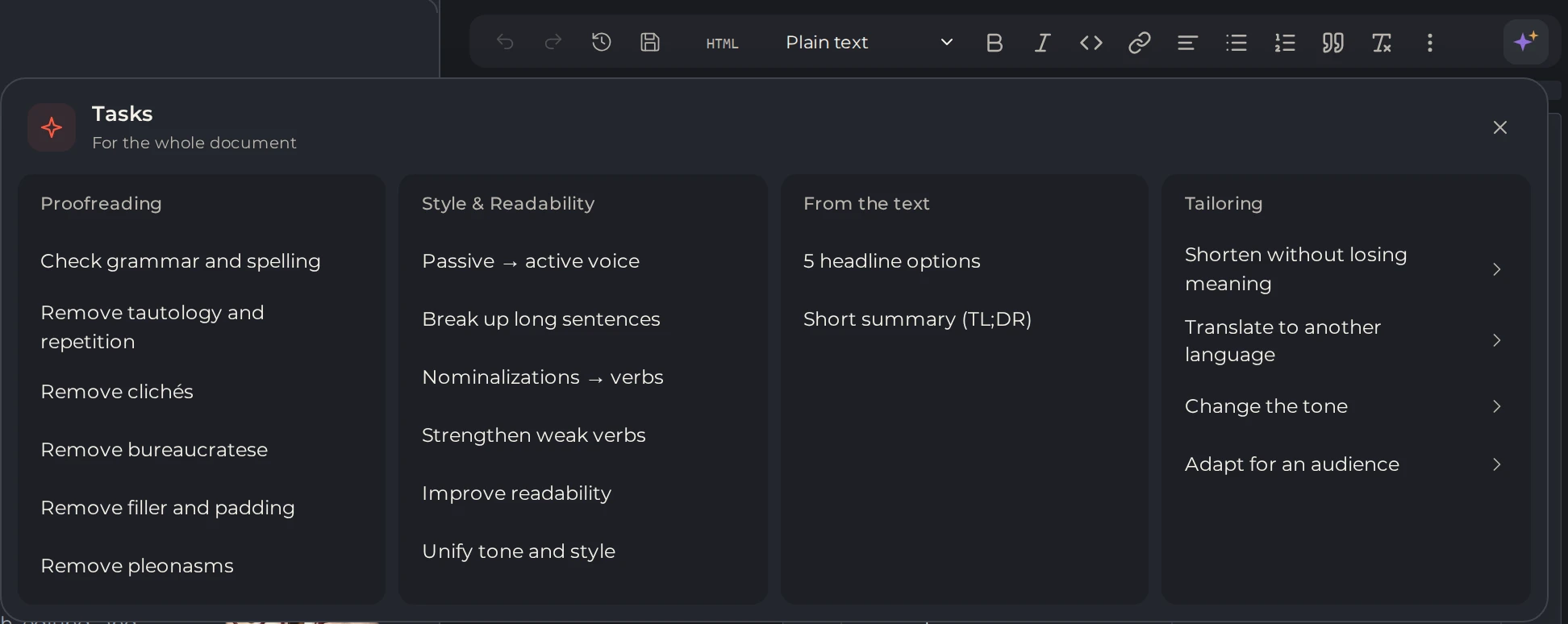
The "AI tools" button in the editor toolbar opens the "Tasks" menu. It contains 19 ready-made actions, grouped by purpose. They work on the entire current document, so you don't need to select it in advance.
 123
- 1AI tools
- 2Proofreading
- 3Tasks with settings
| Group | Features |
|---|---|
| Proofreading | Grammar and spelling; removing tautology, cliches, bureaucratic language, unnecessary words and pleonasms |
| Style and readability | Clearer sentences, active voice, verb phrasing, strong verbs, consistent tone |
| Based on text | Title options and a short summary |
| Custom instructions | Shortening, translation, tone changes, adaptation to the audience, and "Citation" — footnotes to open-access sources for facts, figures and definitions |
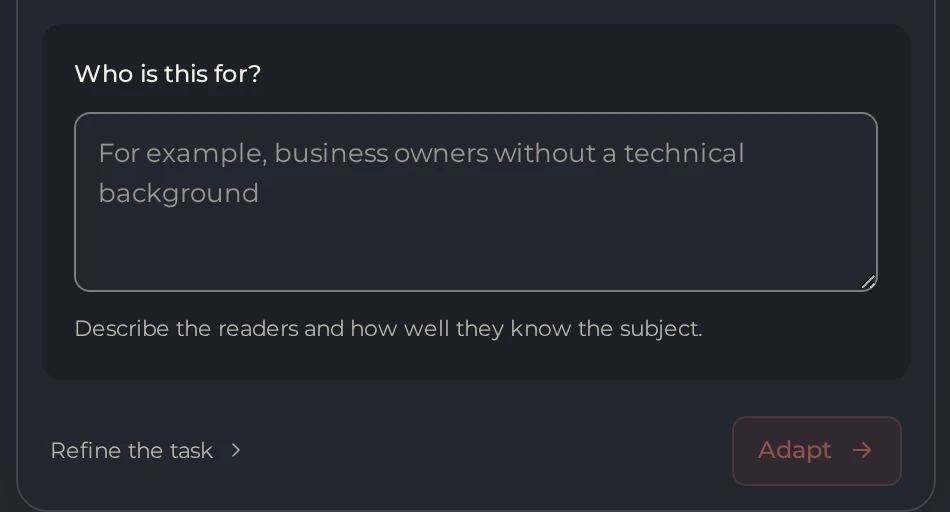
Some tasks need more detail, for example the target language or the audience. For a non-standard task, use the conversation and say what you want done with the open document.
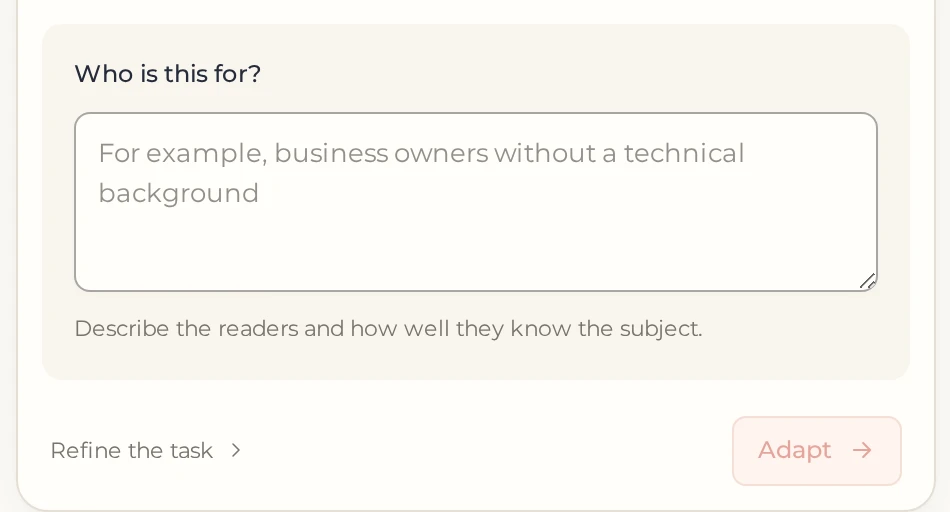
 123
- 1Task settings
- 2Refine the task
- 3Run the task
The result depends on the action. Editing tasks suggest changes to the text. Title options may appear as a reply in the conversation. These are options to choose from, not an automatic replacement of the document title. While the assistant is working, you can't run tasks from the menu again.
What suggestions look like and what to do with them
Small edits are marked as additions and deletions. Replacing a large fragment shows the old and new versions. Three actions are available next to a suggestion:
- Accept: keep the suggested change in the document.
- Reject: decline this change.
- Regenerate: request a new version.
The "Accept all" and "Reject all" actions apply to the suggestions in the current document. You can accept only some of the changes and continue editing by hand. You don't have to use the result in full.
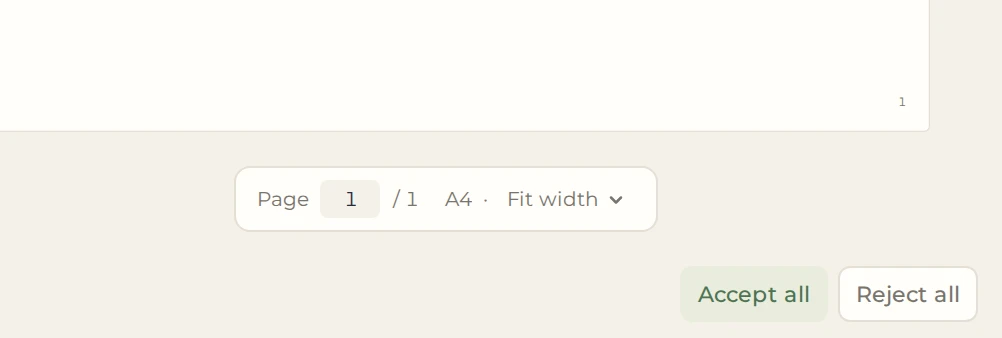
 12
- 1Accept every suggestion in the document
- 2Reject every suggestion
If you want to change the task itself, write a clarification in the conversation. For example: "The shortening removed the conditions of use. Restore them, and remove the repeated explanation in the second sentence." A new instruction helps direct the next edit more precisely than running the same action again.
Saving and document history
The editor saves your text and keeps a version history. Accepted changes become part of the document, and suggestions you haven't accepted wait for your decision. Version history lets you go back to an earlier version of the text without regenerating it.
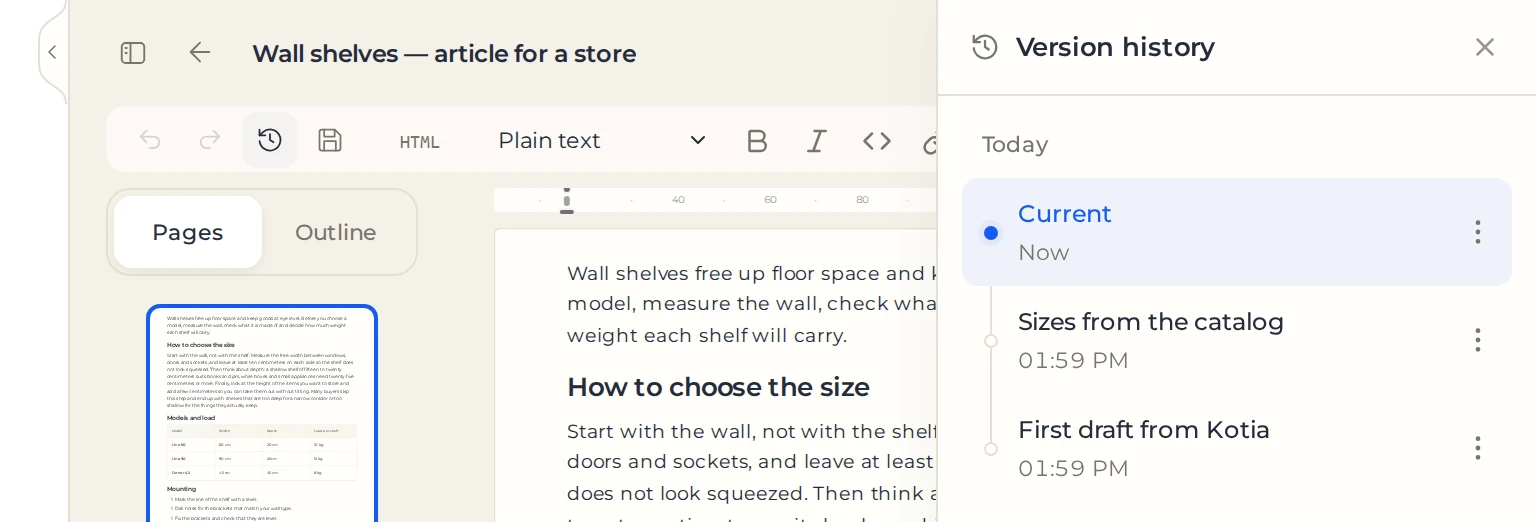
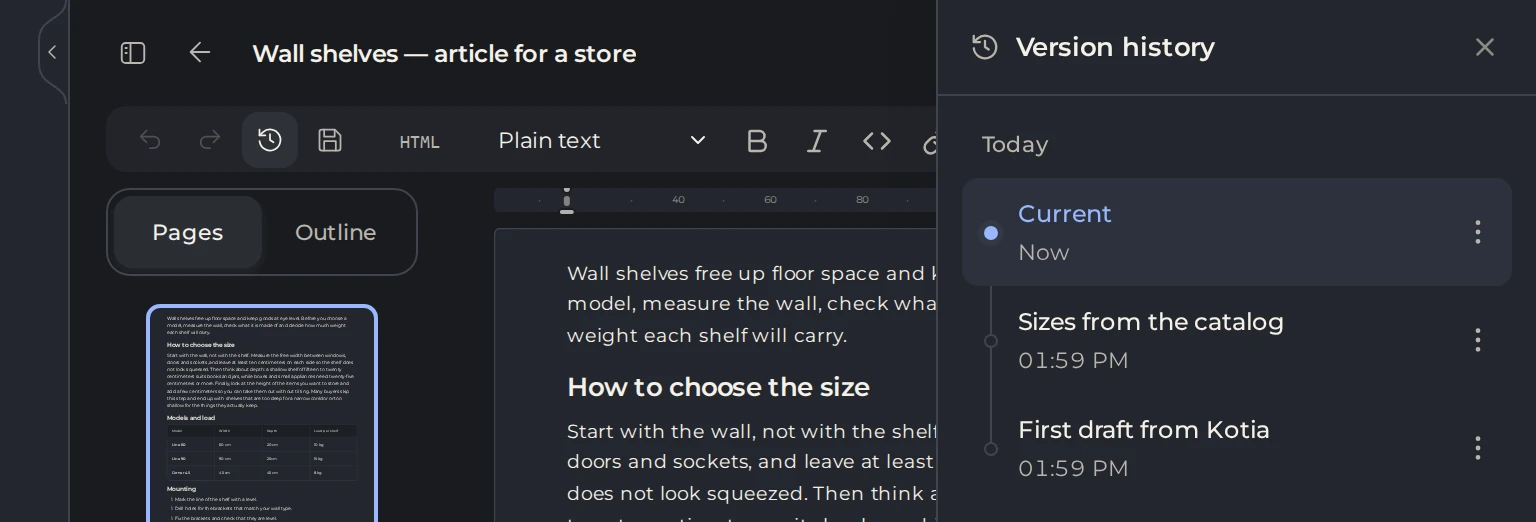 123
- 1Version history
- 2Saved versions
- 3Menu with Name version
If the source is a finished Kotia article, news item or research, starting to edit in the Workspace creates a separate working copy. This lets you keep working on the document while keeping the service's original result. The copy has its own history. The "Versions" menu of the finished article refers to the original material.
Formatting (headings, lists, tables and links) is described in the editor reference. You can use these tools together with AI in the same document.
Difference from refinement and cost
Refining material runs one order for a new revision of a finished article, news item or research. The editor is for working on a document: typing text by hand, individual tasks and accepting suggestions piece by piece.
Requests from the editor are charged as assistant work. There is no fixed price for a single button or a single paragraph. Regeneration and new requests also use tokens. The base price of the refinement service is not a rate for suggestions in the editor.