
Edit a Word document with AI in Kotia
Upload a DOCX file, simplify complex sections, remove repetition and keep deadlines and names exact. Accept changes and download the updated Word file.
On this page5
Kotia lets you refine an existing Word document with AI and get the result back as DOCX. You can fix errors, simplify instructions, remove repetition or rework a separate section. Suggestions appear in the editor. Compare them with the original text and accept only the changes you need.
Let's look at an onboarding guide for a new employee. It contains useful information, but the order of actions is hidden in long paragraphs. The goal is to turn it into clear steps while keeping the deadlines, system names and the people responsible.
Upload the document to the editor
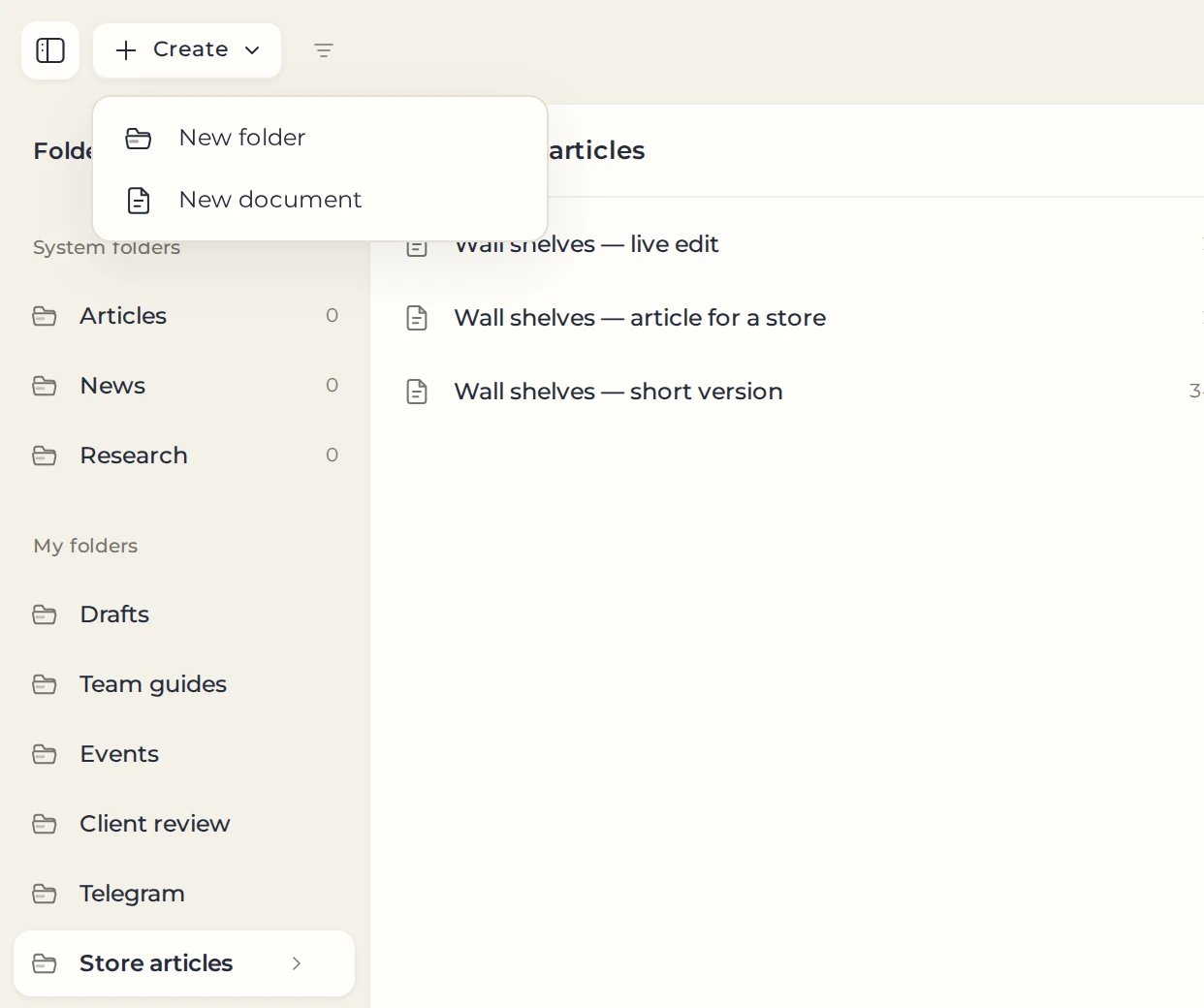
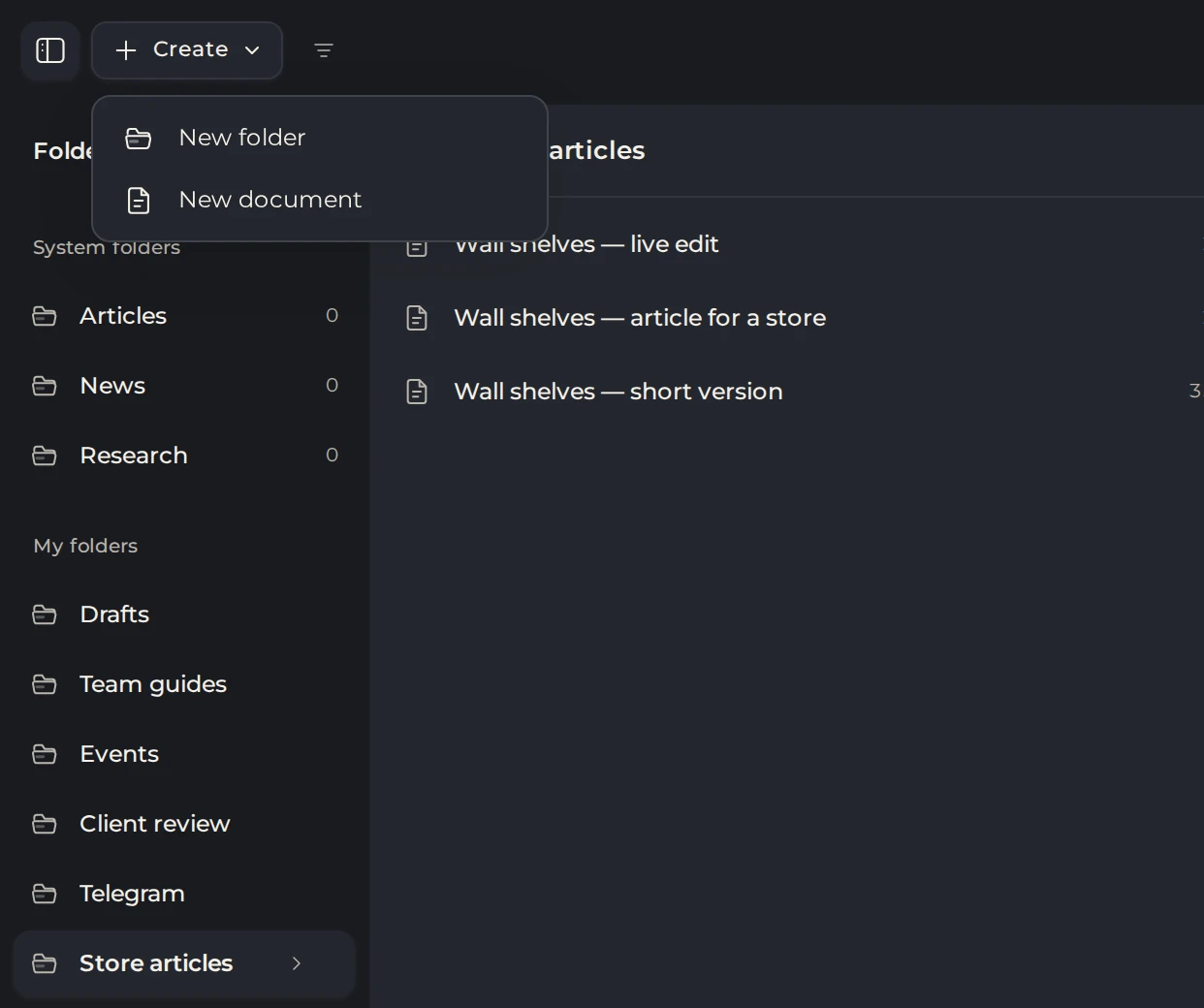
- On your computer, open the Kotia Workspace and the folder where you want to keep the instructions.
- Create a new document or open your own empty document.
 123
- 1Your folder
- 2Create
- 3New document
- Drag the DOCX file into the editor area and wait for the import to finish.
- Compare the headings, lists and tables with the original file.
- Save the original Word file separately in case you need to check the formatting.
A DOCX file up to 2 MB in size works for import. Move the file into the editor: attaching it to a chat message alone does not create an editable document.
Embedded images from Word are not imported. If the instructions include screenshots, add them separately using image insertion, then restore the captions. Complex layouts may also differ from the original.
Set the limits for the rewrite
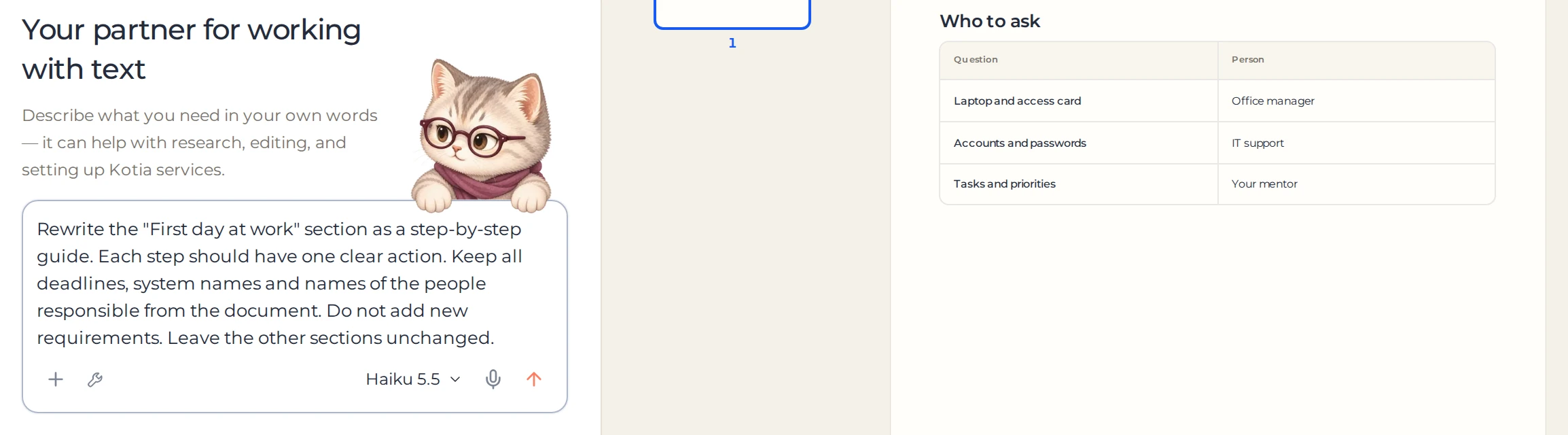
Open the document you need and write in the chat what you want to change and which details must stay exact. For example:
Rewrite the "First day at work" section as a step-by-step guide. Each step should have one clear action. Keep all deadlines, system names and names of the people responsible from the document. Do not add new requirements. Leave the other sections unchanged.
 12
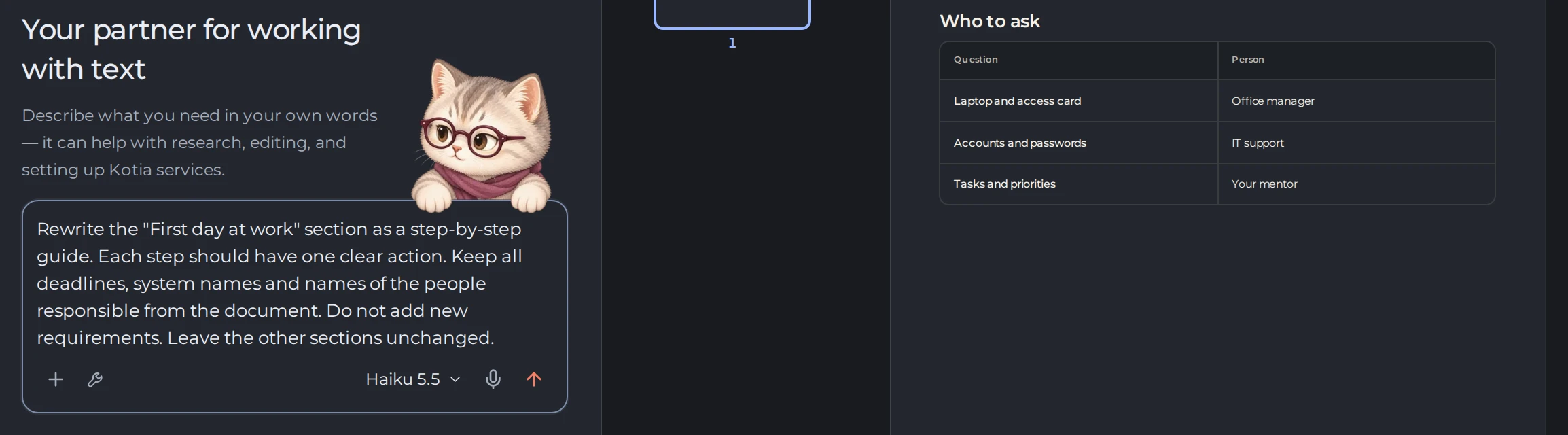
- 1Your request with the limits
- 2The document it changes
If the source text does not make clear who grants access or when an action must be done, first check with the owner of the instructions. AI can improve the wording, but it does not know your team's internal rules unless you provide them.
Choose the right tool
| Task | Action in Kotia |
|---|---|
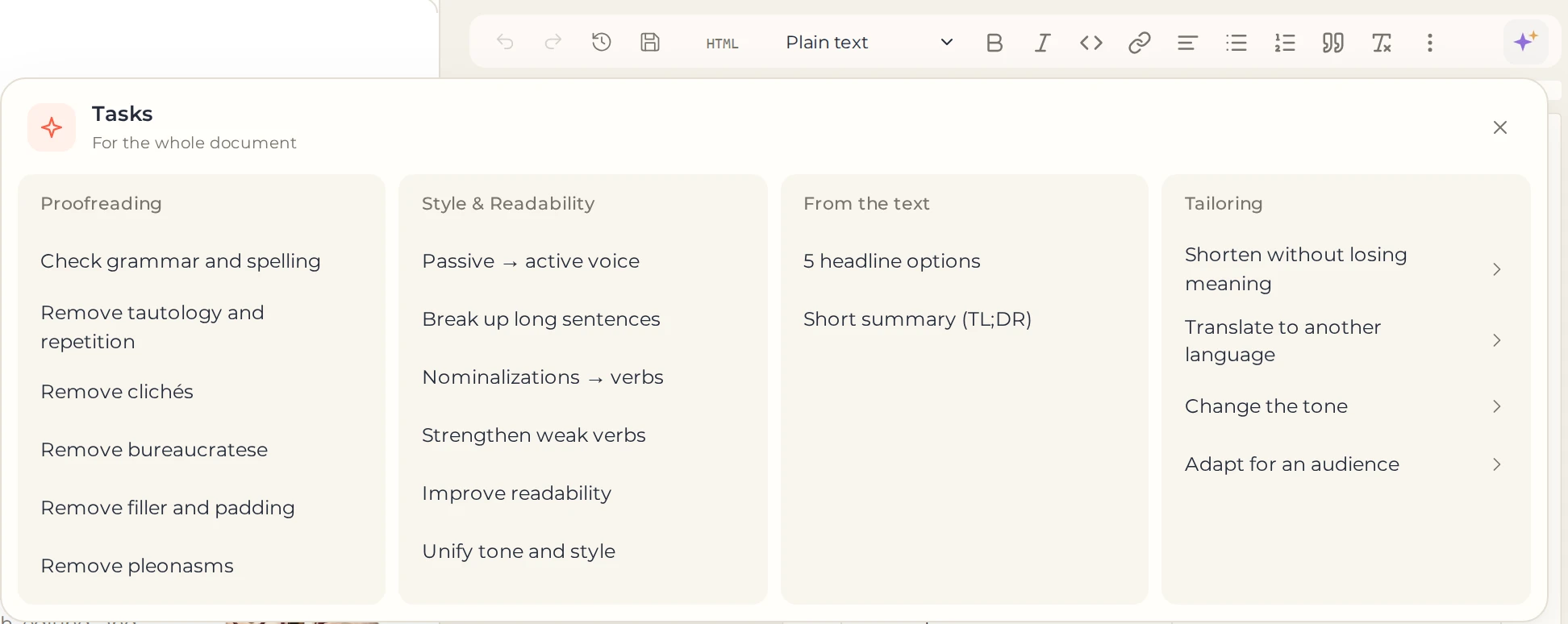
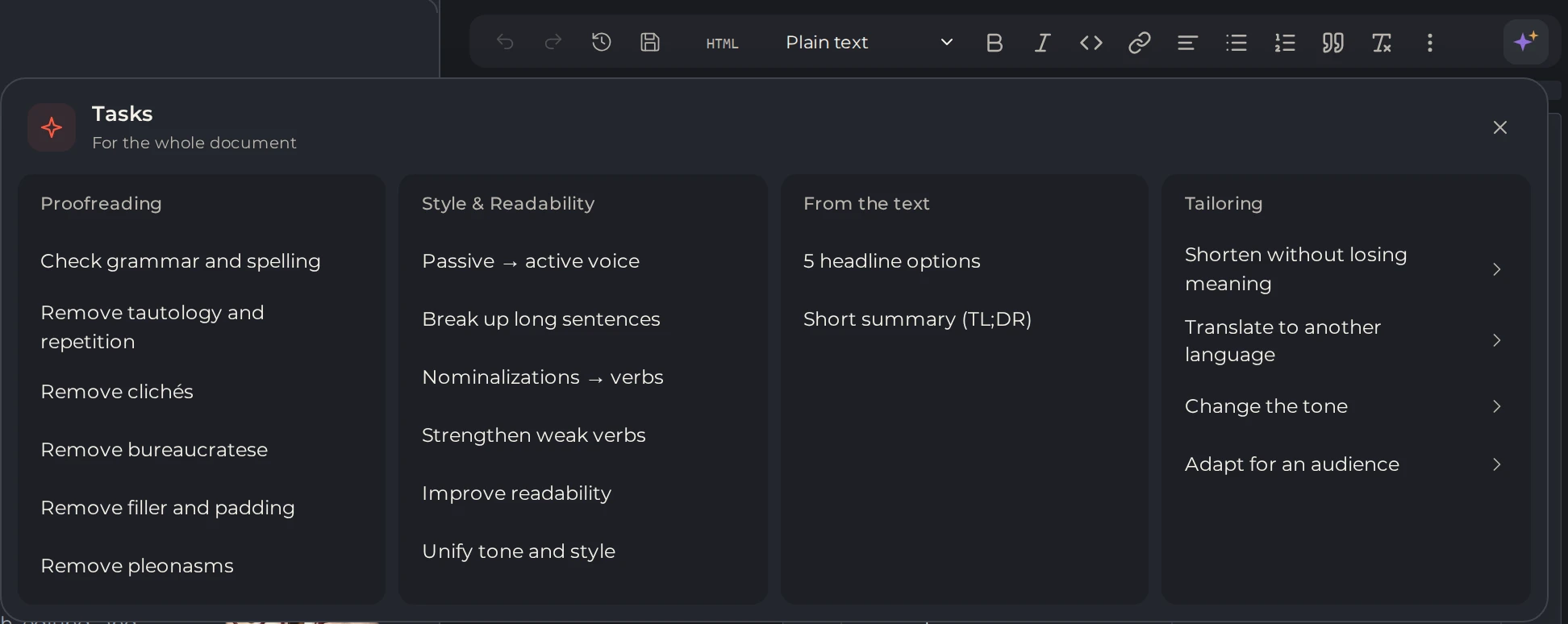
| Fix errors across the whole document | Proofreading through "AI tools" |
| Simplify one paragraph | Select the paragraph and set the change you need in the selection toolbar |
| Rework a section into steps | Give a specific task in the chat |
| Remove repetition | Choose a suitable text task |
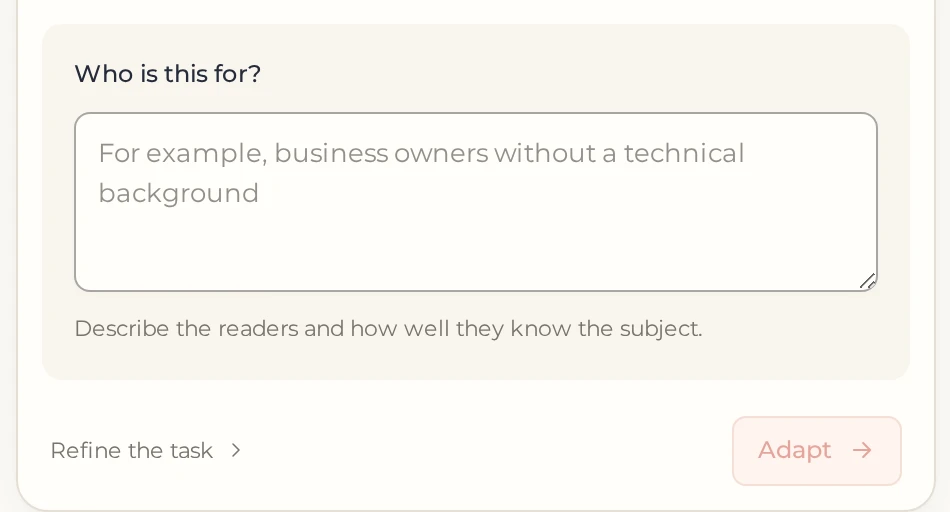
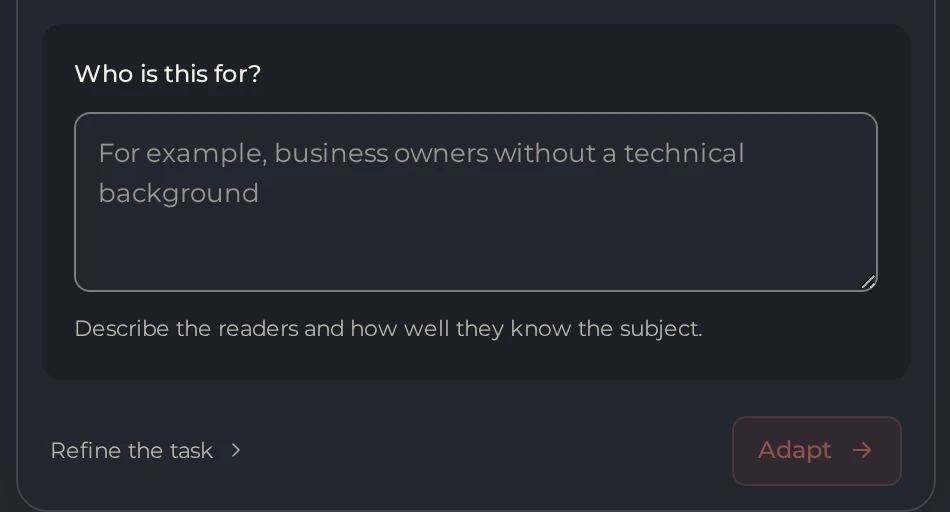
Tasks without extra settings start right after you select them. If you need your own set of conditions, write the task in the chat. For tasks with settings, open "Refine the task". AI work is charged at the current rates: each new generation creates a new charge.
 123
- 1AI tools
- 2Proofreading
- 3Tasks with settings
 123
- 1Task settings
- 2Refine the task
- 3Run the task
Accept the changes and check the instructions
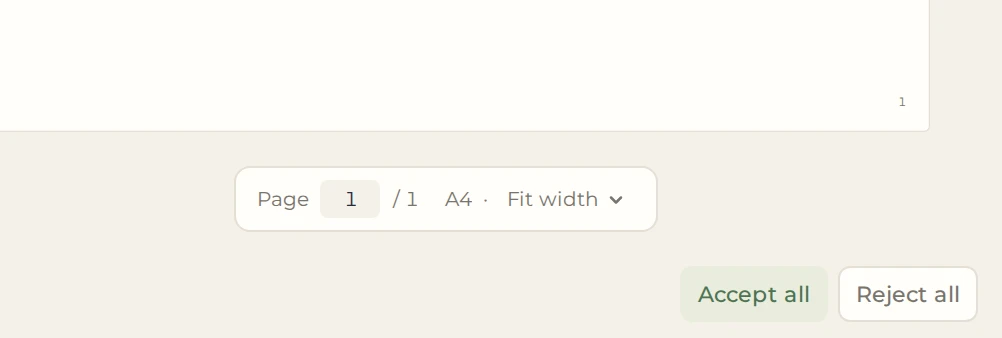
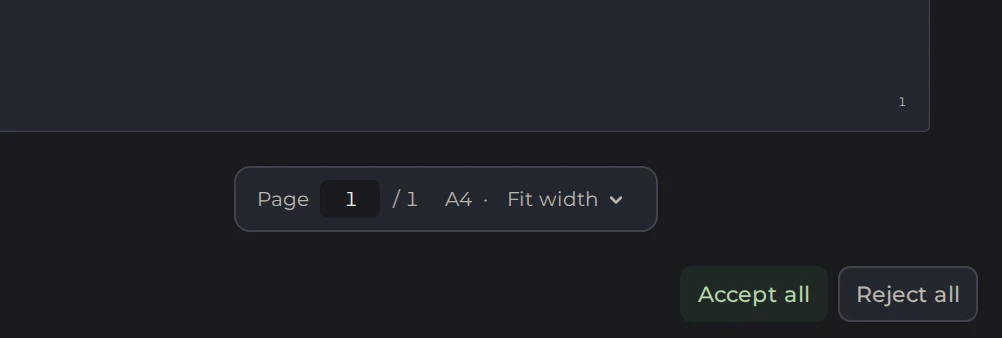
Wait for the assistant to finish. Read each suggestion and accept or reject it. Check not only the individual sentence but also the order of the steps: whether a new mandatory stage has appeared, whether a caveat has been lost, and whether it is still clear whom to contact.
 12
- 1Accept every suggestion in the document
- 2Reject every suggestion
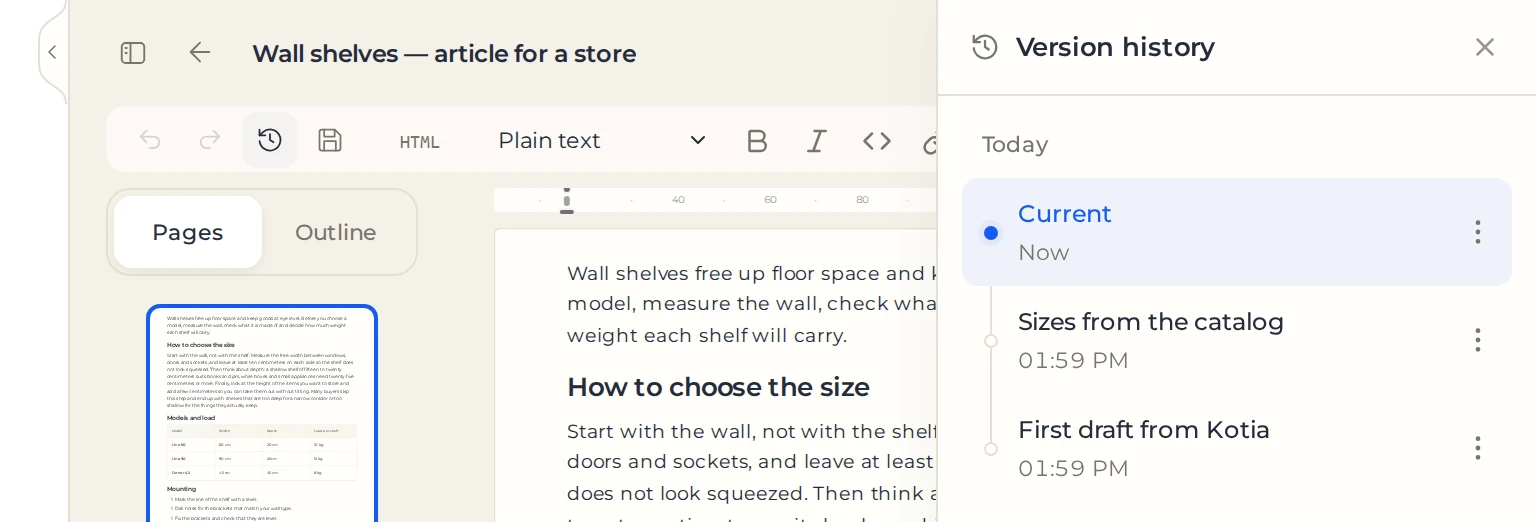
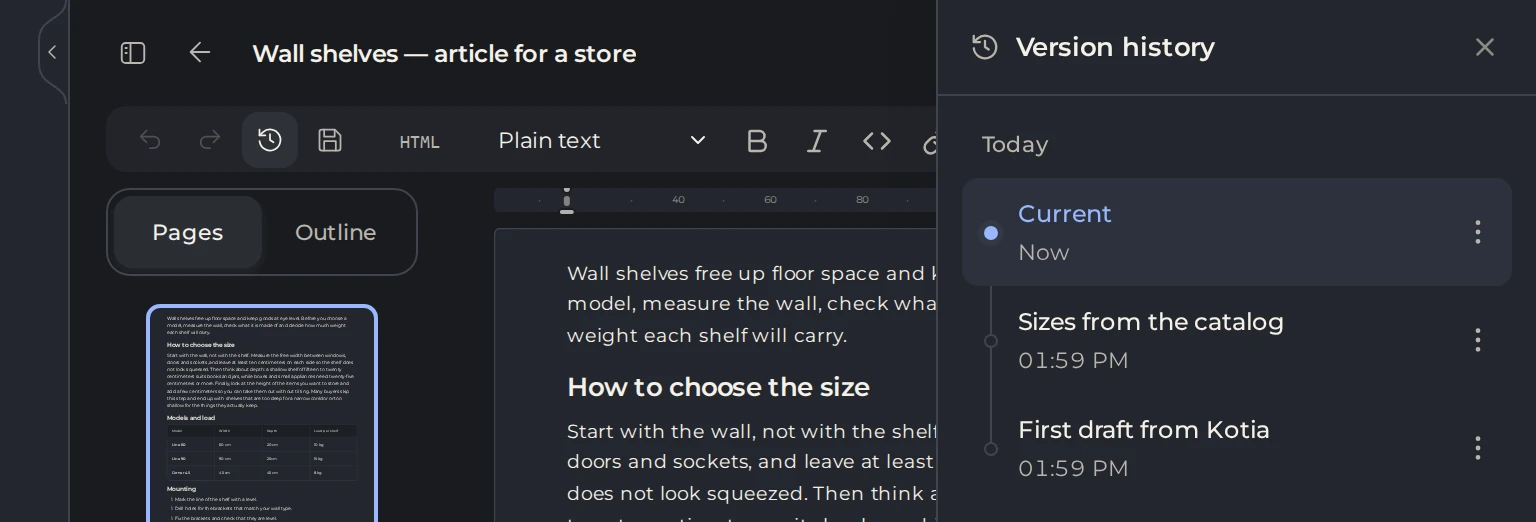
After you accept the changes, read the whole section. Apply the matching style to the headings and a numbered list to the actions. Save the version under a clear name, for example "Instructions after editing."
 123
- 1Version history
- 2Saved versions
- 3Menu with Name version
Download the updated Word file
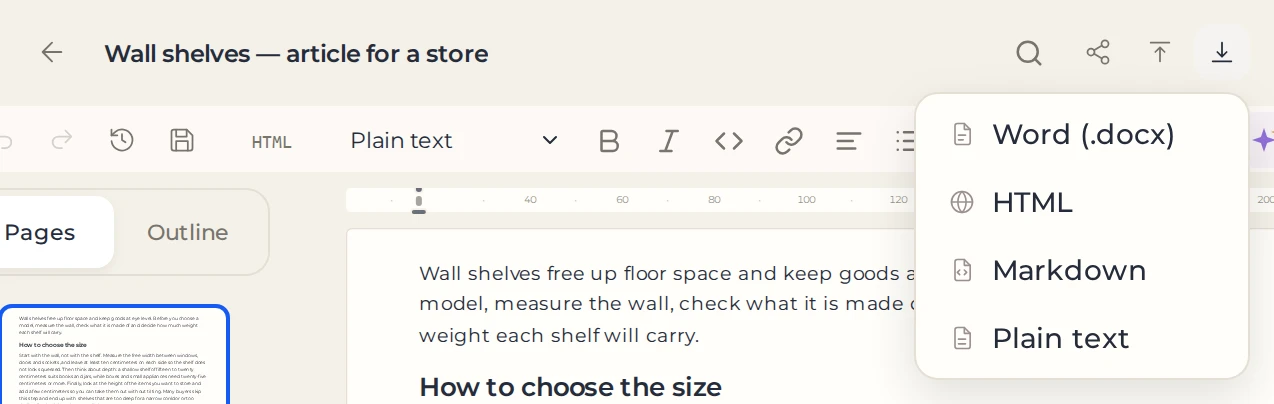
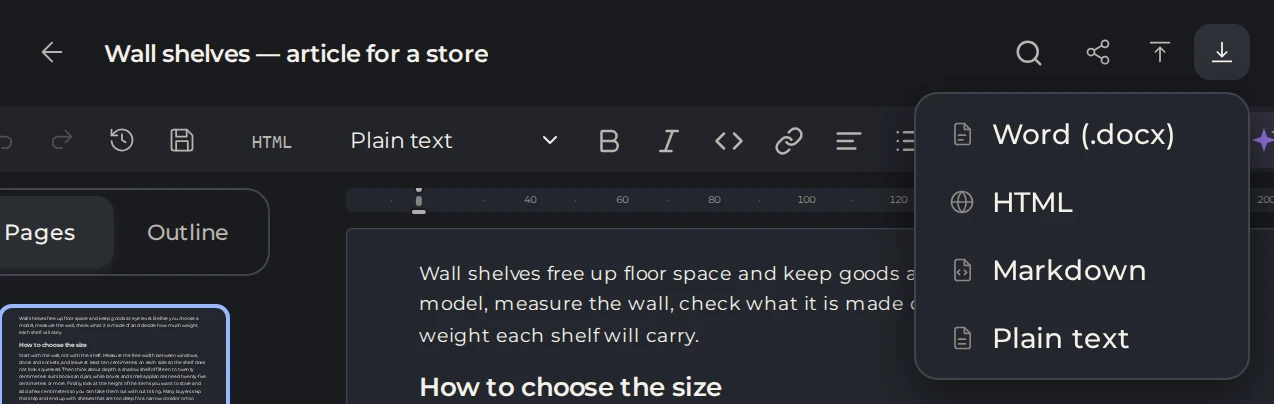
In the document panel, open "Download as…" and select Word. Before exporting, go through all remaining suggestions: any insertions you have not accepted will not make it into the file.
 12
- 1Download as…
- 2Word file
Open the DOCX in your program and check the tables, pictures, links and page breaks. Share this checked file with your colleagues. For details about other formats, see the import and export guide.