
How to prepare an A4 document in Kotia for printing or PDF
Set margins and indents, check pages, tables and images, then download Word and prepare an A4 document for printing or saving as PDF.
On this page4
In the Kotia editor, you can prepare a document on A4 sheets: set margins, format paragraphs, and check the placement of text and images. Then download the file in Word format and open it in the program where you will print the document or save it as a PDF. There is no separate PDF format in Kotia's export menu.
You can use this to prepare a reminder for event participants, instructions for staff, or materials for a meeting. For example, a reminder with an address, schedule, and contacts needs clear sections and a compact table, while detailed instructions need easy navigation and large screenshots.
Prepare the final text
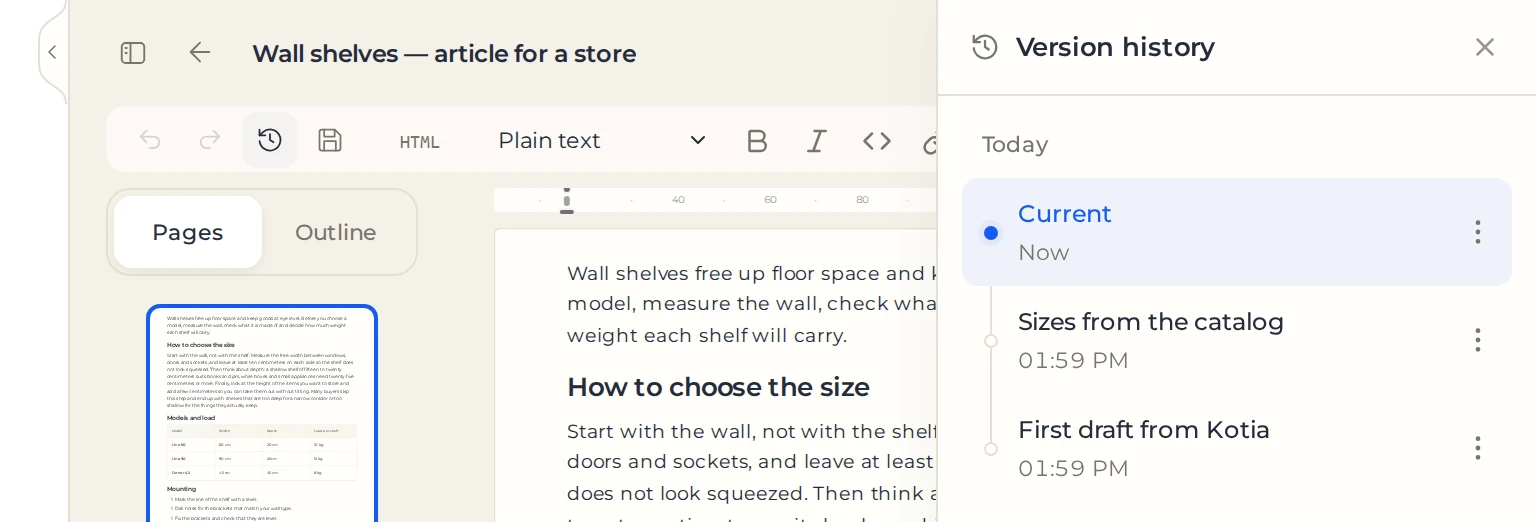
Open your document in the Workspace on your computer. Accept or reject the remaining AI suggestions. The final file should contain the revision you chose.
Check names, dates, contacts, and links. For a reminder, apply heading styles to the sections and format the schedule as a table. Format sequences of actions as a numbered list. If you want to keep the state of the document before formatting, create a named version.
 123
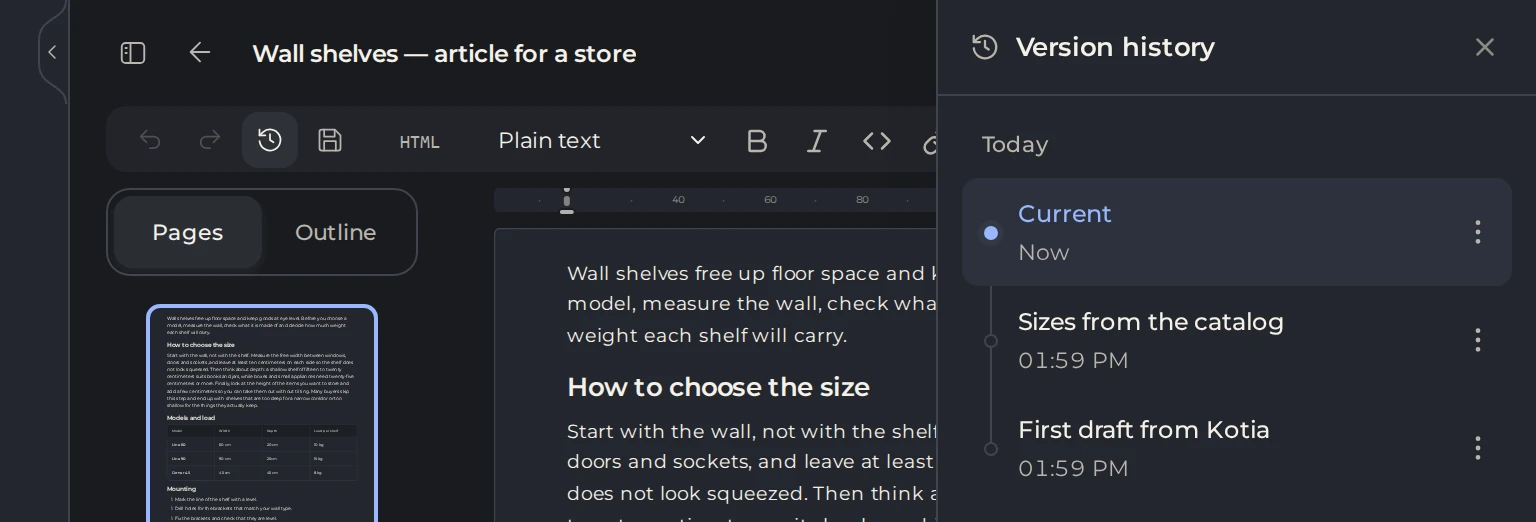
- 1Version history
- 2Saved versions
- 3Menu with Name version
Set up page margins and paragraphs
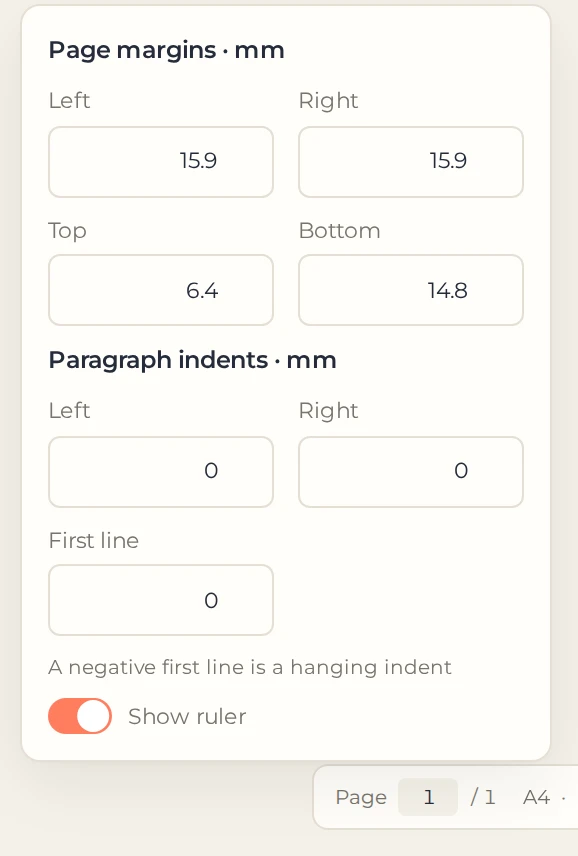
The editor already shows the document on A4 sheets. In the bottom panel, open "Margins and indents".
 1234
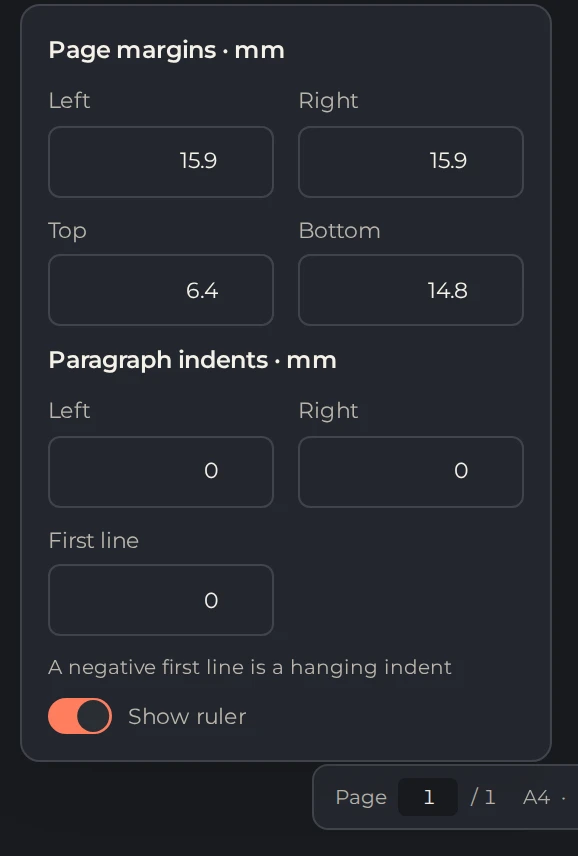
- 1Margins and indents
- 2Page margins in millimeters
- 3Paragraph indents
- 4Ruler
- Set the page margins on the left, right, top, and bottom in millimeters.
- Select the paragraphs that need separate indents.
- Set the left and right indent and the first line of the selected paragraphs.
- If needed, turn on the ruler and adjust its position using the markers.

 12
- 1Left margin, paragraph indent and first line
- 2Right margin and paragraph indent
- Review several pages after making changes.
| Setting | What it changes |
|---|---|
| Page margins | Distance from the edge of the sheet to the text area |
| Paragraph indents | Position of the selected paragraphs within the text area |
| First line | Indent of the start of a paragraph; a negative value sets a hanging indent |
| Zoom | Only the size of the view in the editor |
Don't align text with spaces or create indents with empty paragraphs: they will shift if the line width changes. To align text, use the paragraph, table, and list settings.
Review a long document page by page
Open the "Pages and outline" panel: in it, you can move between thumbnails and headings. Use "Go to page" in the bottom panel to open the page you need. For an overview, zoom out. To read details, return to a comfortable size or choose "Fit width".
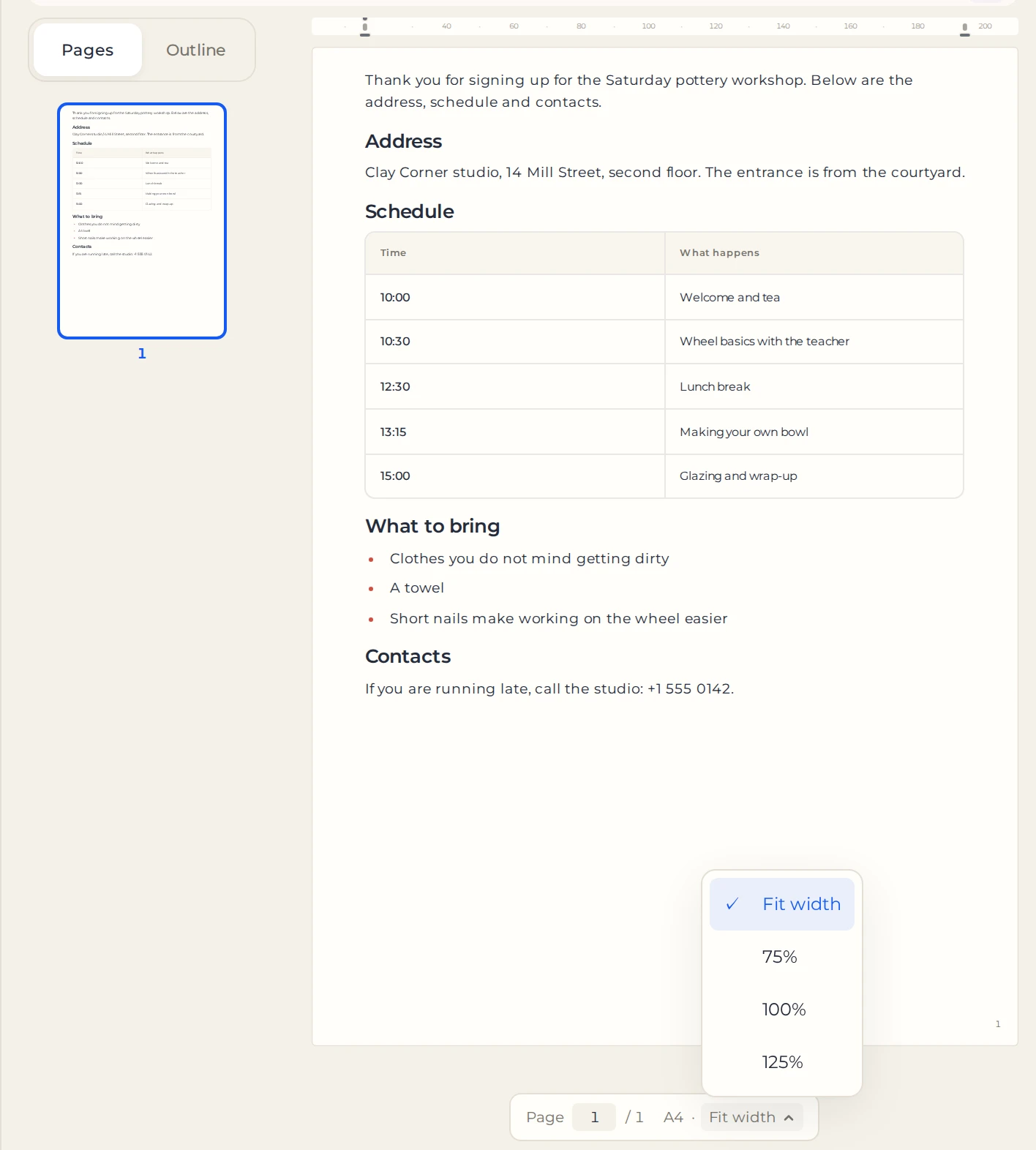
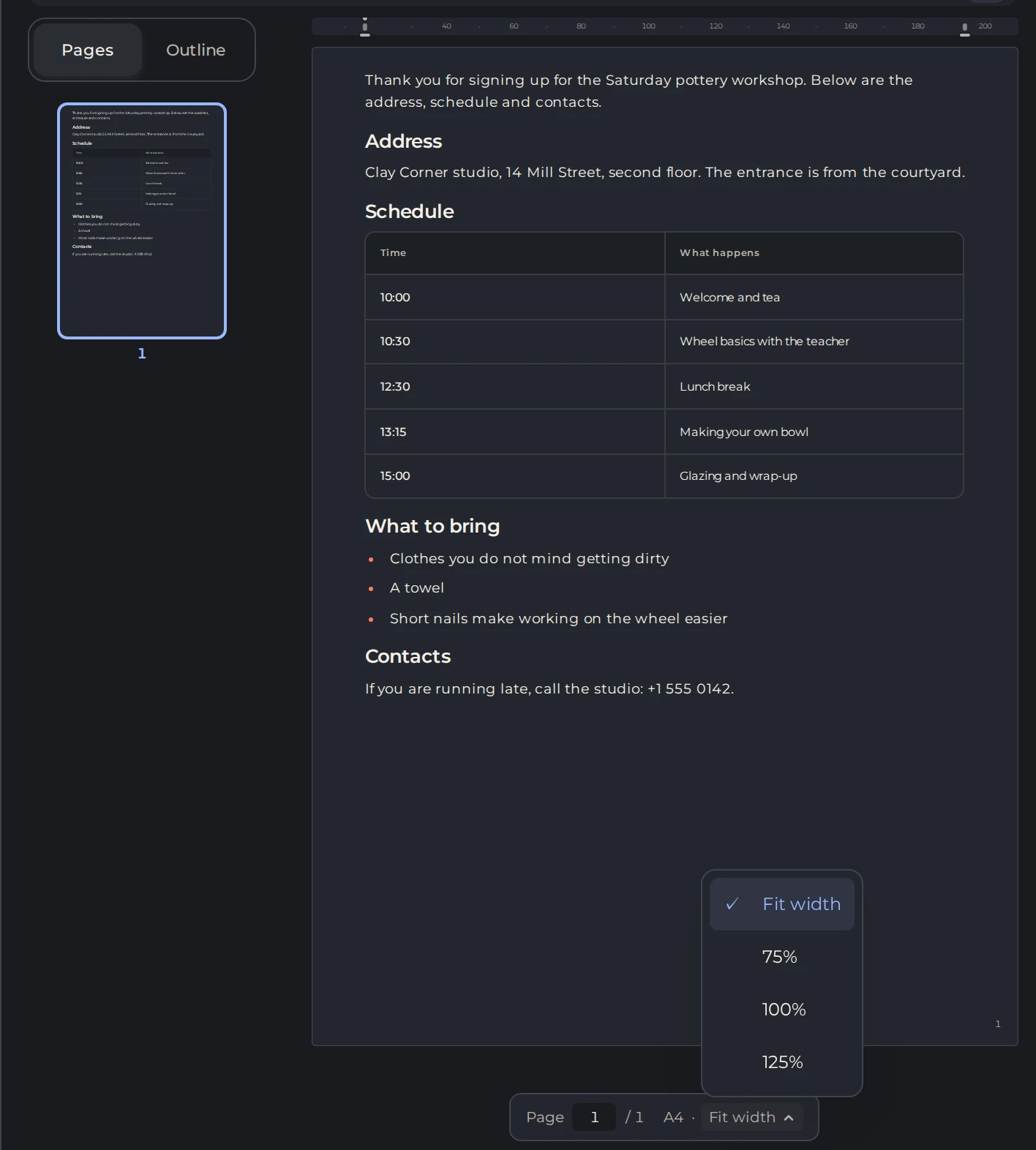 123
- 1Pages and outline
- 2Go to page
- 3Zoom
Check tables and images. Text in cells should be readable, and the caption should be next to the image. If a screenshot is too small, increase its width or keep only the part of the screen you need in the image.
Zoom does not shorten the document or change its margins. To fit the material on fewer pages, edit the content and formatting settings.
Download Word and prepare for printing
- Open "Download as…" and select Word.
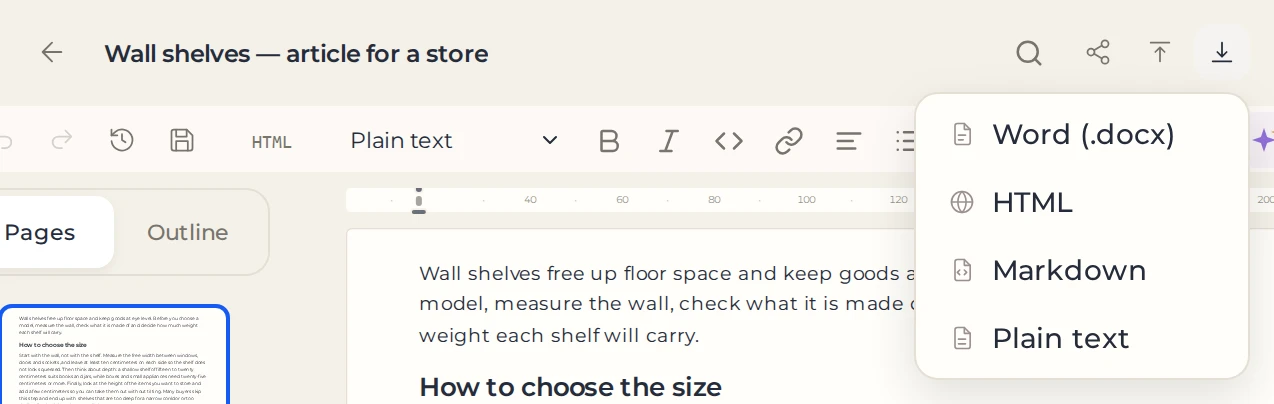
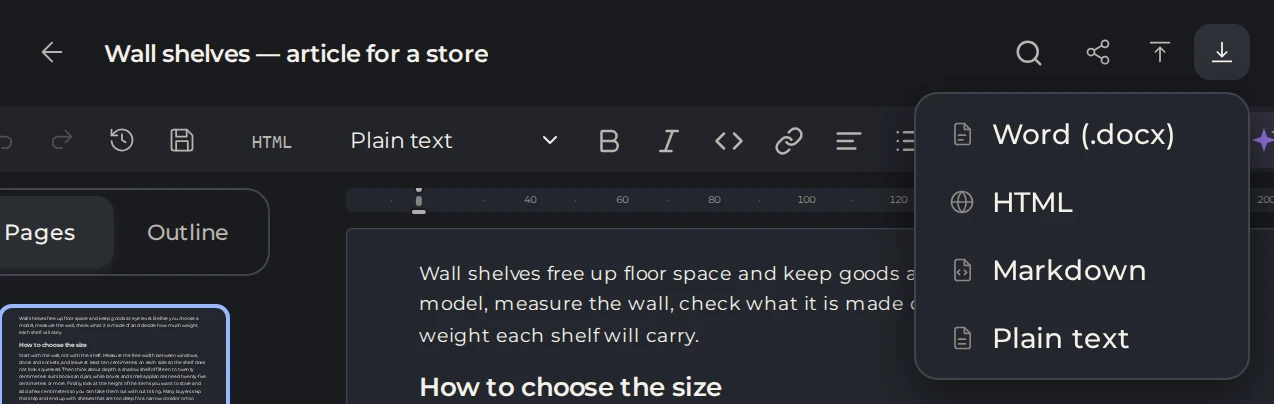 12
- 1Download as…
- 2Word file
- Open the DOCX file in an app for working with documents.
- Check the sheet size, margins, and print preview.
- Check how headings, tables, images, and captions break across pages.
- If elements have moved to another page, fix the formatting in that app.
- Print the document or save it as a PDF using the app you chose.
Kotia passes page margins and paragraph indents to Word. Different programs may place text differently, so check the final line breaks in the program where you create the PDF or send the file to print. If a PDF is already saved and you need to share it, open the file and check every page.