
Kotia docs: guides to AI writing, content and workflows
Find the Kotia tool for your task: write an article, research a topic, prepare posts or automate your content work.
On this page4
Kotia helps you prepare content with AI and automate the repetitive work around it. You can research a topic from sources, write an article, turn material into social posts and keep the result in the editor. For a one-off task, a conversation with the assistant is enough. For content you prepare regularly, build a workflow.
The docs cover every tool and include ready-made scenarios. Start from the result you need right now: there is no need to learn the whole service before your first task.
Which tool to choose
| What you want | Where to start |
|---|---|
| An answer, a set of ideas or an edit in a conversation | Chat with the AI assistant |
| A complete article to your brief | The "Article" service |
| A comparison of options or a sourced deep dive | Research |
| A standalone outline to write from | Article outline |
| Posts and other content prepared on a schedule | Workflow builder |
| An editable document next to the conversation | Workspace |
| Sending text to a WordPress site or Telegram | Publishing |
| Balance, subscription and payment | Account and billing |
| How Kotia compares with other services | Comparisons |
The "Article" service already works out the structure, so you do not need to order an outline separately. If an outline is what you want, for example for an author who will write the text, use the separate "Article outline" tool.
A first task: a post for your blog
Say you run workshops and want to announce a new class. Give the assistant the real details and ask it to prepare the post:
Write a blog post for our pottery studio. The class is cup-making for beginners. Use the details below: date, length, price, what is included and how to sign up. Explain what participants will make in class. If a detail is missing, ask me instead of making it up. Keep the tone calm and friendly. Details: [paste the class details].
Open a conversation and paste the task with your details.
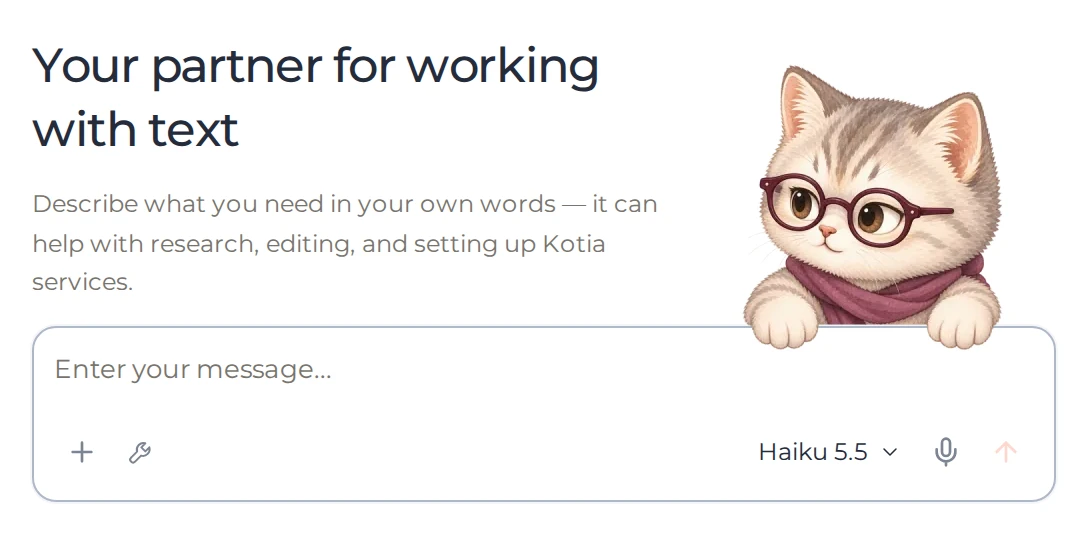
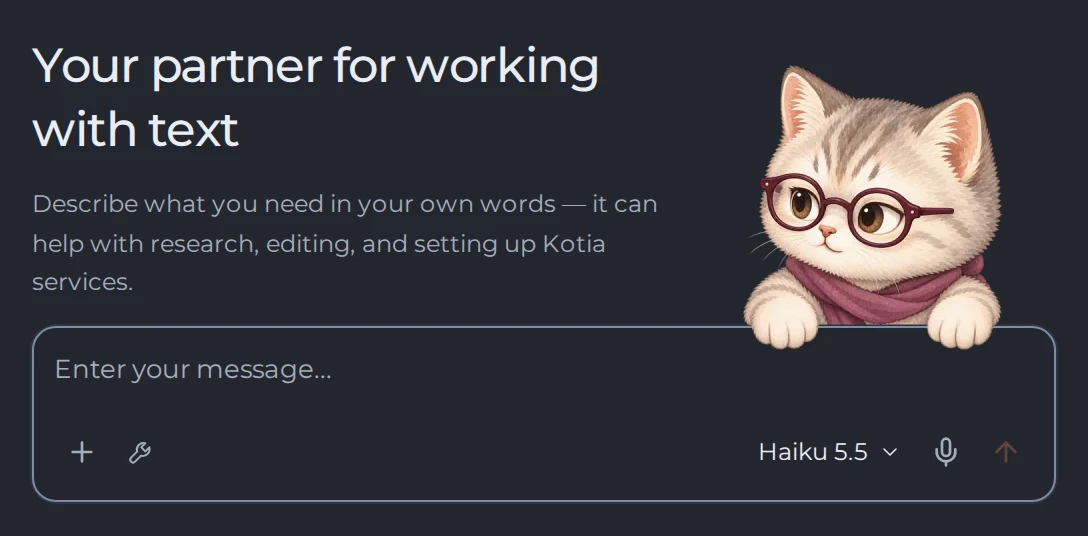 123
- 1Attach files
- 2Skills, styles and services
- 3Model for the reply
Send the message. If the assistant asks about the details, answer in the same conversation.
Read the draft and check that its promises match the class and that the date and sign-up are clear.
Refine specific parts, for example ask it to shorten the intro or explain an unfamiliar term.
Move the text you need into a document if you will keep editing it in the workspace.
For longer pieces, choose a suitable service. If the task involves searching or reading pages, the assistant needs the matching tools. How to pick them is described in the chat guides.
From a one-off task to a regular routine
Once the format and requirements are clear, save them in a workflow. For example, a chain can look like this: new source data → Telegram post → document. On the next run, Kotia repeats the configured steps with the new material.
Start with a ready-made workflow, test it on one example and adapt it to your process. Set up automatic sending to an external channel separately: a saved text is not yet a published one.
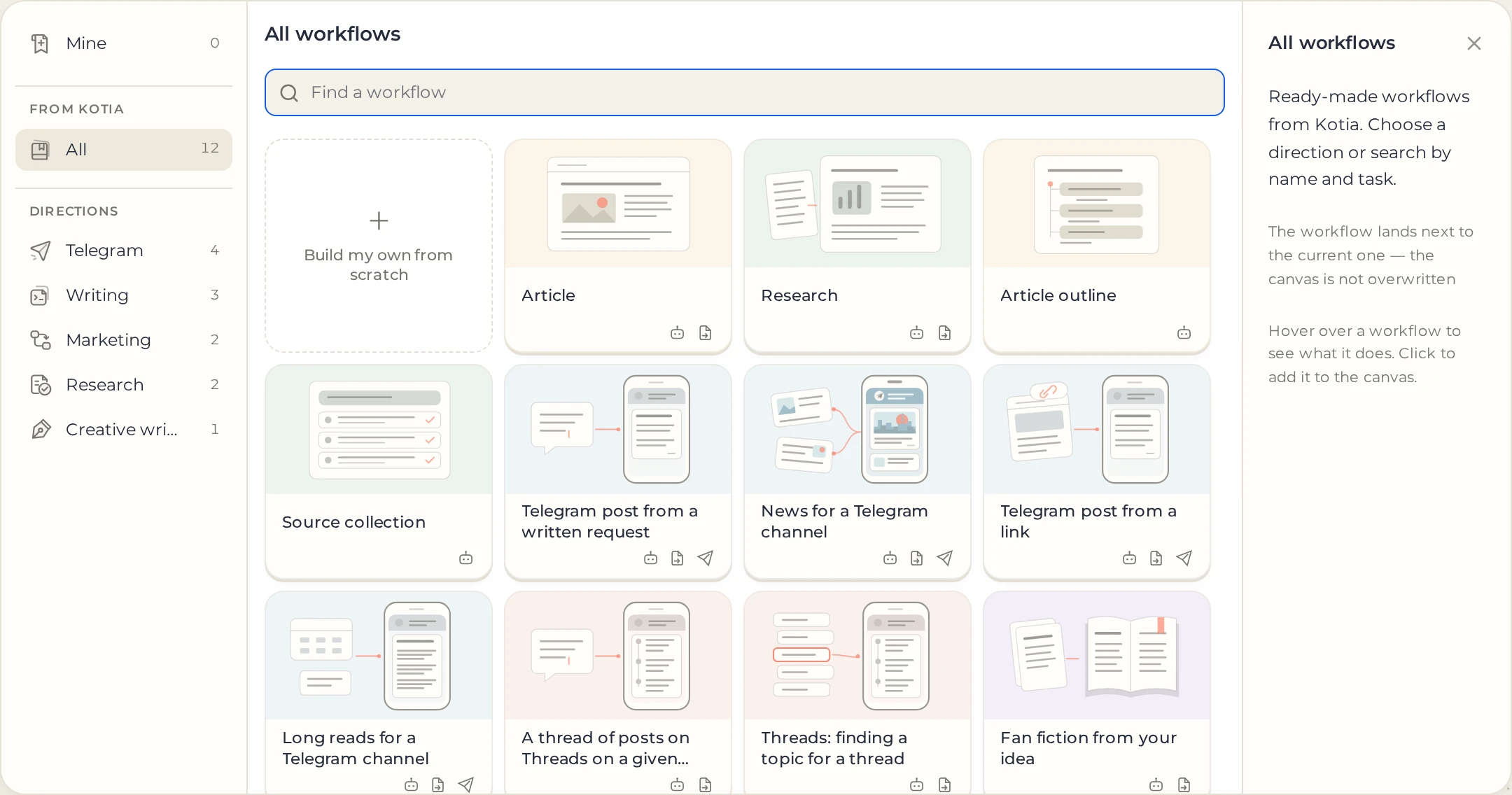
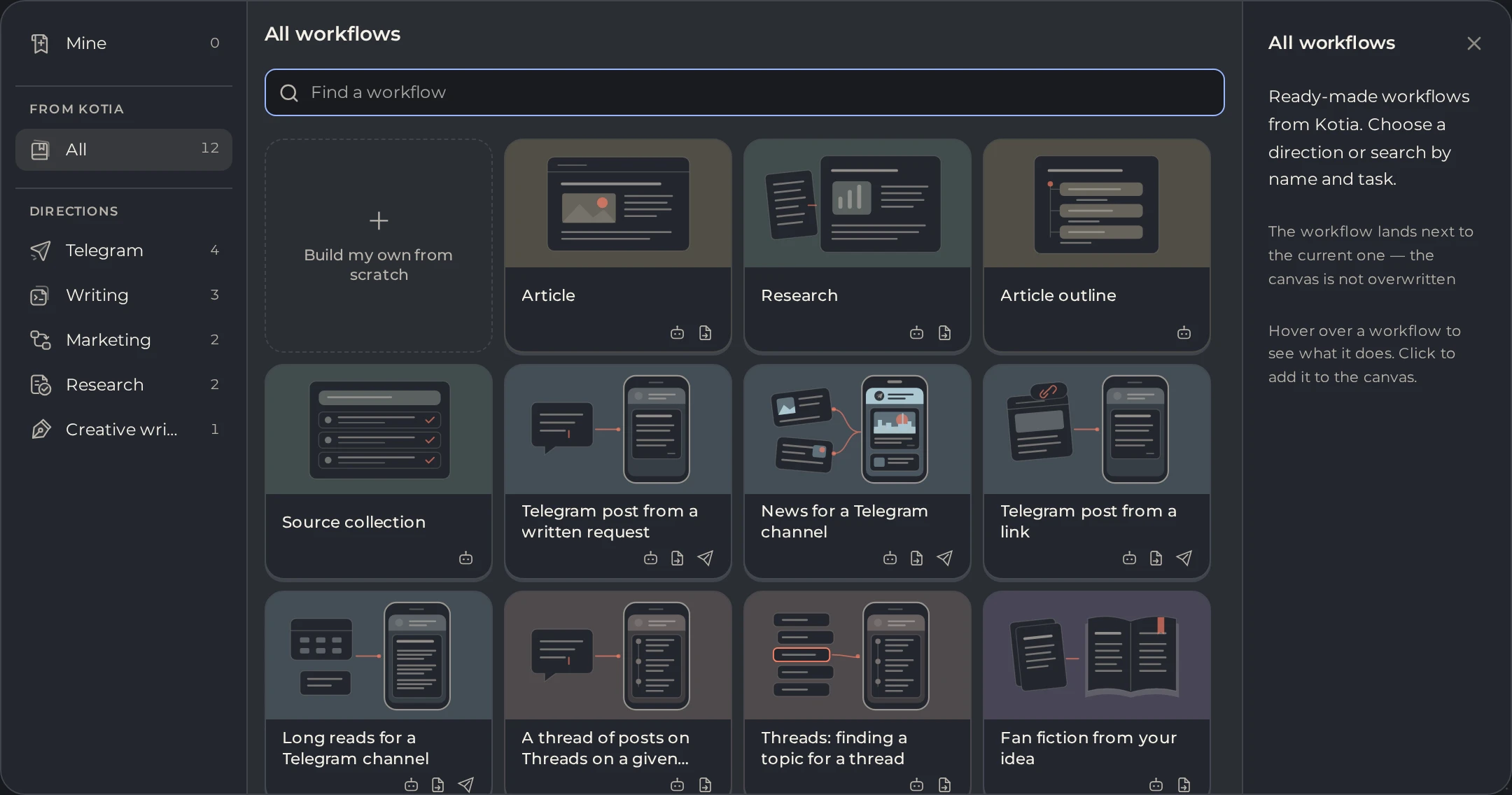 123
- 1Directions
- 2Search by name and task
- 3A ready-made workflow
What to tailor
- Voice. Author style sets the way you write, and a skill sets the rules of a specific kind of text. The difference and the setup are in the skills and styles section.
- Editing finished material. In the editor, you can ask AI to change a selected passage.
- Costs. AI work and paid services spend Kotia tokens. Before running a workflow, it helps to read how the cost is calculated.
- Unfamiliar terms. The glossary explains prompts, context, page parsing and other concepts with examples from Kotia.