
Publish Kotia content to WordPress, Telegram, or a shared link
Send articles to WordPress as drafts, post to Telegram channels, or share finished material by link. Choose the publishing method that fits your workflow.
On this page4
In Kotia, you can prepare content and send it to where people will read it: a WordPress blog, a Telegram channel, or a separate page accessed by link. Connected sites are available in finished materials and in the editor. For regular work, you can add sending to a workflow along with searching and writing.
For example, you run a blog and a project channel. Send the full article to WordPress, and prepare a short post on its topic separately for Telegram. If you need a colleague's feedback first, give them access to the draft by link.
How to choose a publishing method
| Where to send the material | What the reader or editor gets |
|---|---|
| WordPress | A draft post on your site. You can review it and publish it from WordPress |
| Telegram | A post that appears in the selected channel right after sending |
| Kotia link | A page with the material for reading, without signing in to your account |
| File | A separate copy in Word, HTML, Markdown or plain text format |
Connecting a site does not publish anything by itself. You choose the recipient and start sending, or set it up in advance in an order or a workflow.
How to send your first material
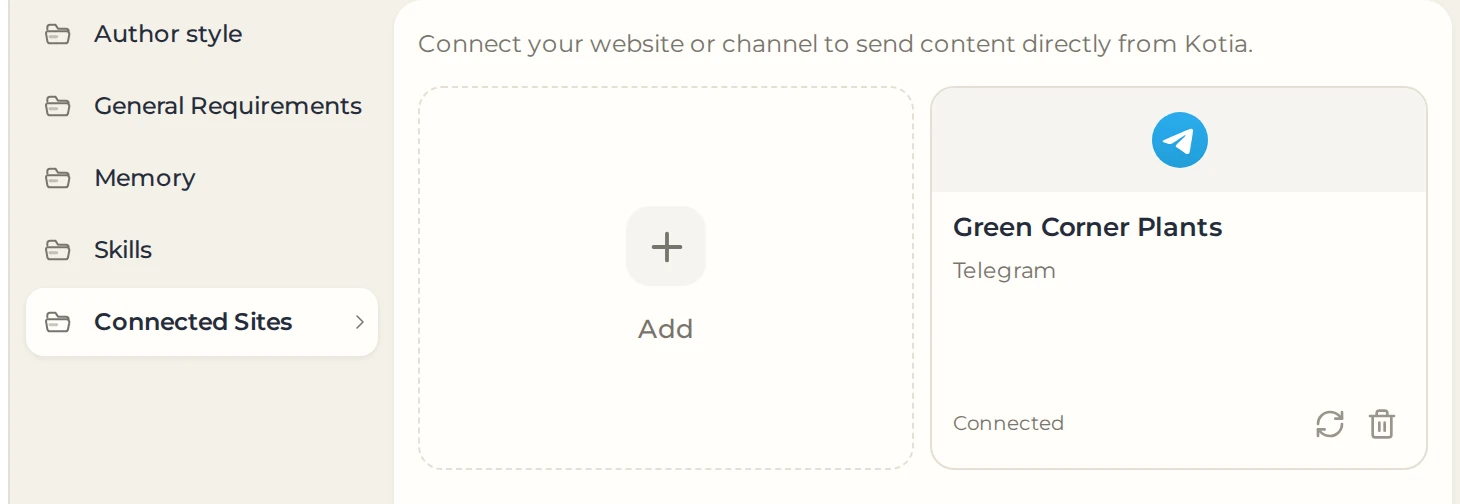
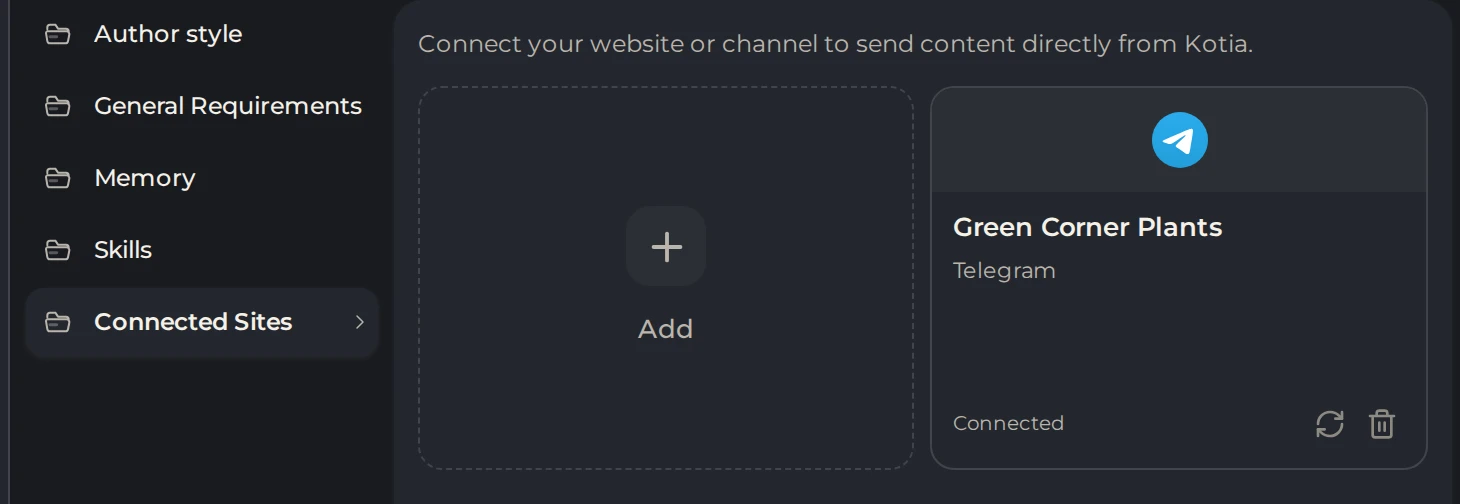
- To connect a site or channel, open "Settings" → "Connected Sites" and add a connection.
 123
- 1Connected Sites
- 2Add a site or channel
- 3A connected channel
- Open a finished article, news item, research, or your own document.
- Read the final text. If you edited a copy, send that copy.
- Click "Publish" and choose the destination.
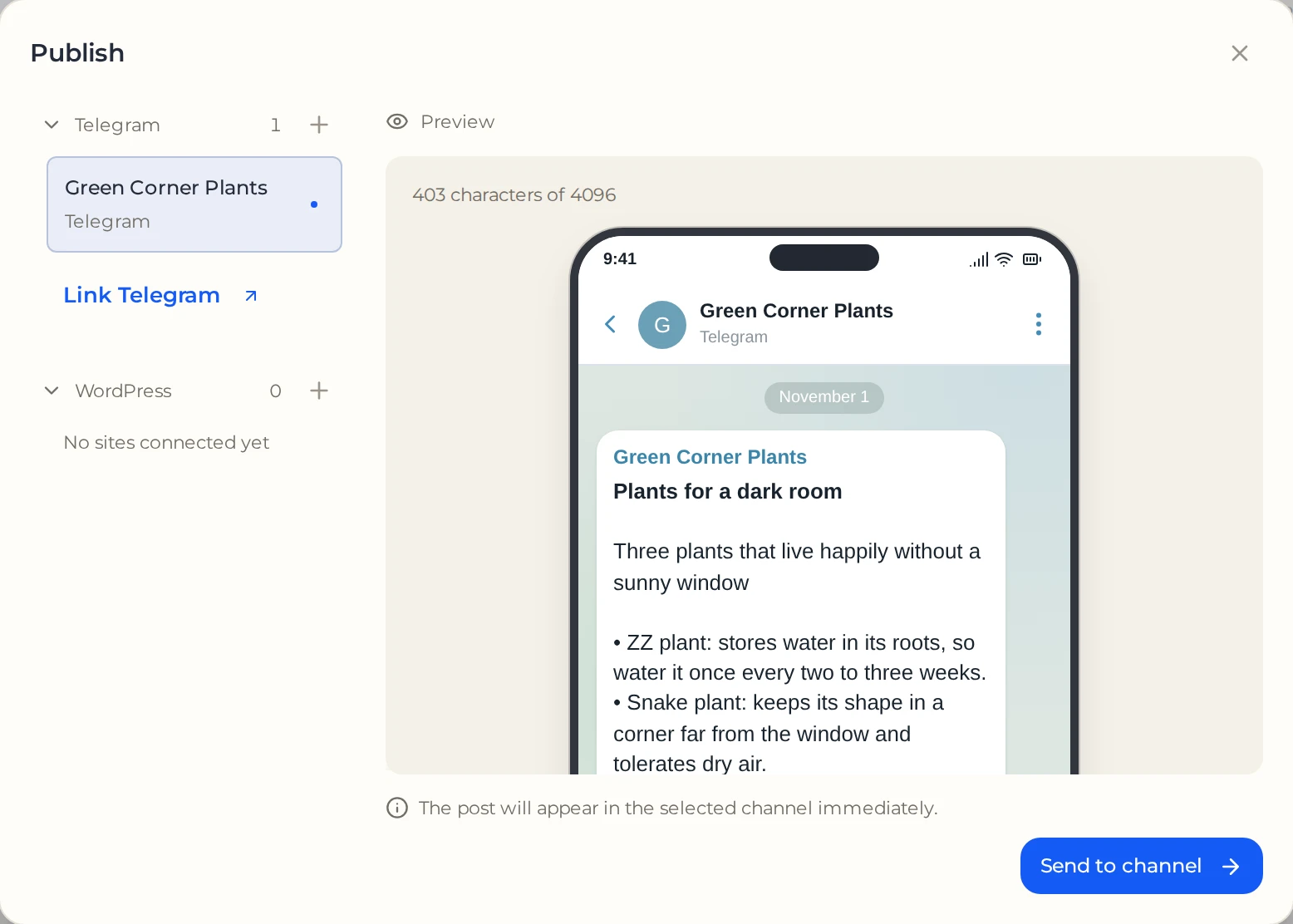
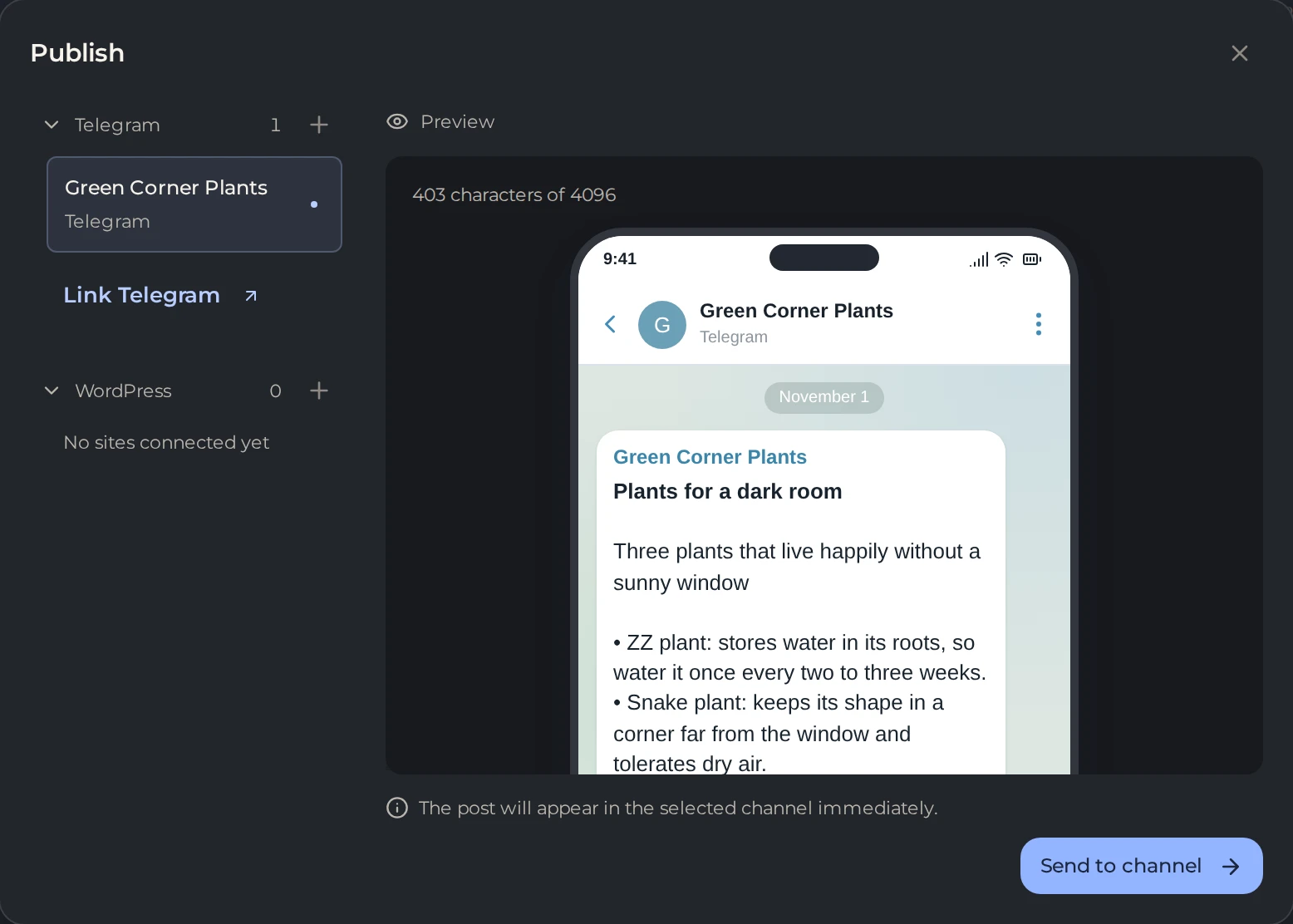
- Check the recipient and the preview, then send the material.
 123
- 1Your channel
- 2Preview and length counter
- 3Send to channel
- Follow the result link: in WordPress, to the draft; in Telegram, to the message.
A full article is not automatically turned into a short post. For the channel, prepare a separate text of suitable length in advance. The publishing window will show whether it fits the selected format.
How to remove manual sending from regular work
If an article or a rewritten news item is ordered through the chat, you can turn on auto-publishing to WordPress before generation starts. When it finishes, the material will go to your site as a draft.
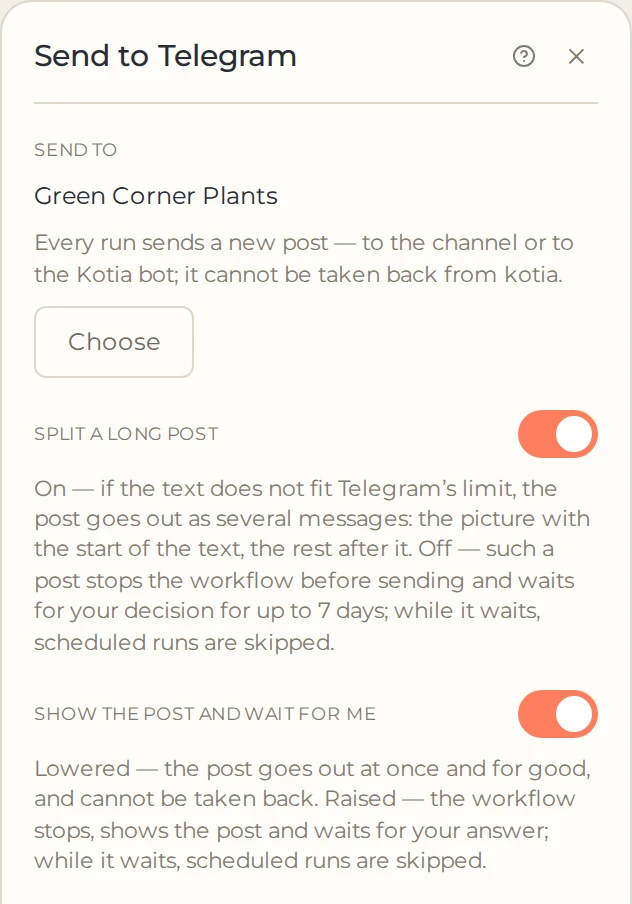
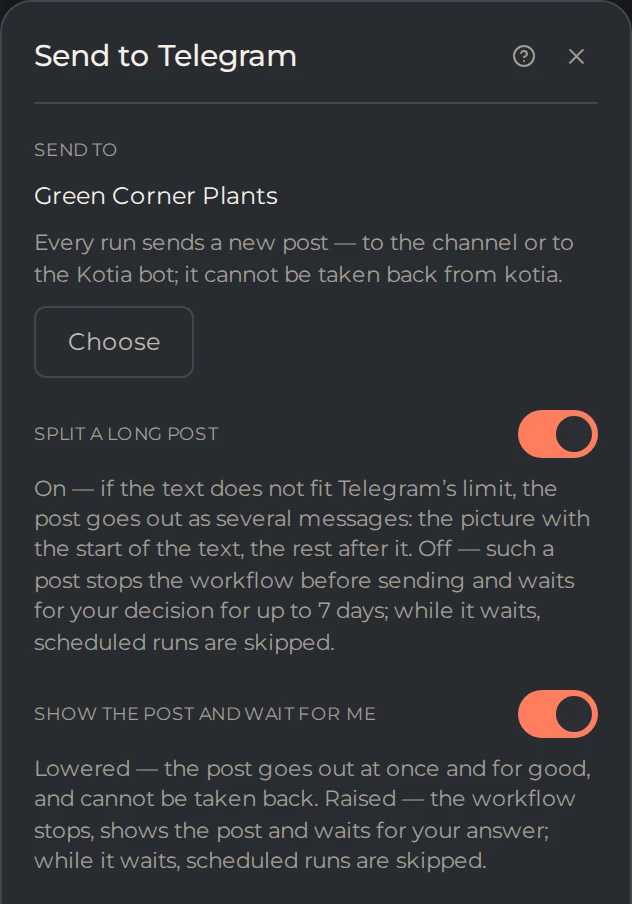
If you need the whole process, for example, searching for fresh news, writing a post, and sending it to a channel, use the Send to Telegram card in your workflow. It receives the finished text from the previous steps. For a site, there is Send to WordPress.
 12
- 1The channel that receives the post
- 2Keep on until you trust the result
The schedule is set for the whole workflow. A finished document with several posts and specified times does not start their publication by itself.
How to share text before publishing it to a platform
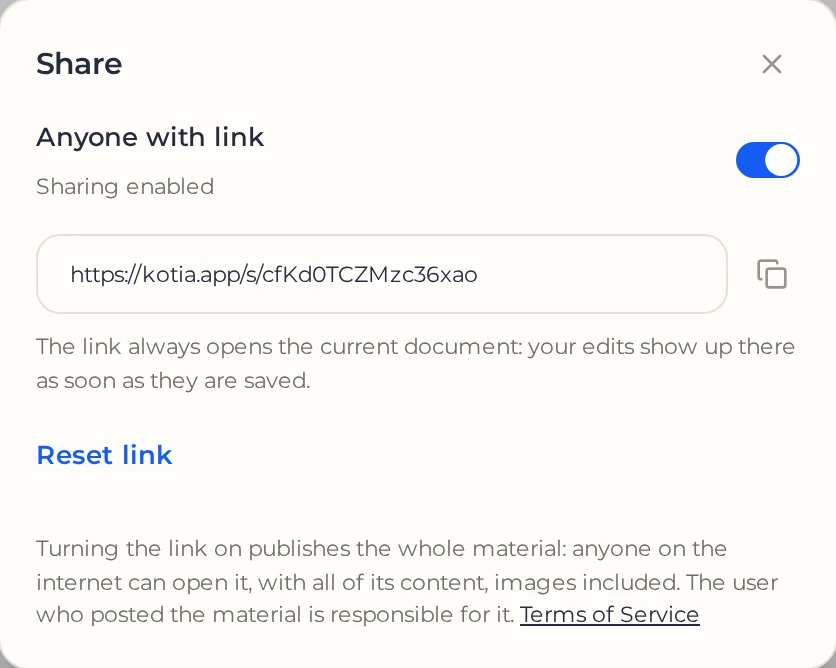
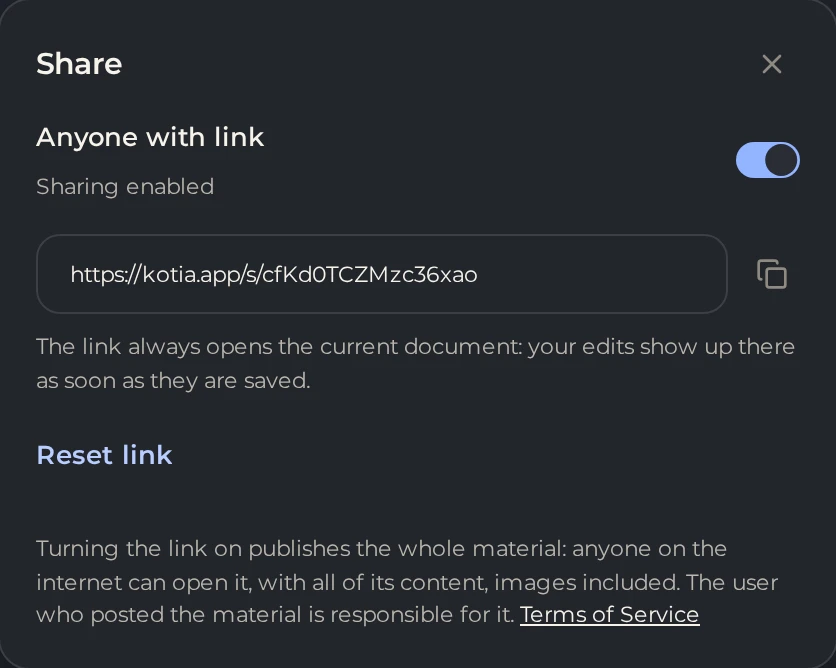
Click "Share", turn on "Anyone with link", and copy the address. The recipient can read the material, including available images, without signing up. This is useful when you need an editor's feedback or need to show the result to a client. Instructions for managing access are on the "Share" page.
 123
- 1Anyone with link
- 2Copy the address
- 3Reset link
If you need a separate copy for further editing, download the file. For step-by-step guidance, choose a guide: article to WordPress, post to Telegram, or sharing a draft.