
Kotia chat: work with an AI assistant on text in one conversation
Discuss ideas, review source material and refine drafts in one Kotia chat conversation. See how the chat works and which tools to connect for your task.
On this page5
The Kotia chat is a working conversation with an AI assistant. Here you can go through materials, prepare text and refine it until you get the result you need. Share your notes, a draft or a question in your own words. The agent can work with your material, look for information, suggest options and use Kotia services.
In one conversation, it's easy to go through several related stages: discuss the idea for a letter, write it, rework the introduction and pick a subject line. For each edit, you don't need to restate the task, because you are continuing the conversation about the same material.
What tasks you can assign
- Prepare text from your own data. For example, a letter to clients, a post for a channel, a service description, or answers to customers' questions.
- Refine the draft. Remove repetition, shorten, explain complex things more simply, change the tone or adapt the text for another audience.
- Review source material. Pull out the main points from a file, compare details, draft a list of questions or prepare conclusions from the material.
- Find information. Ask it to search the internet and show the sources the answer relies on.
- Prepare a brief for a service. Discuss the topic of an article, research, news, an outline or a set of sources, and move on to the result you need.
Search, attachments and running a service are not needed for every task. To edit your own paragraph, it's enough to share the text and explain what needs to change.
Example: from notes to a letter for clients
Suppose a workshop is changing how it hands out orders. In the chat, you could write:
Prepare a letter to our workshop's clients. Starting next Monday, ready orders are handed out by appointment: the customer chooses a time in a reply message. The address and opening hours stay the same. Explain the new process calmly and briefly, and ask them to reply with a convenient time. Don't add reasons for the change, because I haven't given them.
After the first version, continue the conversation: "Make the introduction warmer, and put the booking process into two points." Then ask for several subject lines for the email. You are working on one piece of material and reviewing the changes as they take shape.
This is an example of preparing text. Sending the letter to recipients is a separate step.
How to get started
Open the chat. For a separate topic, create a new conversation.
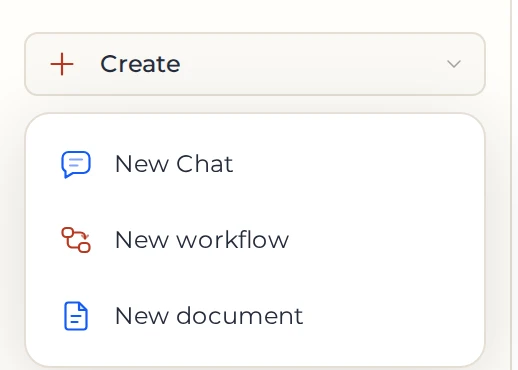
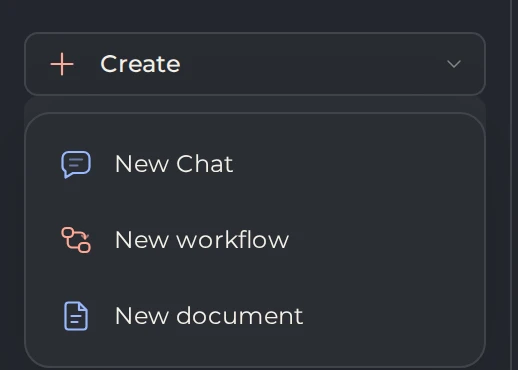 12
- 1Create
- 2A new conversation
Describe the result you want and provide the source details. You can paste text straight into the message, and attach materials as files.
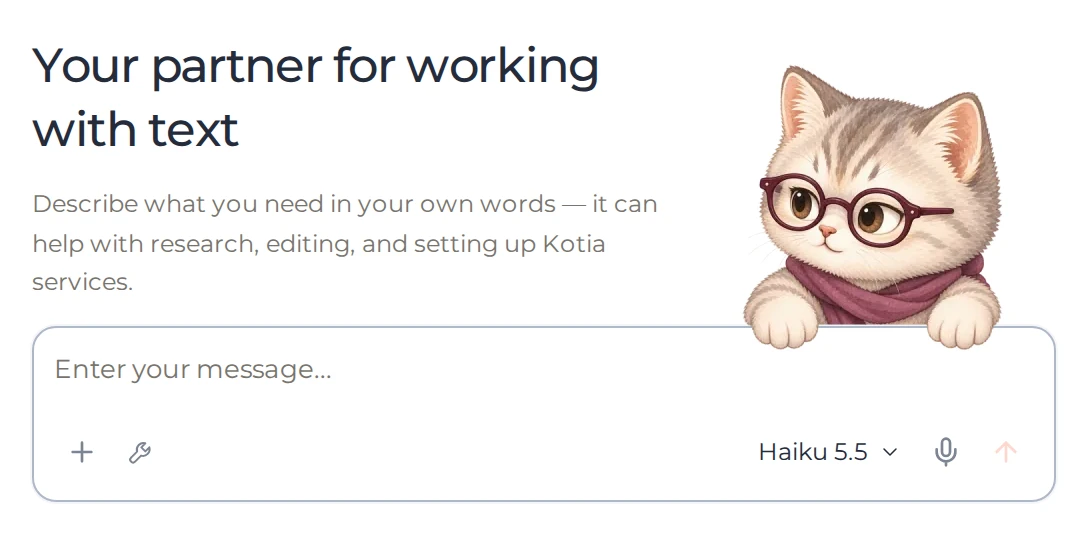
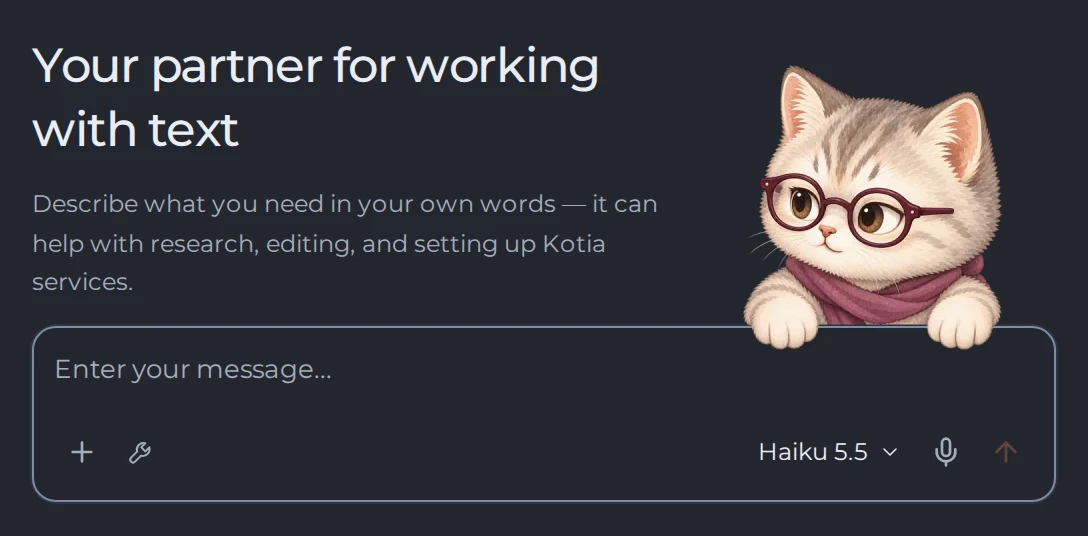 123
- 1Attach files
- 2Skills, styles and services
- 3Model for the reply
If it's easier to start from ready-made wording, choose a prompt from the catalog and fill in your own details.
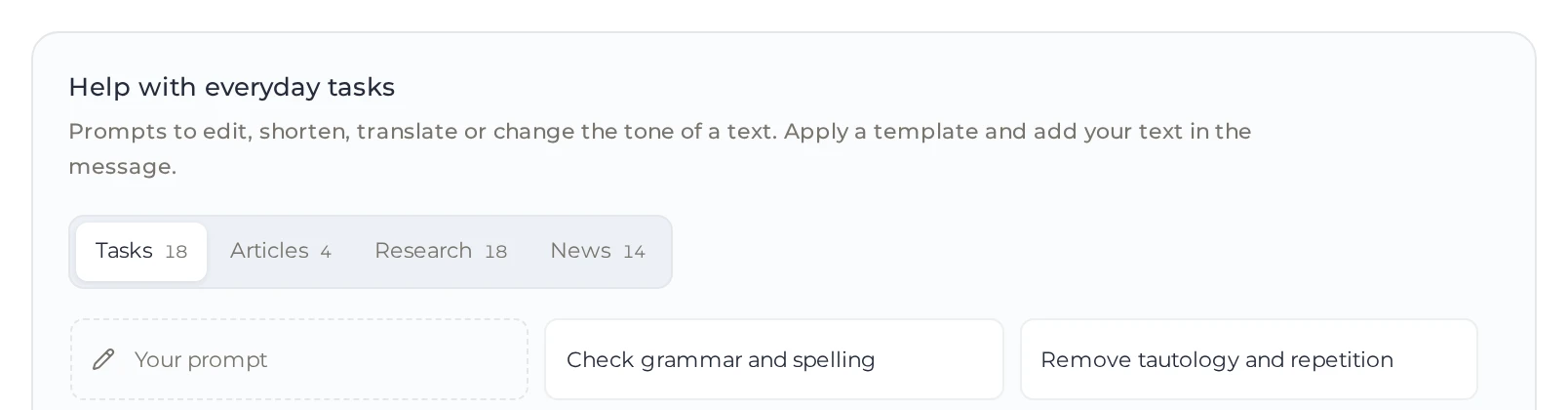
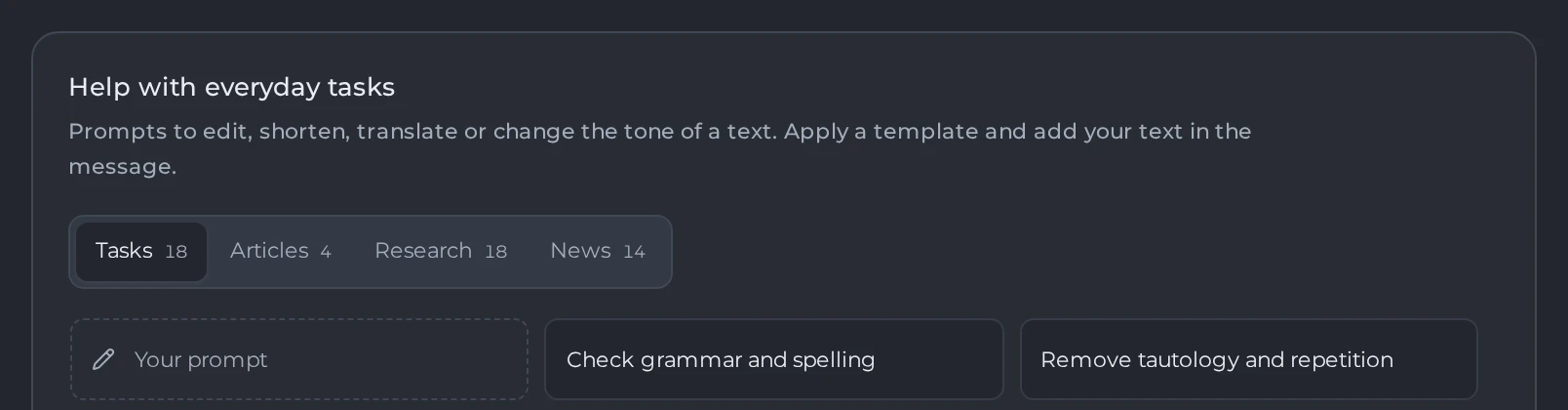 12
- 1Directions of requests
- 2A ready-made request
Send your message. Read the reply and keep working through follow-up requests: point to the specific passage and the change you want.
This process is shown with a small ad example in the step-by-step introduction to Kotia.
How to set up the assistant for your work
Skill sets the way of working: for example, on a letter, a social media post, or fact-checking. Style defines the voice: conversational, analytical or literary. Both settings are chosen in "Tools" next to the message field.
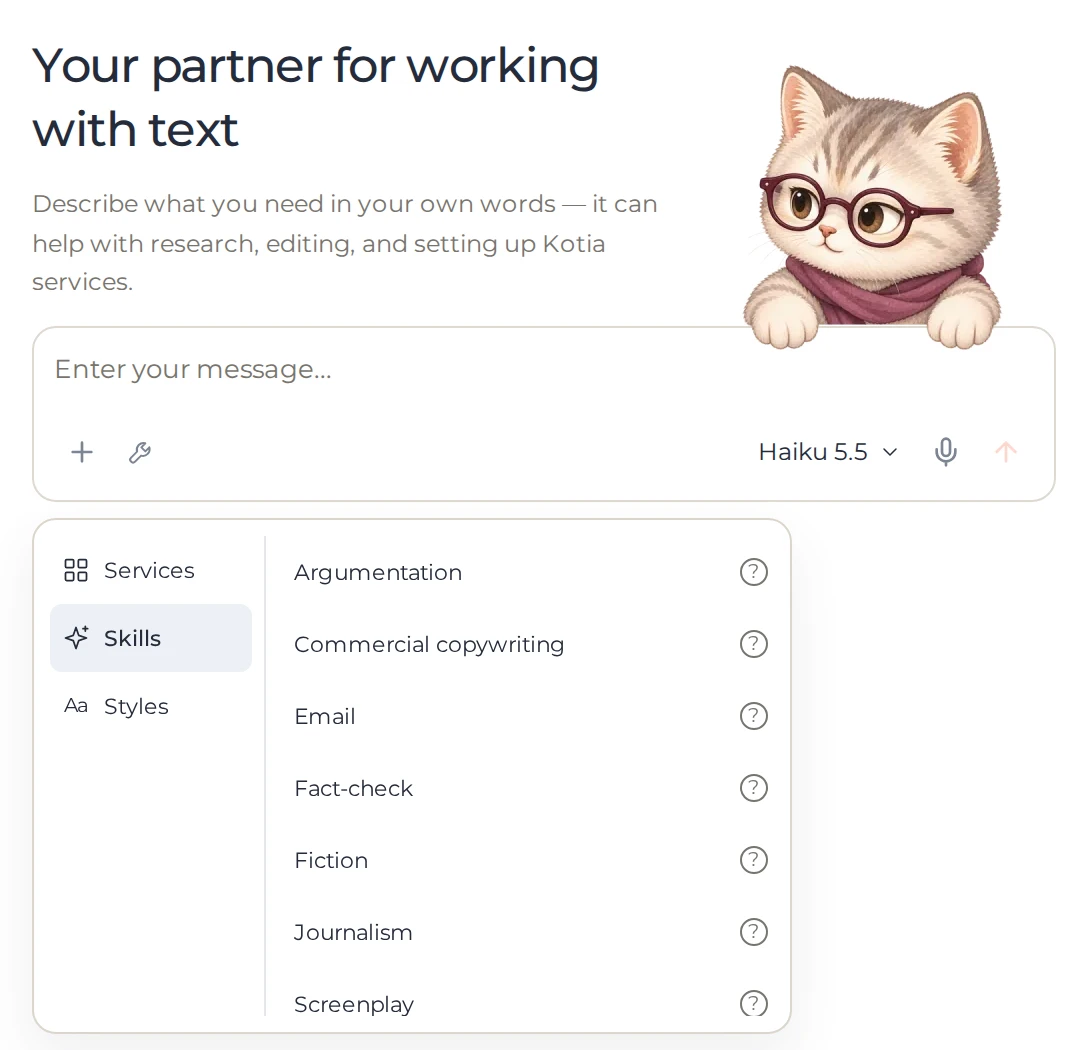
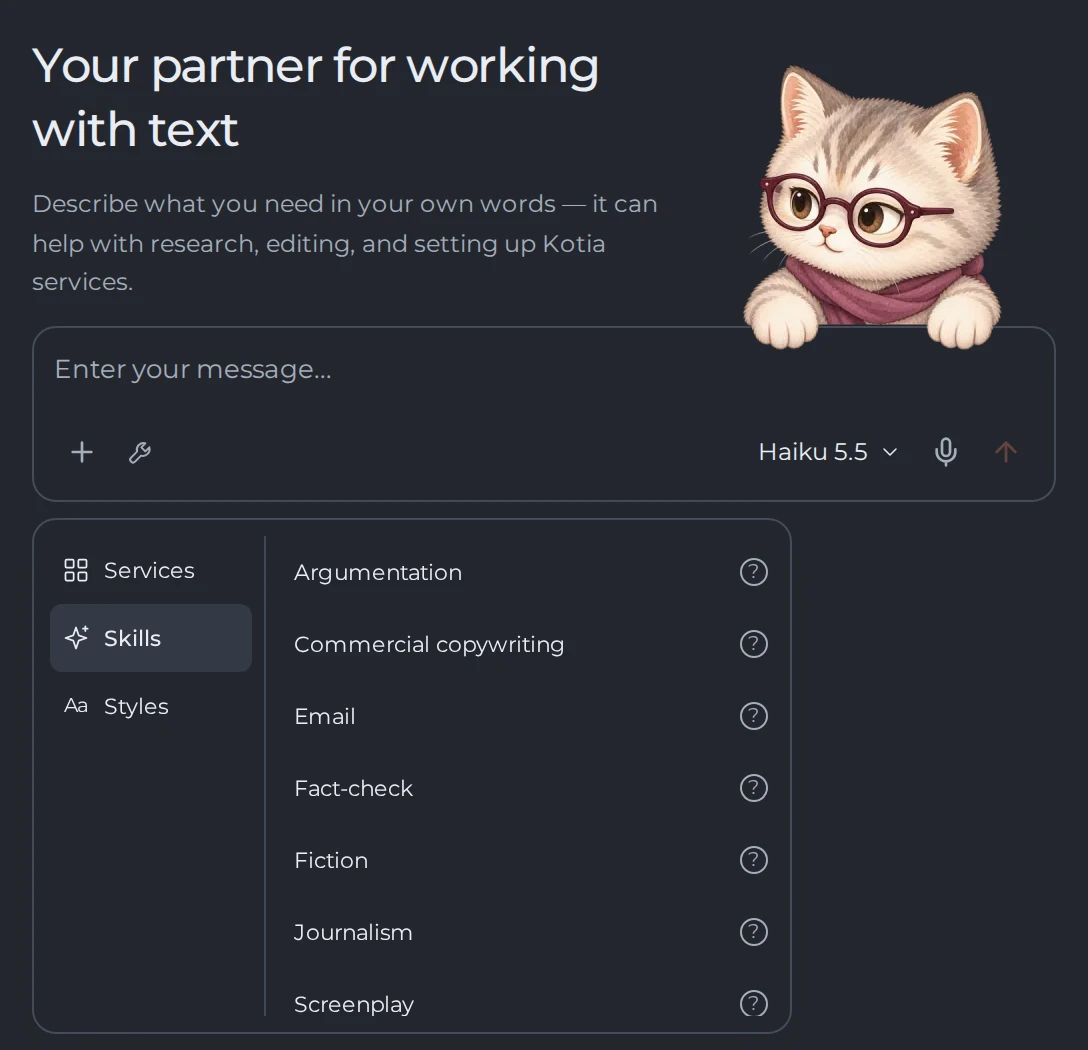 123
- 1Skills
- 2Styles
- 3Choose a skill for the conversation
General requirements store permanent rules for preparing texts, and memory stores details about you, your projects and your readers that are kept between conversations. You can add settings gradually, as it becomes clear what needs to repeat.
Where to work with long texts and recurring tasks
On a computer, you can open a document next to the chat in the Workspace and discuss edits directly in the text. Workflows are designed for processes you need to repeat with new source materials: their steps and the links between them are saved in the workflow.
Messages to the agent use tokens. The cost depends on the model, the amount of material and the work done. You can check actual charges in balance history. Choosing a setting by itself does not start text preparation.