
Online AI document editor in Kotia's Workspace
Write and edit documents beside the AI chat. Upload your files, review AI suggestions, add tables and images, use version history, and export the text.
On this page4
Kotia's Workspace puts the document editor and the AI chat on one screen. Here you can write a text from scratch, upload your own Word file, or revise an article prepared by a service. The assistant suggests changes directly in the document, and you choose which ones to accept and format the final material.
For example, a blog editor can open an article generated by a service, refine the introduction for their audience, add their own example and a table, and then download the finished version. The service's original material stays separate from the editable copy.
How to get started
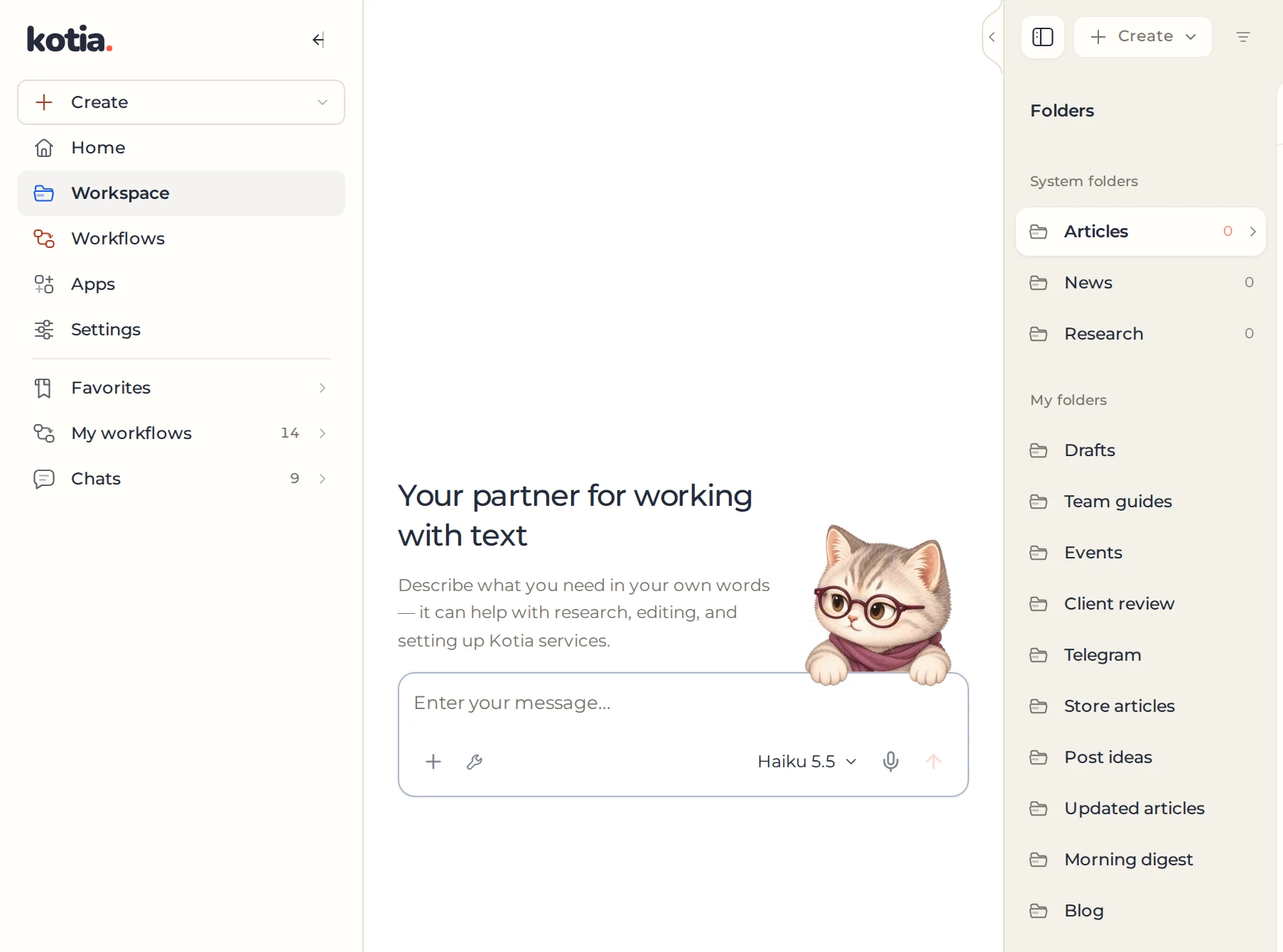
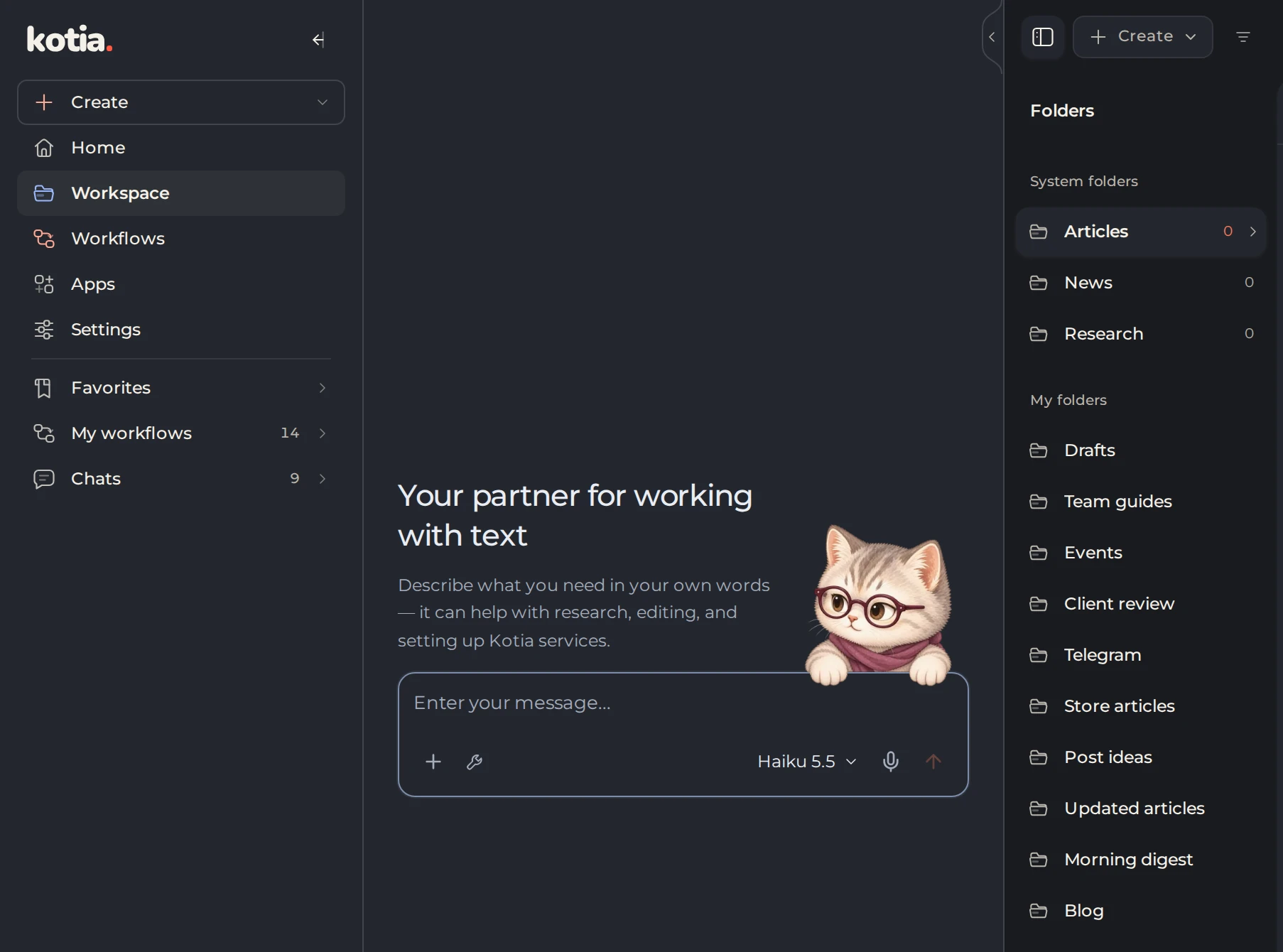
- Open Kotia on your computer and select "Workspace" in the side menu.
 123
- 1Workspace in the side menu
- 2Folders for service results
- 3Your folders
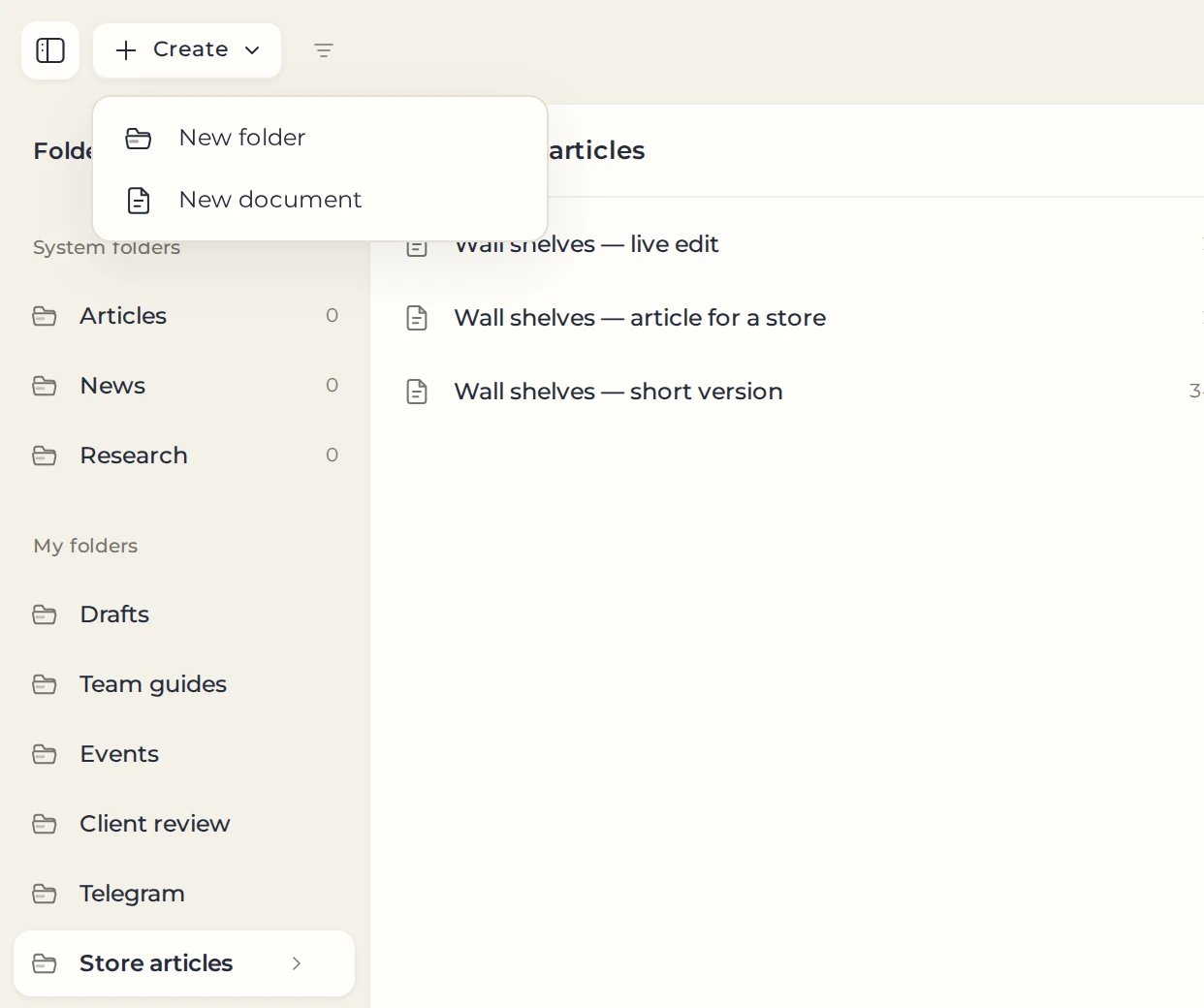
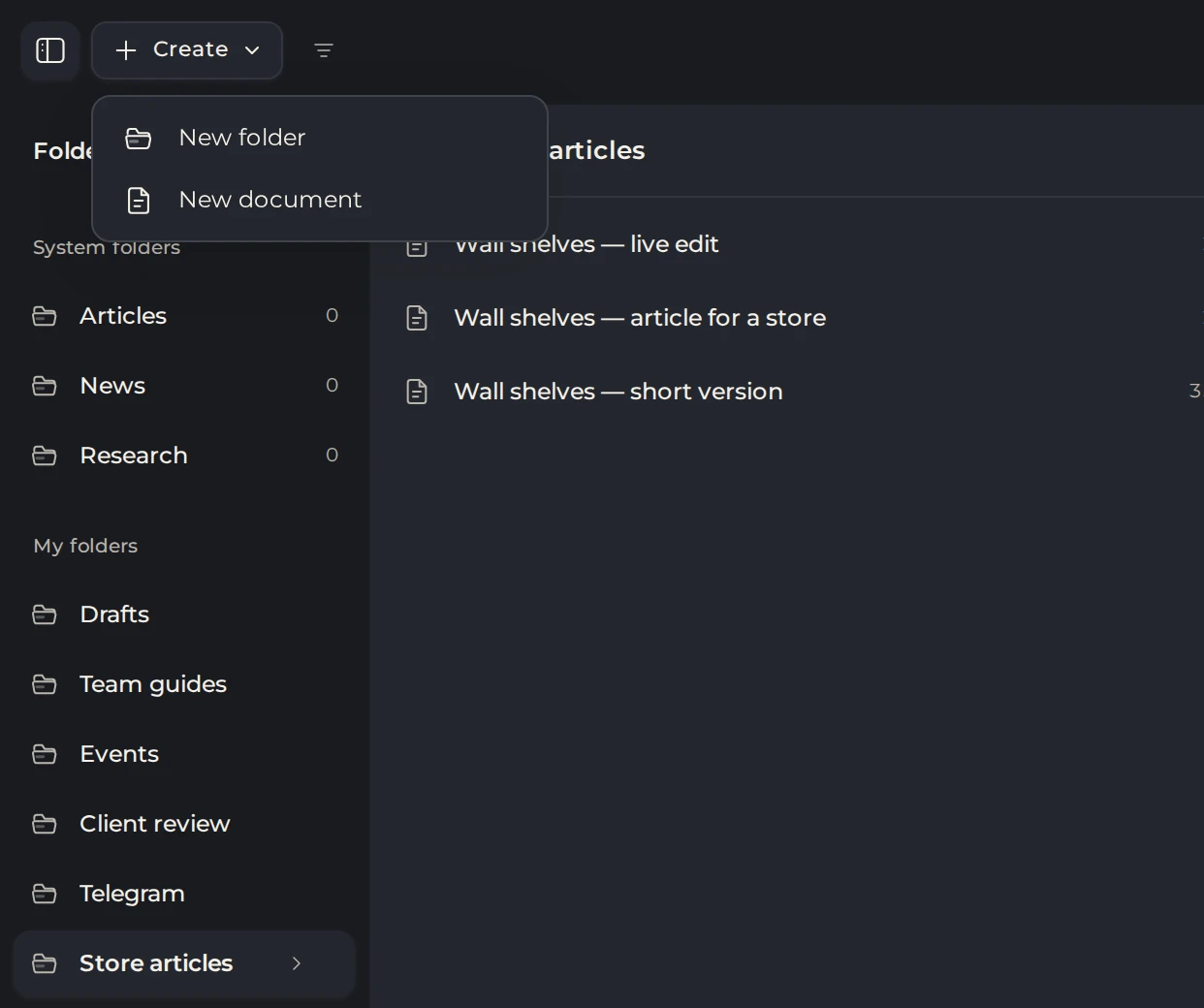
- In the library, open an existing document or create a new one: select "Create" → "New document" in your folder.
 123
- 1Your folder
- 2Create
- 3New document
- Give the document a clear name and start writing. To upload an existing file, use import.
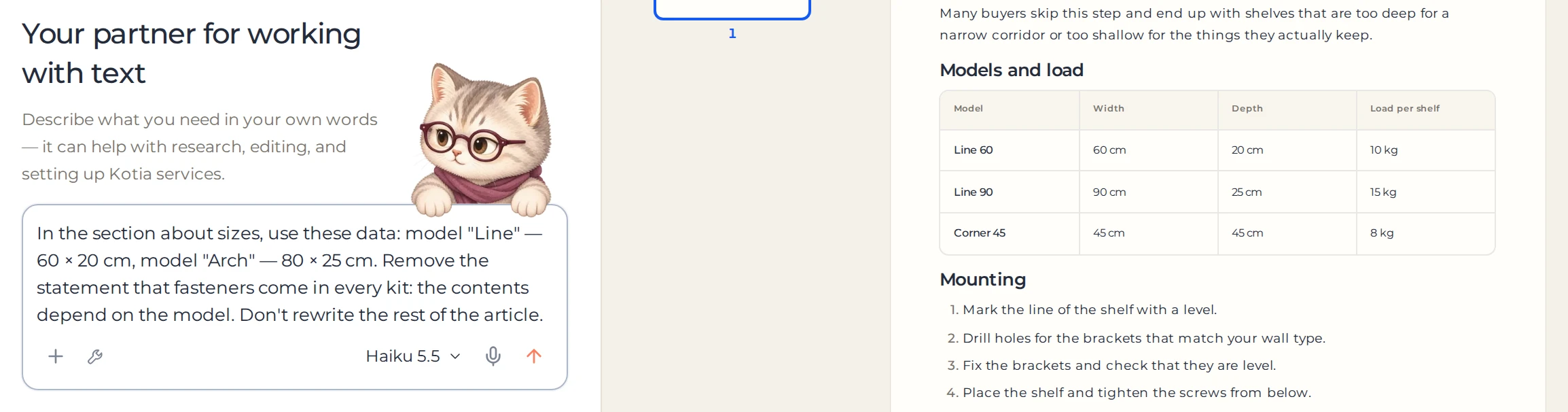
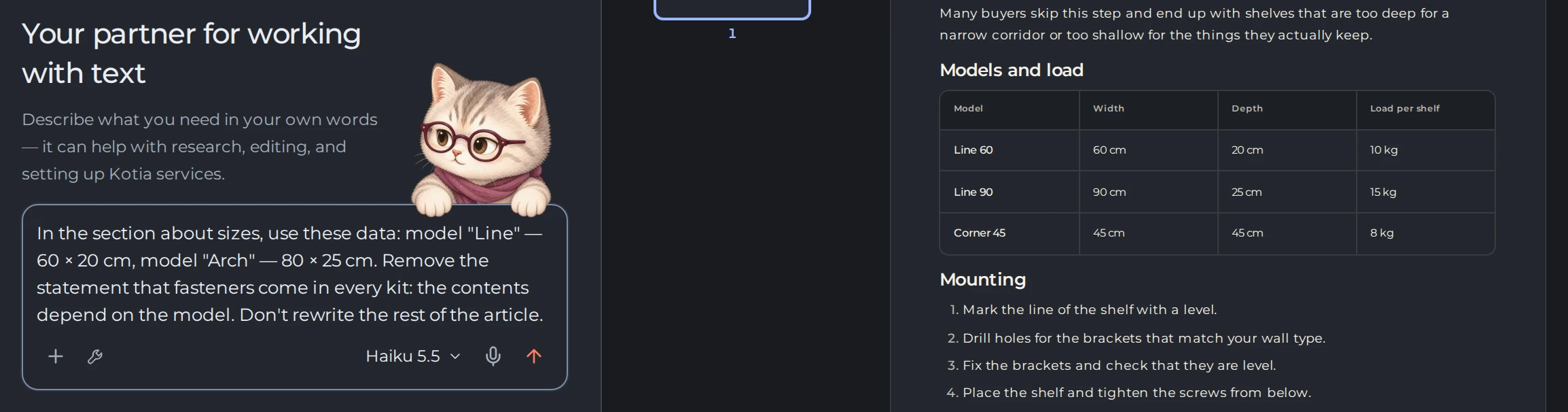
- If you need help, describe the task in the chat next to the document, for example: "Shorten the introduction and keep the facts."
 12
- 1Your request with the data
- 2The article it changes
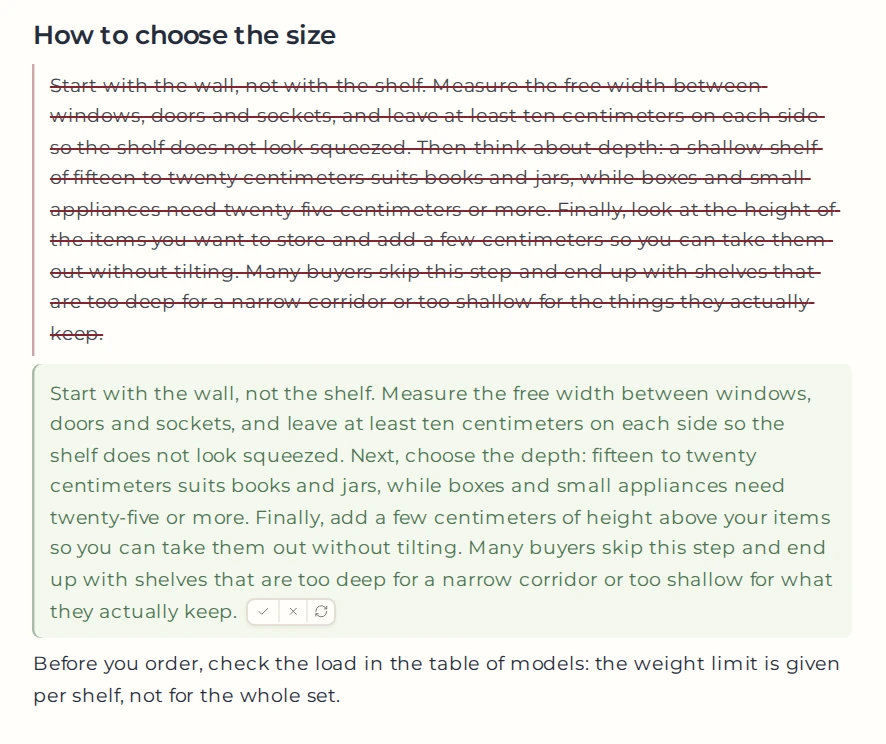
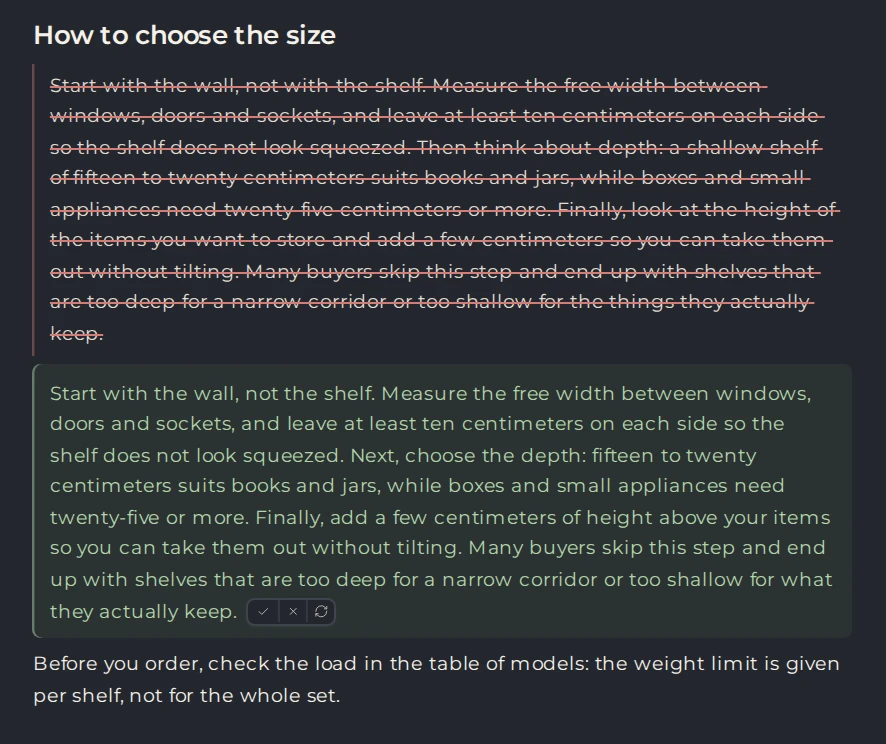
- Review the suggested changes in the document and accept the ones you want.
 123
- 1The old text
- 2The suggested text
- 3Accept, Reject, Regenerate
The Workspace opens next to the current conversation. You can collapse it and continue the conversation. A new conversation is created separately, when you need one.
How to choose the right way to edit
| What you want to do | Where to do it |
|---|---|
| Change the text and formatting yourself | In the editor |
| Shorten, translate, or rephrase one paragraph | Using AI on selection |
| Check or rework the whole document | Using ready-made tasks or a request in the chat |
| Finish a thought you started | With the "Continue" action at the cursor |
| Go back to an earlier version | In the version history |
Manual formatting changes the document immediately. AI work runs as a request to the assistant and uses tokens. You can review the agent's suggestions before accepting them.
Example: revise an article for your blog
Open the article and ask: "Add an example for a small workshop after the section on choosing materials. Use the facts from my notes below. Keep the rest of the structure."
Check the suggested passage and how it connects to the paragraphs around it. Then format the heading, add the illustration you need, and save the important revision in the history. The full workflow is described in the article preparation guide.
How to store and share materials
You can sort your texts into folders and save good revisions as named versions. Articles, news, and research from services are available in separate sections of the library.

 1234
- 1Version history
- 2Share by link
- 3Publish
- 4Download as…
You can export the finished document to a file, share it by link, or prepare it for publishing. Before sharing, go through any suggested changes you have not accepted, so that the final document contains exactly the text you chose.
The editor and working with suggestions are available on a computer. On a phone, you can continue the chat and read materials, but edit the document from a computer.