
Content automation with AI: build a working chain in Kotia
Set up repeatable content preparation in steps: source data, AI processing and saving the result. Ready-made workflows and building your own chain.
On this page5
Kotia workflows let you set up content preparation once and repeat it for new topics, links, or texts. Cards collect source material, process it with AI, and pass the result on. For example, you can get the text of an article from a link, prepare a post for your channel based on it, and save it to a document.
You set the sequence and the requirements for each step. After you start a workflow, Kotia runs the linked chain on its own. You don't need to copy the response from one task to another by hand. You need a computer to build and set up a workflow.
Example: from a link to a Telegram post
This workflow needs a source link, the page text, instructions for preparing the post, and a place for the result:
| Step | Its role |
|---|---|
| "Data" | Stores the link to the selected article |
| "Page parsing" | Gets the available text from this link |
| Post preparation | Uses the source and your requirements for the audience, length, and presentation |
| "Document" | Saves the finished text for reading and editing |
In the task, you can ask it to explain the main idea to your channel's readers, keep the essential facts, and add a link to the source. To get started, use the ready-made workflow Telegram post from a link. Its instructions describe the settings and the result.
This workflow prepares the text. For automatic publishing, you need a separate, configured sending step.
How to run a ready-made workflow
Open the builder on your computer and the "Ready-made workflows" library.
Choose a workflow that fits the result you need. Check what source data it requires and where it saves the text.
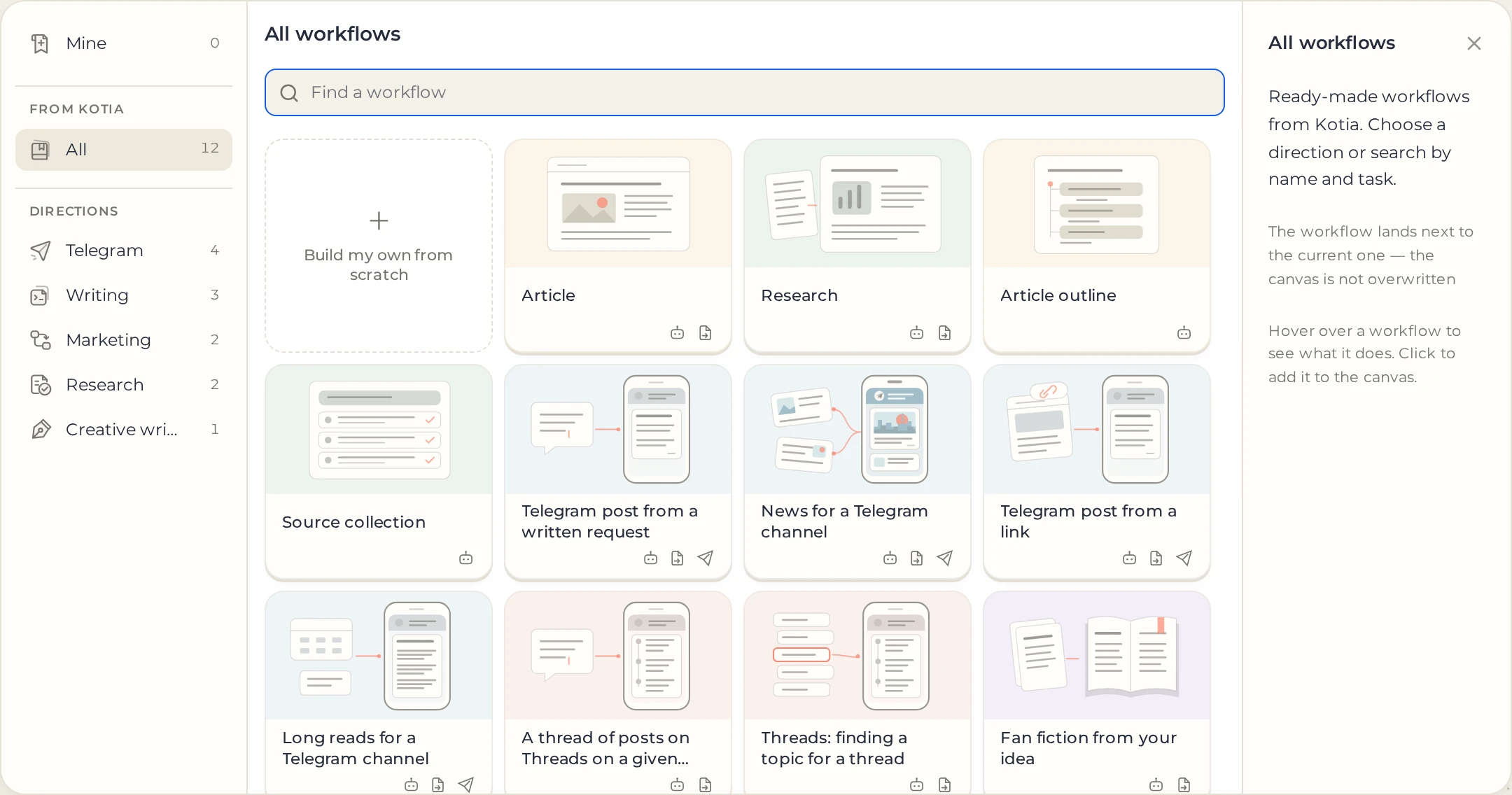
 123
- 1Directions
- 2Search by name and task
- 3A ready-made workflow
Add the workflow to your own workflow. This is a copy you can change to fit your tasks.
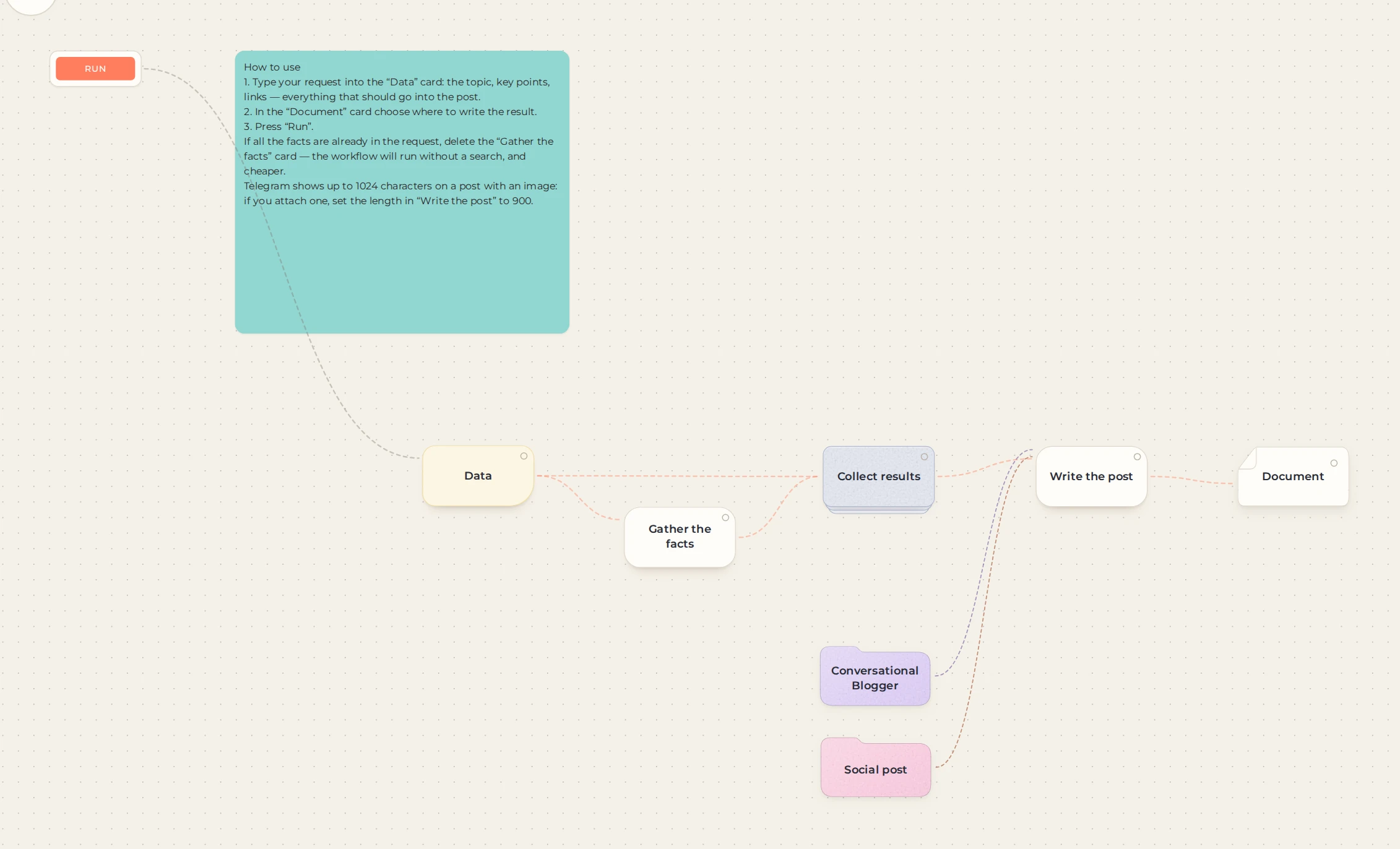
 1234
- 1How to use
- 2Your request goes here
- 3The post is written here
- 4The result is saved here
Enter the topic, link, or order. Check the language, style, and other settings of the cards you use.
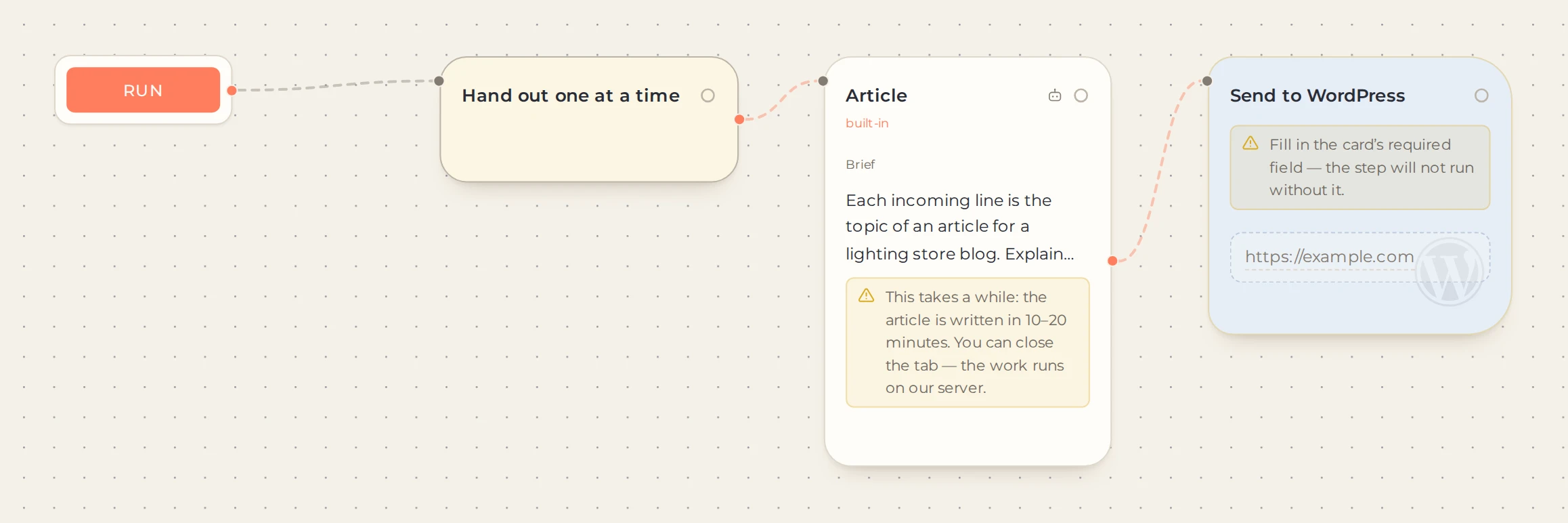
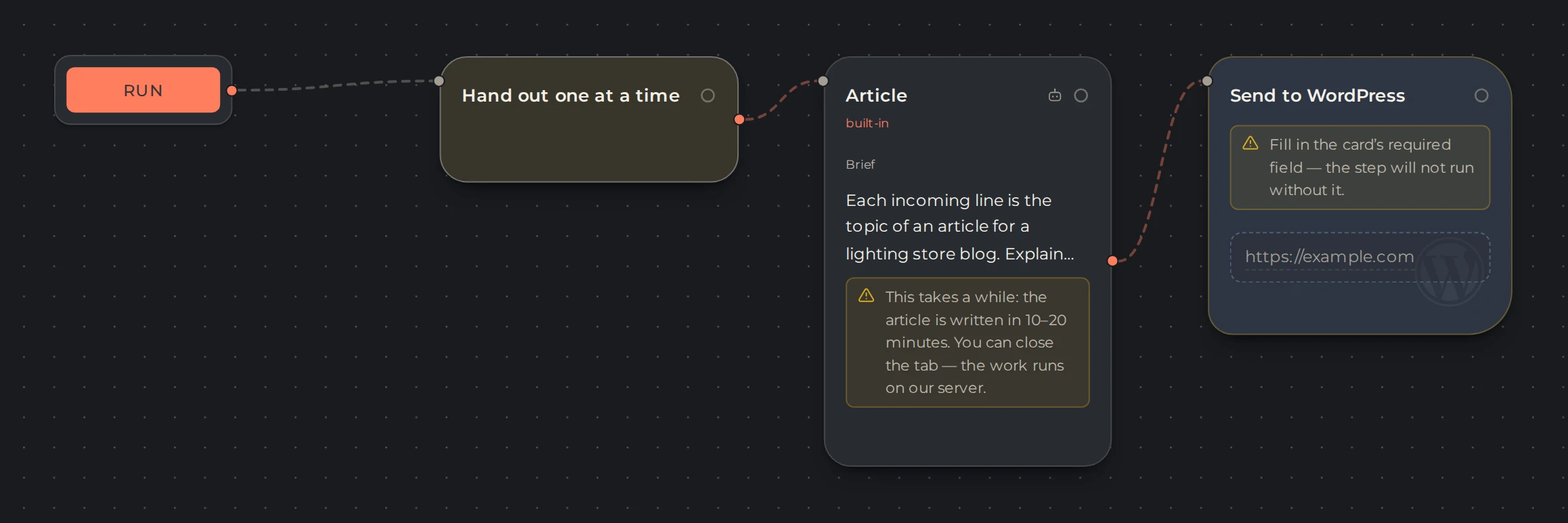
Check the connection to "Start" and the readiness messages. Fill in the required fields that are still empty.
 12
- 1Run starts the chain
- 2What still needs filling in
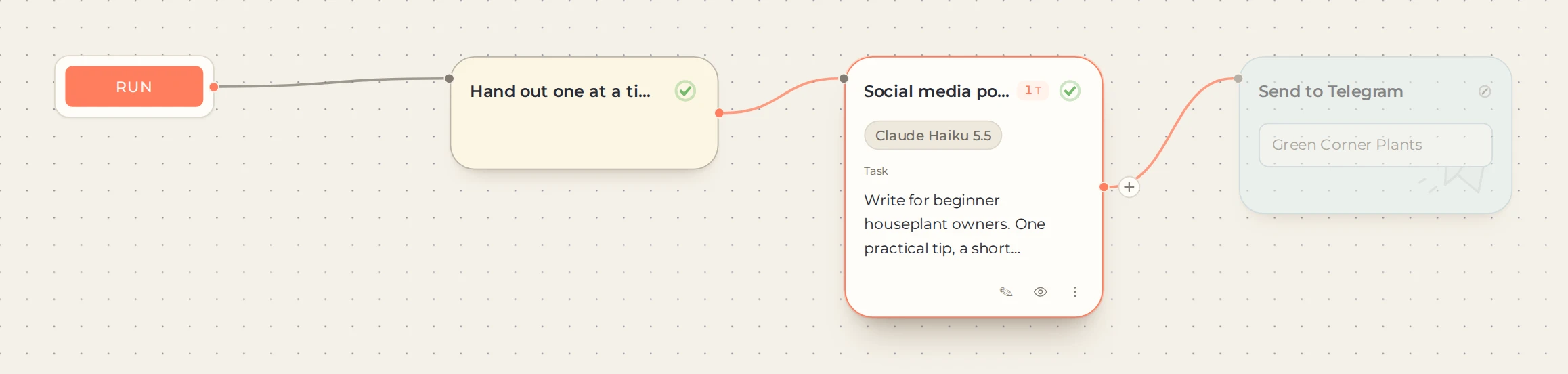
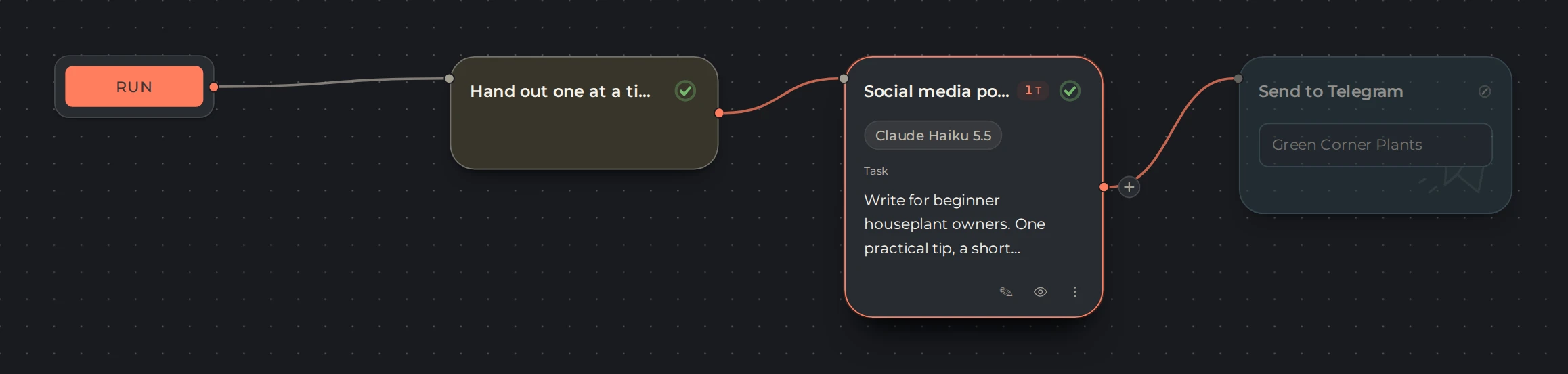
Run the chain on a single example. Paid steps use tokens while they run.
 12
- 1Run the workflow
- 2Show the card result
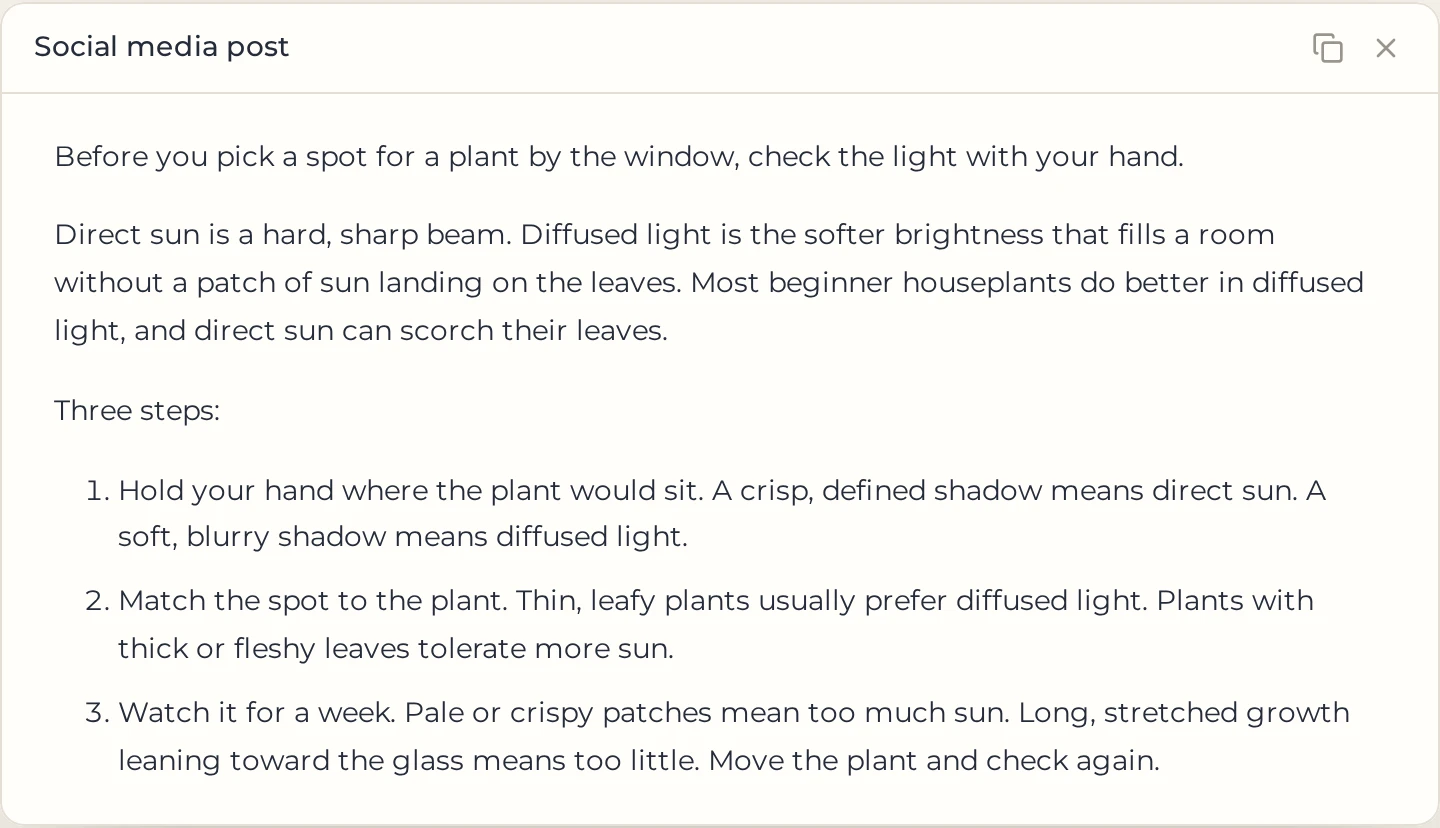
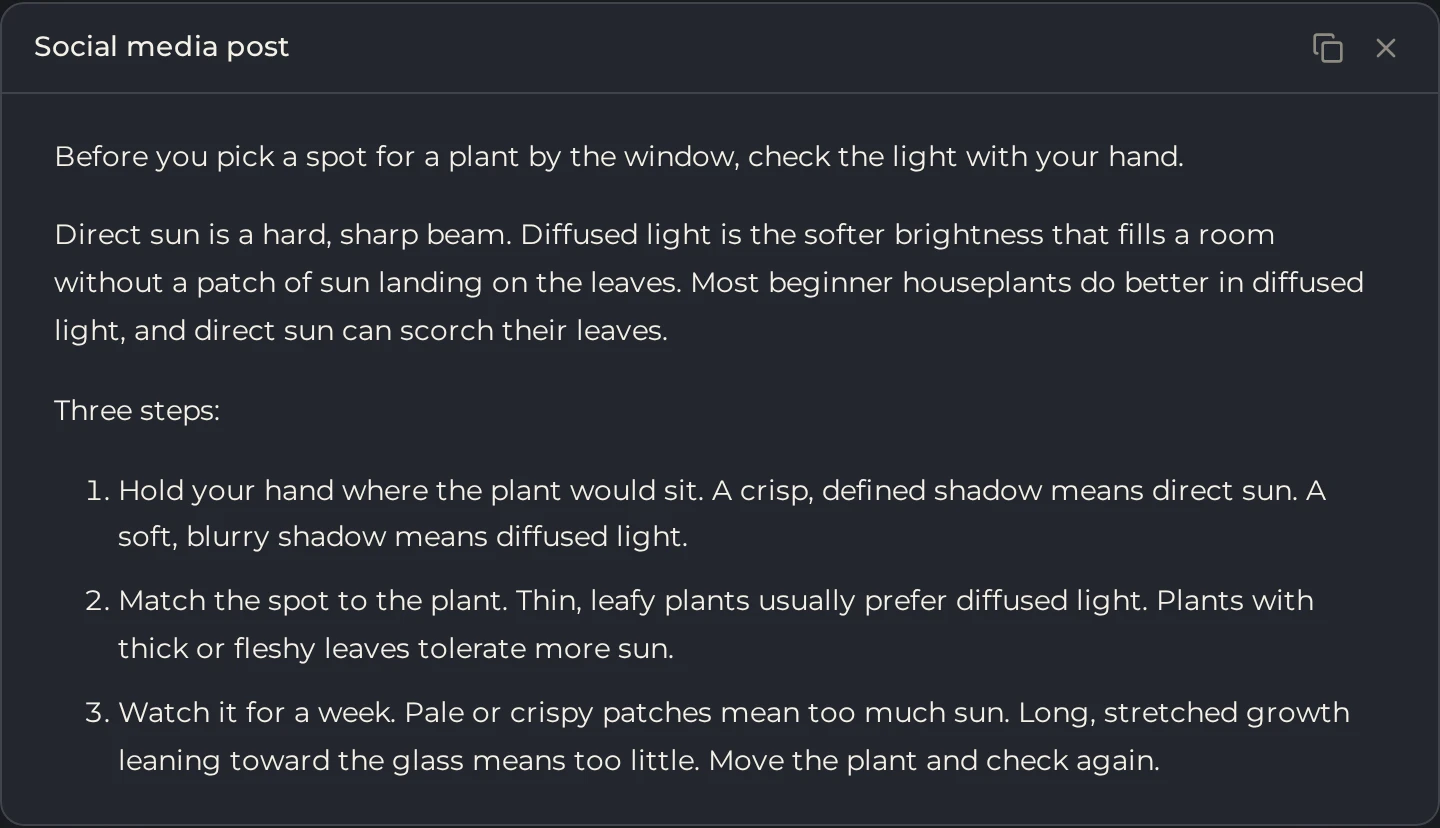
Open the result and read it. If it doesn't fit, find the step where the mismatch occurred: the source, text extraction, or the AI task.
 12
- 1What the card passed on
- 2Copy the result
The workflows are grouped by task in the workflow catalog. For your first run, you don't need to build a complex workflow with search, loops, and a schedule.
How to build your own chain
Start with the result and decide which data it needs. To rewrite your own text, the "Data," "Rewrite," and "Document" cards are enough. Internet search is needed only if you need external materials.
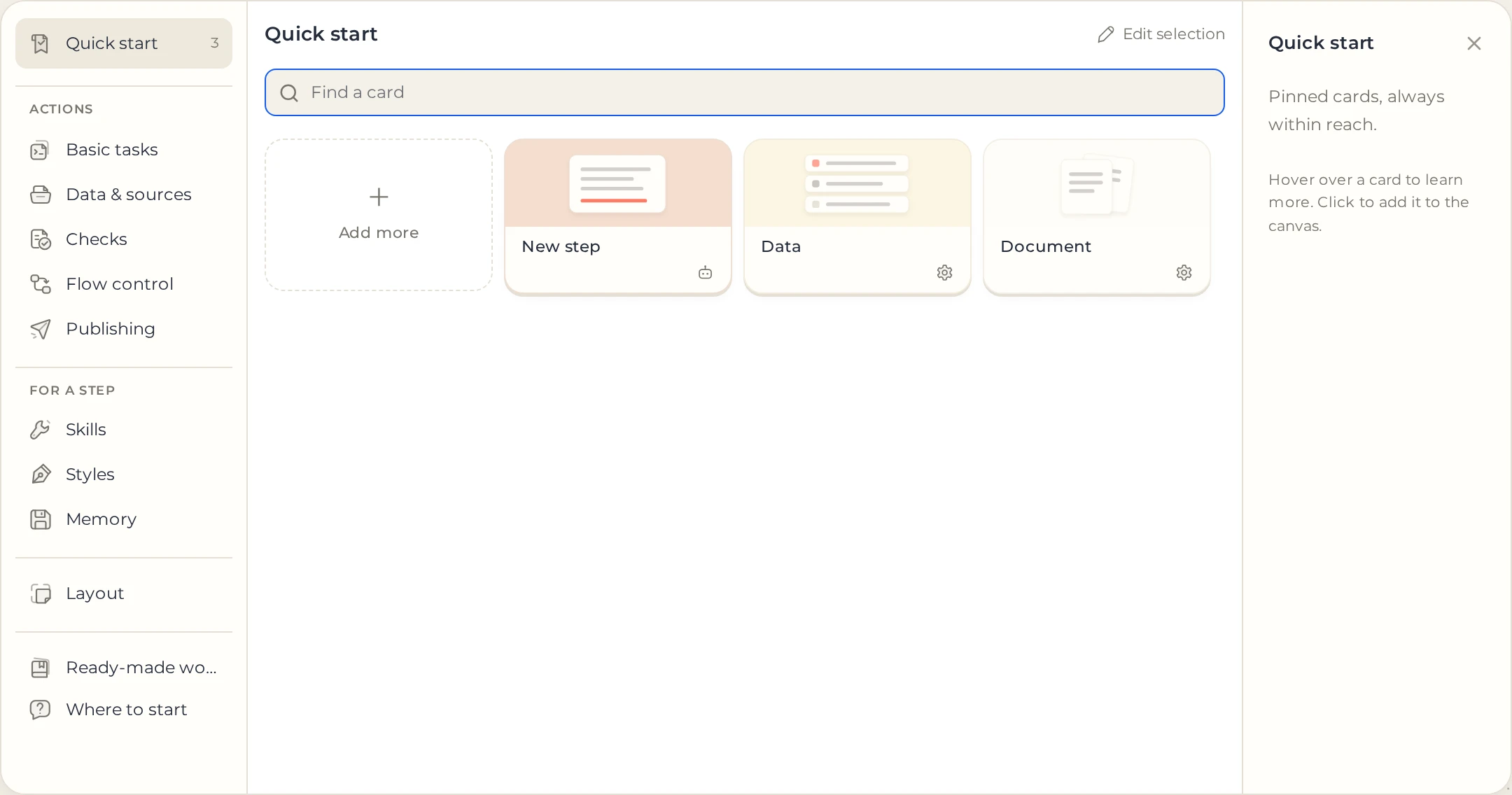
Add cards, connect them to Start, and pass the source data to the processing input. The order of execution is set by the links between cards, not by where they sit on the screen. How to connect links and how they differ is described in the article "Cards and links".
 123
- 1Card groups
- 2Find a card by name
- 3Click a card to add it to the canvas
Check that the next step receives the right content. A page link and the extracted text are different data. A list of found articles also does not contain their full texts.
How to repeat work and where to find results
| Task | Feature |
|---|---|
| Process several items within one run | Loop |
| Run the chain at a set time | Schedule, available with an active subscription |
| Reuse a configured workflow | My templates |
| Understand what happened during the run | Run log |
A workflow that has started runs on the server, so closing the tab does not stop the workflow itself. Changes to the workflow after it starts do not affect a run that has already begun. To stop it, use the run controls provided for this purpose.
Before running again, check the result settings. The "Document" card can append text to existing text, and cards with saved collections can return the next batch. For more details, see the "Document" article and the instructions for the relevant sources.
How to control costs and fix errors
The cost is made up of the paid actions that are performed. Each repeat run uses tokens again, and a schedule does not cancel payment. How costs are calculated and checked is described in the article on cost.
If a step fails, first read the message and check its input data. It is easier to fix the chain using one specific example than to run all the materials again. Common situations are covered in the step failures guide.