
Skills and styles in Kotia: what they do and how to turn them on
A skill sets the agent's working method, a style sets the text's manner. Learn how to pick them, turn them on in chat and connect them to a workflow step.
On this page5
A skill in Kotia is a ready-made set of rules and working methods that you can connect to an AI agent for a specific task. For example, the "Email" skill sets the method for business correspondence, "Journalism" covers how to prepare news stories, and "Fact-check" covers checking claims against sources.
You choose a skill and describe what you need done. The agent receives the method along with the task, so you don't have to spell out the entire working order each time. The result depends on the task: it can be a letter, a news story, a script or a verification report.
Author style covers something else: tone, rhythm and manner of presentation. You can use it together with a skill. For example, "Social post" helps you put together a short post, and "Conversational Blogger" sets a conversational tone.
What happens after you connect
A skill doesn't start work on its own. First, you send a message in chat or run a workflow step. When preparing a response, the agent uses the task, the materials and the rules of the selected skill.
You still need to name the specific task in your request. For example, after you connect "Email", it's enough to explain who you're writing to, what the occasion is and what kind of reply you expect. Building the subject line, the opening and the request is already part of the method.
Built-in skills don't need any separate setup. You can set your own working order in the "My rules" section, and your personal writing manner in the custom style section.
How to turn on a skill in chat
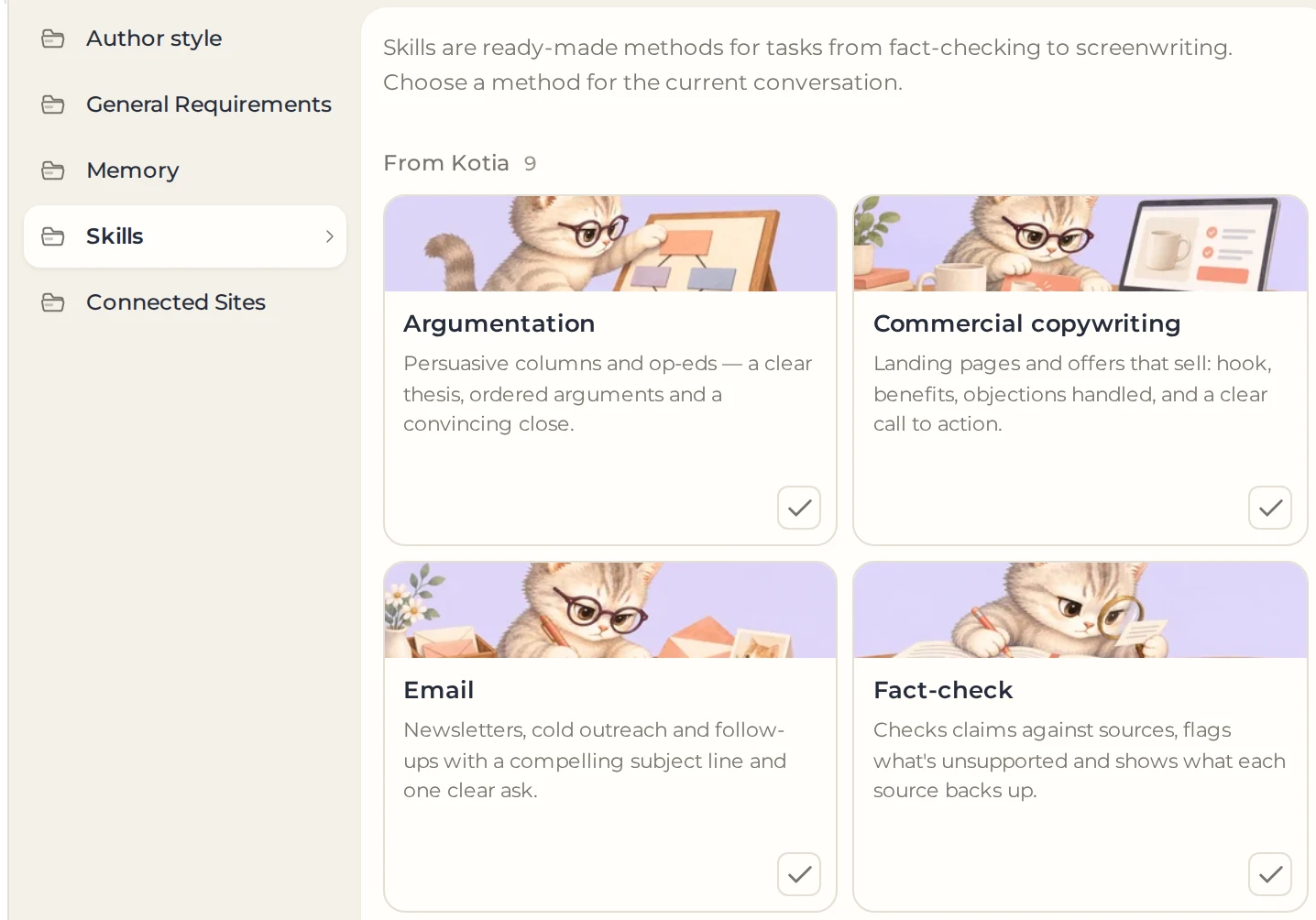
Open "Settings" → "Skills".
Find the skill you need and click "Use in chat".
 1
- 1Use the skill in the conversation
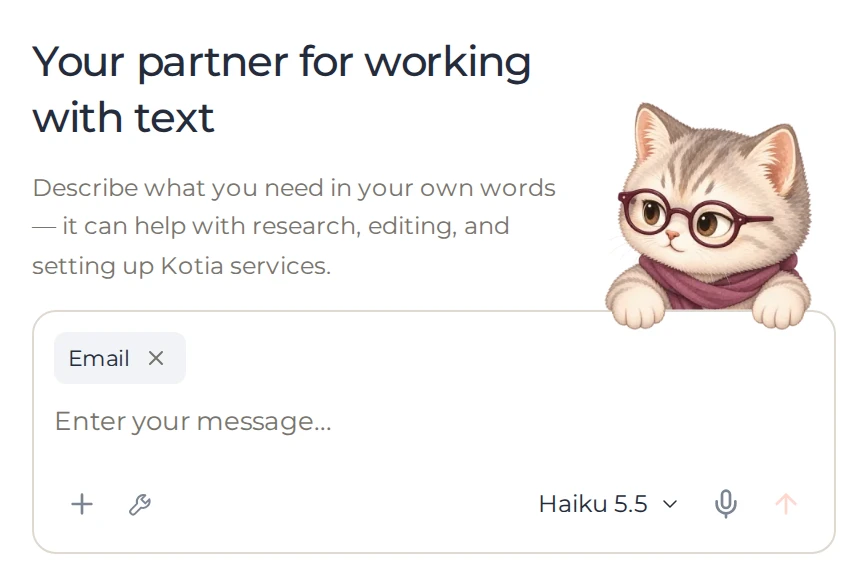
Return to the conversation. The skill appears next to the message field. Now provide the task and the materials.
 1
- 1The skill for this conversation; the cross removes it
The choice applies only to the current conversation. For a different task, choose another skill or remove the current one by clicking the cross. The task determines the content of the work, so the same skill works for different materials of the same type.
How to choose the right method
| Skill | What it adds to the agent's work |
|---|---|
| Subject line, the core of the message, a suitable tone and a specific request | |
| Journalism | Structure of the piece, order of facts and work with sources |
| Argumentation | The link between the thesis and evidence, logic and strong counterarguments |
| Fact-check | Checking individual claims and a report with supporting reasons |
| Commercial copywriting | Audience, the benefits of the offer, evidence and a call to action |
| Social post | The opening line, one main idea and the format of the chosen platform |
| Short-form video | A filming script: speech, shots, development and ending |
| Screenplay | Conflict, episodes, actions and dialogue for the screen |
| Fiction scene | Work on the scene, point of view and the manner of the prose |
Where to choose the text's voice
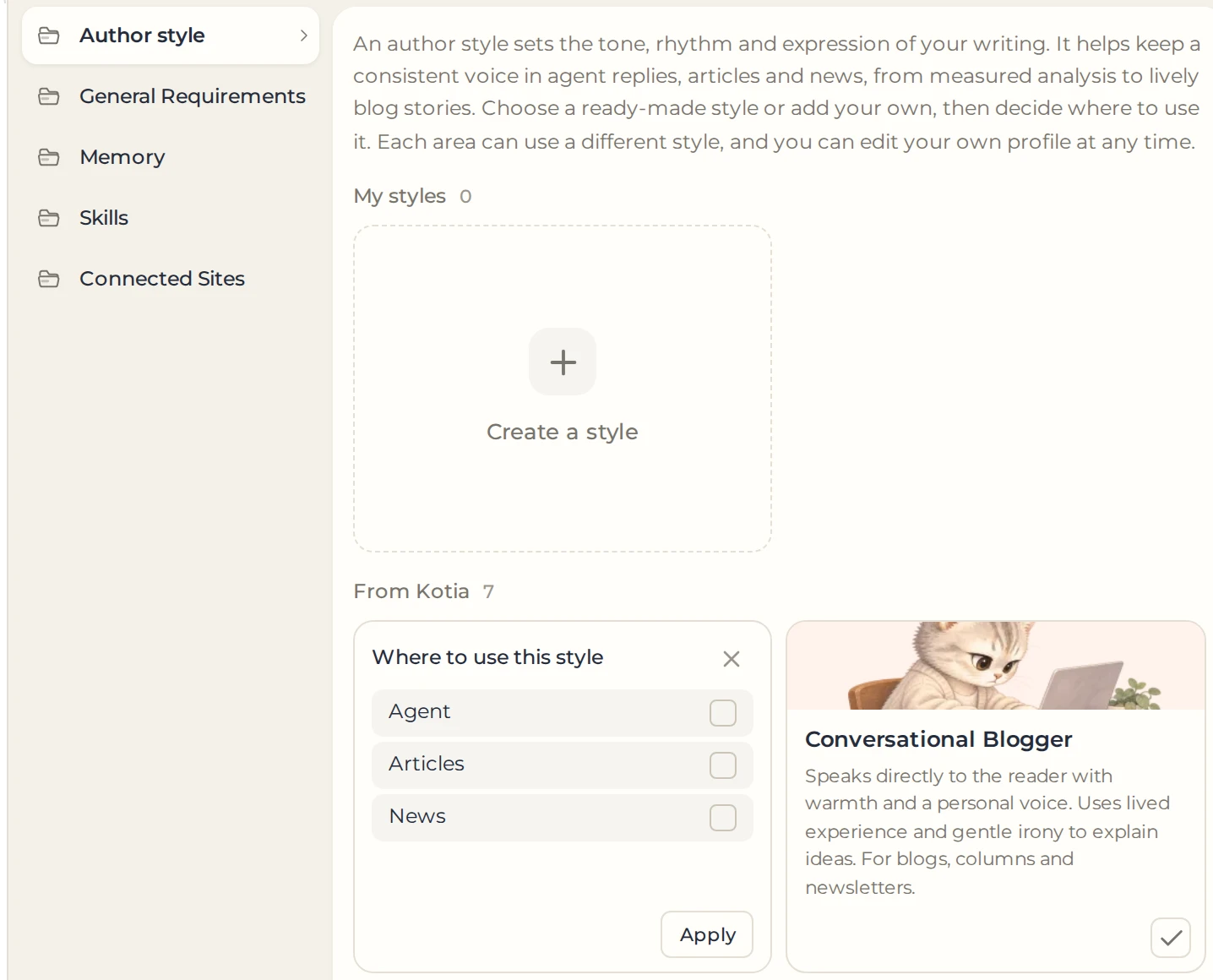
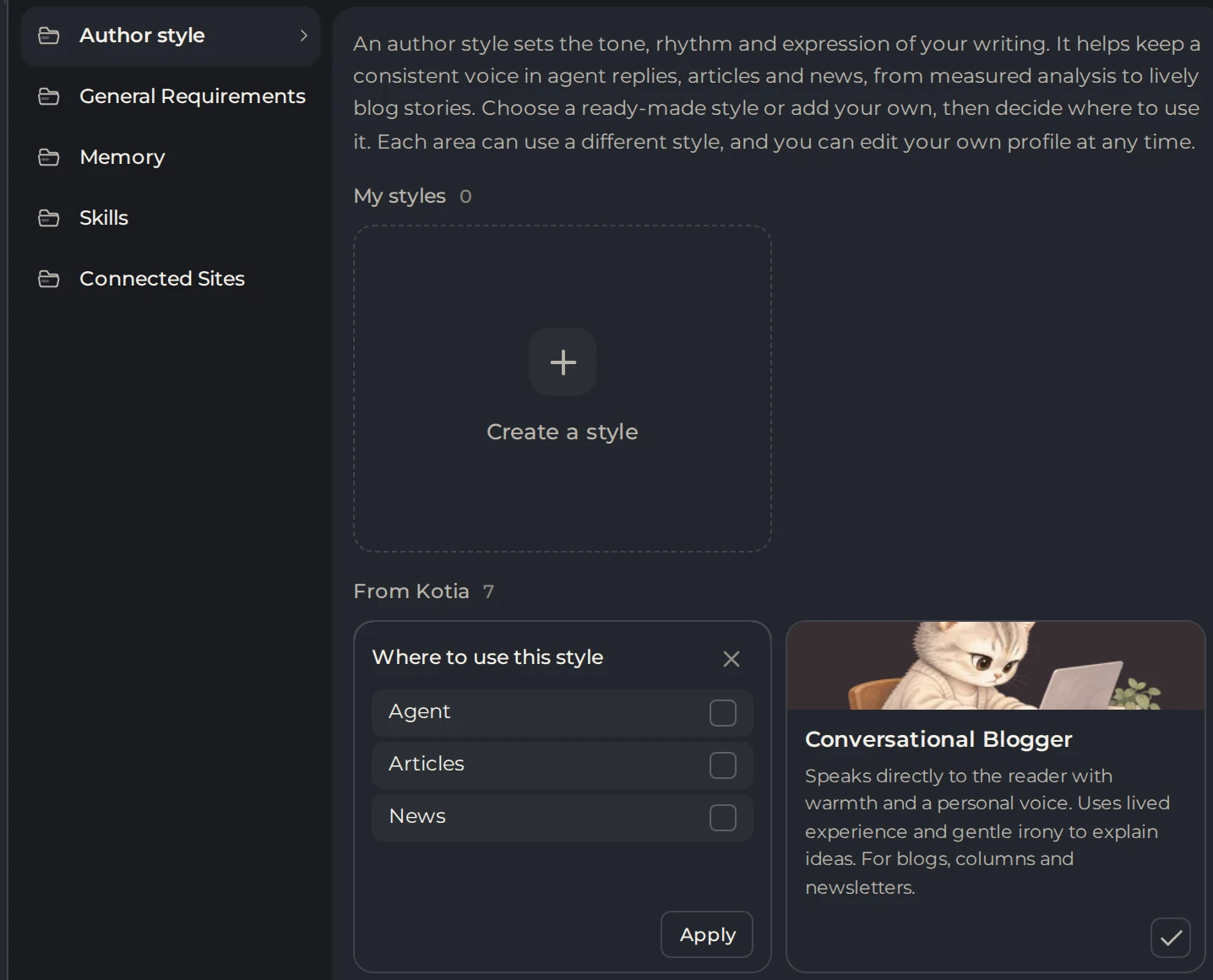
Open "Settings" → "Author style". Next to the style you want, click "Select" (the check mark), select the scope of use ("Agent", "Articles" or "News") and click "Apply". Working in a conversation requires the "Agent" scope.
 123
- 1Select a style
- 2Agent, Articles or News
- 3Apply
The ready-made options differ in presentation:
- Analytical Expert: calm, professional reviews.
- Conversational Blogger: a lively address to the reader.
- Investigative Journalist: a presentation that clearly separates facts from claims.
- Storyteller: stories told through people and events.
- Provocateur: a sharp authorial position.
- Educator: step-by-step explanations with examples.
- Novelist: a literary presentation of scenes and dialogue.
A style changes how the text is presented, but it isn't responsible for fact-checking or plot development. Assign these tasks to the agent, and choose a suitable skill if needed.
Connecting to a workflow
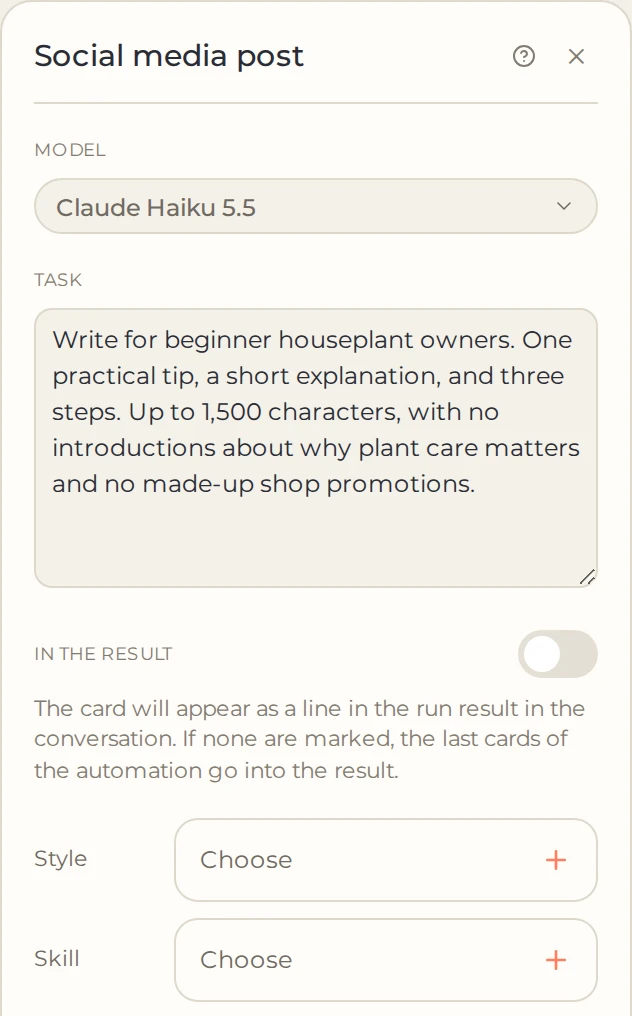
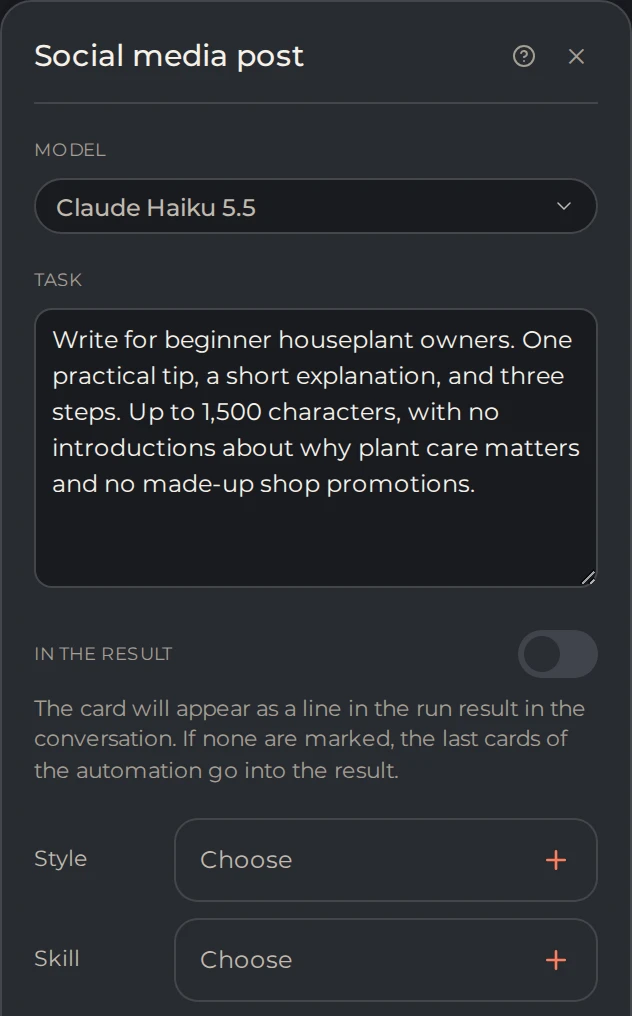
Open the settings of the step that writes the text. In the "Skill" or "Style" row, click "Choose". The connected option is applied every time this step runs, so you can keep a permanent method and voice while changing the material.
 12
- 1Style for this step
- 2Skill for this step
Each step accepts no more than one skill and one style, if it supports such connections. Skills are available for agent cards that create text. Styles are also available for some rewriting steps and the "Article" card. If the row you need is missing, cards of this type don't support this setting option.
Connecting a skill or style doesn't require a separate run and isn't charged separately. Its text is processed as part of the agent's paid work. A skill doesn't keep a history of results. Memory is meant for materials you need to keep between runs.